


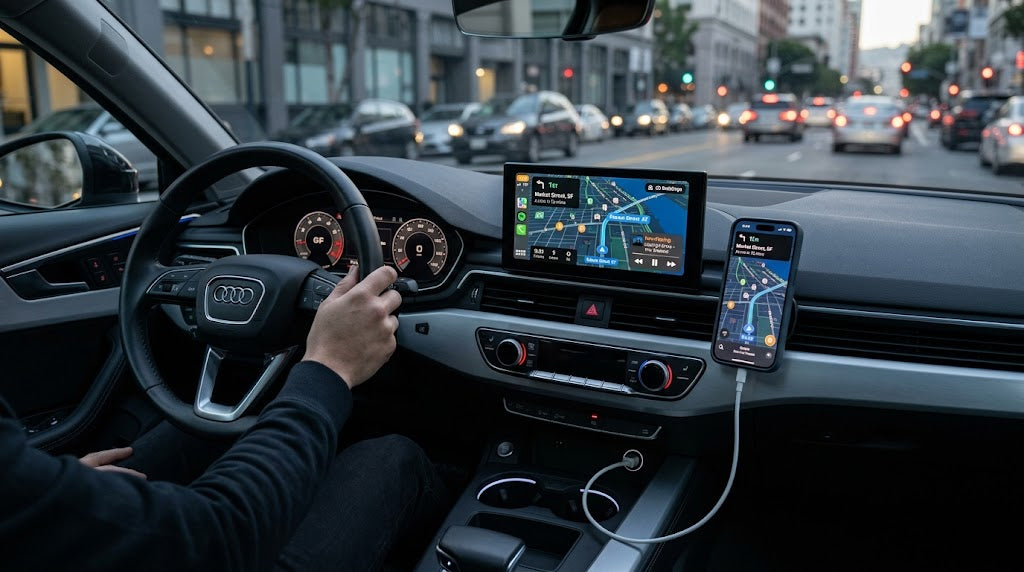
I have found that using apple car play on iphone makes my drive smarter and safer. Customizing the dashboard helps me create a personal space and keeps important apps close. I enjoy improved navigation and seamless connectivity. CARLUEX AIR is one of the easiest ways to add wireless CarPlay. Browse CARLUEX wireless adapters to find the right fit for your car.
-
Personalized apple car play on iphone lowers distractions and helps me stay focused.
-
Safety features like voice control and driving focus mode make my apple car play on iphone experience better.
I always try new carplay tips and tricks to get the best tips and tricks for a safe, enjoyable drive with my iphone.
What About Key Takeaways?
-
Personalize your Apple CarPlay dashboard by rearranging and removing apps. This helps you access your favorite apps quickly and reduces distractions while driving.
-
Use Siri for hands-free control of calls, messages, and navigation. This keeps your hands on the wheel and your eyes on the road, enhancing safety.
-
Enable Driving Focus to minimize distractions from notifications. This feature silences non-urgent alerts, allowing you to focus on driving.
What About Personalize Your Apple CarPlay Dashboard?
Rearranging and Removing Apps
I always start by organizing my apple carplay dashboard. I move my favorite apps to the front so I can reach them quickly. When I drive, I want to see the apps I use most, like Maps and Music. I remove apps I never use. This makes my dashboard look clean and helps me find what I need fast.
I noticed that rearranging apps reduces the time I spend searching for them. It keeps me focused on the road. Removing unused apps declutters my screen and makes carplay easier to use. I use widgets to add extra functions, like weather updates or calendar events. Widgets help me get information without opening different apps.
Tip: I always enable Dashboard View. It shows several apps at once and gives me a clear overview of carplay features.
Changing Wallpaper and Display Modes
I like to make my carplay dashboard feel unique. I change the wallpaper to match my mood or the season. Apple carplay lets me pick from different backgrounds. I choose bright colors for daytime and darker shades for night. I switch between Light and Dark Mode depending on the time of day. Light Mode is easy to see in the morning.
Dark Mode feels comfortable at night. Personalization makes my dashboard look fresh and keeps my drive enjoyable. When I customize apps and wallpapers, I feel more connected to my carplay experience. These carplay tips and tricks help me create a space that fits my style.
What About Use Siri for Hands-Free Control?

Voice Commands for Calls and Messages
I rely on siri to keep my drive safe and efficient. When I use carplay, I unlock convenience through voice control. I stay hands free with siri by using simple voice commands. I often say, "Hey siri, send a message to John," or "Call mom." These voice commands let me connect with friends and family without touching my phone.
I ask siri to "Read message from Kelly" or "Send a message to Sarah." I use voice control to reply to texts while driving. I never worry about missing important messages. Siri helps me stay focused on the road. I use voice commands to make calls and send messages quickly. I expand siri's role by asking for reminders or checking my calendar. I trust siri to handle my communication needs in carplay.
Tip: I always use voice control for calls and messages. It keeps my hands free and my eyes on the road.
Navigation and Media with Siri
I use siri for hands-free navigation in carplay. I ask siri for directions to my favorite places. I say, "Hey siri, take me to the nearest gas station," or "Find coffee shops nearby." Siri gives me turn-by-turn navigation and updates me about traffic. I use voice commands to play music or podcasts. I say, "Play my driving playlist," or "Play the latest episode of my favorite podcast.
" Siri helps me switch songs or adjust volume without touching the screen. I use voice control to manage media and navigation. Siri makes carplay more enjoyable and safer. I always rely on siri to guide me and keep my drive fun.
What About Explore CarPlay Tips for Maps and Navigation?

Real-Time Traffic and Satellite View
I use CarPlay every day to get the best out of maps and navigation. When I drive in the city, I rely on real-time traffic updates. CarPlay shows me traffic jams and slowdowns right on the screen. I see red lines for heavy traffic and green for clear roads. This helps me pick the fastest route. I also use satellite view to see buildings and landmarks.
The 3D city flyovers in some areas make it easy to spot my destination. I trust CarPlay because Apple Maps now gives me clear visuals and accurate directions. In big cities, I find the map accuracy matches what I get from Google. I use offline maps when I travel to places with poor signal. I always download offline maps before a road trip. This way, I never lose my driving directions, even in remote areas.
-
CarPlay uses Apple Maps for navigation directions.
-
I get turn-by-turn directions with voice prompts.
-
I can download offline maps for areas with weak signal.
-
Offline maps help me keep my driving directions even when I lose connection.
-
I use offline maps for hiking trips or long drives outside the city.
-
Maps in CarPlay show real-time traffic and satellite images.
-
I always check my route with offline maps before leaving.
Tip: Download offline maps before you start your trip. This keeps your navigation smooth, even if you lose signal.
Sharing ETA and Location
I often share my ETA and location with friends and family through CarPlay. When I start a trip, I tap the share button in maps. I send my estimated arrival time to my contacts. They see my progress and know when to expect me. I use this feature when picking up someone or meeting at a new place. Sharing my location gives everyone peace of mind.
I also use offline maps to make sure my ETA stays accurate, even if my phone loses service. CarPlay tips like this help me stay connected and safe on the road. I always remind myself to download offline maps so my directions and ETA updates work everywhere.
What About Enable Driving Focus and Do Not Disturb?
Setting Up Driving Focus
I always set up Driving Focus in carplay before I start my drive. This feature helps me block out distractions and keeps my attention on the road. When I activate Driving Focus, carplay automatically silences notifications and messages. I notice that my phone only shows important alerts, so I do not get distracted by every text or app update.
I use Driving Focus to make sure I get turn-by-turn navigation and real-time traffic updates without interruptions. I can reach emergency numbers with just a few taps if I need help. Here is a table that shows the main benefits I get from Driving Focus in carplay:
|
Benefit |
Description |
|---|---|
|
Voice Navigation |
Provides turn-by-turn directions and real-time traffic updates. |
|
Automatic Do Not Disturb Mode |
Activates automatically when driving to minimize distractions. |
|
Emergency Access |
Allows quick access to emergency numbers with minimal taps. |
Tip: I always check my Driving Focus settings before a long trip. This carplay tips feature keeps my drive safe and smooth.
Customizing Auto-Reply and Notifications
I customize auto-reply and notification settings in carplay to make my drive safer. When I turn on auto-reply, my phone sends a message to anyone who texts me. The message tells them I am driving and will respond later. This stops me from feeling the need to check my phone. I also adjust notification settings so only urgent calls come through.
If someone calls me several times, carplay lets the call go through in case it is an emergency. I use these features to stay focused on navigation and music. Here is a table that explains how auto-reply and notification customization help me drive safely:
|
Feature |
|
|---|---|
|
Auto-reply to texts |
Informs senders that the driver is busy and will respond later, reducing the urge to check messages. |
|
Driving Focus mode |
Silences notifications, minimizing distractions from incoming calls and messages while driving. |
|
Emergency call access |
Allows repeated calls to go through, ensuring that urgent communications can be received. |
I find that customizing these settings in carplay makes every drive safer. I stay focused on the road and enjoy my music or podcasts without interruptions.
What About Try SharePlay and Entertainment Features?
Sharing Audio and Video with Passengers
I tried SharePlay in carplay to let my friends control the music during road trips. At first, I thought it would make the drive more fun. In reality, it caused confusion. Everyone wanted to add their favorite songs, and the playlist changed too often. Sometimes, the vibe of the drive disappeared because someone added ten slow songs in a row. I learned that letting passengers manage the music can lead to chaos.
SharePlay is a feature designed to let other passengers control the music. In a perfect world, it would have made a great addition, but the reality is very different. Multiple people managing a simple task is a recipe for chaos. Imagine your friends adding songs to the queue that simply kill the vibe (or worse, they add 10 of these songs.
) Let's not forget, everyone has a different taste in music, and it's ideally the driver's choice that triumphs. Letting everyone handle it just complicates things.
I noticed SharePlay requires an Apple Music subscription for me as the driver. It does not work well with other apps like Spotify. Most carplay users rarely activate SharePlay because of these issues.
-
SharePlay requires an Apple Music subscription for the driver.
-
Compatibility issues arise with other music apps like Spotify.
-
The feature is rarely activated by carplay users due to these complications.
Here is a table showing how popular SharePlay and other entertainment features are in carplay:
|
Feature |
Popularity Level |
User Feedback |
|---|---|---|
|
SharePlay |
Low |
Complicated by subscription requirements and leads to chaos among users. |
|
Siri |
Moderate |
Criticized for reliability in driving contexts. |
|
Driving Focus |
Low |
Faces criticism for practicality while driving. |
Managing Music and Podcasts
I use carplay to manage music and podcasts during my drive. I prefer to control the playlist myself. I pick songs that match my mood and keep the energy up. When I want to listen to podcasts, I select episodes before starting the car. This helps me avoid distractions. I use Siri to play, pause, or skip tracks.
Siri works well for simple commands, but sometimes it does not understand me. I stick to Apple Music for the best experience in carplay. I find that managing navigation and music myself keeps the drive smooth and enjoyable. I always check my playlist and podcast queue before leaving. This way, I stay focused on the road and enjoy my favorite tunes.
What Is the Best Tips and Tricks for CarPlay Multitasking?

Using Multiple Apps Simultaneously
I use carplay every day to make multitasking easier. When I drive, I often need directions and music at the same time. I open Maps to follow my route and play my favorite playlist. I switch between apps quickly without losing focus. The split-screen dashboard view lets me see navigation and music controls together. I check my calendar while listening to podcasts.
I answer calls without closing Maps. I find that carplay keeps everything organized. I never miss important information because I can view multiple apps at once. I use the split-screen dashboard view to keep my drive smooth and efficient.
Tip: I always set up my dashboard before starting the car. This helps me avoid distractions and keeps my eyes on the road.
Dashboard View for Quick Access
The dashboard view in carplay shows several essential apps at the same time. I see navigation, music, and messages without switching screens. This feature saves me time and helps me stay focused. I use the dashboard view to check traffic updates while adjusting the volume. I read incoming texts without leaving the map screen. The dashboard view streamlines access to features, so I do not need to toggle between full-screen apps.
I find that carplay makes my drive safer and more convenient. I rely on the dashboard view for quick access to everything I need.
-
I use dashboard view to manage navigation and entertainment.
-
I check messages and calendar events without leaving the main screen.
-
I adjust settings and volume while watching my route.
I recommend using carplay’s dashboard view for multitasking. It keeps all important features within reach and makes every drive easier.
What About Optimize Audio Settings in Apple CarPlay?
Adjusting Sound and Equalizer
I always want my music to sound clear and powerful when I use carplay. I start by adjusting the sound settings in my car. I change the bass, mid, and treble to match my favorite songs. Sometimes I like strong bass for hip-hop, but I turn it down for podcasts. I center the balance and fade so everyone in the car hears the music evenly.
I test surround sound modes to see which one makes the music feel deeper. On my iPhone, I pick the "Late Night" or "Bass Booster" equalizer setting. These options make the sound richer and more exciting. I turn on Sound Check to keep the volume steady across different songs. I use Dolby Atmos for a more immersive experience. Here is a table that shows my recommended settings for carplay:
|
Setting Type |
Recommendation |
|---|---|
|
Bass, Mid, and Treble |
Adjust these to suit your preference. |
|
Balance and Fade |
Center the sound for even distribution. |
|
Surround Sound Mode |
Test different modes to enhance depth. |
|
iPhone EQ Settings |
Choose 'Late Night' or 'Bass Booster'. |
|
Sound Check |
Normalize volume across songs. |
|
Dolby Atmos |
Use for more immersive sound. |
Tip: I always try different settings until I find the perfect sound for my carplay experience.
Using Spatial Audio
I use spatial audio in carplay to make my music and podcasts feel like they surround me. Spatial audio uses Dolby Atmos technology, which makes the sound come from all directions. I notice that songs sound clearer and voices feel closer. Carplay lets me stream music, audiobooks, and podcasts in Dolby Atmos. I do not need to upgrade my car’s speakers because spatial audio works with the ones I already have.
The system adjusts the sound to fit my car’s space, so every drive feels special. Here is a table that explains how spatial audio improves carplay:
|
Feature |
Description |
|---|---|
|
Technology |
Utilizes Dolby Atmos for immersive audio experience. |
|
Compatibility |
Designed for Apple CarPlay, enhancing existing vehicle audio systems. |
|
Sound Optimization |
Adjusts sound reproduction to suit the vehicle's acoustic environment, improving clarity and depth. |
-
I stream music and podcasts in Dolby Atmos with carplay.
-
Spatial audio makes every drive feel like a concert or a theater.
Note: I always turn on spatial audio in carplay to enjoy a richer and more exciting sound.
What About Connect with Wireless Apple CarPlay on iPhone?
Setting Up Wireless Connection
I remember the first time I set up wireless carplay in my car. I felt excited to drive without plugging in my phone. To start, I made sure my car supported wireless carplay. I turned on both Bluetooth and Wi-Fi on my iPhone. My car’s infotainment system showed a prompt to pair a new device.
I selected my iPhone from the list. My phone displayed a code that matched the one on the car screen. I tapped “Pair” on my iPhone, and the connection finished in seconds. Now, every time I get in my car, carplay connects automatically. I do not need to take my phone out of my pocket or bag. This makes my drive smoother and keeps my focus on the road.
Tip: I always check that my iPhone runs the latest iOS version before setting up carplay. Updates often improve wireless features.
Troubleshooting Connectivity
Sometimes, wireless carplay does not connect right away. When this happens, I follow a few simple steps to fix the problem:
-
I make sure my iPhone is unlocked and running the latest iOS update.
-
I check that both Bluetooth and Wi-Fi are enabled on my iPhone.
-
I restart both my iPhone and my car’s infotainment system.
-
If carplay still does not connect, I forget the car’s Wi-Fi network on my iPhone and set up the connection again.
These steps usually solve most wireless carplay issues. I find that keeping my phone updated and checking my settings helps me avoid problems. If I still have trouble, I look for help in my car’s manual or visit Apple’s support page.
Note: I always keep my iPhone charged and close by to make sure carplay works every time I drive.
What About Stay Updated with CarPlay Tips and iOS Updates?
Checking for New Features
I always check for new features in carplay because updates can change how I drive. When Apple releases a new iOS version, I look for improvements in carplay. I notice that the dashboard now has customizable widgets. I can move widgets around to see weather, calendar, or music controls. Siri feels smarter with AI enhancements. Siri understands what I need based on where I am and what I am doing.
I see multi-screen support in my car. The navigation map appears on the main display, and music shows up on the passenger screen. Third-party apps work better because Apple expanded API access. I use more apps for podcasts and audiobooks. Predictive routing helps me plan my trip. Carplay suggests faster routes when traffic changes. Here are some of the most significant improvements I have seen:
-
Redesigned interface with customizable widget-based dashboard
-
AI-enhanced Siri integration with contextual awareness
-
Multi-screen support for instrument clusters and passenger displays
-
Enhanced third-party app compatibility
-
Advanced navigation features with predictive routing
Tip: I always read Apple’s update notes to find hidden carplay tips. I try new features as soon as they become available.
Updating Infotainment System
I update my car’s infotainment system regularly to keep carplay running smoothly. I check the settings menu in my car for software updates. Sometimes, the car asks me to connect to Wi-Fi before downloading updates. I follow the instructions on the screen. I make sure my iPhone has the latest iOS version. Updates fix bugs and add new carplay features. When I finish updating, I test navigation and music to see if anything changed.
I keep a list of carplay tips that work best after each update. If I have trouble, I ask my dealer for help or visit Apple’s support page. Staying updated makes my drive safer and more enjoyable.
|
Step |
What I Do |
|---|---|
|
Check for updates |
Open car settings, look for update |
|
Connect to Wi-Fi |
Follow prompts to download |
|
Update iPhone |
Install latest iOS |
|
Test features |
Try navigation and music |
Note: I always update both my car and iPhone to get the newest carplay features.
What About Troubleshoot Common CarPlay Issues?
Fixing App Crashes
I sometimes face app crashes when I use carplay. These crashes can happen with music, maps, or other apps. I learned that a few simple steps help me fix most problems. Here is what I do when an app freezes or closes by itself:
-
I disable all third-party carplay apps. This helps me find out if one of them causes the problem.
-
I test carplay with a different Apple ID. Sometimes, my account has old data that causes crashes.
-
I force-quit Apple Music while carplay is active. This clears any stuck playback.
-
I check for updates for my car’s head unit. Updates often fix bugs that make apps crash.
-
I use only Apple-certified USB cables. Bad cables can cause apps to freeze or stop working.
Tip: I always keep my apps and iPhone updated. This prevents many crashes before they start.
Resolving Connection Problems
Connection problems can stop carplay from working. I have seen both wired and wireless issues. When carplay does not connect, I follow these steps:
-
I check for software updates on my iPhone and car. Updates fix many connection bugs.
-
I use an Apple-certified USB cable for wired connections. I also check my phone’s charging port for dust.
-
For wireless carplay, I make sure Bluetooth and WiFi are on. I turn off any VPN apps because they can block the signal.
-
I restart both my iPhone and my car’s system if nothing else works.
Most of the time, these steps solve my problems. If carplay still does not work, I contact Apple Support or my car dealer for help. I find that regular updates and good cables keep carplay running smoothly.
I see how these Apple CarPlay tips make my drive safer and more convenient. I use Siri for reminders and hands-free calls. I unlock my car with my iPhone and always find my parking spot. I check for updates often. New features and large displays keep my driving experience fresh and smart.
FAQ
How do I fix Apple CarPlay if it stops working?
I restart my iPhone and car system. I check for updates. I use an Apple-certified cable. These steps usually solve most problems.
Can I use Apple CarPlay without a cable?
I use wireless CarPlay if my car supports it. I turn on Bluetooth and Wi-Fi on my iPhone. CarPlay connects automatically when I start the car.
What apps work best with Apple CarPlay?
I use Apple Maps, Music, and Podcasts. I also try third-party apps like Spotify and Audible. These apps run smoothly and make my drive enjoyable.



留言
所有留言在發布前都會經過審核。
此網站已受到 hCaptcha 保護,且適用 hCaptcha 隱私政策以及服務條款。