

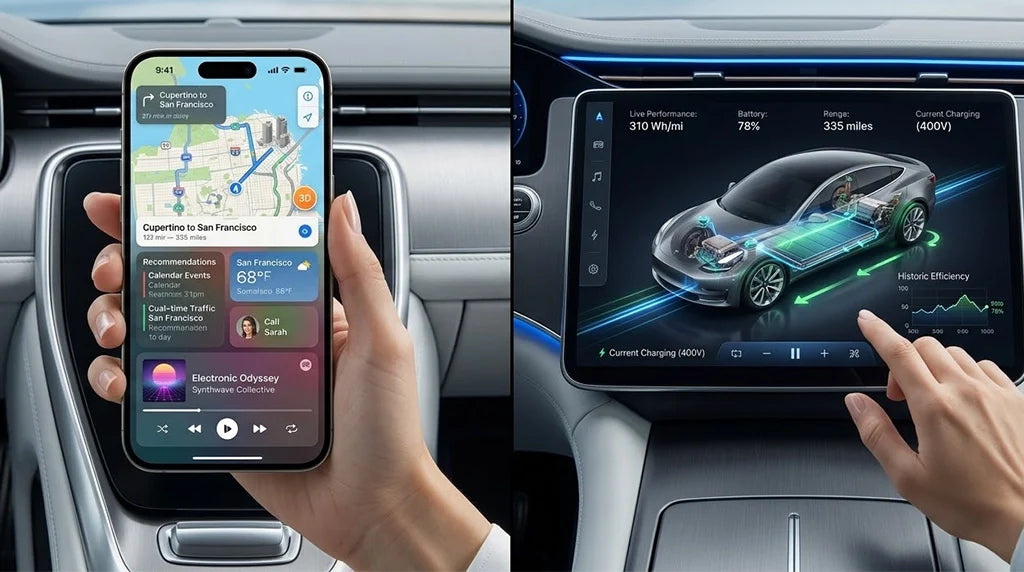
You might wonder why your wired CarPlay stopped working after you updated to iOS 26.4. CarPlay can have problems for many reasons, even when Apple adds new features or fixes bugs. Most CarPlay issues can be fixed with easy steps. People often say they are missing video features, have trouble with AI assistants, or face problems with navigation. Here are some common concerns: CARLUEX AIR makes wireless CarPlay work in any car with a USB port. CARLUEX PRO works out of the box — no wiring or tools needed. Browse CARLUEX wireless adapters to find the right fit for your car.
|
User Concern |
Description |
|---|---|
|
Video Feature Not Appearing |
Video playback options do not show up. This often happens because of park detection or app permissions. |
|
AI Assistant Integration |
Third-party AI apps may need new permissions or app updates to work with CarPlay. |
|
Navigation Enhancement Issues |
Multi-stop routing problems can happen. This can be because of missing address details or GPS problems. |
Follow each CarPlay troubleshooting step in this guide to fix your Apple CarPlay problems.
What About Key Takeaways?
-
First, look at your cables and ports. Only use Apple-certified cables for a good connection.
-
Restart your iPhone and car system to fix small problems. This easy step can often solve connection issues.
-
Make sure CarPlay is turned on in your iPhone settings. If permissions are missing, CarPlay might not work.
-
Update your iPhone and your car’s infotainment system often. New software helps stop compatibility problems.
-
If you still have problems, get help from an expert. Call Apple support or your car dealer for bigger issues.
Wired CarPlay Not Connecting on iOS 26.4?
Common Causes of Connectivity Issues
Sometimes, wired CarPlay does not connect after you update to iOS 26.4. This can happen for many reasons. The most usual problems are bad cables, old car infotainment systems, and wrong settings on your iPhone. System permissions or app restrictions can also stop the carplay connection. Your car’s USB port might be loose or dirty, causing issues.
How wired CarPlay works depends on your car model. Cars with big touchscreens show videos better. Smaller screens still work but are not as fun. Newer cars use AI assistants well, so hands-free is easier. Older cars may drain your battery during long video sessions. Some cars do not charge your phone by themselves, so you need to check your battery.
Tip: Always look at your car’s manual to see if carplay works and what features it supports.
Quick Checks Before Troubleshooting
Try these easy steps before you start troubleshooting:
-
Restart your iPhone and your car’s infotainment system.
-
Unplug the USB cable and plug it back in. Try another port if you can.
-
Make sure your cable is Apple-certified.
-
Check if your iPhone has iOS 26.4 and your car supports it.
-
Watch for pop-up messages on your iPhone asking for permission to connect.
-
Clean the USB port and cable ends with a soft cloth.
These quick checks fix many carplay connection problems. If you still have apple carplay issues, follow the detailed carplay troubleshooting steps. Most common problems can be solved if you are patient and careful.
How Do I Fix Wired CarPlay Cable & Hardware Issues?
Check Wired CarPlay Cable Protocols
You need to use the right cable for wired CarPlay. Apple recommends an apple-approved cable that supports carplay protocols. If you use a cheap or old cable, your carplay connection may fail. Some cables only charge your phone but do not send data. Carplay needs both power and data to work. Always check the packaging or the cable itself for the Apple MFi logo. This logo means the cable meets Apple’s standards.
If you see “Accessory Not Supported” on your iPhone, your cable may not support carplay protocols. Try a different cable to see if the problem goes away.
Test Different USB Ports and Cables

You can fix many carplay issues by switching USB ports or cables. Many users have restored carplay by trying another port or a new cable. Sometimes, the port you use for charging does not support data transfer. Move your cable to another port in your car. If you have another apple-approved cable, use it for testing.
-
Users often report success after switching cables and ports.
-
Rebooting your iPhone and car system can also help.
-
Most carplay problems can be solved with these simple troubleshooting steps.
Clean and Inspect Connections
Dust or dirt in your car’s USB port or on your cable can block the carplay connection. Use a soft, dry cloth to clean both ends of the cable and the port. Look for bent pins or damage. If you see anything wrong, replace the cable. A clean and undamaged connection helps carplay work smoothly.
Tip: Always keep a spare cable in your car for quick troubleshooting.
What About CarPlay Troubleshooting Steps for System Permissions?
Enable CarPlay in iOS 26.4 Settings
You need to make sure CarPlay is enabled in your iPhone settings. This is the first step for a successful carplay connection. If you skip this, your wired carplay will not work. Follow these troubleshooting steps:
-
Connect your iPhone to Wi-Fi and check that your battery is at least half full.
-
Open iPhone settings, tap General, then tap Software Update.
-
Install iOS 26.4 if you have not done so.
-
Use a good cable to connect your iPhone to your car.
-
Carplay should start automatically and show new features.
If you do not see CarPlay, check your cable and try another USB port.
Adjust System Permissions and Restrictions
Permissions play a big role in carplay. If you set restrictions, some features may not work. For example, iOS 26.4 lets you play videos only when your car is parked. This keeps you safe and focused on driving. You can still use all other carplay features while driving.
-
Open iPhone settings and tap Screen Time.
-
Tap Content & Privacy Restrictions.
-
Make sure CarPlay is allowed.
-
If you use parental controls, check that CarPlay is not blocked.
If you adjust these permissions, you will fix many carplay issues.
Trust Your Car on iPhone
When you connect your iPhone to your car for the first time, you will see a message asking if you trust this car. You must tap Trust to allow the connection. If you do not, carplay will not work. This step helps your iPhone know that your car is safe.
-
Plug your iPhone into your car with a cable.
-
Watch for the Trust alert on your iPhone screen.
-
Tap Trust and enter your passcode if asked.
If you miss this step, unplug your iPhone and try again. Trusting your car is important for a smooth carplay experience.
Tip: Always check your iPhone settings and permissions if you have trouble with carplay. Most problems come from missed steps or blocked features.
What About CarPlay Connectivity Issues with Apps, Audio, and Siri?

App Compatibility on iOS 26.4
Some apps might not work right after you update to iOS 26.4. This is because app makers need to update their apps for new features. Compatibility is very important for carplay to work well. If an app is missing or keeps closing, look for updates in the App Store. Make sure your iPhone and all apps are up to date.
Some apps need extra permissions to work with carplay. Go to your iPhone settings and check app permissions. If carplay still does not work, restart your iPhone and try again.
Tip: Always look for app updates after a big iOS update to stop common compatibility problems.
Fix Audio and Microphone Problems
Audio problems can make carplay hard to use. If you cannot hear music or calls, or if people cannot hear you, try these easy steps. First, check the volume on your car and iPhone. Make sure your iPhone is not on silent. Next, unplug your iPhone and plug it back in. Try another USB port if you can. Clean your iPhone’s microphone and speaker areas.
If it still does not work, restart your iPhone and your car’s system. Your car’s audio system and your iPhone must work together for good sound.
|
Problem |
Solution |
|---|---|
|
No sound |
Check volume, reconnect, restart devices |
|
Microphone not working |
Clean mic, check permissions, restart |
Troubleshoot Siri and Voice Commands
Siri lets you use carplay with your voice. After updating to iOS 26.4, Siri answers faster and understands more questions. Apple made AI assistant integration better, so you get better results with Apple and other apps. If Siri does not work, check if Siri is turned on in your iPhone settings. Make sure your car can use voice commands.
Hold the voice button on your steering wheel or dashboard to start Siri. If you still have trouble, restart your iPhone and car system. Siri and carplay work better together now, but you may need to update your apps for the best results.
Note: Siri works better in wired carplay now, so hands-free control is easier and safer when you drive.
What About Advanced CarPlay Troubleshooting and When to Get Help?

Restart Devices and Reset Connections
Restarting your devices can fix many carplay problems. Turn off your car and wait for half a minute. Then restart your iphone. This step clears small glitches and often brings back the carplay connection. You do not need special skills to do this. If carplay still does not connect, reset network settings on your iphone. This removes saved Wi-Fi and Bluetooth connections. It can solve common carplay problems.
Tip: Use good cables to stop disconnections. Always check your cable before you try to fix carplay.
Update iOS and Infotainment Firmware
Update your iphone to iOS 26.4 to keep carplay working well. Updates fix bugs and add new features. Your car’s infotainment system also needs updates. Look in your car’s manual or on the maker’s website for firmware updates. These updates help your car and iphone work together. If you do not update your iphone or your car’s system, carplay may not connect.
Firmware updates are important for compatibility and stability. Wired carplay needs both your iphone and your car’s system to be updated. Old software can cause connection problems.
When to Seek Professional Support
If you have tried all steps and carplay still does not work, you may need help from a professional. Contact your car dealer or Apple support. They can check for hardware issues or deeper software problems. If you want a high-performance solution, try a device like the PRO + 2.0 Product. This device supports both apple carplay and Android Auto, offers OTA updates, and comes with after-sales support.
It works well with many cars and helps you avoid future carplay issues.
Note: Always keep your iphone and car system updated. This stops most carplay problems and keeps your connection stable.
You can fix most carplay problems by checking cables, permissions, and settings first. Always keep your iPhone updated and make sure your car system works with apple carplay. To have fewer wired carplay issues, try these tips: 1. Update your iPhone and car system often. 2. Use only certified cables for a strong connection. 3. Reset network settings if you keep having problems.
Many people say certified cables help maps load faster and stop disconnects. If you still have trouble, forget your car on your iPhone, restart both devices, and connect them again. You can also join forums or read guides for more help. For the best results, use certified accessories or advanced devices like the PRO + 2.0 Product.
FAQ
Why does CarPlay not show up after updating to iOS 26.4?
You may not see CarPlay because your cable or port does not support data transfer. Apple Support says only certified cables work. Try a different cable and port. Check your iPhone settings to make sure CarPlay is enabled.
How do I fix CarPlay if my apps are missing?

You can fix missing apps by updating them in the App Store. Some apps need updates for iOS 26.4. Apple recommends checking app permissions. Open Settings, tap the app, and allow CarPlay access. Restart your iPhone after updating.
What should I do if CarPlay audio is not working?
First, check your car and iPhone volume. Apple’s guide says to unplug and reconnect your device. Clean the ports. If the problem stays, restart both your car and iPhone. Update your car’s system if possible.
How do I reset CarPlay permissions on my iPhone?
Go to Settings, tap General, then CarPlay. Tap your car’s name and choose “Forget This Car.” Apple Support suggests reconnecting your iPhone and tapping “Trust” when asked. This resets permissions and often solves connection issues.
Can I use third-party cables for wired CarPlay?
Apple recommends using only MFi-certified cables. Third-party cables may not support data transfer. Check for the MFi logo on the cable. If you use a non-certified cable, CarPlay may not work. Switch to a certified cable for best results.




Leave a comment
All comments are moderated before being published.
This site is protected by hCaptcha and the hCaptcha Privacy Policy and Terms of Service apply.