

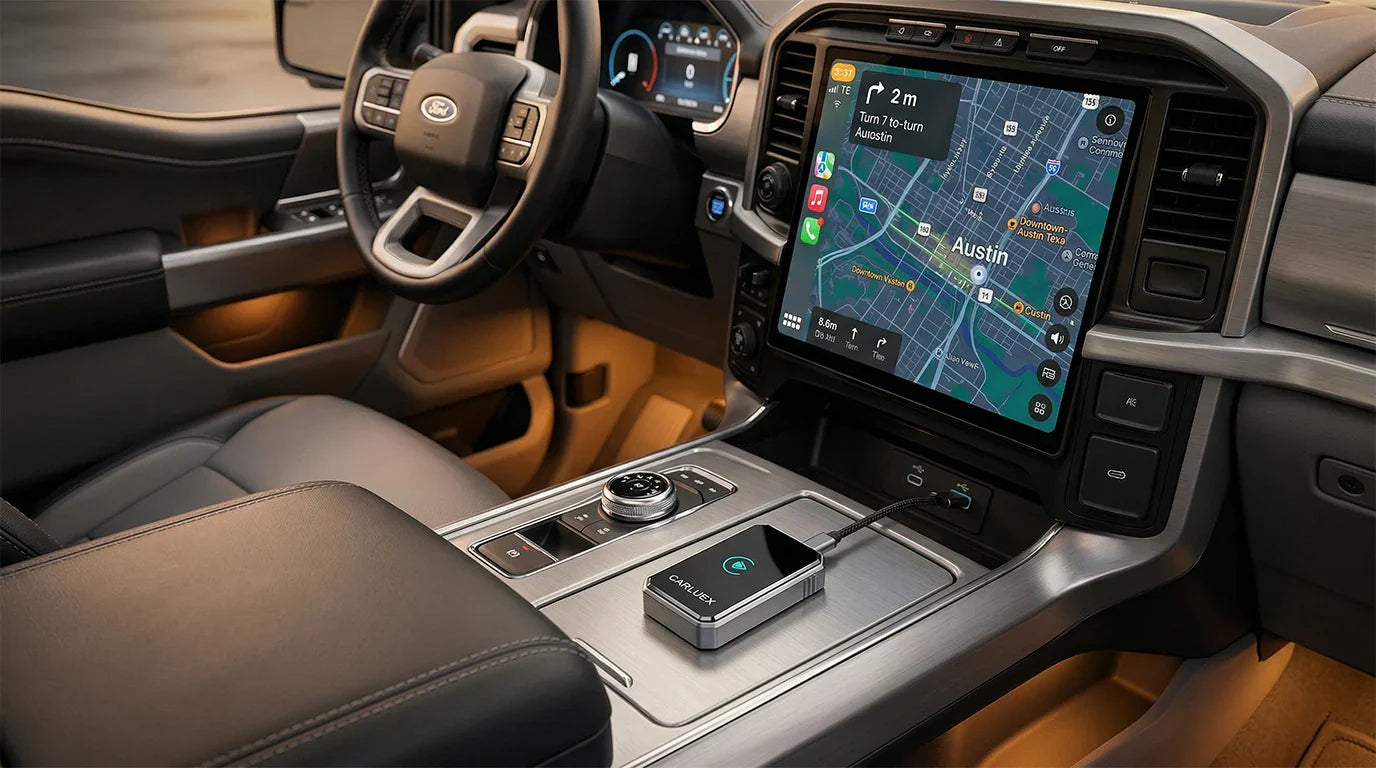
You may see that your USB C wireless CarPlay adapter does not connect in your Ford. This can happen if you use the wrong cable, plug into the wrong USB port, have old phone settings, or if the adapter is not seen by the system. Ford has lists that show which cars work with CarPlay. But even if your car is on the list, you can still have problems like a blank CarPlay screen, sound delay, or the connection dropping sometimes. CARLUEX AIR makes wireless CarPlay work in any car with a USB port. CARLUEX PRO works out of the box — no wiring or tools needed. CARLUEX PRO+ 2.0 adds wireless CarPlay and Android Auto to How-equipped vehicles. Browse CARLUEX wireless adapters to find the right fit for your car.
To fix these problems, start by checking your setup and look for things that can mess with the wireless signal. If your connection is not steady, use the steps in this guide to fix it fast.
Tip: Always use a good data cable and check your phone’s iOS version before you start.
What About Key Takeaways?
-
Always use a certified data cable. Use the right USB port for your CarPlay adapter. This helps keep the connection stable.
-
Check your iPhone settings to turn on CarPlay. Make sure Bluetooth and Wi-Fi are both on. This helps everything work right.
-
Keep your Ford's SYNC system updated. Update your iPhone to the newest software too. This helps stop connection problems.
-
If you still have problems, try resetting your iPhone's network settings. You can also reset your Ford's infotainment system. This gives you a fresh start.
-
If your adapter keeps disconnecting or is slow, you may need a new one. Get a new model that works with your car.
Why Won’t My USB C Wireless CarPlay Adapter Connect?

Common Causes in Ford Vehicles
You may notice your USB C wireless CarPlay adapter fails to connect in your Ford. This usually happens because of a few main reasons. Sometimes, the USB cable does not support data transfer, or the port has dust inside. You might plug into a port that only charges your phone, not one that supports CarPlay. Your iPhone settings may block CarPlay, or your Ford SYNC system needs an update.
If you install the adapter but the CarPlay screen stays blank or connection drops, these issues are likely the cause.
Note: Ford vehicles often have multiple USB ports. Only some support CarPlay. Always check your owner’s manual to find the right port.
Quick Diagnosis Steps
You can fix most connection drops and setup problems by following a few simple steps. First, use the original Apple cable or a high-quality replacement. Inspect the USB port for dust or debris. Try a different port if your phone charges but CarPlay does not start. If you install the adapter and still see no CarPlay, check your iPhone settings.
Go to Settings > General > CarPlay and make sure your Ford is listed. Enable CarPlay for your car. Turn on Siri by going to Settings > Siri & Search and activating 'Listen for Hey Siri' and 'Allow Siri When Locked'. Update your iPhone and Ford SYNC system. Restart your iPhone and your car to refresh the connection. These steps help you quickly find and fix the problem.
Tip: If you still experience connection drops after these steps, try a new cable or adapter.
Which Ford Models Support CarPlay?
List of Compatible Ford Vehicles
Many Ford cars let you use Apple CarPlay. Ford added CarPlay in 2016 with a software update. Most new Ford models have CarPlay already. If your Ford is from 2017 or newer, it probably works with CarPlay. Here are Ford models and years that support CarPlay:
-
2017–2019 C-MAX
-
2017–2025 Edge
-
2017–2025 Escape
-
2017–2025 Expedition
-
2017–2025 Explorer
-
2017–2025 F-150
-
2017–2019 Fiesta
-
2017–2019 Flex
-
2017–2019 Focus
-
2017–2020 Fusion
-
2017–2025 Mustang
-
2017–2025 Super Duty
-
2017–2019 Taurus
-
2017–2025 Transit
-
2017–2022 Transit Connect
-
2018–2022 EcoSport
-
2018–2023 Ford GT
-
2021–2025 Bronco
-
2021–2025 Bronco Sport
-
2021–2025 Mustang Mach-E
-
2022–2025 Evos
-
2022–2025 Maverick
-
2023–2025 E-Transit
-
2025 Capri
Tip: If your Ford is not listed, look for updates or ask your dealer if CarPlay works.
Checking Your Vehicle’s Year and System
Check your Ford’s year and infotainment system to see if CarPlay works. Most Fords from 2017 and later have CarPlay. Some older cars need a software update first. Use this table to see if your Ford matches the right models and years.
|
Model Year |
Compatible Models |
|---|---|
|
2017–2019 |
C-MAX, Fiesta, Flex, Focus, Taurus |
|
2017–2020 |
Fusion |
|
2017–Present |
Edge, Escape, Expedition, F-150, Transit, Transit Connect, Mustang, Super Duty, Explorer |
|
2018–Present |
EcoSport |
|
2021–Present |
Mustang Mach-E, Bronco, Bronco Sport |
|
2022–Present |
Maverick |
Look in your owner’s manual or on the infotainment screen for CarPlay. If you see the CarPlay icon or menu, your car supports it. If you do not see it, update your SYNC software or ask your Ford dealer for help.
Note: Always use the right USB port and a data cable for CarPlay to work best.
How Do I Check Compatibility: Adapter, iPhone, Ford?
Adapter and Vehicle Model Match
You should make sure your USB C wireless CarPlay adapter works with your Ford. First, check if your Ford has CarPlay built in. Most Fords made after 2017 have this feature. To be sure, look for the CarPlay icon in your car’s manual or on the screen. You can also use CARLUEX’s website to see if your adapter matches your Ford.
-
Make sure your Ford has CarPlay from the factory.
-
Look for CarPlay in your car’s menu.
-
Try online tools to check if your adapter and car work together.
Tip: If you do not see CarPlay or your Ford is missing from the list, ask your dealer about getting a software update.
iPhone and iOS Requirements
You need an iPhone that works with wireless CarPlay. CarPlay works with iPhone 5 or newer, and you need iOS 7.1 or higher. For the best results, use an iPhone 12 or newer with iOS 18.5 or above. Wireless CarPlay needs Bluetooth and Wi-Fi turned on. If your iPhone will not connect, check the table below to see if it is supported.
|
Compatibility Aspect |
Details |
|---|---|
|
Required iPhone Models |
|
|
Required iOS Version |
iOS 7.1 or higher |
|
Connection Type |
Wired for most models; wireless for select newer models |
Update your iPhone to the newest iOS version. Make sure Bluetooth and Wi-Fi are both on. Doing these things helps you avoid most problems with connecting.
Note: Always check if your phone and adapter work together before you buy or update anything.
What About Troubleshooting USB C Wireless CarPlay Adapter Issues?

Cable and Port Selection
You need to use a data-capable USB-C cable and the correct port for your usb c wireless carplay adapter to work in your Ford. Many problems happen when you use a cable that only charges or plug into a port that does not support CarPlay. High-quality cables transfer data faster and charge your phone quickly. They also last longer and prevent overheating.
Look for cables with 24AWG copper cores and CarPlay certification. These cables support up to 10Gbps data transfer and 3A fast charging. Always check your Ford’s manual to find the right port. If your adapter does not connect, try a different cable or port.
Tip: Avoid flat cables and low-quality adapters. They often cause connection drops and blank screens.
iPhone Settings and Permissions

You must set your iPhone correctly to use the usb c wireless carplay adapter. Go to Settings and turn on Bluetooth and Wi-Fi. CarPlay needs both to connect wirelessly. Make sure your Ford appears in the CarPlay menu. Enable Siri and allow CarPlay when your phone is locked. Problems often happen if Bluetooth or Wi-Fi is off, or if permissions are not set.
Update your iPhone to the latest iOS version. If you see connection errors, restart your phone and check the settings again.
Note: If your adapter still does not connect, try forgetting other Bluetooth devices and reconnecting.
Adapter Setup Steps
You must follow the right steps to set up your usb c wireless carplay adapter. Plug the adapter into the correct USB-C port. Wait for the adapter to power up. On your iPhone, search for the adapter’s Bluetooth name and connect. Make sure Wi-Fi is on. If your Ford’s screen stays blank, unplug the adapter and plug it back in. Problems can happen if you skip steps or use the wrong port.
Some adapters need a firmware update. Check the adapter’s manual for setup instructions. If you still have problems, try a new adapter or update your Ford’s SYNC system.
Callout: Always use the adapter’s user manual for troubleshooting. If you see repeated problems, contact support or try a different adapter.
What About Symptom and Solution Guide?
Symptom-to-Fix Table
You might see different problems when using a USB C wireless CarPlay adapter in your Ford. Each problem has a reason and a way to fix it. Use this table to find your problem and what to do next:
|
Symptom |
Likely Cause |
Solution |
|---|---|---|
|
Connection conflicts or software bug |
Remove extra Bluetooth pairings, update software |
|
|
Blank or frozen CarPlay screen |
Adapter setup error or bad cable |
Reboot adapter, use a certified data cable |
|
No CarPlay icon on screen |
Wrong port or outdated system |
Try another USB port, update SYNC system |
|
Audio delay or lag |
Wireless interference |
Move other devices away, restart connection |
|
App crashes or glitches |
Outdated app or iOS |
Reinstall app, update iPhone |
Tip: These problems can happen with any iPhone, even if your Ford is new. Always check for updates and use good cables for a better connection.
Quick Fix Scenarios
Most CarPlay adapter problems are easy to fix. Try these steps to help your system work better:
-
Remove extra Bluetooth pairings from your iPhone and car. This stops connection problems.
-
Restart your iPhone and your Ford’s infotainment system. Set up CarPlay again from the start.
-
Use a certified USB cable and clean the USB port. This helps keep the connection strong.
-
Update your iPhone and Ford’s SYNC system to the newest versions. Updates fix many bugs.
-
If an app keeps crashing, close it or reinstall it for a fresh start.
Note: Even new cables or adapters can have problems. Check and update things often to keep CarPlay working well.
What About Update Firmware and Software?
Adapter Firmware Update
You should update your adapter’s firmware to fix many problems with wireless CarPlay in Ford vehicles. Firmware is a kind of software that tells your adapter what to do. If your firmware is old, you might have trouble like losing connection or seeing a blank screen. Most adapters let you check for updates on their website or with an app.
Always follow the steps from the adapter’s maker. New firmware can fix issues with your connection to your iphone. You can find guides in the adapter’s manual or on the support page. If you skip updates, you may keep having the same problems every time you use CarPlay.
Tip: Make a habit to check for firmware updates every month. This helps you avoid lots of problems.
iPhone iOS Update
You need to keep your iphone’s iOS software updated to stop problems with CarPlay adapters. Apple gives new software often to fix bugs and make your iphone work better with other devices. If your software is old, your iphone may not connect to CarPlay or may lose the connection. Go to Settings, then General, then Software Update on your iphone to look for new software.
Download and install updates when you see them. Updated software helps your iphone connect to your adapter and your Ford’s system without trouble. Apple’s support page says keeping your iphone’s software up to date is the best way to stop most problems with wireless CarPlay.
|
Step |
Action on iPhone |
|---|---|
|
1 |
Open Settings |
|
2 |
Tap General |
|
3 |
Tap Software Update |
|
4 |
Download and install updates |
Note: Always restart your iphone after you update the software. This clears leftover problems and gives you a fresh start.
What About Reduce Wireless Interference?

Identify Interference Sources
Wireless CarPlay adapters can stop working if something blocks the signal. You can find interference by checking for devices that use Bluetooth or Wi-Fi near your Ford’s infotainment system. Phones, tablets, smartwatches, and dash cams can cause problems. Sometimes, power cables or chargers make interference if they are close to the USB port. You might see the CarPlay screen freeze or disconnect when there is interference.
Ford’s SYNC system works best if you keep other wireless devices away from the adapter. Tech experts say nearby electronics are the main reason for unstable wireless CarPlay connections. You should look for extra devices in your car and move them if you have trouble.
Tip: Turn off Bluetooth devices you are not using in your car to help lower interference.
Best Practices for Stable Connection
You can stop interference and keep your CarPlay adapter working well by following some easy steps. Put your adapter away from other electronics. Use a good USB-C cable that blocks interference. Keep your phone close to the adapter and do not put it near metal things. Update your Ford’s SYNC system and your iPhone to the newest software.
If you drive where there are lots of Wi-Fi networks, interference can get worse. Try parking in places with fewer wireless signals. You can check your adapter’s manual for more tips to lower interference. Experts say dual-band Wi-Fi adapters help reduce interference and keep your connection strong.
|
Action |
Result |
|---|---|
|
Move devices apart |
Less interference |
|
Use quality cables |
Stronger connection |
|
Update software |
Fewer interference issues |
|
Avoid metal surfaces |
Reduced interference |
Note: If you still see interference, restart your adapter and phone to get a fresh connection.
What About Advanced Fixes for Persistent Problems?
Reset iPhone Network Settings
You can fix many carplay connection problems by resetting your iPhone network settings. This step helps when your carplay connection drops often or the signal stays weak. Sometimes, your iPhone stores old connection data that blocks a strong signal. Apple support says a network reset clears Wi-Fi, Bluetooth, and VPN settings. This gives your iPhone a fresh start for carplay. To reset, go to Settings, tap General, then Transfer or Reset iPhone, and choose Reset Network Settings.
Your iPhone will restart. After the reset, set up your Wi-Fi and Bluetooth again. Try carplay to see if the connection and signal improve. This step often solves stubborn connection issues.
Tip: Write down your Wi-Fi passwords before you reset, so you can reconnect quickly.
Reset Ford Infotainment
You can also reset your Ford infotainment system if carplay still will not connect or the signal keeps dropping. A reset clears old connection data and refreshes the system. Ford recommends this step when you see repeated carplay errors or the connection fails to stay stable. To reset, turn off your car, open the driver’s door, and wait two minutes.
Then, close the door and restart your car. Some Ford models have a soft reset button on the infotainment screen. Check your manual for the right steps. After the reset, pair your iPhone again for carplay. This process helps the system find a clean signal and build a better connection.
Note: If you still have trouble, try both resets together. This gives your carplay connection the best chance to work.
What About Quick Reference Troubleshooting Guide?
Step-by-Step Summary
You can fix most USB C wireless CarPlay adapter problems by following easy steps. First, check if your Ford works with CarPlay. Make sure your adapter fits your car and supports wireless CarPlay. Use a good USB-C cable that can send data, not just charge. Clean the USB port and try other ports if it does not work.
Turn on Bluetooth and Wi-Fi on your iPhone. Update your iPhone’s iOS and your Ford’s SYNC system to the latest version. Restart your iPhone and your Ford to refresh the connection. If you still see problems like disconnects or slow response, remove extra Bluetooth pairings and look for things that might block the wireless signal. Update your adapter’s firmware to help it work better. If nothing helps, reset your iPhone’s network settings and your Ford’s infotainment system.
Tip: Keep your adapter away from other electronics. This helps stop interference and makes it work better.
|
Step |
Action |
|---|---|
|
1 |
Check Ford and adapter compatibility |
|
2 |
Use a data-capable USB-C cable |
|
3 |
Clean and try different USB ports |
|
4 |
Enable Bluetooth and Wi-Fi on iPhone |
|
5 |
Update iOS and SYNC system |
|
6 |
Restart devices |
|
7 |
Remove extra Bluetooth pairings |
|
8 |
Update adapter firmware |
|
9 |
Reset network and infotainment settings |
When to Try a New Adapter
Think about getting a new USB C wireless CarPlay adapter if you keep having problems that do not go away after trying all the fixes. If your adapter keeps disconnecting, has sound delays, or will not connect by itself, it might be old or broken. If it only works sometimes or you have to unplug it a lot, it may not work well anymore.
These signs mean the adapter cannot keep up with your Ford or your iPhone. Getting a new adapter can help your CarPlay work better and make it easier to use.
-
The adapter keeps disconnecting even after you try all the fixes
-
Sound is slow or late and makes driving harder
-
The adapter will not connect by itself or only works sometimes
-
You have to unplug it a lot to make it work
-
The adapter gets too hot or looks worn out
Note: A new adapter can help your CarPlay work better and make things less frustrating if your old one cannot keep up.
You can fix most USB C wireless CarPlay adapter problems by trying each step one at a time. Start with the quick reference guide and follow each fix before going to the next one. You do not need help from a professional for most issues. If you still notice lag or want a stronger fix, think about using the PRO+ 2.0 adapter. This adapter works with many Ford models and gives good performance. You also get helpful after-sales support:
|
Warranty |
Return Policy |
|---|---|
|
30 days |
Save this guide so you can find answers quickly whenever you need them.
FAQ
What should you do if your Ford does not recognize the CarPlay adapter?
First, check the USB port and cable. Some Ford cars only let CarPlay work on certain ports. You can look in your Ford manual to find the right port. Try using a certified data cable. If it still does not work, update your SYNC system.
Tip: Use the port that says “data,” not just “charging.”
Why does CarPlay disconnect or lag in your Ford?
CarPlay can disconnect or lag if there is wireless interference or old software. Devices like dash cams and smartwatches can mess up the signal. Ford’s SYNC system works best when the software is updated. Move other electronics away and update your iPhone and SYNC system.
|
Action |
Result |
|---|---|
|
Move devices |
Fewer drops |
|
Update software |
Smoother use |
How can you update your CarPlay adapter’s firmware?
Go to the maker’s website or use their app to update your adapter’s firmware. Firmware updates fix bugs and make the adapter work better. Most brands give you easy steps to follow. Check for updates every month to keep your adapter working well.
Note: Restart your adapter after you update the firmware.
What iPhone settings help wireless CarPlay work?
Turn on Bluetooth and Wi-Fi on your iPhone. Go to Settings, then General, then CarPlay, and check if your Ford is listed. Apple says you should turn on Siri and update your iOS. Restart your phone after you change these settings for a fresh connection.
-
Bluetooth: On
-
Wi-Fi: On
-
Siri: On
When should you replace your CarPlay adapter?
Get a new adapter if it keeps disconnecting, gets too hot, or will not connect after you try all the fixes. Old adapters may not work with new Ford or iPhone models. Reports say new adapters work better and are easier to use.
Advice: Try a new adapter if your old one keeps having problems.


Laisser un commentaire
Tous les commentaires sont modérés avant d'être publiés.
Ce site est protégé par hCaptcha, et la Politique de confidentialité et les Conditions de service de hCaptcha s’appliquent.