

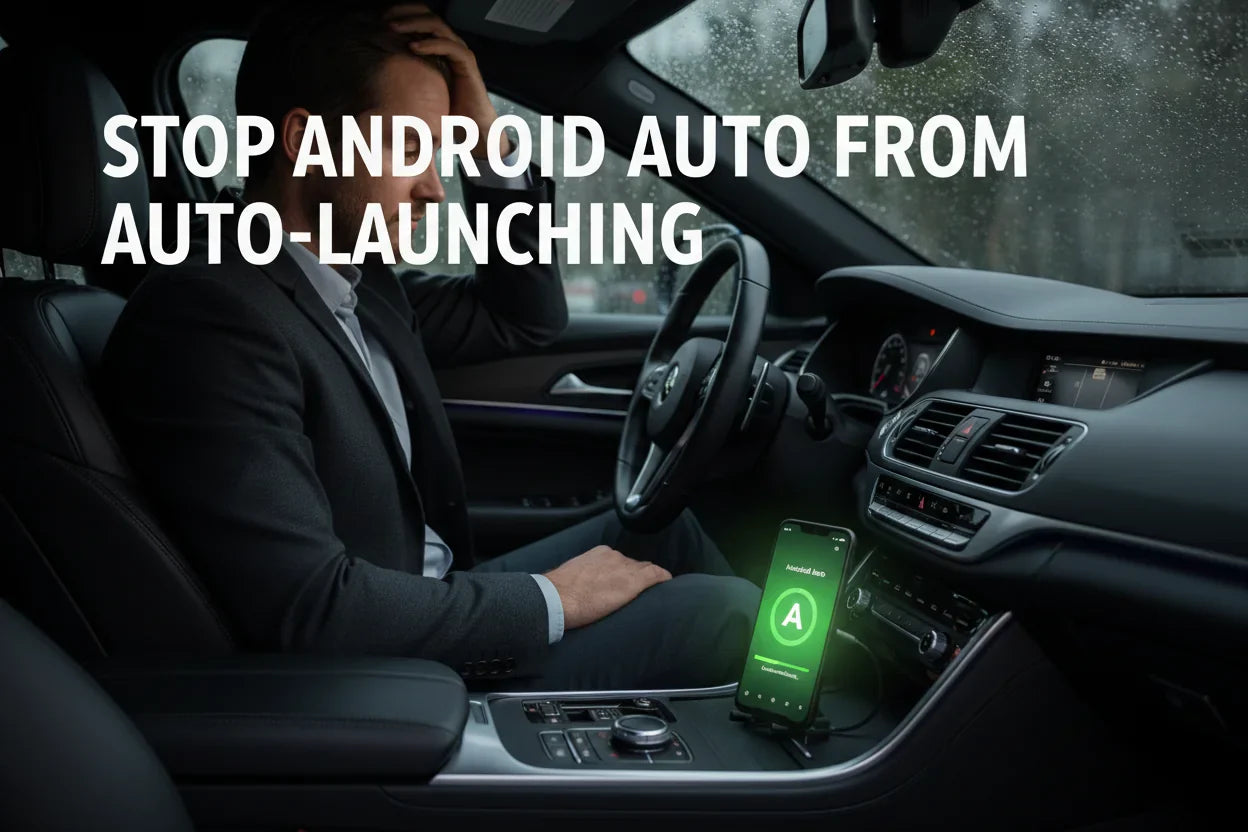
If Android Auto starts every time you turn on the car, plug in your phone, or get close enough for wireless pairing, the fix is usually in three places: Android Auto startup settings, saved car connections, and the vehicle's own smartphone connection menu. Start with the least risky setting changes first. Do not disable core phone services unless you are comfortable reconnecting Android Auto later.
Change settings only when the vehicle is parked. Do not adjust phone or infotainment settings while driving.

Quick Answer: How to Stop Android Auto from Auto-Launching
| Problem | Best first step | Where to check |
|---|---|---|
| Android Auto opens when the car starts | Change Android Auto startup behavior if your phone shows the option | Android Settings, then search for Android Auto |
| Phone reconnects to an old or rental car | Forget the saved car from Android Auto and Bluetooth | Android Auto connected cars list and Bluetooth paired devices |
| Music starts playing automatically | Turn off media auto-play in the app or car system | Spotify, YouTube Music, car media settings, or Android Auto media settings |
| Wireless Android Auto keeps reconnecting | Remove wireless pairing and reconnect only when needed | Android Auto, Bluetooth, Wi-Fi, and vehicle device management menus |
Google's Android Auto setup guidance says that once your phone is paired with your car by Bluetooth, Android Auto should start within a few seconds. That automatic behavior is useful when you want Android Auto every drive, but it can be annoying if you share vehicles, use rental cars, or only want Bluetooth audio.

First, Know What Is Starting Automatically
Users often call several different problems "Android Auto auto-connect." The fix depends on which one you mean.
- Android Auto auto-launch: the Android Auto interface starts on the car screen.
- Bluetooth auto-pairing: your phone connects to the car for calls or audio, even if Android Auto does not open.
- Wireless Android Auto reconnecting: Bluetooth starts the handshake, then Wi-Fi handles the projection connection.
- Media auto-play: Spotify, YouTube Music, or another app starts playing after the phone connects.
Fix them one by one. Turning off media auto-play will not necessarily stop Android Auto from launching, and forgetting a Bluetooth device will not change Spotify's own auto-play behavior.

Check Android Auto Startup Settings on Your Phone
Android menus vary by phone brand, Android version, and car system. Instead of relying on one exact path, open Settings on your Android phone and search for Android Auto. On some phones, Android Auto settings may appear under Connected devices, Apps, Google, or Connection preferences.
- Park the vehicle and disconnect from Android Auto.
- On your Android phone, open Settings.
- Search for Android Auto.
- Open Android Auto settings and look for a startup, launch, or connected cars section.
- If you see Start Android Auto automatically, Auto-launch, or a similar option, choose the least automatic setting available.
- If your phone does not show that option, continue with saved car and vehicle settings below.
The exact label can vary by Android version. Some phones show startup controls clearly; others rely more on the car's infotainment settings and saved vehicle list.
Remove Old Cars from Android Auto and Bluetooth
If Android Auto keeps connecting to a rental car, a shared family car, or a vehicle you no longer use, remove it from both Android Auto and Bluetooth. Google's Android Auto help center includes troubleshooting topics for connection issues and app visibility, and the safest first step is usually to clean up saved connections before changing deeper phone settings.
- Open Android phone Settings and search for Android Auto.
- Look for connected cars, previously connected cars, or saved vehicles.
- Remove the car you do not want to connect automatically.
- Return to Android Settings and open Bluetooth.
- Forget the same car from paired Bluetooth devices.
- Restart the phone and test again while parked.
If you later want Android Auto in that car again, you can pair it again from the beginning.
What If This Happens in a Rental or Shared Car?
If Android Auto keeps reconnecting to a rental, shared, or old vehicle, remove the car from Android Auto, Bluetooth, and the vehicle's saved device list. This helps prevent your phone from reconnecting automatically and reduces the chance that call, contact, or media connection records stay available in a car you no longer use.
If you also use Apple CarPlay in shared vehicles, see how to remove a phone from CarPlay before returning, selling, or sharing a car.

Change the Vehicle's Android Auto Settings
Many vehicles have their own smartphone projection menu. The wording changes by brand, but common labels include Phone Projection, Smartphone Connection, Android Auto, Device Management, Connectivity, or Projection Settings.
- Turn off automatic Android Auto launch if your car offers the option.
- Remove your phone from the car's saved Android Auto devices.
- Disable wireless Android Auto for that phone if you only want USB use.
- Check whether the car has separate settings for Bluetooth audio and Android Auto projection.
Some cars treat Bluetooth calls, Bluetooth audio, wired Android Auto, and wireless Android Auto as separate connection modes. If you only turn off Bluetooth audio, Android Auto may still launch by USB. If you only remove Android Auto, Bluetooth calls may still connect.
Stop Music Apps from Auto-Playing
If your main issue is music starting automatically, Android Auto may not be the only cause. Spotify, YouTube Music, podcast apps, Bluetooth media settings, and the car's infotainment system can all resume playback after a connection.
- Open the media app and look for auto-play, resume playback, or car mode settings.
- Check the car's media settings for auto-play over USB or Bluetooth.
- Pause media before turning off the car and test whether the app resumes next time.
- If one app keeps starting, troubleshoot that app separately instead of disabling all Android Auto features.
For Spotify-specific behavior, see our related guide: Stop Spotify from Auto-Playing on Android Auto.
Wireless Android Auto: Why It Reconnects So Easily
Google's Android Auto requirements explain that wireless projection needs a compatible phone, an active data plan, and 5 GHz Wi-Fi support on supported setups. You can review Google's Android Auto getting started requirements and the official Android Auto vehicle compatibility list if you are unsure whether your car supports Android Auto.
Wireless Android Auto usually uses Bluetooth to find and authorize the connection, then Wi-Fi for the projection session. That is why your phone may reconnect even when you are not using a USB cable. To stop this behavior, remove the saved Android Auto car, forget the Bluetooth pairing, and disable wireless Android Auto in the car menu if your vehicle offers that control.
Should You Disable or Uninstall Android Auto?
Use this only as a last resort. On many Android phones, Android Auto is part of the system experience and may not uninstall like a normal app. Disabling it can also remove a feature you may need later for navigation, calls, or music.
A safer sequence is:
- Change startup settings if available.
- Forget saved cars in Android Auto.
- Forget the car in Bluetooth settings.
- Change car infotainment projection settings.
- Only then consider disabling Android Auto from app settings, if your phone allows it.
Where CARLUEX Fits In
A wireless adapter does not control Android Auto auto-launch settings on your phone. Those settings are controlled by Android, Android Auto, the vehicle infotainment system, Bluetooth, Wi-Fi, and individual media apps. A wireless adapter can change how your phone connects to a compatible car, but it is not a repair tool for unsupported vehicles, damaged USB ports, blocked phone settings, or vehicle software problems.
If wired Android Auto already works reliably and you want a cleaner wireless setup, start by checking the product requirements for CARLUEX LINK. You can also compare CARLUEX AIR and CARLUEX GO if you need additional multimedia or adapter features. Wireless Android Auto support may require factory wired Android Auto, depending on the adapter model and vehicle system.
Before purchasing, check CARLUEX compatible vehicles or contact support if your vehicle is not listed.

Troubleshooting: Android Auto Still Starts Automatically
- It still launches by USB: use the car's projection settings or a charging-only USB port if available. A charge-only cable can prevent data projection, but it should be a deliberate workaround, not the first fix.
- It still launches wirelessly: forget the car in Android Auto, forget the Bluetooth device, and remove the phone from the car's device list.
- Music still starts: check the media app and the car's auto-play setting, not just Android Auto.
- The option is missing: Android settings differ by phone brand. Search Settings for Android Auto, then check Connected devices, Apps, Google, and Bluetooth menus.
- You use multiple cars: remove rental or old cars from both Android Auto and Bluetooth so your phone only remembers the vehicles you actually use.
Related CARLUEX Guides
- Why Android Auto Is Not Working and How to Fix It
- Stop Spotify from Auto-Playing on Android Auto
- Set Up Spotify with a CarPlay or Android Auto Adapter
- Use Waze with CarPlay, Android Auto, or a Wireless Adapter
- Browse CarPlay and Android Auto troubleshooting guides
FAQ
How do I stop Android Auto from opening automatically?
Open Android phone Settings and search for Android Auto. If your phone shows a startup or auto-launch option, choose the least automatic setting available. If that option is missing, forget the saved car in Android Auto, Bluetooth, and the vehicle's device list.
Why does Android Auto connect even when I do not plug in my phone?
Wireless Android Auto can reconnect through Bluetooth and Wi-Fi after the first setup. Remove the saved wireless pairing from Android Auto, Bluetooth, and the car's infotainment system if you do not want that car to reconnect automatically.
Will turning off Android Auto stop Bluetooth calls?
Not always. Bluetooth calls and Android Auto projection can be separate. If you only want calls but not Android Auto, keep the Bluetooth phone pairing but remove or disable Android Auto projection for that vehicle if your car allows it.
Can a CARLUEX adapter stop Android Auto from auto-launching?
No adapter can directly control Android Auto startup settings on your phone or car. A CARLUEX adapter can help create a wireless setup in compatible vehicles, but Android Auto auto-launch behavior is still controlled by Android, Android Auto, Bluetooth, Wi-Fi, the car system, and app settings.
Should I uninstall Android Auto?
Usually no. Try changing startup settings, forgetting saved cars, and adjusting vehicle settings first. Some Android phones treat Android Auto as a system feature, so uninstalling may not be available or may create extra setup work later.


Leave a comment
This site is protected by hCaptcha and the hCaptcha Privacy Policy and Terms of Service apply.