
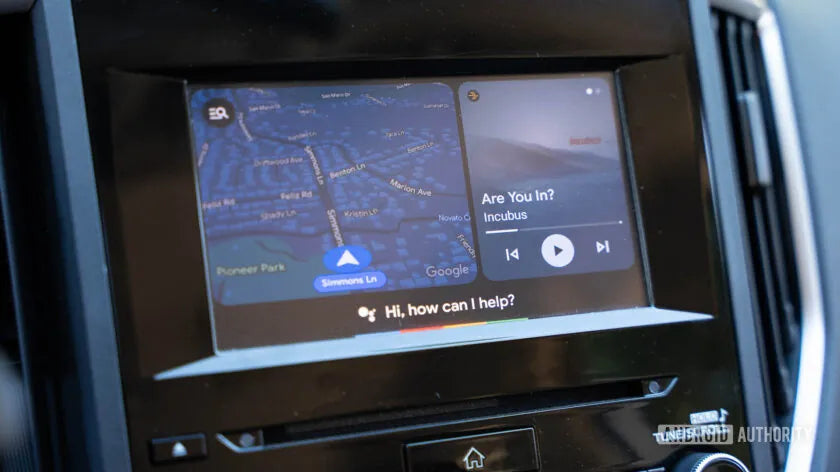
Quick answer: If Android Auto is not working, start with compatibility, the USB cable or wireless connection, phone permissions, Android Auto app settings, and vehicle software. Make changes while parked, then test the connection before driving.
Safety note: Do not troubleshoot Android Auto while driving. Park safely before changing phone settings, vehicle settings, cables, or adapter connections.
| Problem | Best first check | Where to look |
|---|---|---|
| Android Auto does not launch | Vehicle and phone compatibility | Android Auto compatibility list and vehicle settings |
| Phone charges but Android Auto does not start | Data-capable USB cable and correct USB port | Car USB port, phone USB mode, cable condition |
| Wireless Android Auto will not reconnect | Bluetooth, Wi-Fi, saved car pairing, and phone support | Phone settings and vehicle device list |
| Android Auto worked before but stopped | Android update, Android Auto update, app cache, or vehicle software | Google Play, phone app settings, and vehicle update menu |
Why Is Android Auto Not Working?
Android Auto can fail for several different reasons: the car may not support Android Auto, the phone may not meet current requirements, the USB cable may charge but not carry data, wireless pairing may be stuck, permissions may be blocked, or the vehicle infotainment system may need an update.
Google's official Android Auto setup guidance explains the basic requirements for a compatible phone, car, and connection method. For vehicle support, check the official Android Auto compatibility list before assuming the problem is your phone or cable.
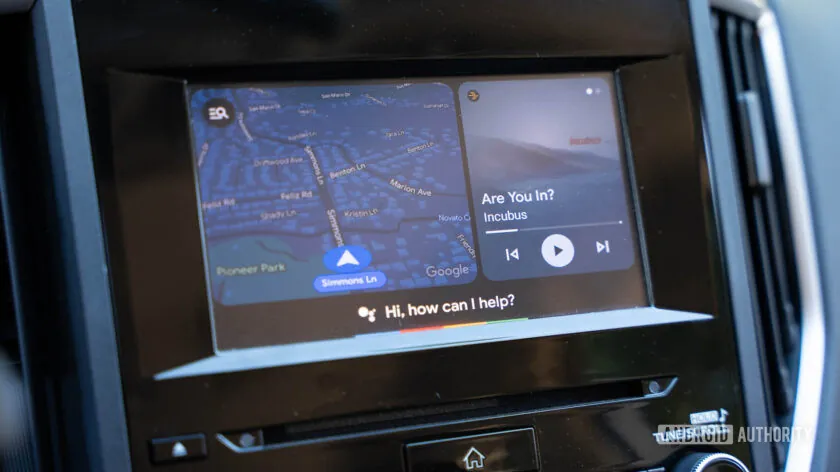
Check Android Auto Compatibility First
If Android Auto never appears on the car screen, confirm compatibility before replacing cables or resetting settings. Android Auto requires both a compatible phone and a compatible vehicle or stereo. Wireless Android Auto has additional phone, Wi-Fi, region, and vehicle requirements, so wired support does not always mean wireless support.
- Check whether your vehicle or stereo is listed on Android Auto's official compatibility page.
- Confirm that your Android phone is updated and has an active data connection.
- Check whether your vehicle supports wired Android Auto, wireless Android Auto, or both.
- If your car has multiple USB ports, use the port meant for phone projection, not a charge-only port.
Some newer vehicles also include native infotainment apps or Google built-in. Those are not the same as Android Auto. Built-in vehicle apps run on the car system, while Android Auto projects supported apps from your Android phone. If the built-in navigation works but Android Auto does not, the issue may still be the phone, USB port, wireless pairing, app permissions, or software compatibility.
Use the Right USB Cable and Port
If your phone charges but Android Auto does not start, the cable or port is a likely cause. A charging-only cable can power the phone without carrying the data needed for Android Auto. Use a data-capable USB cable, try a different cable, and connect directly to the vehicle's Android Auto-capable USB port.
Avoid USB hubs, loose adapters, damaged connectors, and long or worn cables while troubleshooting. If Android Auto starts with one cable but not another, keep the working cable in the car and replace the unreliable one.
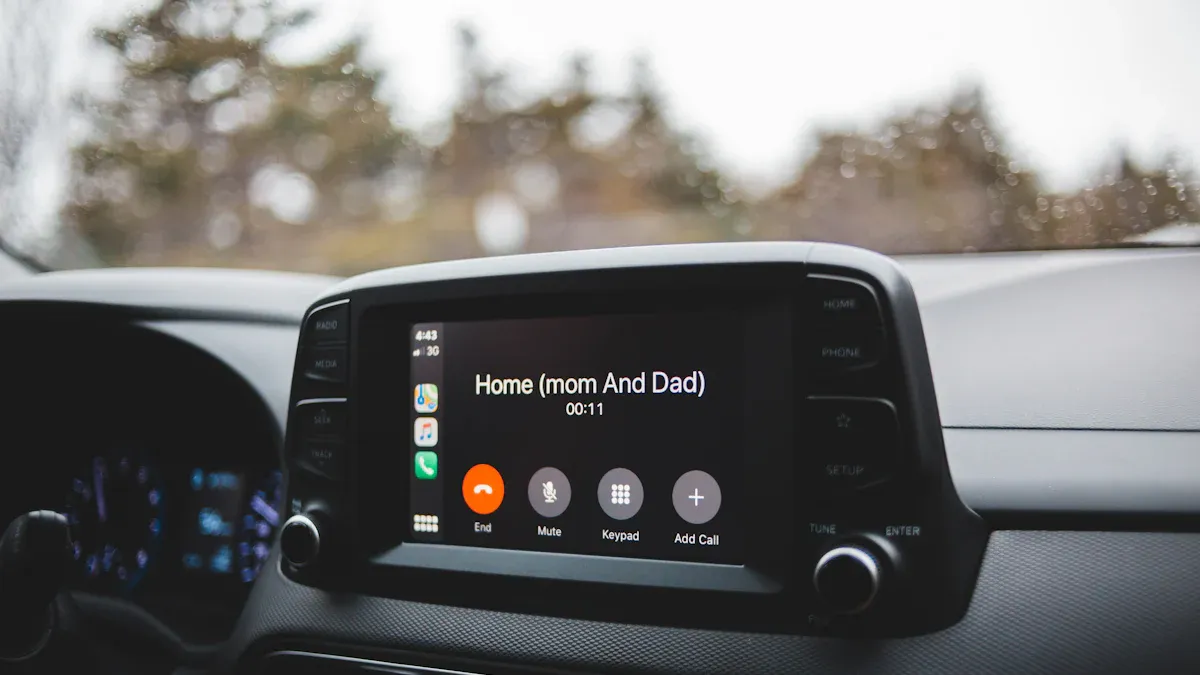
Check Android Auto Settings on Your Phone
Android settings can vary by phone brand and Android version. On your phone, open Settings and search for Android Auto. Review connected cars, startup behavior, app permissions, and wireless Android Auto settings if they appear on your device.
- Make sure Android Auto is enabled for the vehicle if your phone lists saved cars.
- Allow the permissions Android Auto needs, such as Bluetooth, location, notifications, phone, and contacts where relevant.
- Confirm Bluetooth and Wi-Fi are enabled for wireless Android Auto.
- Disable battery restrictions for Android Auto or related apps if your phone stops the app in the background.
- If your phone asks what to do with the USB connection, avoid charge-only mode while using Android Auto.
If menu names are different on Samsung, Pixel, OnePlus, Motorola, or other Android phones, use Settings search instead of relying on one fixed path. The exact label can vary by Android version and manufacturer skin.
Restart, Forget the Car, and Reconnect
Old Bluetooth, Wi-Fi, or USB pairing data can block Android Auto even when the car and phone are compatible. Restart the phone and vehicle first. If that does not work, remove the saved connection from both sides and pair again.
- Park the vehicle and turn the car system off.
- Restart your Android phone.
- Remove the car from Android Auto's saved cars if the option appears.
- Remove the phone from the vehicle's Bluetooth or device list.
- Reconnect using a data-capable USB cable first, then test wireless Android Auto if your vehicle supports it.
Update Android, Android Auto, and Vehicle Software
Android Auto depends on several software layers: the Android phone, Google apps, the Android Auto app experience, and the vehicle infotainment system. Update the phone system, update apps from Google Play, and check your vehicle manufacturer's support page or dealer guidance for infotainment updates.
The official Google troubleshooting page for Android Auto app issues recommends checking whether Android Auto is enabled in the vehicle and restarting the car infotainment system. If your problem began immediately after a phone or vehicle update, remove the old pairing and reconnect before assuming the hardware is broken.
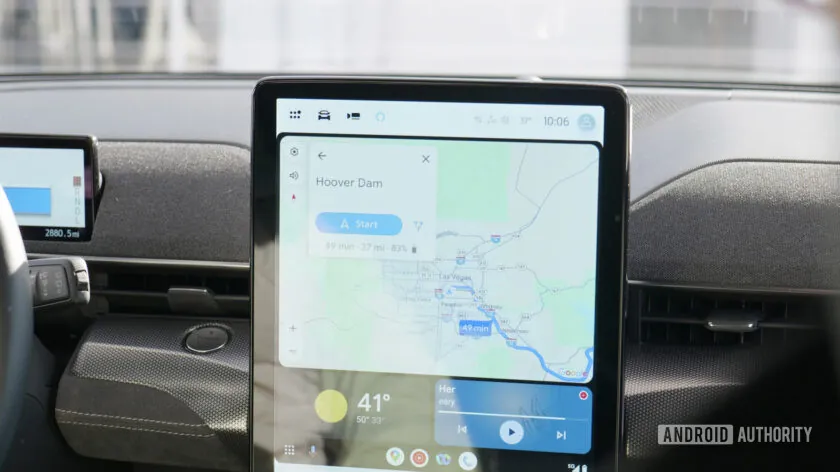
Clear Android Auto Cache or App Data
If Android Auto opens but freezes, disappears, or refuses to reconnect, clear temporary app data. On Android, open Settings, search for Android Auto or the app settings page, then look for storage options such as Clear cache. If the issue continues, clearing storage or data can reset saved Android Auto settings, so be prepared to pair your car again.
You can also update or reinstall related Google apps if your phone allows it. The exact buttons vary by Android version and phone brand, so use Settings search if the path is different.
Fix Wireless Android Auto Problems
Wireless Android Auto depends on Bluetooth for discovery and Wi-Fi for the main connection. If wired Android Auto works but wireless does not, focus on Bluetooth, Wi-Fi, saved pairing, phone support, and vehicle support. Do not assume your car supports wireless Android Auto just because it supports wired Android Auto.
- Turn Bluetooth and Wi-Fi off and on again.
- Remove the car from the phone and remove the phone from the car.
- Reconnect with USB first if your vehicle requires an initial wired setup.
- Check whether your phone and vehicle support wireless Android Auto in your region.
- Test in an open area if wireless interference seems likely.
When Should You Consider a CARLUEX Adapter?
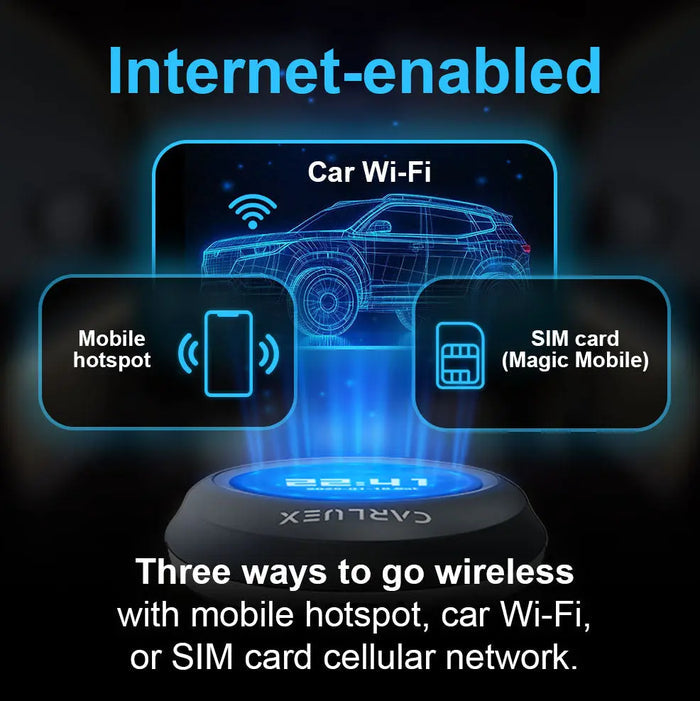
A wireless adapter may help after wired Android Auto already works. It does not fix unsupported vehicles, damaged USB ports, blocked phone settings, or vehicle software problems. Fix the wired Android Auto connection first, then consider wireless convenience.
CARLUEX compatibility depends on the adapter model and your vehicle's factory infotainment system. For Android Auto, confirm whether your vehicle has factory wired Android Auto and whether the adapter model supports your setup.
- Check CARLUEX LINK if you mainly want a compact wireless CarPlay and Android Auto adapter for a compatible factory wired setup.
- Compare CARLUEX AIR if you want additional multimedia features in a compatible vehicle.
- Check CARLUEX compatible vehicles before purchasing or contact support if your vehicle is not listed.
If wired Android Auto works reliably in your car, compare CARLUEX adapter options and confirm compatibility before choosing a wireless setup.
Troubleshooting: Android Auto Still Not Working
| Symptom | Likely cause | Next step |
|---|---|---|
| Phone charges but Android Auto does not launch | Charge-only cable, wrong USB port, or blocked USB mode | Use a data-capable cable and the vehicle projection USB port |
| Android Auto disappeared after an update | Old pairing, app cache, or software conflict | Restart, update apps, clear cache, and reconnect the car |
| Wireless Android Auto keeps dropping | Bluetooth/Wi-Fi issue, phone support, or vehicle support | Test wired first, then rebuild wireless pairing |
| Car supports built-in Google apps but Android Auto fails | Native infotainment and Android Auto are separate systems | Check phone projection settings, not only built-in apps |
| Adapter does not work | Wired Android Auto is not working or vehicle is unsupported | Confirm factory wired Android Auto and adapter compatibility |
Related CARLUEX Guides
- Stop Android Auto from Auto-Launching or Reconnecting
- How to Stop Spotify from Auto-Playing on Android Auto
- Use Waze with CarPlay, Android Auto, or a Wireless Adapter
- Watch Video on Android Auto? Safe Parked Options
FAQ
Why is Android Auto not working but my phone is charging?
Your cable or USB port may support charging but not data. Use a data-capable USB cable and the vehicle USB port meant for phone projection. Also check the phone's USB mode if prompted.
Does wired Android Auto mean my car supports wireless Android Auto?
No. Wired and wireless Android Auto support can vary by vehicle, model year, infotainment system, region, and phone. Check your vehicle documentation and Android Auto's official compatibility guidance.
Can a CARLUEX adapter fix Android Auto not working?
Only in the right situation. A wireless adapter may help when factory wired Android Auto already works and you want wireless convenience. It does not repair unsupported vehicles, broken USB ports, blocked phone permissions, or vehicle software problems.
Should I clear Android Auto cache or data?
Clearing cache can help with temporary glitches. Clearing storage or data is a deeper reset and may remove saved cars or settings, so you may need to pair the vehicle again afterward.
Why does Android Auto work in one car but not another?
The second car may use a different USB port, older infotainment software, different wireless support, or different Android Auto compatibility. Test with the same phone and cable, then check that vehicle's phone projection settings.
Bottom line: Fix Android Auto in this order: compatibility, cable or wireless connection, phone permissions, app cache, software updates, then adapter setup. Once wired Android Auto works reliably, a compatible CARLUEX adapter can make daily use cleaner and more convenient.


Napsat komentář
Všechny komentáře jsou před zveřejněním moderovány.
Tento web je chráněn službou hCaptcha a vztahují se na něj Zásady ochrany osobních údajů a Podmínky služby společnosti hCaptcha.