
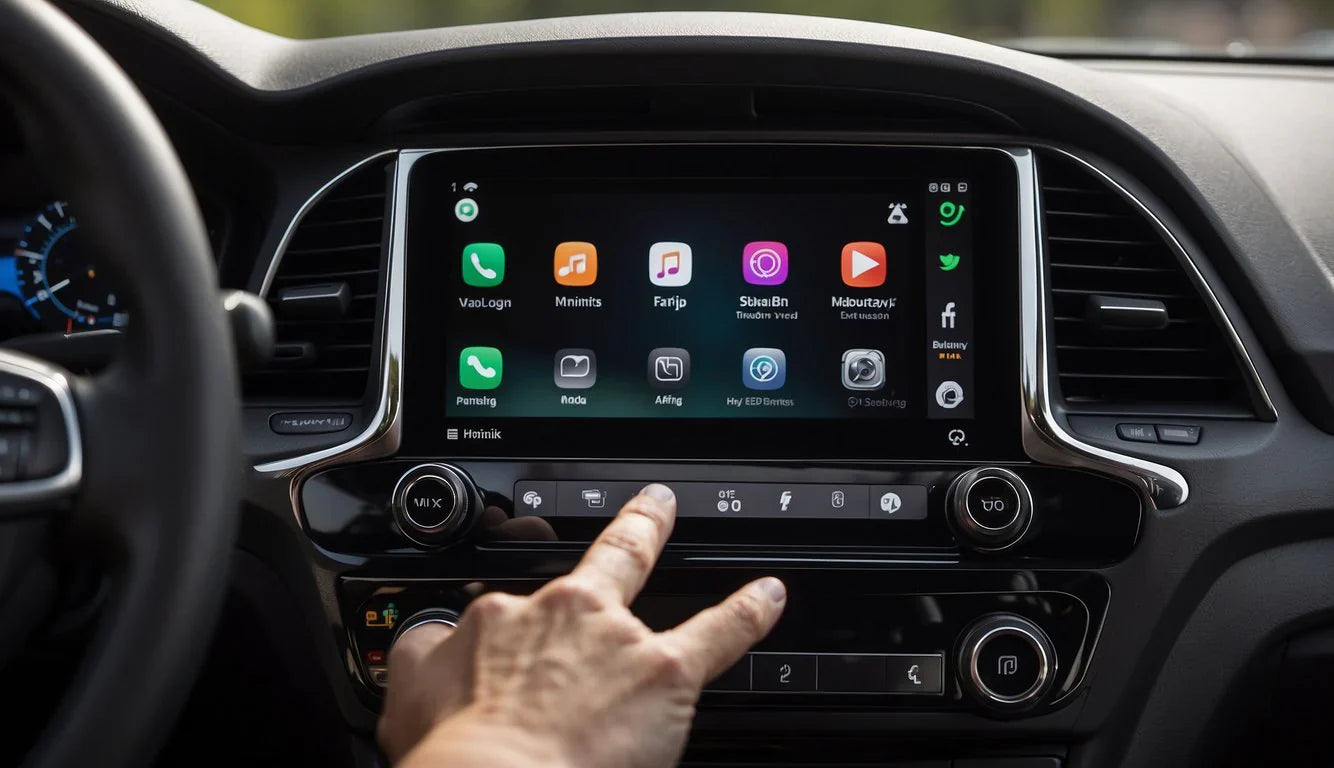
Yes, you can use Google Maps on Apple CarPlay if your iPhone, vehicle, and Google Maps app are set up correctly. Connect your iPhone to CarPlay, open Google Maps from the CarPlay screen, choose a destination, and start navigation before driving. If Google Maps does not appear or directions fail, check app updates, CarPlay app order, location permission, Siri settings, and the vehicle connection.
Google's official Use navigation in Google Maps built into your car guidance covers navigation behavior and safety reminders for car displays. Apple also explains how to connect your iPhone to CarPlay in its official CarPlay setup guide. Use both sources together: Apple for CarPlay connection, Google for Google Maps behavior.

Quick Answer: How to Use Google Maps on CarPlay
- Park safely before setup.
- Update iOS and the Google Maps app on your iPhone.
- Connect your iPhone to CarPlay by USB or wireless CarPlay if your vehicle supports it.
- Open Google Maps from the CarPlay display.
- Enter your destination before driving or use voice control when safe.
- Start navigation and keep your attention on the road.
If Google Maps is missing from the CarPlay screen, open iPhone Settings and search for CarPlay. Select your car, then check whether Google Maps appears in the app layout. The exact label can vary by iOS version.
What You Need Before Google Maps Works in CarPlay
| Requirement | What to check | Why it matters |
|---|---|---|
| CarPlay-compatible car or receiver | Apple's CarPlay model list, owner's manual, or vehicle settings | Google Maps in CarPlay still requires CarPlay support first |
| Google Maps installed | Google Maps app on your iPhone | The app must be installed and updated before it can appear |
| Location permission | iPhone Settings, then search for Location Services or Google Maps | Navigation depends on GPS/location access |
| Working CarPlay connection | USB cable, CarPlay port, Bluetooth/Wi-Fi for wireless setups | If CarPlay itself fails, Google Maps cannot launch on the car screen |
Apple's official CarPlay available models page is the safest broad source for checking whether a vehicle supports CarPlay. Exact support can still depend on model year, region, trim, and infotainment software.
How to Add Google Maps to the CarPlay Screen

On iPhone, open Settings and search for CarPlay. Select your car, then customize the CarPlay app layout if the option appears. Apple explains in its Use CarPlay with your iPhone guide that you can arrange CarPlay apps from iPhone settings. If Google Maps is installed and supported, it should be available to add or move in the CarPlay layout.
If Google Maps still does not show, update the app, restart the iPhone, reconnect CarPlay, and check whether any Screen Time or app restriction is blocking it.
Can You Make Google Maps the Default Navigation App in CarPlay?
This is where many users get confused. You can open and use Google Maps directly in CarPlay, but iPhone does not offer a universal setting that makes Google Maps the default navigation app for every CarPlay action in the same way some users expect. Some links, Siri requests, or system behaviors may still prefer Apple Maps depending on app, iOS version, and command wording.
The practical workaround is simple: open Google Maps manually from the CarPlay screen, start the route there, or say a clear command such as "navigate to [place] with Google Maps" when supported. If Siri starts Apple Maps instead, start Google Maps from the CarPlay screen before driving.
Google Maps Not Working on CarPlay: First Fixes
- Google Maps does not appear: update Google Maps, check CarPlay app layout, and restart the iPhone.
- CarPlay does not appear at all: check the cable, USB port, vehicle phone projection menu, and iPhone CarPlay restrictions.
- No GPS or wrong location: check Location Services and Google Maps location permission on the iPhone.
- No voice directions: check Google Maps guidance volume, iPhone volume, car media/navigation volume, and Bluetooth routing.
- Wireless CarPlay disconnects: test wired CarPlay first, then check Wi-Fi, Bluetooth, saved pairing, and vehicle software.
- One route fails: try another destination, check network connection, or start the route on the iPhone before opening CarPlay.
Apple's CarPlay troubleshooting guidance is useful when the car does not detect the iPhone or CarPlay fails to launch. If CarPlay works but only Google Maps fails, focus on the Google Maps app, permissions, location, and network connection.
Apple Maps vs Google Maps on CarPlay
Apple Maps and Google Maps can both be useful in CarPlay. Apple Maps may feel more integrated with iOS and Siri, while Google Maps may be preferred by users who already rely on Google search, saved places, traffic behavior, or route familiarity. The better choice depends on your region, data quality, habits, and the route you are driving.
Try both while parked or before a trip. Do not switch map apps repeatedly while driving.
Does a Wireless Adapter Help with Google Maps on CarPlay?
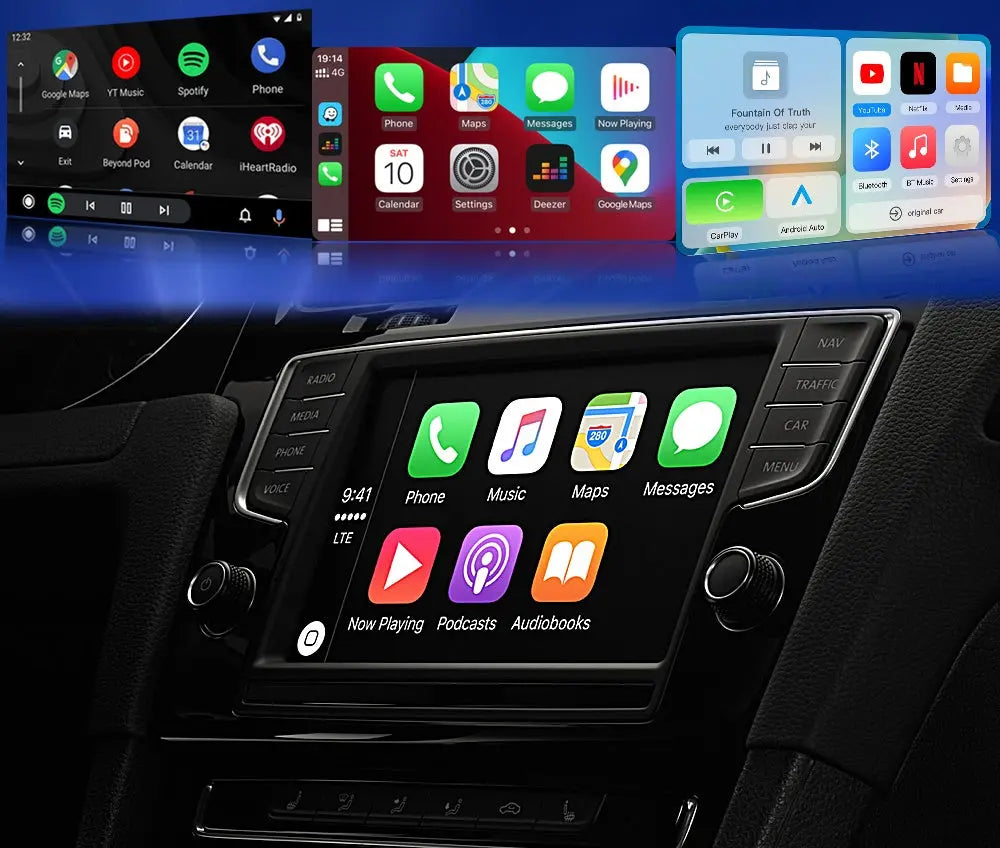
A wireless adapter may make CarPlay more convenient if wired CarPlay already works in your vehicle. It does not fix Google Maps permissions, GPS problems, app bugs, iPhone restrictions, unsupported vehicles, or faulty vehicle software. Fix wired CarPlay and Google Maps on the phone first, then consider wireless convenience.
If your car has stable factory wired CarPlay and you want a cable-free setup, start by checking CARLUEX LINK. If you want additional multimedia or adapter features for a compatible vehicle, compare CARLUEX AIR, CARLUEX GO, and CARLUEX PRO+ 2.0. Before purchasing, check CARLUEX compatible vehicles and confirm your vehicle, model year, original wired CarPlay support, and infotainment system.
Related CARLUEX Guides
- How to Use Apple CarPlay: Setup, Tips and Fixes
- Why Your Apple CarPlay Isn't Working and How to Fix It
- iPhone CarPlay Not Working? Fix Disconnects and Setup
- Use Waze with CarPlay, Android Auto, or a Wireless Adapter
- Browse CarPlay troubleshooting guides
FAQ
Can I use Google Maps on Apple CarPlay?
Yes. Install Google Maps on your iPhone, connect to CarPlay, then open Google Maps from the CarPlay display. Make sure location permission is enabled and the app is updated.
Why is Google Maps not showing on CarPlay?
Google Maps may need an update, may be hidden from the CarPlay app layout, or may be blocked by iPhone settings. Search iPhone Settings for CarPlay, select your car, and check the app layout.
Can I make Google Maps the default map on CarPlay?
You can open and use Google Maps directly, but iPhone does not provide a universal CarPlay setting that forces every navigation action to use Google Maps. Some Siri or system actions may still open Apple Maps.
Why does Google Maps have no voice directions in CarPlay?
Check Google Maps guidance volume, iPhone volume, vehicle media or navigation volume, and Bluetooth/audio routing. Some vehicles separate call, media, navigation, and Siri volumes.
Will a CARLUEX adapter fix Google Maps on CarPlay?
A CARLUEX adapter can help with wireless convenience in compatible vehicles after wired CarPlay works. It does not repair Google Maps app settings, location permissions, GPS issues, or unsupported CarPlay vehicles.
Final Takeaway
Google Maps works well on CarPlay when the iPhone, app, vehicle, and permissions are set up correctly. Start by confirming CarPlay works, add Google Maps to the CarPlay layout, check location permission, and test navigation while parked. If wired CarPlay already works and you want fewer cables, compare CARLUEX adapter options after confirming compatibility.


Leave a comment
This site is protected by hCaptcha and the hCaptcha Privacy Policy and Terms of Service apply.