

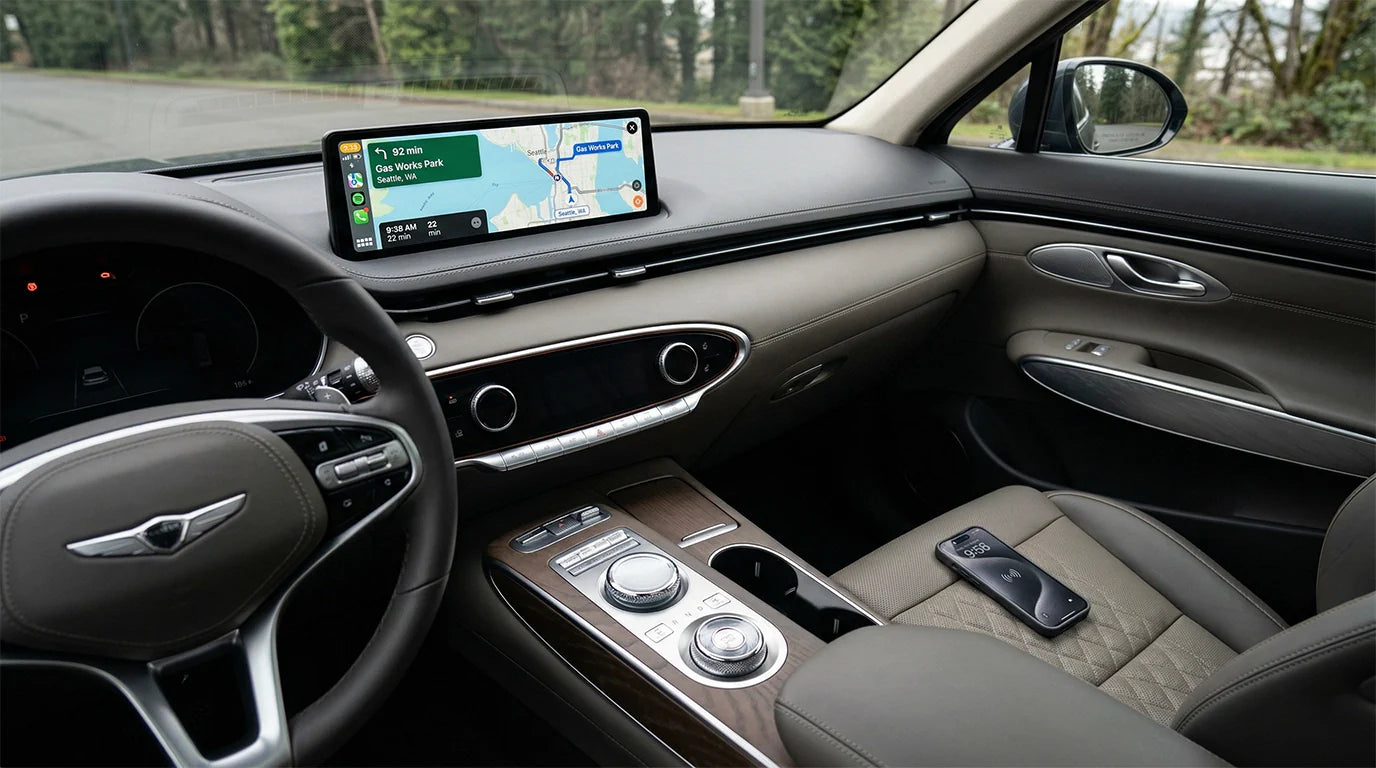
You can make your apple carplay wireless charger work better in your Cadillac Lyriq by putting your phone in the middle of the pad. This small change helps your phone connect and charge more easily. You do not need any special skills. Easy changes can fix most common problems.
Key Takeaways
-
Put your phone in the middle of the charging pad for a better connection and charging. - Take off thick cases and metal things from your phone to help it charge better. - Clean the charging pad often so dust and dirt do not block the connection.
What Issues Affect Apple CarPlay Wireless Charger in Cadillac Lyriq?

You might see different problems when you use the apple carplay wireless charger in your Cadillac Lyriq. These problems can make driving less easy. If you know what to watch for, you can fix things faster.
Charging Pad Not Working Reliably
The charging pad may not always charge your phone. Sometimes, your phone starts charging but then stops after a few seconds. This can happen if your phone is not in the middle or if something is on the pad. Some people also say their screens freeze or the layout changes by itself. This makes charging not work well.
CarPlay Disconnects Frequently
Many Cadillac owners say CarPlay disconnects a lot. You might see CarPlay stop working while you drive. This can be because of software bugs or after your dealer updates the system. Sometimes, the steering-wheel buttons do not work with CarPlay. This makes it harder to change music or answer calls.
Phone Overheating on Charger
Your phone can get hot when it charges on the pad. If your phone gets too hot, it may charge slower or stop charging to stay safe. This happens more if you use your phone for maps or music at the same time.
Trouble Maintaining Connection
It can be hard to keep your phone connected to the car. Wireless CarPlay may not connect after updates, or you might hear the sound cut out. These problems can make it tough to use Apple features easily.
Tip: If you see these problems, try moving your phone, taking off the case, or restarting the system. Small changes can fix big problems.
How to Fix Cadillac Lyriq CarPlay Charging Problems Fast?
Best Phone Placement on Charging Pad
You can fix many problems by putting your phone in the middle of the charging pad. The Lyriq has a coil under the pad that sends power to your phone. If your phone is not in the center, it might not charge or may stop charging. Move your phone a little at a time until you see the charging sign. Some people use a small piece of foam or a sticky note to help put their phone in the right place. This easy trick can make your wireless apple carplay work better and stop it from disconnecting.
Tip: Make sure nothing is on the pad before you drive.
Remove Cases and Objects for Better Charging
Thick cases, metal rings, or cards can block the signal from the pad to your phone. Take off any case that feels heavy or has metal in it. Remove pop sockets or magnetic mounts too. Even a thin card can make charging stop. Your phone should touch the pad as much as it can. Doing this helps fix many carplay problems in your Cadillac Lyriq. If you use a case, pick a thin one made for wireless charging.
Adjust iPhone and Car Settings

You can change some settings to help your apple carplay wireless charger work better. On your iPhone, turn off battery charging optimization. This setting can slow down charging to protect your battery, but it can cause problems with the Lyriq. Set your iPhone to charge up to 90% if you have iOS 18. This keeps charging steady. In your Cadillac, look in the infotainment system for media source priority. Turn this off in the Phone settings so the system does not switch between devices. These steps help your phone stay connected and stop carplay from disconnecting.
-
Turn off battery charging optimization on your iPhone.
-
Set your iPhone to charge up to 90% if you use iOS 18.
-
Turn off media source priority in your Cadillac infotainment system.
Update Software and Firmware
Old software can cause many problems with the apple carplay wireless charger in your Lyriq. Check your iPhone for updates in the Settings app. Update your Cadillac infotainment system if there is a new version. You can also fix some problems by doing a quick reset:
-
Hold the steering-wheel call end button for 10 to 15 seconds to restart the infotainment screen.
-
Turn off your Lyriq, open the driver’s door, and leave it open for 10 to 30 minutes for a full reset.
-
Press the center of the volume wheel to pause and play audio if you hear sound problems.
-
Remove your phone from the Bluetooth list and pair it again to fix carplay issues.
Note: Always check for updates before you try other fixes. Updates can fix known problems and make the system work better.
If you follow these steps, you can fix most apple carplay wireless charger problems in your Cadillac Lyriq. You will have a better carplay experience and fewer problems.
Advanced Tips for Apple CarPlay Wireless Charger in Lyriq
Use Recommended Accessories and Chargers
You can improve your charging and CarPlay experience by choosing the right accessories. Cadillac suggests using a Dashboard Magnetic Phone Mount with Qi2 Charger. This mount works with Lyriq models from 2023 to 2026. It uses magnets to hold your phone in place and attaches to the AC vent. You do not need glue or sticky pads. You can use Zoom or FaceTime while driving, which makes your tech setup more flexible.
-
Dashboard Magnetic Phone Mount with Qi2 Charger
-
Secure magnetic placement
-
Easy vent attachment
-
Supports video calls
Manage Phone Temperature
Your phone can get hot when you use wireless charging and CarPlay together. High temperature can cause charging to slow down or stop. You can help your phone stay cool by turning off unused apps and lowering your screen brightness. Place your phone away from direct sunlight. If you notice your phone feels warm, remove it from the charger for a few minutes. This simple step prevents overheating and keeps your infotainment system running smoothly.
Tip: Keep your car’s AC on during long drives to help cool your phone.
Troubleshoot Persistent CarPlay Issues
If you still have issues, try these steps to fix stubborn problems:
-
Press and hold the steering-wheel call end button for 10–15 seconds to restart the infotainment display.
-
Turn off your Lyriq, open the driver’s door, and wait 10–30 minutes for a full power cycle.
-
Click the center of the volume knob to pause and resume audio if you hear dropouts.
-
Adjust media source priority in the infotainment system to stop switching between Bluetooth and CarPlay.
-
Delete your phone from the Bluetooth list and pair it again.
-
Check for software updates in the settings menu.
These steps solve most infotainment problems and keep your system stable.
Try PRO+ 2.0 for Enhanced Experience

If you want more from your tech, consider the PRO+ 2.0 device. This tool uses a Snapdragon 6125 chip, 8GB RAM, and 128GB storage. You can add a SIM card for internet or expand memory with a MicroSD card. The device supports both Apple CarPlay and Android Auto. You can download apps, watch videos, and use navigation. The heat sink keeps everything cool. PRO+ 2.0 also offers fast boot-up, smooth touch response, and strong after-sales support. This device helps you solve issues and enjoy a high-performance infotainment system in your Lyriq.
Note: PRO+ 2.0 is perfect for drivers who want advanced features and fewer problems.
Prevent Future CarPlay and Charging Issues in Cadillac Lyriq
Clean Charging Pad Regularly
You can stop many issues before they start by keeping your charging pad clean. Dust, crumbs, or even a small piece of paper can block the connection between your phone and the pad. Wipe the pad with a soft, dry cloth every week. If you spill something, clean it right away. This simple habit helps you avoid charging problems and keeps your 2025 cadillac lyriq ready for every drive.
Tip: Check the pad for dirt or sticky spots before you place your phone down.
Follow Best Charging Practices
You can prevent most carplay issues by following a few easy steps. Always place your phone in the center of the pad. Remove thick cases or metal objects. Avoid stacking items on top of your phone. Try not to use your phone for heavy tasks, like gaming, while it charges. These habits help your phone charge faster and keep your carplay experience smooth.
-
Place phone in the center
-
Remove thick or metal cases
-
Do not stack items on the pad
-
Limit heavy phone use while charging
Upgrade Accessories When Needed

Old or damaged accessories can cause new issues. If you notice your phone does not charge well, check your charging cable and pad. Replace them if you see wear or damage. Use accessories made for wireless charging. If you want more features, consider upgrading to a device like PRO+ 2.0. This upgrade can help you avoid future problems and enjoy a better experience in your lyriq.
Note: Keeping your system and accessories updated helps prevent most issues before they happen.
You can fix most charging issues by placing your phone correctly, cleaning the pad, and updating your system. Try these steps for a smoother carplay experience. If you want more features, you can choose advanced products like PRO+ 2.0. Share your results and help others enjoy their Cadillac Lyriq.
FAQ
How do you know if your phone is charging on the Lyriq pad?
You see a charging icon on your phone screen.
If you do not see it, move your phone or remove the case.
Check your phone’s battery percentage.
Why does CarPlay disconnect while driving?
You may have a weak wireless signal or outdated software.
Update your phone and car system.
Keep your phone centered on the pad for a stable connection.
What should you do if your phone overheats on the charger?
-
Remove your phone from the pad.
-
Let it cool down.
-
Lower your screen brightness.
-
Turn off unused apps to reduce heat.



Leave a comment
All comments are moderated before being published.
This site is protected by hCaptcha and the hCaptcha Privacy Policy and Terms of Service apply.