

Quick answer: To stop Spotify from auto-playing on Android Auto, check three places: Spotify playback settings, Android Auto media or launch settings, and your phone's Bluetooth/media behavior. Spotify's Autoplay setting mainly controls whether similar songs keep playing after your current music ends, while Android Auto or your car may resume the last media app when the phone reconnects. Make these changes while parked.
Safety note: Change Spotify, Android Auto, Bluetooth, and adapter settings only when the vehicle is parked. Do not adjust phone or infotainment settings while driving.
| Auto-play situation | Where to check | What to try first |
|---|---|---|
| Spotify keeps playing similar songs | Spotify Playback settings | Turn off Spotify Autoplay if that option appears |
| Spotify starts when Android Auto connects | Android Auto settings | Look for media resume or start music automatically options |
| Music starts after Bluetooth connects | Phone Bluetooth and vehicle media source | Stop playback before disconnecting, then reconnect and test |
| Spotify starts through a wireless adapter | Phone, car, Android Auto, and adapter pairing | Confirm the phone/car behavior first before blaming the adapter |
Why Does Spotify Auto-Play on Android Auto?
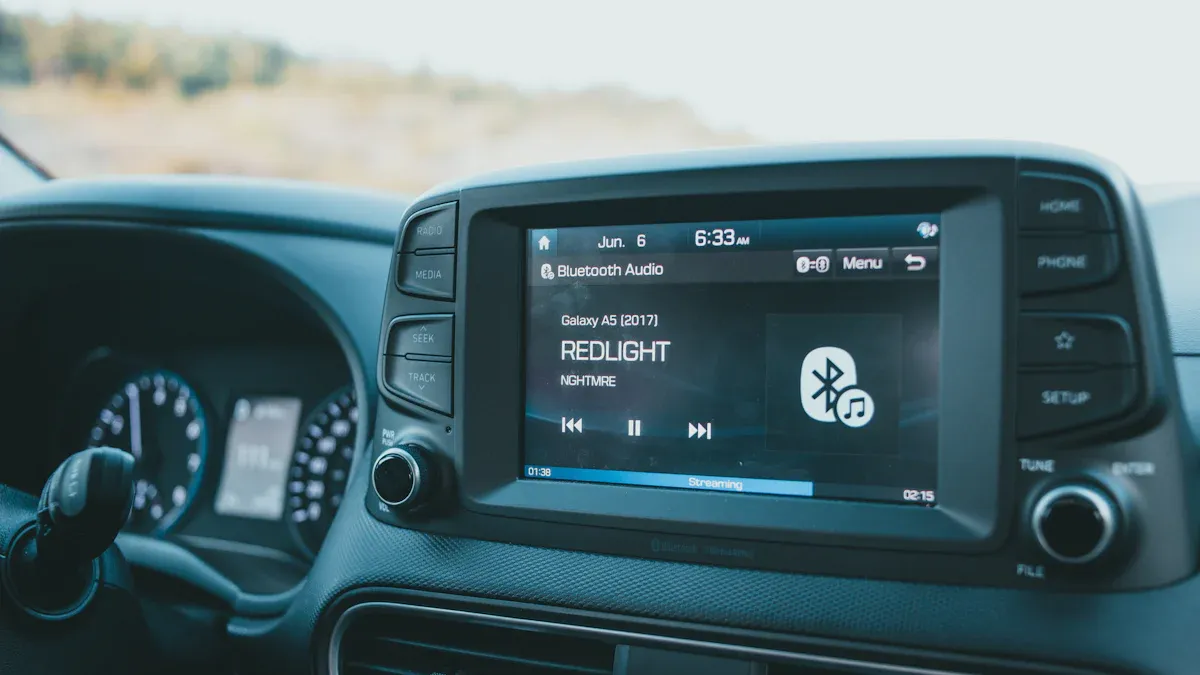
Spotify can appear to auto-play for more than one reason. Sometimes Spotify is continuing similar tracks after your playlist ends. Sometimes Android Auto resumes the last media app when your phone connects to the car. In other cases, the vehicle audio system, Bluetooth profile, or a wireless adapter connection simply wakes up the last active media session.
Spotify's official Autoplay help page explains that Autoplay plays similar songs after an album, playlist, or selection ends. That is different from Android Auto starting the last media app when the car connection begins.
Turn Off Spotify Autoplay First
Start inside Spotify because it is the simplest setting to verify. The exact labels can vary by app version and region, but the path is usually close to this:
- Open Spotify on your Android phone.
- Tap your profile picture or settings icon.
- Open Settings and privacy.
- Find Playback.
- Look for Autoplay or Autoplay similar content.
- Turn it off if you do not want Spotify to keep playing similar tracks after your selected music ends.
If you cannot find the option, update Spotify and search Spotify settings for "Autoplay." Spotify changes app labels over time, so do not assume every phone shows the exact same menu.
Check Android Auto Media Resume or Start Music Settings
If Spotify starts as soon as Android Auto connects, the issue may not be Spotify's own Autoplay setting. Android Auto or the phone may be resuming the last media session.
On some Android phones, Android Auto settings may appear under Settings > Connected devices, Settings > Google > Android Auto, or inside the Android Auto app settings. The exact labels can vary by phone brand and Android version.
Look for settings with names like:
- Start music automatically
- Automatically resume media
- Start Android Auto automatically
- Start Android Auto while locked
- Media playback or launcher settings
If one of these options appears, turn it off and test again while parked. Google's Android Auto setup guidance explains the basic connection flow, and the official Android Auto overview describes Android Auto as a way to use phone apps on your car display with voice assistance and navigation.
Stop Spotify Before Disconnecting from the Car
Some phones and car systems remember the last active media app. If Spotify was playing when you turned off the car, the next connection may resume Spotify again.
- Pause Spotify before turning off the vehicle.
- Close Spotify from recent apps if it keeps resuming.
- Switch the vehicle audio source away from Bluetooth or Android Auto before shutting down, if your car allows it.
- Reconnect while parked and check whether Spotify still starts automatically.
This step is not a perfect fix for every Android phone or vehicle, but it helps identify whether the problem is media resume behavior rather than Spotify's Autoplay feature.
Check Spotify App Permissions and Background Activity
If Spotify keeps waking up in the background, check Android app settings. The exact path varies, but it is usually under app info for Spotify.
- Open Android Settings.
- Go to Apps and choose Spotify.
- Check battery or background activity settings.
- Check notification and media permissions if your phone offers them.
- Restart the phone after changing settings.
Be careful with aggressive battery restrictions. They may stop unwanted auto-play, but they can also delay downloads, notifications, or normal Spotify behavior.
Bluetooth, USB, and Wireless Android Auto Can Behave Differently
Spotify auto-play may look different depending on how your phone connects to the car.
| Connection | What can trigger playback | What to check |
|---|---|---|
| Bluetooth only | Vehicle media source resumes last Bluetooth audio | Bluetooth media settings and car audio source |
| USB Android Auto | Android Auto starts and resumes the last media app | Android Auto media resume or launcher settings |
| Wireless Android Auto | Phone reconnects through Bluetooth/Wi-Fi and resumes media | Android Auto, Bluetooth, Wi-Fi, and media settings |
| Wireless adapter | Phone/car media session resumes through the adapter path | Phone and Android Auto behavior first, then adapter pairing |
What If Spotify Still Starts Automatically?
If the basic settings do not solve it, work through the remaining layers one by one.
- Update Spotify from Google Play.
- Update Android Auto if an update is available.
- Restart the phone and vehicle infotainment system.
- Forget and re-pair the phone with the vehicle.
- Clear Spotify cache if the app behaves unusually.
- Test another music app to see whether the problem is Spotify-specific or system-wide.
How This Works with CARLUEX Wireless Adapters
A CARLUEX adapter may help your phone connect wirelessly in a compatible setup, but it does not control Spotify playback settings, Android Auto media resume, vehicle audio source, or Spotify's queue. If Spotify auto-plays, check the phone, Spotify, Android Auto, and vehicle settings first.
CARLUEX compatibility depends on the adapter model and your vehicle's factory infotainment system. Many CARLUEX adapters require factory wired CarPlay, while wireless Android Auto support may require factory wired Android Auto on selected models. Before buying, check the product page and compatibility page for your vehicle's year, make, and model.
- Check CARLUEX LINK if you mainly want a compact wireless CarPlay / Android Auto adapter and your vehicle meets the product requirements.
- Check CARLUEX PRO+ 2.0 if you want a multimedia AI box for a compatible factory wired CarPlay vehicle.
- Check CARLUEX compatible vehicles before purchasing.
If you drive a BMW, check the dedicated CARLUEX for BMW version instead of assuming a general adapter recommendation applies.
Troubleshooting: Spotify Auto-Play on Android Auto
| Problem | Likely cause | What to try |
|---|---|---|
| Spotify keeps playing after an album or playlist ends | Spotify Autoplay similar content | Turn off Autoplay in Spotify Playback settings |
| Spotify starts when Android Auto connects | Android Auto media resume or last media session | Check Android Auto media resume/start music settings if available |
| Spotify starts over Bluetooth | Vehicle resumes Bluetooth audio source | Pause Spotify and change car audio source before disconnecting |
| Spotify starts through adapter connection | Phone or vehicle resumes Android Auto media session | Confirm behavior without the adapter, then re-pair adapter if needed |
| Settings are missing | Phone brand, Android version, or app version differs | Search Android Settings for Android Auto, media, Bluetooth, or Spotify |
Related CARLUEX Guides
- Use Waze with CarPlay, Android Auto, or a Wireless Adapter
- Why Your Apple CarPlay Isn't Working and How to Fix It
- Remove Phone from CarPlay and Stop Auto-Reconnect
- Browse CarPlay troubleshooting guides
FAQ
Why does Spotify keep auto-playing on Android Auto?
It may be Spotify Autoplay, Android Auto media resume, Bluetooth audio resume, or the vehicle returning to the last media source. Check Spotify, Android Auto, Bluetooth, and vehicle audio settings separately.
Is Spotify Autoplay the same as Android Auto auto-play?
No. Spotify Autoplay plays similar content after your selected music ends. Android Auto or your vehicle may also resume the last media app when the phone reconnects.
Can I stop auto-play without turning off Bluetooth?
Usually, yes. Try disabling Spotify Autoplay and Android Auto media resume settings first. Turning off Bluetooth may stop the connection, but it can also affect calls and other car features.
Can a CARLUEX adapter stop Spotify from auto-playing?
No. A CARLUEX adapter may help your phone connect wirelessly in a compatible setup, but Spotify playback, Android Auto media resume, and vehicle audio behavior are controlled by your phone, app, and car system.
Why do the settings look different on my Android phone?
Android Auto menus vary by phone brand, Android version, and app version. Search Settings for Android Auto, Connected devices, Bluetooth, media, or Spotify if the exact label does not appear.
Bottom line: Stop Spotify auto-play by checking Spotify Autoplay first, then Android Auto media resume, Bluetooth behavior, and the vehicle audio source. If you use a wireless adapter, confirm the phone and car behavior before troubleshooting the adapter.


留言
此網站已受到 hCaptcha 保護,且適用 hCaptcha 隱私政策以及服務條款。