

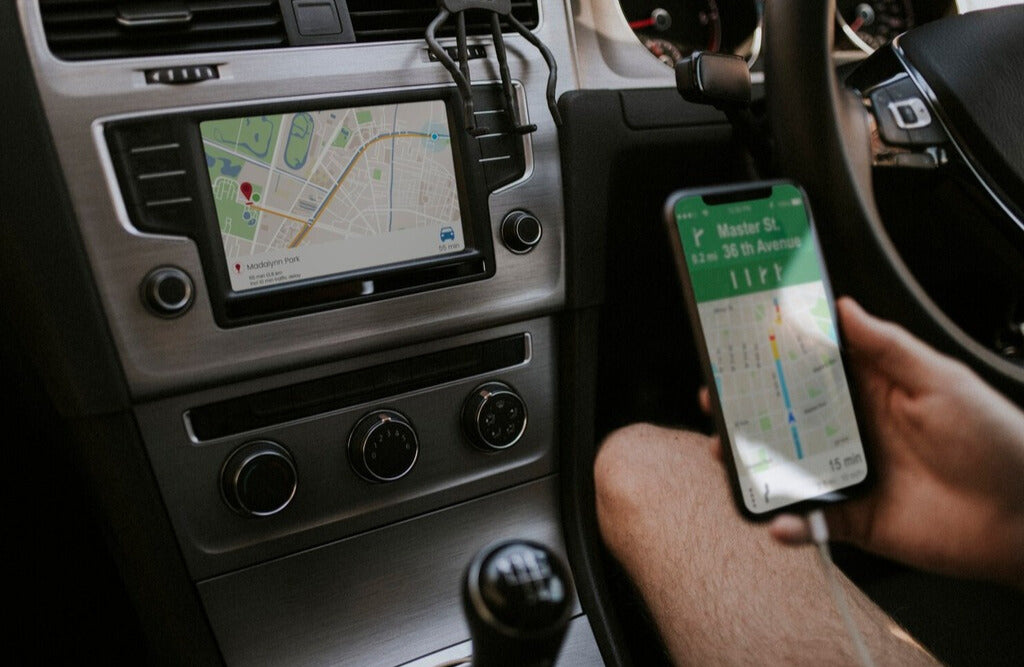
Apple CarPlay lets your iPhone show supported apps on your car's built-in display, so you can use maps, calls, messages, music, and Siri with a more driver-friendly interface. To use CarPlay, first confirm your car supports it, connect your iPhone by USB or wireless pairing, approve the prompts on your phone and car screen, then use Siri or the car display while parked or driving safely.
Apple's official Connect iPhone to CarPlay guide explains that wired and wireless setup steps can vary by vehicle, so your owner's manual should be the final reference for the correct USB port, pairing mode, and steering wheel button behavior.

What You Need Before Using Apple CarPlay
Before troubleshooting cables or buying an adapter, confirm the basic requirements. CarPlay depends on the car, the iPhone, the cable or wireless connection, and the vehicle infotainment system all working together.
- A CarPlay-compatible vehicle or receiver: check your car manual or Apple's CarPlay available models page.
- A compatible iPhone: keep iOS updated and make sure CarPlay is not restricted in Screen Time.
- The correct USB port for wired CarPlay: some cars have charging-only ports and a separate data/CarPlay port.
- Bluetooth and Wi-Fi for wireless CarPlay: wireless setup usually needs both, though the exact process depends on the vehicle.
- Siri enabled: CarPlay relies heavily on Siri for hands-free control.
Do not assume a car has wireless CarPlay just because it supports CarPlay. Many vehicles support wired CarPlay only. Wireless CarPlay depends on model year, region, trim, infotainment system, and software.
How to Set Up Wired Apple CarPlay
- Park safely. Set up CarPlay while parked, not while driving.
- Start the car and wake the infotainment system. Some vehicles need the system fully loaded before CarPlay appears.
- Connect your iPhone to the CarPlay USB port. Use a quality data-capable cable, not a charge-only cable.
- Follow the prompts on your iPhone and car screen. Approve CarPlay permissions if asked.
- Open CarPlay from the vehicle display. Some cars launch it automatically; others require tapping a CarPlay, phone projection, or smartphone icon.
- Test maps, calls, and audio. If one app fails but others work, the issue may be app-specific rather than a CarPlay setup problem.
If your iPhone is not detected, Apple recommends checking restrictions, forgetting the car, and setting up CarPlay again in its official CarPlay troubleshooting guide. Also check whether your vehicle has a software or firmware update available from the car manufacturer.
How to Set Up Wireless Apple CarPlay
Wireless CarPlay setup varies more than wired setup. Apple's iPhone guide says that if your car supports wireless CarPlay, you may need to press and hold the steering wheel voice command button, make sure the stereo is in wireless or Bluetooth mode, turn on Wi-Fi, and select the car in iPhone CarPlay settings. Exact steps can vary by car brand and model.

On iPhone, open Settings and search for CarPlay. Select your car if it appears. If your car creates a CarPlay Wi-Fi network, check that Wi-Fi is on and Auto-Join is enabled for that network if the option appears. The exact labels can vary by iOS version.
Wired CarPlay vs Wireless CarPlay vs Adapter
| Setup type | Best for | Important limitation |
|---|---|---|
| Factory wired CarPlay | Stable setup, charging while driving, broad vehicle support | Requires a data-capable cable and the correct USB port |
| Factory wireless CarPlay, if your vehicle supports it | Cable-free daily driving with supported vehicles | Depends on model year, region, trim, software, Bluetooth, and Wi-Fi |
| Wireless CarPlay adapter | Turning a working wired CarPlay setup into a cable-free setup | Does not add CarPlay to unsupported vehicles or repair faulty USB/software issues |
How to Use Siri with Apple CarPlay
Siri is the safest way to control many CarPlay tasks. Apple explains in its Siri support guide that if your vehicle supports CarPlay or Siri Eyes Free, you can hold the voice-command button on your steering wheel while making a request.
On iPhone, open Settings and search for Siri. Make sure Siri is enabled. The exact label can vary by iOS version, especially on newer versions that may show Apple Intelligence & Siri in supported regions and devices.
- "Call Alex."
- "Text Jordan that I am on my way."
- "Navigate home."
- "Play my driving playlist."
- "What is my ETA?"
If Siri does not hear you in CarPlay, test your iPhone microphone, the vehicle microphone, and the steering wheel voice button. If Siri works on the phone but not in the car, the issue may be vehicle microphone routing, CarPlay pairing, or vehicle software.
Using Maps and Navigation in CarPlay
CarPlay can show compatible navigation apps on your car display. You can start a route by tapping the map app on the screen or by asking Siri for directions. Use saved addresses such as Home and Work when possible, because short commands are usually easier for Siri to understand.
For safer driving, enter complex destinations before you start moving. If you need to change a route, use Siri or pull over first.
Calls, Messages, Music, and Podcasts
CarPlay supports common iPhone tasks through supported apps. You can make calls, hear messages, reply with Siri, play music, and listen to podcasts. Apple's car audio support page notes that Siri can stop, start, or change audio while you are connected with CarPlay or Siri Eyes Free.
If music works but messages do not, check Notifications, Siri, and the messaging app. If calls work but CarPlay audio does not, check whether your car has separate volumes for media, navigation, phone calls, and Siri.
Customize Your CarPlay Apps
Apple's Use CarPlay with your iPhone page explains that you can arrange CarPlay apps from iPhone settings. Open Settings, search for CarPlay, select your car, then customize the app order if the option appears. You can remove apps from the CarPlay display without deleting them from your iPhone.
Put your most-used apps near the front: maps, phone, music, podcasts, and messaging. Keep distracting apps off the first screen where possible.
Common Apple CarPlay Problems and First Fixes
- CarPlay does not appear: check compatibility, cable, USB port, iPhone permissions, and the vehicle's phone projection menu.
- Wired CarPlay disconnects: try a different data-capable cable, clean the port gently, and test another USB port only if the manual says it supports CarPlay.
- Wireless CarPlay will not reconnect: forget the car on iPhone, remove the phone from the vehicle's saved devices, then pair again while parked.
- Siri does not work: search iPhone Settings for Siri and confirm it is enabled, then test the car's voice button and microphone.
- One app is missing: check whether the app supports CarPlay, is installed, and is allowed in CarPlay customization.
When a CARLUEX Adapter Makes Sense
If your car already has stable factory wired CarPlay and you want a cleaner wireless setup, a CARLUEX adapter may help reduce daily cable use. Start by checking CARLUEX LINK for a simple wireless CarPlay and Android Auto adapter option. You can also compare CARLUEX AIR, CARLUEX GO, and CARLUEX PRO+ 2.0 if you need additional multimedia or adapter features.
Before purchasing, check CARLUEX compatible vehicles and confirm your vehicle, model year, original wired CarPlay support, and infotainment system. A wireless adapter is a convenience upgrade after wired CarPlay works; it is not a repair tool for unsupported vehicles, damaged USB ports, blocked iPhone settings, or vehicle software faults.
Related CARLUEX Guides
- Why Your Apple CarPlay Isn't Working and How to Fix It
- How to Reset Apple CarPlay
- iPhone CarPlay Not Working? Fix Disconnects and Setup
- How to Use Google Maps with Apple CarPlay
- Browse CarPlay troubleshooting guides
FAQ
How do I start using Apple CarPlay?
Park safely, confirm your car supports CarPlay, connect your iPhone to the correct USB port or pair wirelessly if your vehicle supports wireless CarPlay, approve the prompts, then open CarPlay on the car display.
Does Apple CarPlay work wirelessly?
Yes, but only if your vehicle or receiver supports wireless CarPlay, or if you use a compatible wireless adapter with a vehicle that already has working wired CarPlay. Do not assume every CarPlay vehicle supports wireless CarPlay.
Why is Apple CarPlay not showing up?
Common causes include an unsupported vehicle, the wrong USB port, a charge-only cable, blocked CarPlay restrictions, disabled Siri, old vehicle software, or a saved pairing problem. Start with compatibility, cable, USB port, and iPhone settings.
Can I add CarPlay to a car that does not support it?
A wireless adapter cannot add CarPlay to a car that has no CarPlay support. You may need an aftermarket CarPlay receiver or a vehicle-specific upgrade path. Confirm compatibility before buying any adapter.
Can I watch video through Apple CarPlay?
Factory Apple CarPlay is built around driving-safe apps such as maps, calls, messages, and audio. Do not try to watch video while driving. If you are considering multimedia features for parked use, check the product requirements and local laws carefully.
Final Takeaway
The best way to use Apple CarPlay is to keep it simple: confirm compatibility, connect with the right wired or wireless method, enable Siri, arrange your apps, and use voice commands for navigation, calls, messages, and audio. If wired CarPlay already works and you want fewer cables, compare CARLUEX adapter options after confirming vehicle compatibility.


留言
此網站已受到 hCaptcha 保護,且適用 hCaptcha 隱私政策以及服務條款。