

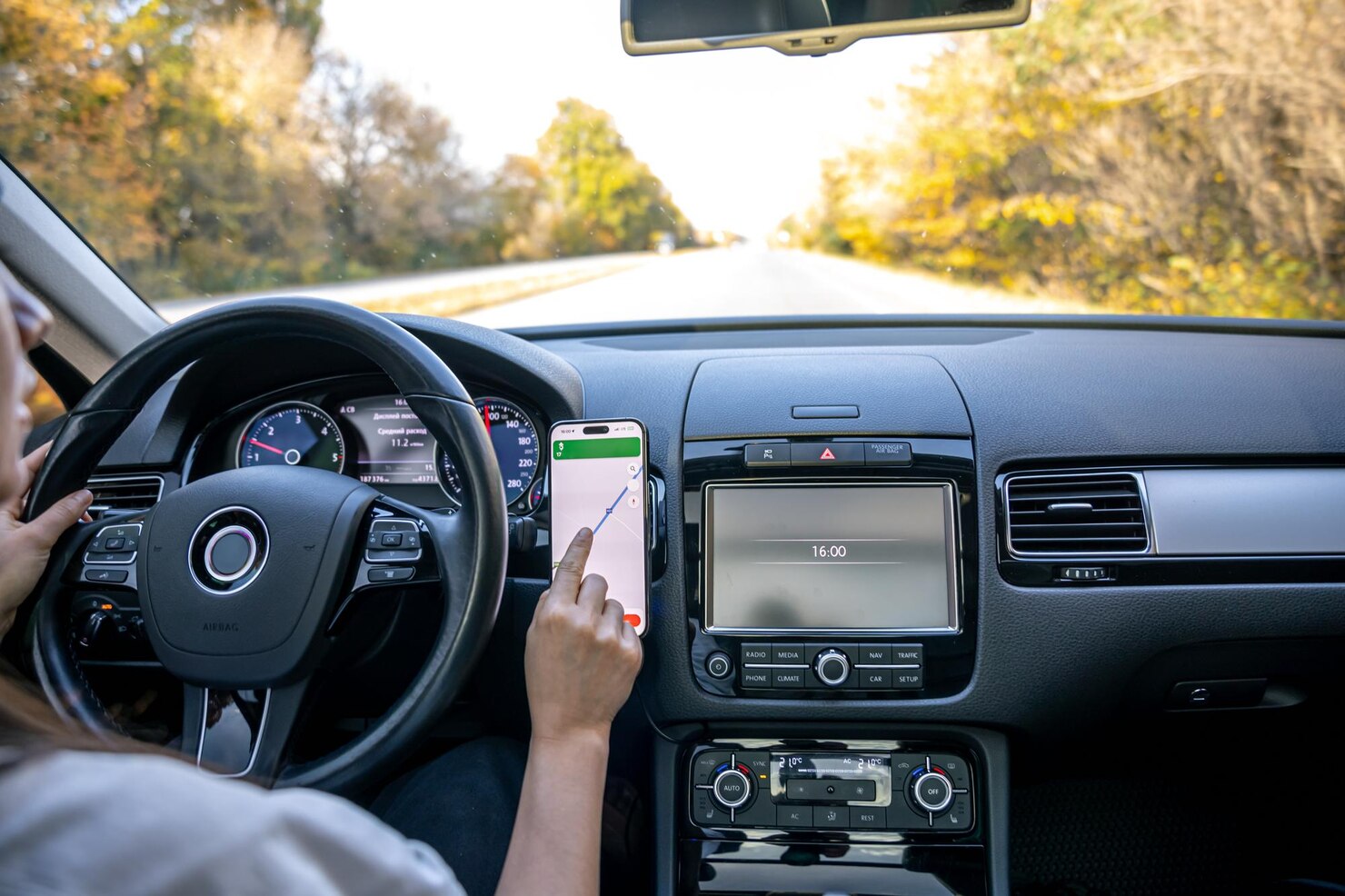
Does your Nissan vehicle support Apple CarPlay? If you're looking to access maps, music, and hands-free calls through your car's infotainment system, you're in the right place. This guide covers everything you need to know about Nissan Apple CarPlay—from compatibility checks to setup instructions and troubleshooting tips.
Which Nissan Models Support Apple CarPlay?
Most Nissan vehicles from 2017 onward come equipped with Apple CarPlay as a standard feature. Here's a breakdown of compatible models:
- Rogue (2017-present) — Nissan's best-seller includes CarPlay across all trims
- Altima (2017-present) — Standard on SV, SL, and Platinum grades
- Sentra (2017-present) — Available on SV and above trims
- Maxima (2017-present) — Standard on all models
- Murano (2017-present) — Standard on SV and SL
- Kicks (2018-present) — Standard on all trims
- Leaf (2017-present) — Standard on all models
- Ariya (2023-present) — Standard with NissanConnect
- Titan (2017-present) — Standard on SV, SL, and Platinum
- Pathfinder (2017-present) — Standard on SV and above
For older models like the 2020 Nissan Armada, Apple CarPlay was only available from the 2021 model year onward. Verify your Nissan's CarPlay compatibility before purchasing any adapter.
How to Set Up Apple CarPlay in Your Nissan
Setting up Apple CarPlay in your Nissan is straightforward. Follow these steps:
- Start your vehicle and ensure your iPhone is updated to iOS 14 or later.
- Connect your iPhone to your Nissan's USB port using a Lightning-to-USB cable.
- On your Nissan's infotainment screen, tap the Apple CarPlay icon.
- Grant permission on your iPhone when prompted to allow CarPlay access.
- Siri will activate automatically—use voice commands for navigation, calls, and music.
Pro tip: Select 2021+ Nissan models support wireless CarPlay. If your vehicle has this feature, you can keep your iPhone in your pocket after initial pairing.
Is Your iPhone Compatible with Nissan CarPlay?
Apple CarPlay requires iPhone 5 or later running iOS 7.1 or higher. For the best experience, Apple recommends iOS 14 or later. Key requirements include:
- iPhone 5 through iPhone 16 series (all models)
- iOS 7.1 minimum (iOS 14+ recommended)
- Compatible Nissan infotainment system (NissanConnect)
- USB cable or wireless connection (vehicle-dependent)
What Can You Do with Apple CarPlay in Your Nissan?
Once connected, Apple CarPlay transforms your Nissan's display into an iPhone interface. Here's what you can access:
Navigation
Use Apple Maps, Google Maps, or Waze directly on your car's screen with real-time traffic updates and turn-by-turn directions. Siri voice commands let you search destinations hands-free.
Music and Entertainment
Access Apple Music, Spotify, podcasts, and audiobooks through your car's speakers. Control playback with steering wheel buttons or Siri voice commands.
Hands-Free Communication
Make and receive calls, send text messages, and use Siri for voice-dictated responses—all without touching your iPhone.
Third-Party Apps
CarPlay supports popular apps including Spotify, WhatsApp, and audio streaming services. Note that video streaming apps like Netflix are not available through standard CarPlay.
Want More Features? Consider an Aftermarket Upgrade
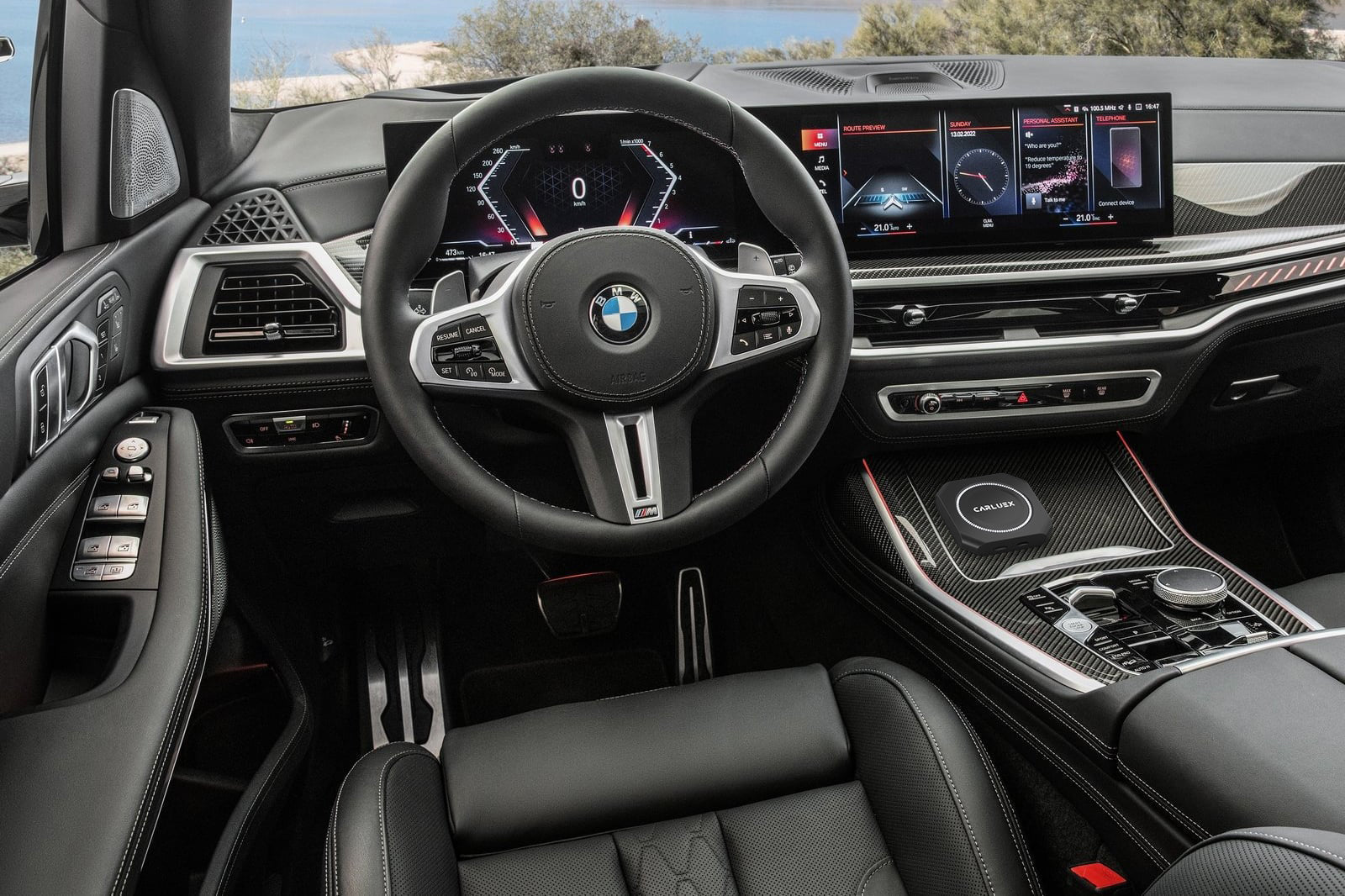
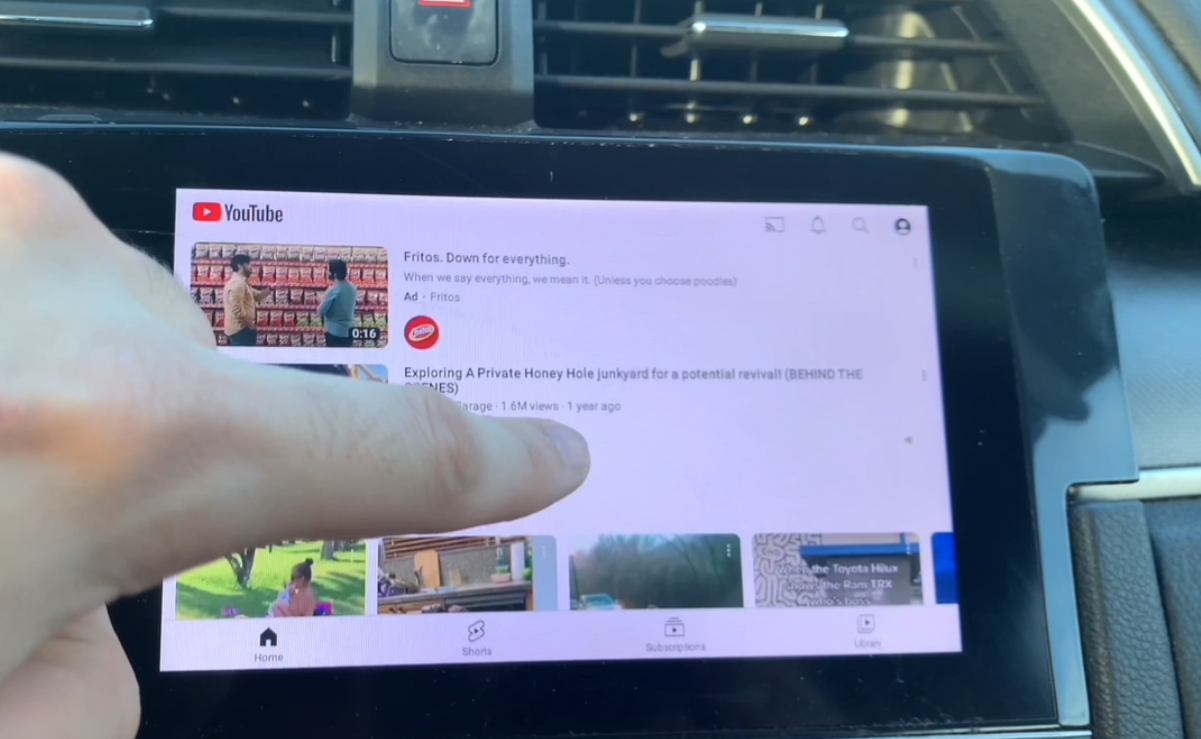
If your Nissan doesn't support wireless CarPlay or you want expanded functionality, aftermarket adapters can help. The CARLUEX PRO+ 2.0 adds wireless CarPlay to vehicles with only wired support, plus streaming apps like YouTube and Netflix. For a more affordable option, the CARLUEX AIR provides wireless CarPlay and Android Auto with plug-and-play setup.
Troubleshooting Nissan CarPlay Issues
CarPlay Won't Connect
If CarPlay fails to activate, try these steps:
- Disconnect and reconnect the USB cable.
- Restart both your iPhone and the Nissan's infotainment system.
- Ensure your iPhone is unlocked and Siri is enabled.
- Check that your Nissan's infotainment firmware is up to date.
- Go to Settings > General > CarPlay on your iPhone and delete your Nissan, then re-pair.
Bluetooth Pairing Problems
For Bluetooth issues, make your iPhone discoverable and put the infotainment system in pairing mode. If problems persist, delete pairing information from both devices and start fresh.
Audio Quality Issues
Use a high-quality USB cable for the best sound. If issues continue, check that your iPhone isn't connected to multiple Bluetooth devices simultaneously.
Frequently Asked Questions
How do I connect my iPhone to my Nissan?
Connect your iPhone to your Nissan's USB port using a Lightning cable, then select the Apple CarPlay icon on your infotainment screen. For wireless models, pair via Bluetooth in your Nissan's settings menu.
Does Nissan CarPlay use Bluetooth or USB?
Nissan supports both wired (USB) and wireless (Bluetooth/Wi-Fi) CarPlay connections. Wired is available on most models, while wireless CarPlay is standard on 2021+ vehicles with NissanConnect.
Which Nissan models have wireless CarPlay?
Wireless CarPlay is available on select 2021+ Nissan models including the Rogue, Altima, Sentra, and Ariya. Check your vehicle's specifications or consult your dealer to confirm wireless capability.
Can I add CarPlay to an older Nissan?
Yes. If your older Nissan has a compatible aftermarket head unit or the correct port configuration, aftermarket adapters like the CARLUEX Universal CarPlay Adapter can add CarPlay functionality.


Lämna en kommentar
Denna webbplats är skyddad av hCaptcha och hCaptchas integritetspolicy . Användarvillkor gäller.