

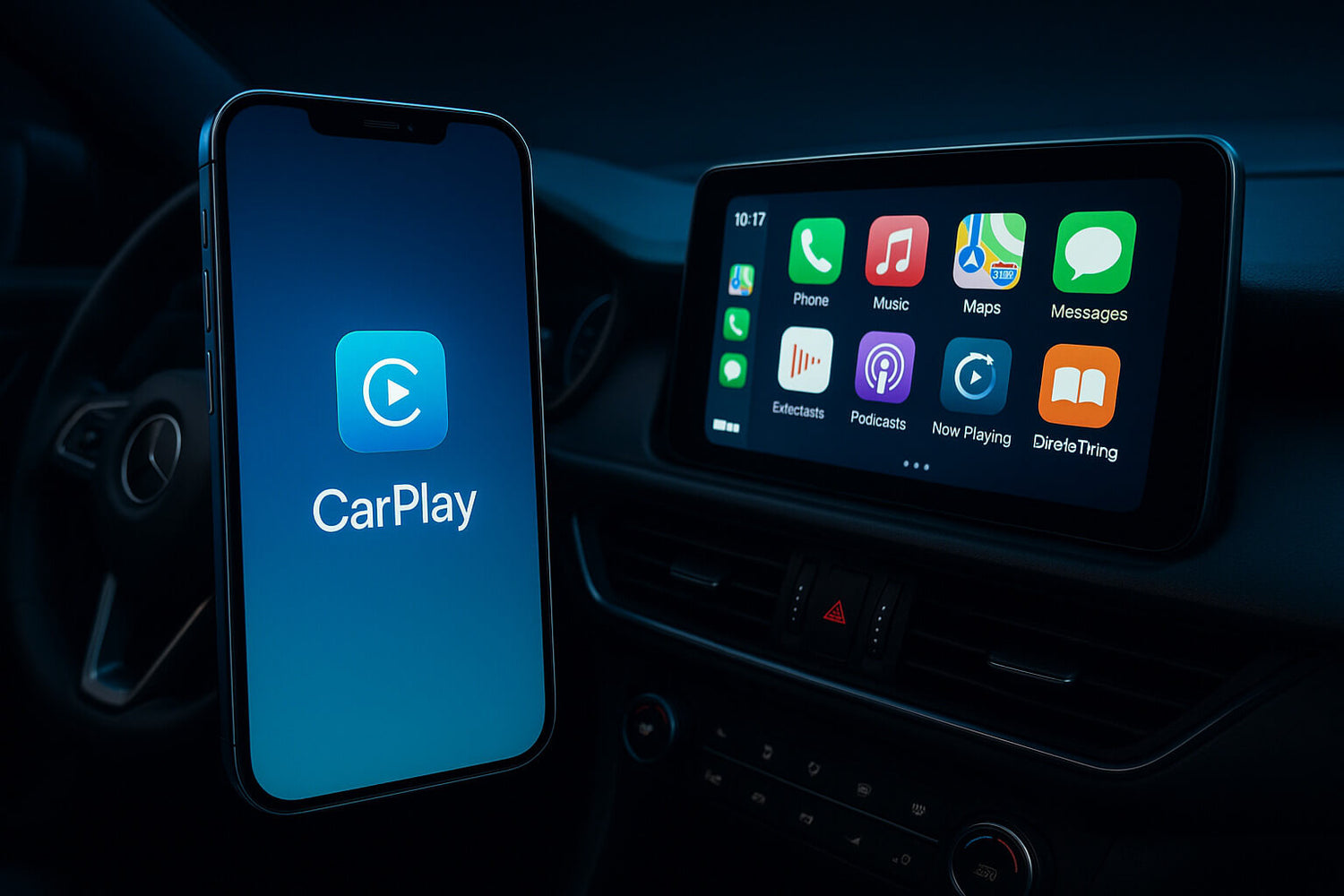
If Apple CarPlay stops working after an iOS update, a cable change, a new phone, or a vehicle software update, start with the simple connection chain first: confirm the car supports CarPlay, make sure Siri is enabled, check Screen Time restrictions, use the correct USB port or wireless setup, then remove and reconnect the saved CarPlay pairing.
Before changing settings, park safely. Do not troubleshoot CarPlay while driving.
Quick Answer: How to Fix iOS CarPlay Issues
For most iOS CarPlay problems, try these fixes in order:
- Restart your iPhone and vehicle infotainment system.
- On iPhone, open Settings and search for Siri. Make sure Siri is enabled. The exact label can vary by iOS version.
- Check whether CarPlay is restricted in Screen Time.
- Use a data-capable USB cable and the vehicle's CarPlay USB port, not a charge-only port.
- If using wireless CarPlay, confirm Bluetooth and Wi-Fi are on, then check the saved CarPlay network.
- Forget the vehicle in CarPlay settings and pair again.
- Update iOS, CarPlay apps, and vehicle infotainment software if updates are available.
- After wired CarPlay works reliably, consider a compatible wireless adapter if you want a cable-free setup.
Why Apple CarPlay Stops Working After an iOS Update
CarPlay depends on several things working together: your iPhone, iOS permissions, Siri, the USB cable or wireless connection, the vehicle's infotainment software, and the car's saved phone profile. A change in any one of these can make CarPlay fail to launch, disconnect, freeze, or stop showing certain apps.
Apple's own CarPlay troubleshooting guidance recommends checking CarPlay restrictions, forgetting the car, setting up CarPlay again, and confirming that the car stereo firmware is current. That is the safest order: fix the phone and connection first, then look at software or hardware.
Check Whether Your Car and iPhone Support CarPlay
Do not assume every vehicle display supports CarPlay. Apple maintains an official CarPlay available models list, and your vehicle owner's manual can confirm whether your specific year, trim, and infotainment system support wired or wireless CarPlay.
Support for CarPlay does not always mean support for wireless CarPlay. Some vehicles only support wired CarPlay from the factory. Wireless behavior can depend on the model year, region, trim, infotainment system, and vehicle software.
Check Siri, Screen Time, and CarPlay Permissions
CarPlay needs Siri to be available. On iPhone, open Settings and search for Siri. Make sure Siri is enabled. The exact label can vary by iOS version, so searching Settings is safer than relying on one fixed menu path.
If your iPhone is not detected by CarPlay, search Settings for Screen Time and check whether CarPlay is restricted under content and privacy controls. Apple specifically points users to Screen Time restrictions when CarPlay is not detected.
Use the Correct USB Cable and USB Port
For wired CarPlay, use a data-capable USB cable. A charging-only cable may charge your iPhone but fail to pass the data connection CarPlay needs. If your vehicle has more than one USB port, use the port marked for CarPlay, smartphone projection, or phone connection.
Apple notes that the correct USB port may be labeled with a CarPlay icon or smartphone icon in its car connection guidance. If your owner's manual identifies a specific USB port, follow that vehicle-specific instruction first.
Fix Wireless CarPlay Connection Problems
If your car supports wireless CarPlay, make sure both Wi-Fi and Bluetooth are turned on. Apple's CarPlay setup guidance also notes that wireless CarPlay may require the stereo to be in wireless or Bluetooth mode and that Auto-Join should be enabled for the CarPlay network.
If wireless CarPlay keeps failing, remove the saved vehicle from iPhone CarPlay settings, remove the iPhone from the vehicle's Bluetooth or phone list, restart both systems, and pair again. This clears old pairing data that can survive iOS updates or phone upgrades.
Forget This Car and Set Up CarPlay Again
If CarPlay used to work but now fails, reset the pairing instead of repeatedly plugging and unplugging the phone.
- Park the vehicle and keep the engine or accessory mode on as required by your car.
- On iPhone, open Settings and search for CarPlay.
- Select your vehicle if it appears.
- Tap Forget This Car.
- Remove the same iPhone from the car's saved phone, Bluetooth, or projection list.
- Restart your iPhone and the vehicle infotainment system.
- Connect again by USB or follow your vehicle's wireless CarPlay pairing steps.
For a deeper reset workflow, see how to reset Apple CarPlay.
If CarPlay Apps Are Missing, Frozen, or Out of Order
If CarPlay launches but an app is missing or the screen layout looks wrong, the problem may be app-level rather than a full connection failure. Update the app on your iPhone, restart the phone, and check whether the app supports CarPlay.
You can also search iPhone Settings for CarPlay, choose your vehicle, and customize the CarPlay app layout if the option appears. Menu labels can vary by iOS version.
If This Started After iOS 26 or Another iOS Update
After an iOS update, avoid assuming the car hardware is broken. Start with a clean connection reset: restart the iPhone, check Siri and Screen Time, forget the car, reconnect by USB, and then test wireless CarPlay if your vehicle supports it.
If many apps crash, lag, or fail outside CarPlay too, update the apps and check for another iOS update. If only CarPlay fails in one vehicle, the issue is more likely tied to the car profile, USB port, wireless pairing, or infotainment software.
Update Vehicle Software and Check the Owner's Manual
Vehicle infotainment software can affect CarPlay stability. Check your owner's manual, vehicle app, dealer support page, or manufacturer support portal for software update instructions. Some updates can be installed over the air, while others may require dealer or workshop assistance, depending on the vehicle.
If your vehicle has a built-in navigation, media, or app system, remember that those apps are separate from Apple CarPlay. A native vehicle app may work even when CarPlay does not, because CarPlay is a separate iPhone projection connection.
Wired CarPlay, Wireless CarPlay, and Adapters
| Setup | What to check first | Best next step |
|---|---|---|
| Wired CarPlay | USB cable, CarPlay USB port, Siri, Screen Time | Test with a data-capable cable and reset the saved car profile |
| Factory wireless CarPlay, if your vehicle supports it | Wi-Fi, Bluetooth, Auto-Join, vehicle wireless mode | Forget the car, remove Bluetooth pairing, and reconnect |
| Wireless adapter setup | Whether wired CarPlay works first | Confirm adapter compatibility before choosing a wireless setup |
Do not assume your car has factory wireless CarPlay just because it supports CarPlay. Some vehicles use wired CarPlay, while wireless behavior depends on model year, infotainment system, region, trim, and software.
When a CARLUEX Adapter Can Help
A wireless adapter may help after wired CarPlay already works. It does not fix unsupported vehicles, damaged USB ports, blocked iPhone settings, or vehicle software problems.
If wired CarPlay works reliably and you want a cleaner wireless setup, start by checking the product requirements for CARLUEX LINK. You can also compare CARLUEX AIR and CARLUEX GO if you need additional multimedia or adapter features.
Before purchasing, check CARLUEX compatible vehicles or contact support if your vehicle model is not listed. Compatibility depends on the adapter model and your vehicle's factory infotainment system.
Related CARLUEX Guides
- Why Your Apple CarPlay Isn't Working and How to Fix It
- How to Reset Apple CarPlay
- iPhone CarPlay Not Working: Fix Disconnects and Compatibility Issues
- Remove a Phone from CarPlay and Stop Auto-Reconnect
- Browse CarPlay troubleshooting guides
FAQ
Why is Apple CarPlay not working after an iOS update?
An iOS update can refresh permissions, pairing behavior, wireless settings, app compatibility, or saved vehicle profiles. Restart both systems, check Siri and Screen Time, forget the car, and reconnect before assuming the vehicle hardware is faulty.
Why does wired CarPlay charge my iPhone but not connect?
The cable or USB port may only support charging. Use a data-capable cable and the vehicle's CarPlay USB port. If your owner's manual names a specific port, use that port first.
Why does wireless CarPlay keep disconnecting?
Wireless CarPlay can fail when Wi-Fi, Bluetooth, Auto-Join, or old pairing records conflict. Remove the saved car from iPhone settings and remove the iPhone from the vehicle's saved device list, then pair again.
Can a CARLUEX adapter fix CarPlay not working?
A wireless adapter is not a repair tool. It can help make a working wired CarPlay setup wireless, but it will not fix an unsupported vehicle, damaged USB port, blocked iPhone setting, or vehicle software problem.
Should I reset all iPhone settings to fix CarPlay?
Try smaller steps first: restart, check Siri, check Screen Time, change the USB cable, forget the car, and pair again. Resetting broader iPhone settings can affect more than CarPlay, so use it only after simpler fixes fail.


Lämna en kommentar
Denna webbplats är skyddad av hCaptcha och hCaptchas integritetspolicy . Användarvillkor gäller.