

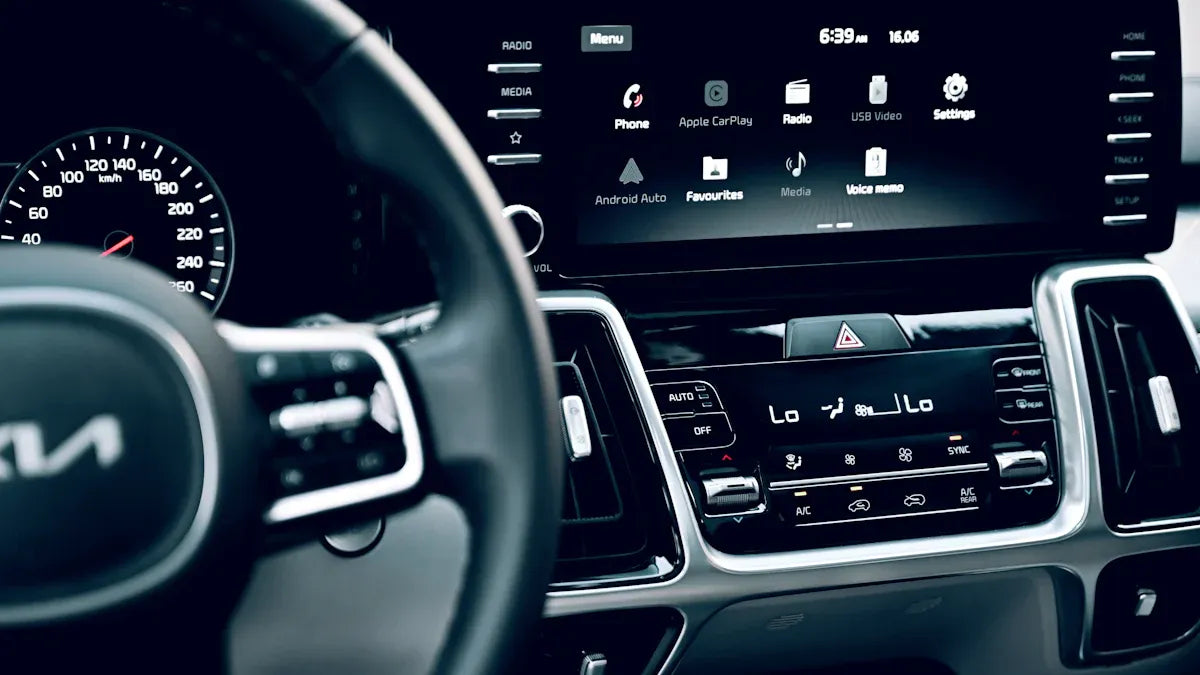
If Apple CarPlay is not working in your 2023 Toyota Camry, start with the basics: confirm your Camry supports CarPlay, update your iPhone, turn on Siri, check Screen Time restrictions, try another USB cable and port, then forget and reconnect the Camry in iPhone CarPlay settings. Apple recommends checking vehicle compatibility, iOS updates, wired or wireless connection settings, Siri, restrictions, and vehicle firmware when CarPlay does not work as expected.
Change phone and infotainment settings only while parked. Do not adjust your iPhone, cable, Bluetooth, Wi-Fi, or Toyota multimedia settings while driving.
Quick Answer: The Most Common Fixes
| Symptom | Most likely cause | What to try first |
|---|---|---|
| CarPlay does not show up | Wrong USB port, disabled CarPlay, or iPhone restriction | Use a data-capable USB port, check Settings > General > CarPlay, and confirm CarPlay is allowed in Screen Time. |
| Phone charges but CarPlay does not start | Charge-only cable or charge-only port | Try another certified data cable and another USB port. |
| Wireless CarPlay will not pair | Bluetooth, Wi-Fi, or Auto-Join problem | Turn Bluetooth and Wi-Fi on, check the CarPlay network, and reconnect. |
| CarPlay keeps disconnecting | Cable damage, old pairing data, or software conflict | Forget the car on your iPhone, restart both systems, and update iOS. |
| Nothing works after basic checks | Toyota multimedia firmware, vehicle hardware, or unsupported setup | Check Toyota support or an authorized Toyota dealer before buying an adapter. |
1. Confirm Your Camry and iPhone Support CarPlay
Apple lists Toyota Camry support for CarPlay for model years 2019-2025 on its official CarPlay available models page. That means a 2023 Toyota Camry is in the supported range, but trim, region, Toyota multimedia version, prior repairs, and software settings can still affect how CarPlay behaves.
You should also confirm your iPhone is updated. Apple says CarPlay troubleshooting should include making sure your iPhone has the latest version of iOS and that the vehicle supports CarPlay. If you are unsure about your exact Camry system, check the owner's manual or Toyota support for your VIN and multimedia package.
2. Check Your iPhone Settings First
Many CarPlay failures start on the iPhone side. Before resetting your Toyota multimedia system, check these iPhone settings while parked.
Update iOS
Open Settings and search for Software Update. Install the latest iOS version available for your iPhone. Apple includes iOS updates in its official CarPlay troubleshooting steps, and outdated software can cause pairing, display, app, or Siri issues.
Make Sure Siri Is On
CarPlay needs Siri for hands-free use. On your iPhone, open Settings and search for Siri. The exact labels can vary by iOS version, but make sure Siri is enabled and allowed when the phone is locked if that option appears.
Allow CarPlay in Screen Time
If your iPhone does not detect your Camry, check Screen Time restrictions. Apple recommends going to Settings > Screen Time > Content & Privacy Restrictions, then Allowed Apps, and making sure CarPlay is enabled if restrictions are turned on.
Forget and Reconnect the Camry
Go to Settings > General > CarPlay, select your Camry, and tap Forget This Car. Restart your iPhone and vehicle, then connect again. This clears old pairing data that can block a fresh CarPlay session.
3. Inspect the Toyota Camry USB Connection
If your phone charges but CarPlay does not start, the connection may not be carrying data. Apple recommends trying a different USB cable and a different USB port when using wired CarPlay. This matters because some ports in a vehicle may charge a phone but not start CarPlay.
Use a Data-Capable Cable
Try a different USB cable, ideally a reliable cable known to support data. Avoid damaged, loose, very old, or charge-only cables. If the same iPhone works in another car or with another cable, the first cable is likely part of the problem.
Try Another USB Port
Use the USB port intended for smartphone projection if your Camry has more than one port. The exact port position can vary by trim and region, so check the owner's manual or the port markings. If one port only charges the phone, try another port before assuming CarPlay is broken.
Restart the Phone and Toyota Multimedia System
Restart your iPhone and turn the Camry off and back on while parked. If the Toyota screen is frozen or slow, use the restart method recommended in your owner's manual or ask Toyota support for the correct procedure for your multimedia system.
4. Check Wireless CarPlay Pairing
Wireless CarPlay depends on Bluetooth and Wi-Fi. Apple says that for wireless CarPlay, Bluetooth should be on, Wi-Fi should be on, and Auto-Join should be enabled for the CarPlay network. If your Camry supports wireless CarPlay and pairing fails, check both wireless settings before resetting the car system.
- On iPhone, open Settings and turn Bluetooth on.
- Open Wi-Fi settings and make sure Wi-Fi is on.
- If you see a CarPlay network, tap it and check Auto-Join.
- Remove old or duplicate Camry pairings if the phone keeps choosing the wrong connection.
- Reconnect from the Toyota multimedia pairing screen while parked.
Remember: a vehicle can support wired CarPlay without supporting wireless CarPlay. If your specific Camry setup only supports wired CarPlay, a wireless connection will not work unless you add a compatible wireless adapter after wired CarPlay is already working.
5. Check Toyota Multimedia Settings
Toyota multimedia, Apple CarPlay, Android Auto, Bluetooth audio, and built-in Toyota apps are different layers. Bluetooth music may work even when CarPlay does not. A Toyota app or native navigation screen may work even when iPhone projection is blocked.
Open the Toyota multimedia phone or connectivity menu while parked and check whether your iPhone is paired, whether smartphone projection is enabled, and whether an old device is blocking the current pairing. The labels can vary by Toyota multimedia version, trim, country, and software update.
When to Contact Toyota
If your Camry sees the iPhone but CarPlay still will not launch, use the Toyota Support site or contact an authorized Toyota dealer. Toyota can confirm whether your multimedia firmware is current and whether the issue is vehicle-side.
6. When a Wireless Adapter Makes Sense
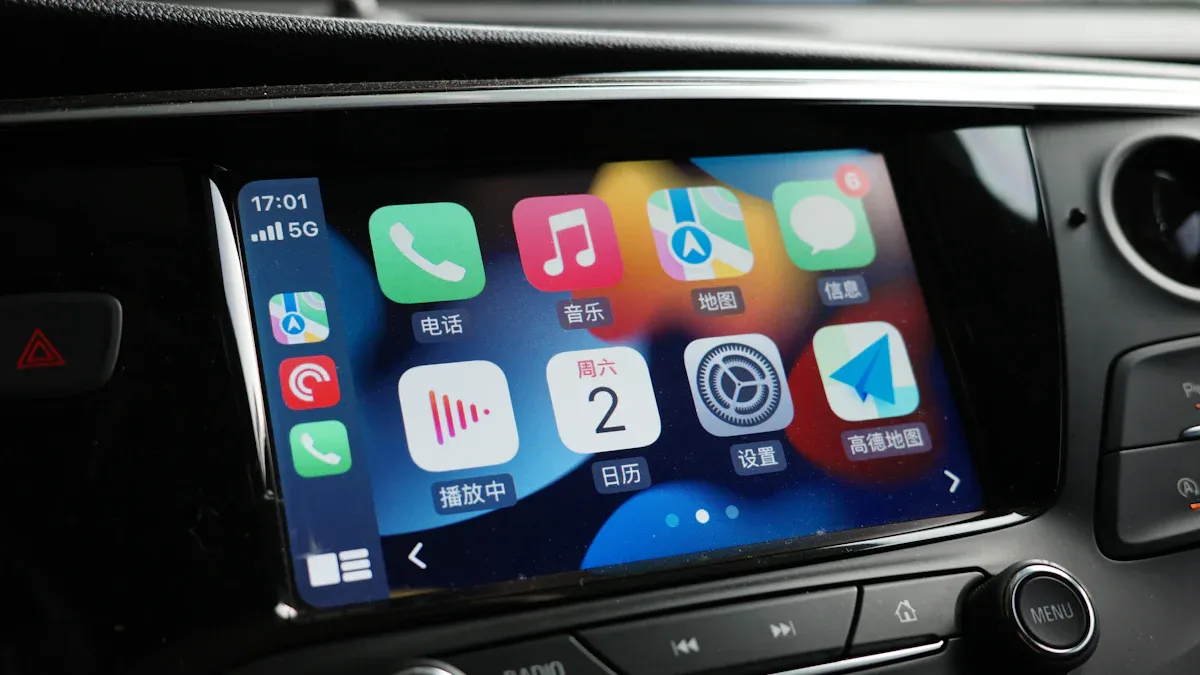
A wireless adapter may help after wired CarPlay already works. It does not fix unsupported vehicles, damaged USB ports, blocked iPhone settings, or Toyota multimedia software problems. If your 2023 Camry works with wired CarPlay and you mainly want fewer cables, a compatible wireless adapter can make daily connection easier.
For a simple wireless CarPlay and Android Auto upgrade, compare CARLUEX LINK and CARLUEX AIR. Before buying, check the CARLUEX compatible vehicles page and confirm your Camry year, trim, Toyota multimedia system, and factory wired CarPlay support.
CARLUEX compatibility depends on the adapter model and your vehicle's factory infotainment system. Do not use an adapter as a substitute for diagnosing a broken USB port, blocked iPhone setting, unsupported vehicle, or Toyota software issue.
7. Troubleshooting Checklist
- Park the vehicle before changing settings.
- Confirm your 2023 Toyota Camry is in Apple's supported Camry range.
- Update your iPhone to the latest iOS version available.
- Make sure Siri is enabled.
- Check Screen Time restrictions and allow CarPlay.
- Try a different data-capable USB cable.
- Try another USB port if your Camry has more than one.
- Turn Bluetooth and Wi-Fi on for wireless CarPlay.
- Forget the Camry in iPhone CarPlay settings and reconnect.
- Check Toyota multimedia pairing and software update options.
- Contact Toyota or Apple support if the issue continues.
Related CARLUEX Guides
- Phone Charging But CarPlay Not Working? Fix It
- How to Reset Apple CarPlay
- iPhone CarPlay Not Working: Fixes and Compatibility Checks
- Cars With Apple CarPlay
- Check CARLUEX Compatible Vehicles
FAQ
Why is Apple CarPlay not showing up in my 2023 Toyota Camry?
The most common causes are a charge-only cable, the wrong USB port, disabled Siri, Screen Time restrictions, old pairing data, or outdated iPhone or Toyota multimedia software. Start with the iPhone and USB checks before resetting the vehicle system.
Does a 2023 Toyota Camry support Apple CarPlay?
Apple lists Toyota Camry model years 2019-2025 as CarPlay-supported. Exact behavior can still vary by region, trim, multimedia system, software version, and connection type.
Can I use wireless CarPlay in a 2023 Toyota Camry?
It depends on your exact Camry trim, region, and Toyota multimedia system. Some setups may support wired CarPlay only. If wired CarPlay works and your goal is cable-free use, a compatible wireless adapter may be an option.
What should I do if my iPhone charges but CarPlay does not work?
Try a different data-capable USB cable and another USB port. A phone can charge through a cable or port that does not carry the data connection needed for CarPlay.
Will a CARLUEX adapter fix broken CarPlay?
No. A wireless adapter can make a working wired CarPlay connection more convenient, but it does not repair unsupported vehicles, damaged USB ports, blocked iPhone settings, or Toyota multimedia software problems. Confirm wired CarPlay works first.


Zanechať komentár
Táto lokalita je chránená testom reCAPTCHA a vzťahujú sa na ňu pravidlá ochrany súkromia a podmienky poskytovania služby hCaptcha.