

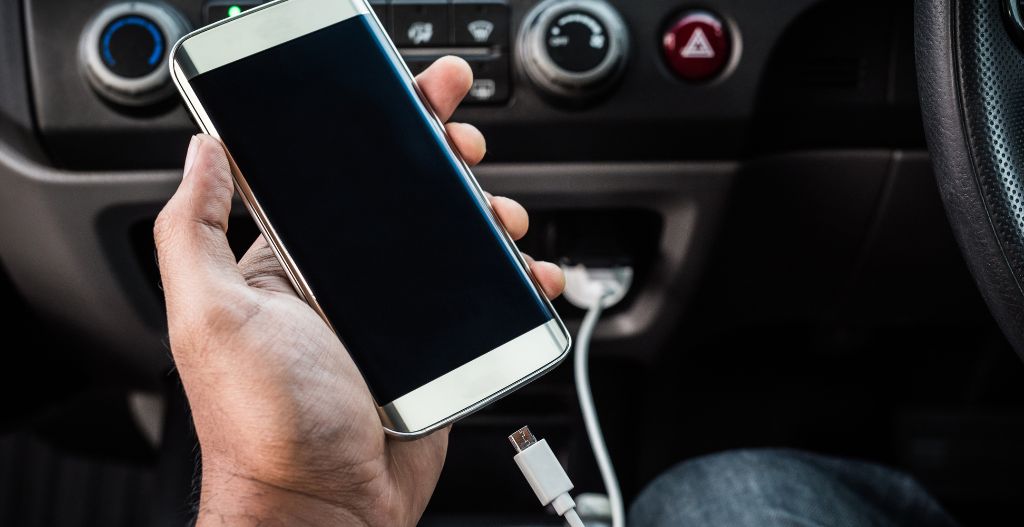
Quick answer: If your iPhone charges but CarPlay does not work, the USB connection may be carrying power but not data. Start with a data-capable cable, the correct CarPlay USB port, iPhone CarPlay permissions, Siri, and vehicle software. Make changes while parked, then test CarPlay before driving.
Safety note: Do not troubleshoot CarPlay while driving. Park safely before changing cables, phone settings, vehicle settings, or adapter pairing.
| Symptom | Most likely cause | Best first check |
|---|---|---|
| iPhone charges but CarPlay does not launch | Charge-only or damaged cable | Try a data-capable USB cable |
| CarPlay worked in another USB port or car | Wrong USB port or vehicle port issue | Use the CarPlay-capable USB port |
| Bluetooth works but CarPlay does not | CarPlay permission, Siri, cable, or USB data issue | Check iPhone CarPlay and Siri settings |
| CarPlay stopped after update | Old pairing or software conflict | Forget the car, update, and reconnect |
Why Your Phone Charges But CarPlay Does Not Work
Charging only proves that power is reaching the iPhone. Apple CarPlay also needs a compatible vehicle, iPhone permissions, Siri, and a working data connection. A cable can charge your phone but still fail to transfer the data needed for CarPlay.
Apple's official CarPlay troubleshooting guidance recommends checking the connection, restarting your iPhone and car, making sure Siri is enabled, and confirming that CarPlay is allowed. If your vehicle support is uncertain, check Apple's CarPlay available models list.
Fix 1: Use a Data-Capable USB Cable
The most common reason is a cable that charges but does not support reliable data transfer. Some inexpensive or worn cables are charge-only. Others are damaged near the connector, loose in the port, or inconsistent when the car vibrates.
- Use a data-capable USB cable, not a charge-only cable.
- Try the cable that came with your iPhone or another high-quality cable.
- Inspect both ends for looseness, bends, fraying, or dirt.
- Avoid USB hubs, extension cables, and questionable adapters while troubleshooting.
- If one cable launches CarPlay and another only charges, replace the bad cable.
If your iPhone uses USB-C, remember that not every USB-C cable behaves the same way. Some cables are built mainly for charging, while others support data. Test with a known-good data cable before replacing vehicle parts.
Fix 2: Use the Correct CarPlay USB Port
Many vehicles have multiple USB ports, but not all of them support CarPlay. Some are charge-only ports for passengers. Others may support media playback but not phone projection. Look for a phone projection label, smartphone icon, or the USB port identified in your owner's manual.
If CarPlay does not launch from one port, try another port while parked. If one port works and another only charges, your issue is likely port selection rather than the iPhone.
Fix 3: Check CarPlay and Siri Settings on iPhone
CarPlay depends on iPhone permissions and Siri. On iPhone, open Settings and search for CarPlay. Select your vehicle if it appears. Then search for Siri and make sure Siri is enabled. The exact labels can vary by iOS version.
- Confirm the vehicle appears in CarPlay settings if it has been paired before.
- If the car is saved but broken, choose Forget This Car if the option appears, then reconnect.
- Search Settings for Siri and make sure Siri is enabled.
- Search Settings for Screen Time if restrictions may be blocking CarPlay.
- Unlock the iPhone during setup and accept any CarPlay prompt that appears.
Apple's Connect iPhone to CarPlay guide is the best official reference for current setup steps.
Fix 4: Restart, Forget, and Reconnect
If CarPlay used to work but now the phone only charges, old pairing data may be stuck. Rebuilding the connection often fixes this without changing hardware.
- Park the vehicle and turn the car system off.
- Restart your iPhone.
- Remove the vehicle from iPhone CarPlay settings if the option appears.
- Remove the iPhone from the vehicle's saved device list.
- Restart the vehicle system.
- Reconnect using a data-capable USB cable and the CarPlay USB port.
Fix 5: Update iOS and Vehicle Software
Software can also cause CarPlay connection problems. Update iOS, then check your vehicle manufacturer's support page or dealer guidance for infotainment software updates. If the problem started right after an iOS or vehicle update, forgetting the car and pairing again is especially worth trying.
Do not reset every setting immediately. Start with cable, port, CarPlay permission, Siri, and pairing. Use deeper resets only after the basic checks fail.
Fix 6: Check the Vehicle System
If the same iPhone and cable work in another CarPlay vehicle, your car's USB port or infotainment system may be the issue. Check whether phone projection is enabled in the vehicle settings. Also confirm whether the port is loose, dirty, physically damaged, or disabled by a vehicle profile.
For used cars, rentals, or shared vehicles, remove old phones from the vehicle device list. Too many saved devices or a stuck pairing can make new CarPlay setup unreliable.
When a CARLUEX Adapter Can Help
A wireless adapter may help after wired CarPlay already works. It does not fix unsupported vehicles, damaged USB ports, blocked iPhone settings, or vehicle software problems. If your iPhone only charges and wired CarPlay never launches, fix that wired connection first.
CARLUEX compatibility depends on the adapter model and your vehicle's factory infotainment system. Many CARLUEX adapters require factory wired CarPlay, while wireless Android Auto support may require factory wired Android Auto on selected models.
- Check CARLUEX LINK if wired CarPlay already works and you want a compact wireless CarPlay and Android Auto adapter for a compatible vehicle.
- Compare CARLUEX AIR if you want wireless CarPlay and Android Auto with additional adapter features in a compatible vehicle.
- Check CARLUEX compatible vehicles before purchasing or contact support if your vehicle is not listed.
Troubleshooting: Charging But No CarPlay
| What you see | What it usually means | What to do next |
|---|---|---|
| iPhone battery icon appears but CarPlay does not | Power works, data connection may not | Try a data-capable cable |
| CarPlay works with one cable only | Other cable is charge-only or damaged | Replace the unreliable cable |
| CarPlay works in one USB port only | Other port is not for CarPlay | Use the phone projection USB port |
| CarPlay works in another car | Your vehicle port or infotainment system may be the issue | Check vehicle settings or dealer support |
| Adapter does not work either | Factory wired CarPlay may not be working first | Fix direct wired CarPlay before adapter setup |
Related CARLUEX Guides
- Why Your Apple CarPlay Isn't Working and How to Fix It
- How to Reset Apple CarPlay
- CarPlay Settings: iPhone Setup, Siri & Fixes
- Apple CarPlay Download? What You Actually Need
FAQ
Why does my iPhone charge but CarPlay does not work?
Charging only needs power. CarPlay also needs a data connection, a compatible vehicle, iPhone permissions, Siri, and a working infotainment system. Start with a data-capable USB cable and the correct CarPlay USB port.
Can a bad cable still charge my iPhone?
Yes. A cable can carry enough power to charge but fail to carry reliable data for CarPlay. This is why trying a known-good data cable is one of the best first steps.
Why does Bluetooth work but wired CarPlay does not?
Bluetooth audio and CarPlay use different connection paths. Wired CarPlay needs USB data, CarPlay permission, Siri, and vehicle projection support. Bluetooth working does not prove CarPlay is working.
Will a wireless adapter fix this problem?
Only if factory wired CarPlay already works. A wireless adapter does not repair an unsupported vehicle, a broken USB port, blocked iPhone settings, or vehicle software problems.
Should I reset network settings?
Use reset steps only after checking cable, port, Siri, CarPlay permission, updates, and pairing. Resetting network settings can remove saved Wi-Fi and Bluetooth connections, so treat it as a later step.
Bottom line: If your phone charges but CarPlay does not work, troubleshoot data first: cable, USB port, CarPlay permission, Siri, and pairing. Once wired CarPlay works reliably, a compatible CARLUEX adapter may make daily use wireless.


Lasă un comentariu
Acest site este protejat de hCaptcha și hCaptcha. Se aplică Politica de confidențialitate și Condițiile de furnizare a serviciului.