

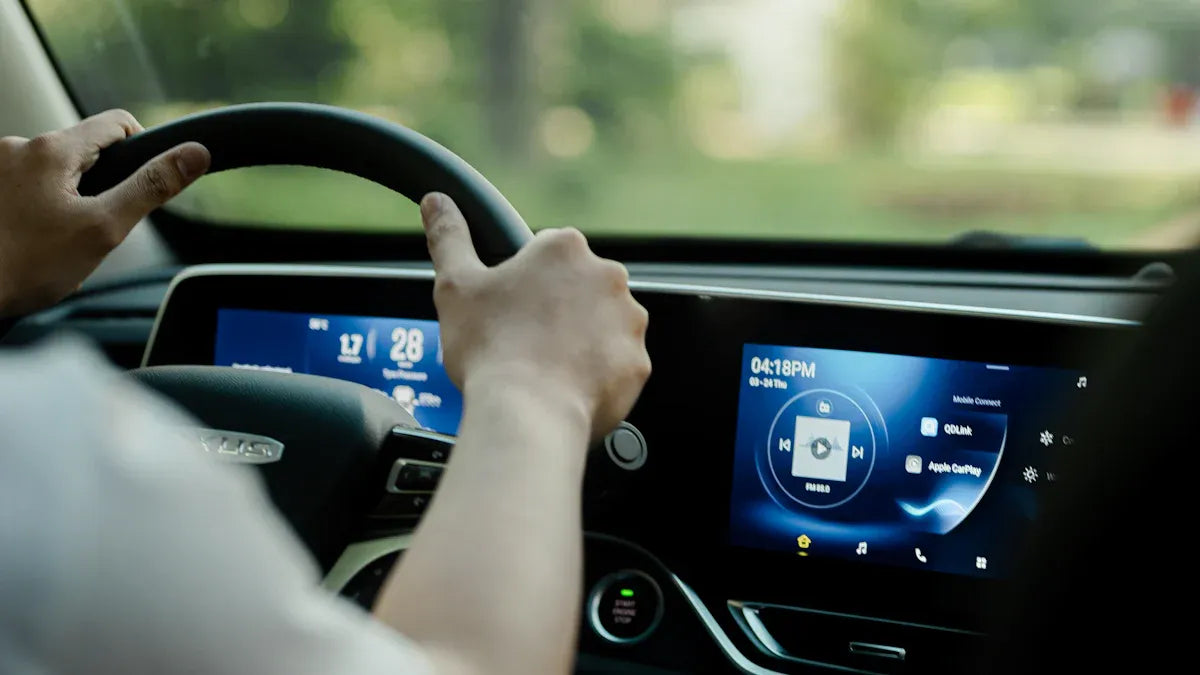
Hyundai Sonata Apple CarPlay Setup and Wireless Upgrade Guide
If your Hyundai Sonata already supports Apple CarPlay, setup usually starts with a working USB data connection between your iPhone and the vehicle's infotainment system. First confirm that your Sonata trim and model year include CarPlay, then test wired CarPlay with a good cable while the vehicle is parked. After wired CarPlay works, a wireless adapter can help remove the daily cable routine. If wired CarPlay does not launch, fix the vehicle, USB, iPhone, or software issue before buying an adapter. This guide explains how to check compatibility, set up CarPlay, solve common connection problems, and decide whether a CARLUEX wireless CarPlay adapter is a reasonable next step.
Quick Compatibility Checklist for Hyundai Sonata CarPlay
Before changing settings, confirm the basics. Hyundai's owner resources explain that Apple CarPlay availability depends on vehicle equipment, model year, and infotainment system. Hyundai also highlights smartphone integration features for the 2020 Sonata, but that does not mean every older Sonata, every trim, or every market has the same setup path.
- Confirm your exact Sonata year and trim. Use your owner's manual, window sticker, Hyundai infotainment menu, or Hyundai owner resources.
- Look for a real data USB port. A charging-only USB port cannot start CarPlay.
- Test wired CarPlay first. Most wireless adapters are designed to convert factory wired CarPlay into wireless CarPlay.
- Check your iPhone and cable. Apple recommends using CarPlay with a compatible iPhone and a reliable connection path.
- Keep the car parked during setup. Do not pair devices or change infotainment settings while driving.
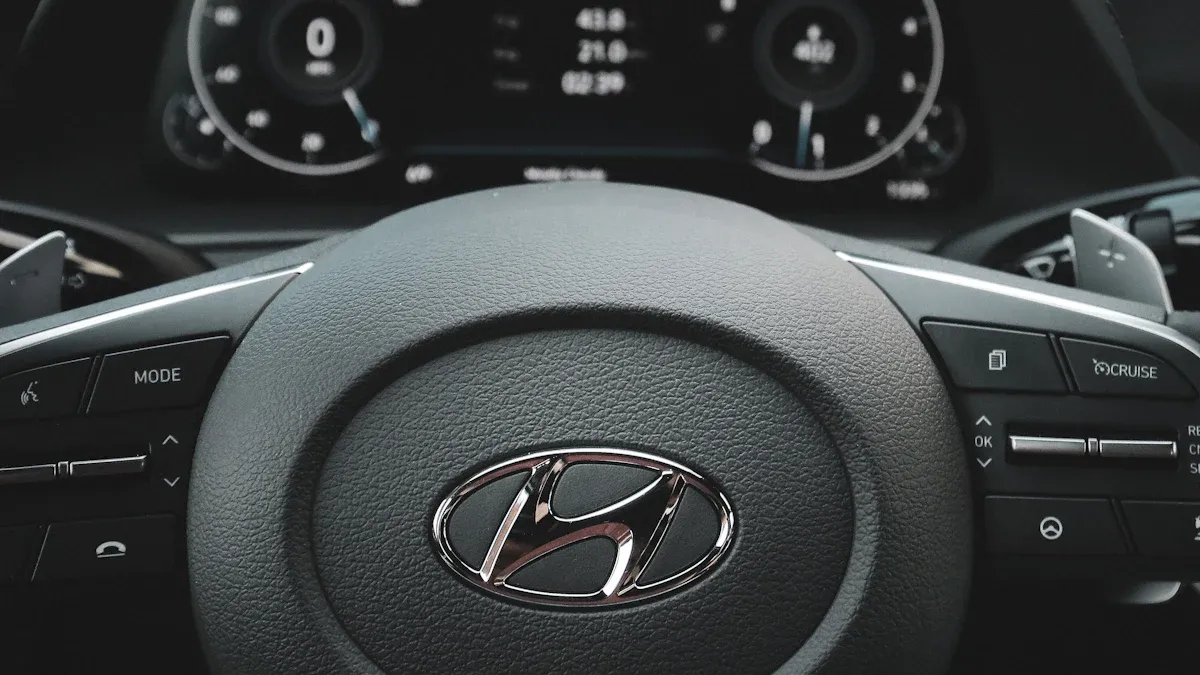
Does a Hyundai Sonata Have Apple CarPlay?
Some Hyundai Sonata models support Apple CarPlay from the factory, while others may depend on trim, infotainment package, region, or software updates. Avoid assuming that a broad year range automatically works. A safer way to check is to look for the Apple CarPlay option in the Sonata infotainment menu and test it with your iPhone.
For official setup context, review Hyundai's Android Auto and Apple CarPlay owner resource and Hyundai's 2020 Sonata smartphone integration guide. Apple also explains how to use CarPlay with your iPhone.
How to Set Up Wired Apple CarPlay in a Hyundai Sonata
Use wired setup as the baseline. If this works reliably, you have a stronger foundation for a wireless adapter later.
- Park the vehicle. Keep the Sonata safely parked before pairing or changing settings.
- Start the vehicle and infotainment system. Let the screen fully load before connecting the phone.
- Use a known-good USB data cable. Plug the iPhone into the Sonata's CarPlay-capable USB port, not a charging-only port.
- Accept prompts on both screens. Your iPhone may ask permission to use CarPlay while locked, and the Sonata screen may ask you to enable projection.
- Open CarPlay from the infotainment screen. Menu names can vary by model year and software version.
- Test maps, audio, calls, and Siri. If one feature fails, treat it as a setup or permission issue before moving to wireless.
Original Setup Video
How to Upgrade a Hyundai Sonata from Wired to Wireless CarPlay
A wireless CarPlay adapter generally requires factory wired Apple CarPlay. If your Sonata does not support wired CarPlay, a plug-in wireless adapter usually cannot add full CarPlay by itself. If wired CarPlay already works, a device such as the CARLUEX AIR wireless CarPlay adapter may help you connect without plugging in your iPhone every time.
- Confirm wired CarPlay works with your iPhone and Sonata.
- Check your vehicle on the CARLUEX compatible vehicles page.
- Plug the adapter into the same USB data port used for wired CarPlay.
- Pair the iPhone with the adapter using Bluetooth and Wi-Fi while parked.
- Restart the vehicle and confirm CarPlay reconnects automatically.
If you want a broader in-car multimedia upgrade, compare the CARLUEX PRO+ 2.0 Multimedia AI Box only after confirming vehicle compatibility and your actual use case. For a simple Sonata wired-to-wireless CarPlay setup, AIR is the cleaner first comparison.
Common Hyundai Sonata CarPlay Setup Problems
CarPlay does not appear on the screen
Try another USB data cable, check that Siri is enabled, unlock the iPhone during first setup, and look for a phone projection or CarPlay setting in the Sonata screen. Apple provides a dedicated CarPlay troubleshooting guide if CarPlay does not connect.
The phone charges, but CarPlay does not start
This often means the port or cable is not carrying data. A charging-only USB port cannot establish a CarPlay data connection. Use the port identified for phone projection or CarPlay in the vehicle manual.
CarPlay disconnects during driving
Check the cable, USB port, iPhone case fit, iOS version, and Hyundai infotainment software. If wired CarPlay is unstable, fix that before adding a wireless adapter. For more background, see CARLUEX's guide on how to reset Apple CarPlay.
Wireless adapter connects once, then fails later
Forget the adapter from Bluetooth and Wi-Fi settings, restart the iPhone, restart the vehicle, and pair again while parked. Keep both Bluetooth and Wi-Fi enabled because most wireless CarPlay adapters use both during the connection process.
What Not to Assume Before Buying an Adapter
- Do not assume every Hyundai Sonata year and trim has CarPlay.
- Do not assume wired CarPlay means factory wireless CarPlay.
- Do not assume a USB charging port is a CarPlay data port.
- Do not assume an adapter repairs a damaged USB port, blocked iPhone setting, or unsupported infotainment system.
- Do not assume one product fits every vehicle. Confirm the vehicle and product requirements first.
Best CARLUEX Option for This Use Case
For a Hyundai Sonata owner who already has working wired Apple CarPlay and mainly wants fewer cables, start by comparing the CARLUEX AIR Wireless CarPlay/Android Auto Adapter. Its current Shopify product page is active and describes wireless CarPlay and Android Auto adapter functionality. Final fit still depends on the Sonata's factory infotainment system and CARLUEX compatibility review.
Drivers who want more entertainment features can compare CARLUEX PRO+ 2.0, but this article should not promise PRO+ 2.0 is right for every Sonata. Check the product page and compatibility page before purchase.
Related CARLUEX Guides
- How to use Apple CarPlay - useful if this is your first CarPlay setup.
- How to reset Apple CarPlay - useful if setup fails or CarPlay disappears.
- Wireless CarPlay adapter basics - useful before choosing an adapter.
- CARLUEX compatible vehicles - required before assuming product fit.
FAQ
Can I install Apple CarPlay in every Hyundai Sonata?
No. CarPlay support depends on the Sonata's model year, trim, region, infotainment system, and software. Confirm support in your owner's manual or Hyundai infotainment menu before buying accessories.
Does a wireless CarPlay adapter work if my Sonata has no wired CarPlay?
Usually no. A wireless CarPlay adapter generally requires factory wired Apple CarPlay first. If wired CarPlay does not work, fix compatibility, USB, cable, iPhone, or software issues before considering an adapter.
Which USB port should I use for Hyundai Sonata CarPlay?
Use the USB data port assigned to phone projection or Apple CarPlay. Some ports only charge devices and cannot start CarPlay.
Why does Hyundai Sonata CarPlay keep disconnecting?
Common causes include a weak cable, loose USB port, iPhone permissions, outdated iOS, infotainment software issues, or wireless interference. Test wired CarPlay first because it is the baseline for adapter compatibility.
Which CARLUEX product should Sonata owners compare first?
If your Sonata already has stable wired CarPlay and you mainly want a wireless connection, compare CARLUEX AIR first. Review CARLUEX compatibility before purchase.
Final Check Before You Upgrade
For Hyundai Sonata Apple CarPlay setup, start with proof: confirm your vehicle supports CarPlay, test a wired data connection, and solve any iPhone or infotainment problems first. Once wired CarPlay works reliably, a CARLUEX wireless adapter can be a practical way to reduce cables. Keep the vehicle parked during setup, avoid broad fit assumptions, and confirm product fit before ordering.


Leave a comment
Este site está protegido pela Política de privacidade da hCaptcha e da hCaptcha e aplicam-se os Termos de serviço das mesmas.