

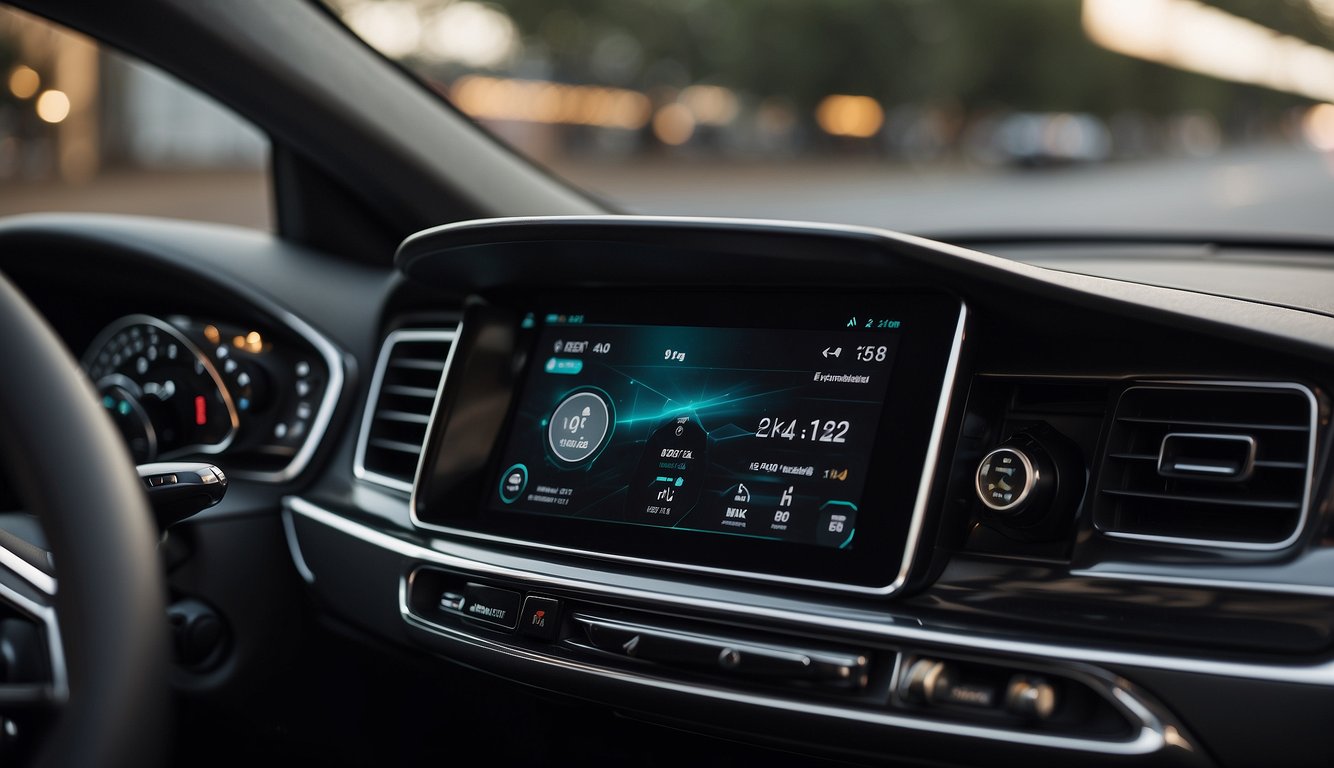
You can make Apple CarPlay wireless using a small adapter — no dealership visit, no head unit replacement needed. Just plug the adapter into your car's USB port (the same one that runs wired CarPlay), pair your iPhone once, and from then on CarPlay connects automatically the moment you start the engine. This guide walks you through exactly how it works, what you need, and how to set it up in under 10 minutes.
What Makes Apple CarPlay Wireless — Technically Speaking
Before spending money on any adapter, it helps to understand how wireless CarPlay actually works at a technical level. Apple CarPlay uses two simultaneous wireless protocols to maintain a full infotainment connection:
Bluetooth handles the initial pairing and low-bandwidth signaling — like telling your car which iPhone is in the vehicle.
5 GHz Wi-Fi carries the heavy load: Google Maps tiles, Spotify streams, voice command routing, and Siri responses. This is why Apple officially recommends a 5 GHz Wi-Fi connection for stable wireless CarPlay performance.
Notably, Bluetooth alone cannot carry CarPlay — CarPlay's full feature set requires Wi-Fi. Some car manufacturers use Bluetooth only for phone calls and audio, while routing CarPlay over the car's internal Wi-Fi network. This distinction matters when troubleshooting (more on that below).
Apple has supported wireless CarPlay natively since iOS 9, but the feature requires a compatible car — most manufacturers introduced it on models from 2016 onward. If your car predates 2016, a wireless CarPlay adapter is your only option for going cable-free.
Do You Have the Right iPhone and Car for Wireless CarPlay?
Here are the hard requirements — and they're stricter than most articles admit:
iPhone: iPhone 6s or later (iOS 9+ required), plus 5 GHz Wi-Fi support. Notably, iPhone 5c and older iPads are excluded because they lack 5 GHz Wi-Fi capability. The CARLUEX AIR supports all iPhones from iPhone 6s through iPhone 15 Pro Max.
Car: Must have factory wireless CarPlay OR a USB port that runs wired CarPlay. You cannot use wireless CarPlay in a car that only supports CarPlay over a wired USB connection — unless you add an aftermarket wireless adapter (which is what this guide is for).
Apps: CarPlay-compatible apps must be installed and updated. Apple Maps, Music, and Messages work out of the box; Spotify, WhatsApp, and Waze require iOS 12 or later.
How to Set Up Wireless CarPlay Using an Adapter

Follow these steps in order. Skipping steps causes most of the connection failures reported by users.
- Locate the USB port in your car that normally runs wired CarPlay. This is your adapter's power source — it must be a data-capable USB port, not a charging-only port.
- Plug the wireless CarPlay adapter firmly into the USB port. Wait 10–15 seconds for the adapter's LED to indicate it's powered on.
- On your iPhone, go to Settings > Wi-Fi. Look for a Wi-Fi network name matching your adapter (e.g., "CARLUEX-5G"). Tap to connect, then enter the password if prompted.
- Now go to Settings > General > CarPlay > Available Cars. Your adapter should appear — tap it and confirm pairing. Bluetooth pairing will happen automatically in the background.
- Start your car's engine. CarPlay should launch on your infotainment screen within 15–30 seconds. Future drives: CarPlay will connect automatically as soon as your iPhone is in range (~5 meters of the car).
Why Is My Wireless CarPlay Dropping or Not Connecting?

Wireless CarPlay issues almost always fall into three categories:
1. The Wi-Fi network is wrong or crowded. Some cars create multiple Wi-Fi networks — one for Android Auto, one for CarPlay, one for hotspot. Make sure your iPhone is connected to the adapter's own Wi-Fi network, not the car's built-in hotspot or a passenger hotspot. In areas with many overlapping Wi-Fi networks (apartment complexes, city streets), switch your adapter to the 5 GHz band if possible.
2. Siri settings are blocking CarPlay. CarPlay relies heavily on Siri for voice commands. If Siri is disabled, CarPlay features will be degraded. Check Settings > Siri & Search > and confirm "Listen for 'Hey Siri'" is enabled, and that Siri is allowed in CarPlay (Settings > Screen Time > Content & Privacy Restrictions > Allowed Apps > Siri).
3. Background app interference. Apps running active Wi-Fi transfers in the background (cloud backups, large downloads, FaceTime calls) can saturate the bandwidth that CarPlay needs. Pause these before driving if you experience stuttering navigation.
Reset tip: If everything fails, go to Settings > General > Reset > Reset Network Settings on your iPhone. This clears all Wi-Fi passwords and Bluetooth pairings — you'll need to re-pair everything, but it resolves most stubborn wireless CarPlay issues.
What's Next for Wireless CarPlay in 2024 and Beyond?
Apple introduced wireless CarPlay natively in 2016, but the feature is evolving faster than most users realize:
iOS 17 brought major wireless improvements: Automatic CarPlay launching (your phone detects when you're in the car and starts CarPlay before you even touch the screen), improved Siri integration with third-party navigation apps, and dual-phone support for households sharing one car.
OEM wireless CarPlay is becoming standard: By 2025, most new vehicles from BMW, Mercedes-Benz, Toyota, Ford, and GM offer wireless CarPlay as standard on all trim levels — not just premium packages.
Dashboard customization (iOS 18+): Apple is rolling out full dashboard customization for wireless CarPlay users, allowing multiple app windows simultaneously — something that was previously limited to the wired connection's full bandwidth.
Conclusion
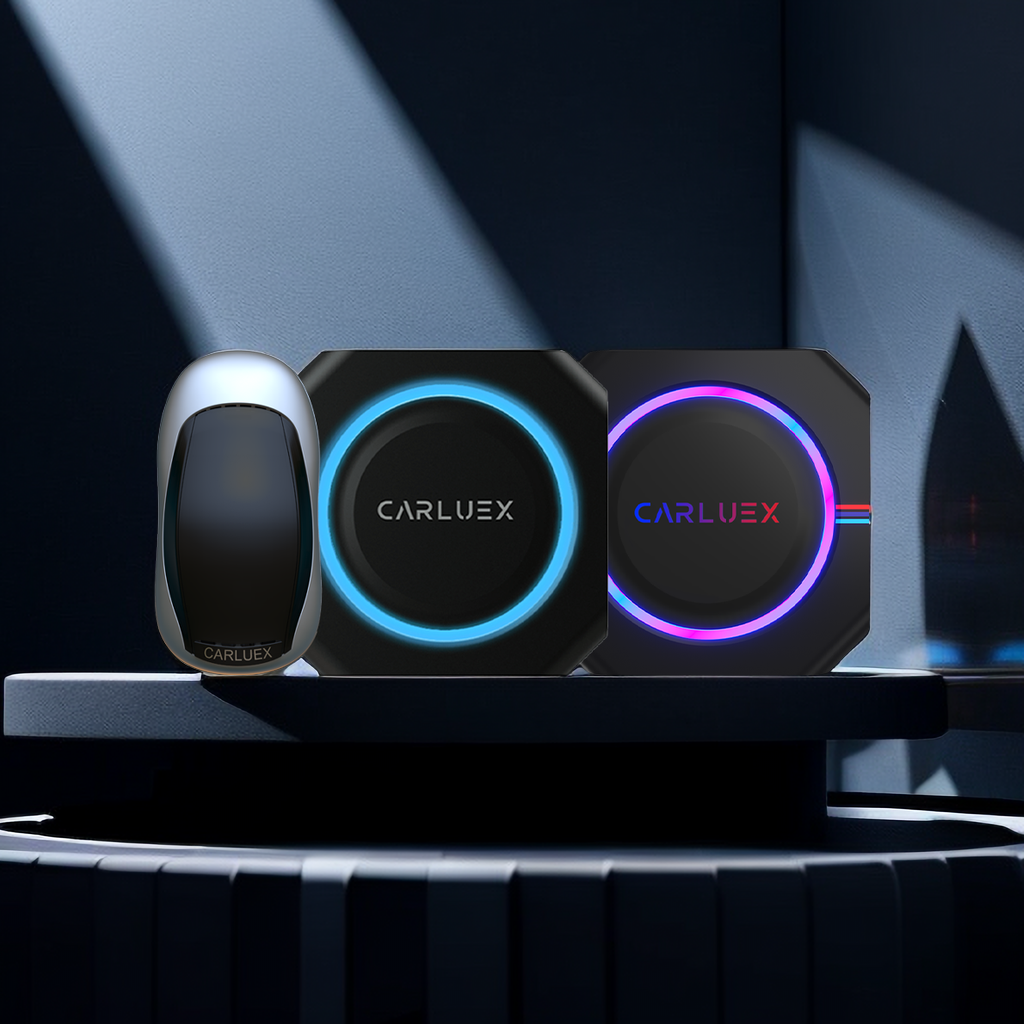
Making Apple CarPlay wireless is one of the best upgrades you can make to an older car. No more fishing for cables, no more fraying Lightning ports. A single adapter — like the CARLUEX AIR — transforms your existing wired CarPlay setup into an automatic, seamless wireless experience. Setup takes under 10 minutes, and the connection kicks in every time you start the car without any action required. Browse the full CARLUEX product lineup to find the right adapter for your vehicle.
Frequently Asked Questions
What's the fastest way to convert wired CarPlay to wireless without replacing my head unit?
Buy a wireless CarPlay adapter (like the CARLUEX AIR) and plug it into the USB port that currently runs your wired CarPlay connection. No software changes, no hardware modifications — just pair your iPhone once via Settings > General > CarPlay > Available Cars, and the connection becomes automatic from then on. Full setup takes under 10 minutes.
Does wireless CarPlay use more battery than wired CarPlay?
Yes, about 10–15% faster battery drain on a typical 45-minute commute compared to wired charging. This is because both the Wi-Fi and Bluetooth radios stay active simultaneously. Using a USB-C cable with Power Delivery passthrough (if your adapter supports it) can offset this by providing charging while maintaining the wireless connection.
Can wireless CarPlay work in any car that has wired CarPlay?
Yes — with an adapter. Any car that has a factory wired CarPlay USB port can use a wireless adapter. The adapter acts as a bridge: it connects to your phone wirelessly and presents itself to the car's infotainment system as a wired CarPlay connection. Check the Apple CarPlay website to confirm your specific vehicle supports CarPlay at all.
Why does my CarPlay say "no connection" even though my iPhone and adapter are both on?
Most often, this is a Wi-Fi band mismatch. Some car stereos and adapters only communicate over 5 GHz Wi-Fi, but many iPhones default to 2.4 GHz to save battery. Go to Settings > Wi-Fi on your iPhone and manually select the 5 GHz network from your adapter (often indicated by a "5G" suffix in the network name). If your adapter only supports 2.4 GHz, make sure your iPhone isn't locked to 5 GHz in Settings.
Is it safe to leave a wireless CarPlay adapter plugged in all the time?
Yes — wireless CarPlay adapters draw minimal power when your iPhone isn't connected (essentially standby mode). They automatically wake up when your phone enters the vehicle's Bluetooth range and shut down when you leave. You can leave it plugged in permanently without worrying about battery drain on your car's electrical system. Most adapters also survive engine start/stop cycles without issue.


Leave a comment
This site is protected by hCaptcha and the hCaptcha Privacy Policy and Terms of Service apply.