

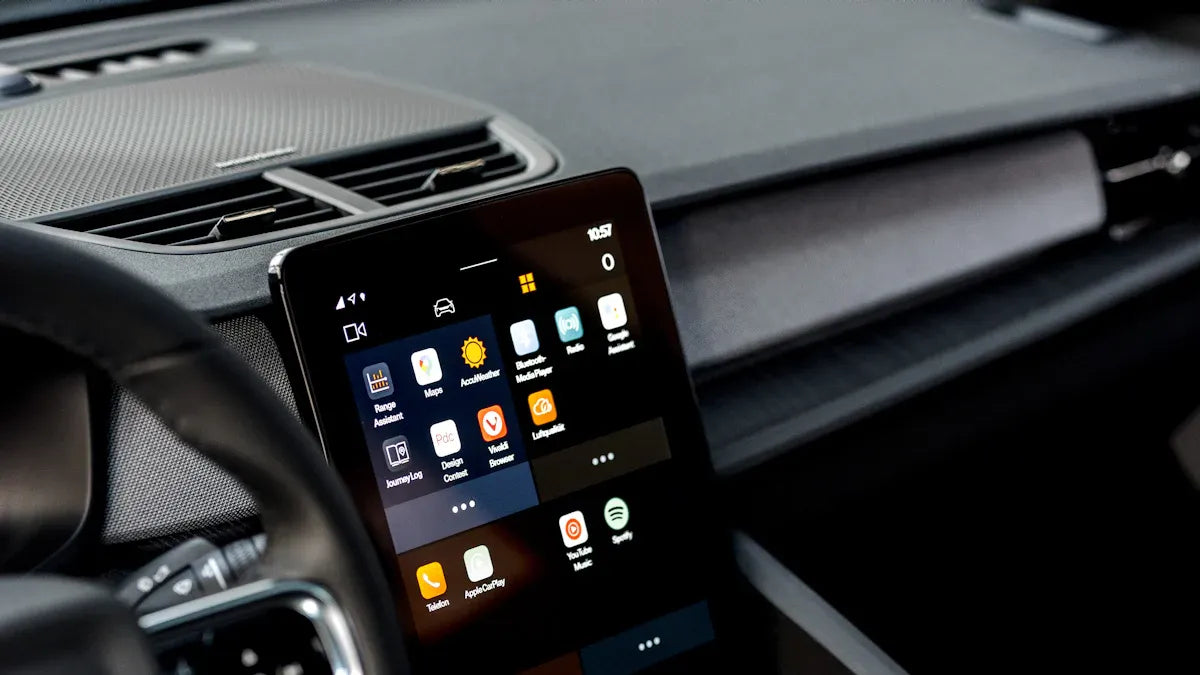
If Apple CarPlay keeps disconnecting in your Hyundai i30, start with the connection path that actually carries CarPlay: the iPhone settings, USB cable and port, Hyundai phone projection settings, saved pairing records, software updates, and any wireless adapter in the middle. Do not assume the whole infotainment system is broken until you test each link in that chain.
Park safely before changing settings, testing cables, or pairing devices. Do not troubleshoot CarPlay while driving.
Quick Answer: Fix Hyundai i30 CarPlay Disconnecting
- Use a data-capable USB cable and the Hyundai USB port intended for phone projection.
- On iPhone, open Settings and search for Siri. Make sure Siri is enabled. The exact label can vary by iOS version.
- Check Screen Time restrictions if CarPlay is not detected.
- Remove the iPhone from Hyundai's saved phone or projection list, then forget the car on iPhone.
- Restart the iPhone and the Hyundai infotainment system.
- Update iOS and check Hyundai navigation or infotainment software updates.
- If using a wireless adapter, confirm wired CarPlay works first, then reset the adapter pairing.
Check Whether Your Hyundai i30 Supports CarPlay
Apple lists Hyundai i30 support on its official CarPlay available models page, but exact support can still depend on model year, region, trim, and infotainment system. If your i30 was sold in a different market or has an aftermarket head unit, check the Hyundai manual or the head unit maker's documentation before buying any adapter.
Supporting CarPlay does not automatically mean supporting factory wireless CarPlay. Many vehicles use wired CarPlay from the factory. If your i30 only has wired CarPlay, a wireless adapter can be a convenience upgrade only after the wired connection works reliably.
Use the Correct USB Cable and Hyundai Phone Projection Port
For wired CarPlay, the USB cable must pass data, not just charging power. If the iPhone charges but CarPlay disconnects or never appears, try a shorter data-capable cable and connect directly to the Hyundai USB port used for phone projection.
Hyundai's official web manual for wired Apple CarPlay shows that phone projection depends on the vehicle's supported phone projection connection, not any random charging port. If your owner's manual identifies a specific USB port, follow that vehicle-specific guidance first.
Check iPhone Siri, Screen Time, and CarPlay Settings
Apple's CarPlay troubleshooting guidance recommends checking CarPlay restrictions, forgetting the car, and setting up CarPlay again when it is not detected. This applies to Hyundai i30 users too, because the iPhone controls several permissions before the car can launch CarPlay.
On iPhone, open Settings and search for Siri. Make sure Siri is enabled. Then search Settings for Screen Time and check whether CarPlay is restricted. Menu labels can vary by iOS version, so searching Settings is safer than relying on one fixed path.
Reset the Hyundai and iPhone Pairing
If CarPlay worked before but now disconnects repeatedly, remove old pairing data from both sides.
- Park the Hyundai i30 and keep the infotainment system on.
- On iPhone, open Settings and search for CarPlay.
- Select your Hyundai if it appears, then tap Forget This Car.
- In the Hyundai infotainment menu, remove the iPhone from saved Bluetooth, phone, or phone projection devices.
- Restart the iPhone.
- Turn the car off, wait briefly, then restart the infotainment system.
- Reconnect by USB first. Test wireless or adapter-based CarPlay only after wired CarPlay is stable.
Hyundai also provides official phone projection troubleshooting in its phone projection solution guide, which is useful when the car does not recognize a phone or connection state correctly.
Update iPhone and Hyundai Software
Software updates can affect CarPlay stability. Check iOS updates on your iPhone, then check whether Hyundai has an infotainment, navigation, or map software update for your region. Hyundai's official Navigation Updater is a safer source than forum instructions because update availability and methods can vary by model and region.
If your Hyundai i30 is still under warranty or you are unsure which update applies, ask a Hyundai dealer or support channel before attempting anything that could affect the infotainment system.
Wired CarPlay, Factory Wireless CarPlay, and Adapter Setups
| Setup | What can disconnect | Best first check |
|---|---|---|
| Wired CarPlay | USB cable, USB port, iPhone permission, Hyundai phone projection | Test another data cable and reset phone projection pairing |
| Factory wireless CarPlay, if equipped | Bluetooth, Wi-Fi, saved vehicle profile, software | Forget the car and pair again using Hyundai's official flow |
| Wireless adapter setup | Adapter firmware, adapter pairing, vehicle USB connection | Confirm wired CarPlay works first, then reset the adapter |
When a CARLUEX Adapter Can Help
A wireless adapter may help after wired CarPlay already works. It does not fix unsupported vehicles, damaged USB ports, blocked iPhone settings, or vehicle software problems.
If your Hyundai i30 has stable factory wired CarPlay and you want a cable-free setup, start by checking CARLUEX LINK. If you want additional multimedia features in a compatible vehicle, compare CARLUEX AIR, CARLUEX GO, and CARLUEX PRO+ 2.0.
Before purchasing, check CARLUEX compatible vehicles or contact support if your Hyundai i30 year, trim, or region is not listed. Compatibility depends on the adapter model and your vehicle's factory infotainment system.
Related CARLUEX Guides
- Why Your Apple CarPlay Isn't Working and How to Fix It
- iOS CarPlay Not Working? Fix Apple CarPlay Issues
- iPhone CarPlay Not Working? Fix Disconnects & Setup
- How to Reset Apple CarPlay
- Browse CarPlay troubleshooting guides
FAQ
Why does my Hyundai i30 CarPlay keep disconnecting?
Common causes include a weak USB cable, the wrong USB port, iPhone CarPlay restrictions, stale Bluetooth or phone projection records, outdated Hyundai software, or an unstable wireless adapter setup.
Does wireless CarPlay work better in the Hyundai i30?
Not always. If wired CarPlay is unstable, wireless CarPlay or an adapter may carry the same underlying problem. Fix wired CarPlay and vehicle support first, then consider wireless convenience.
Can I upgrade my Hyundai i30 to wireless CarPlay?
Possibly, if your i30 has factory wired CarPlay and the adapter is compatible with your vehicle. Check CARLUEX compatible vehicles before purchase.
What should I do if CarPlay disconnects on long drives?
Test a different data cable, avoid moving the phone while plugged in, remove old Bluetooth pairings, check for software updates, and confirm whether the issue happens with another iPhone.
Can a CARLUEX adapter fix Hyundai i30 CarPlay disconnecting?
Only in the right scenario. It can help make a stable wired CarPlay setup wireless, but it will not repair a bad USB port, unsupported infotainment system, blocked iPhone setting, or vehicle software fault.


Leave a comment
This site is protected by hCaptcha and the hCaptcha Privacy Policy and Terms of Service apply.