

Filtri
8 prodotti
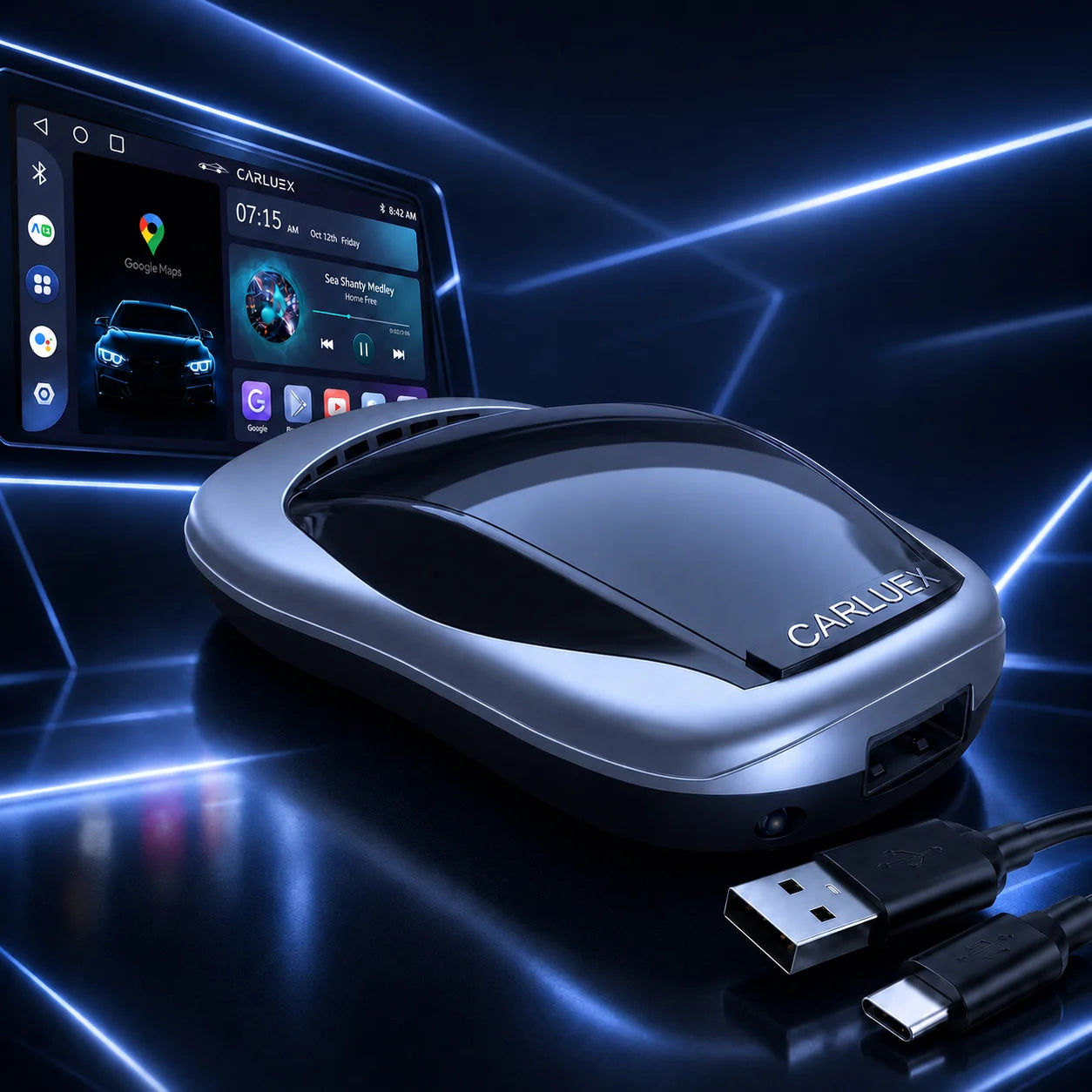
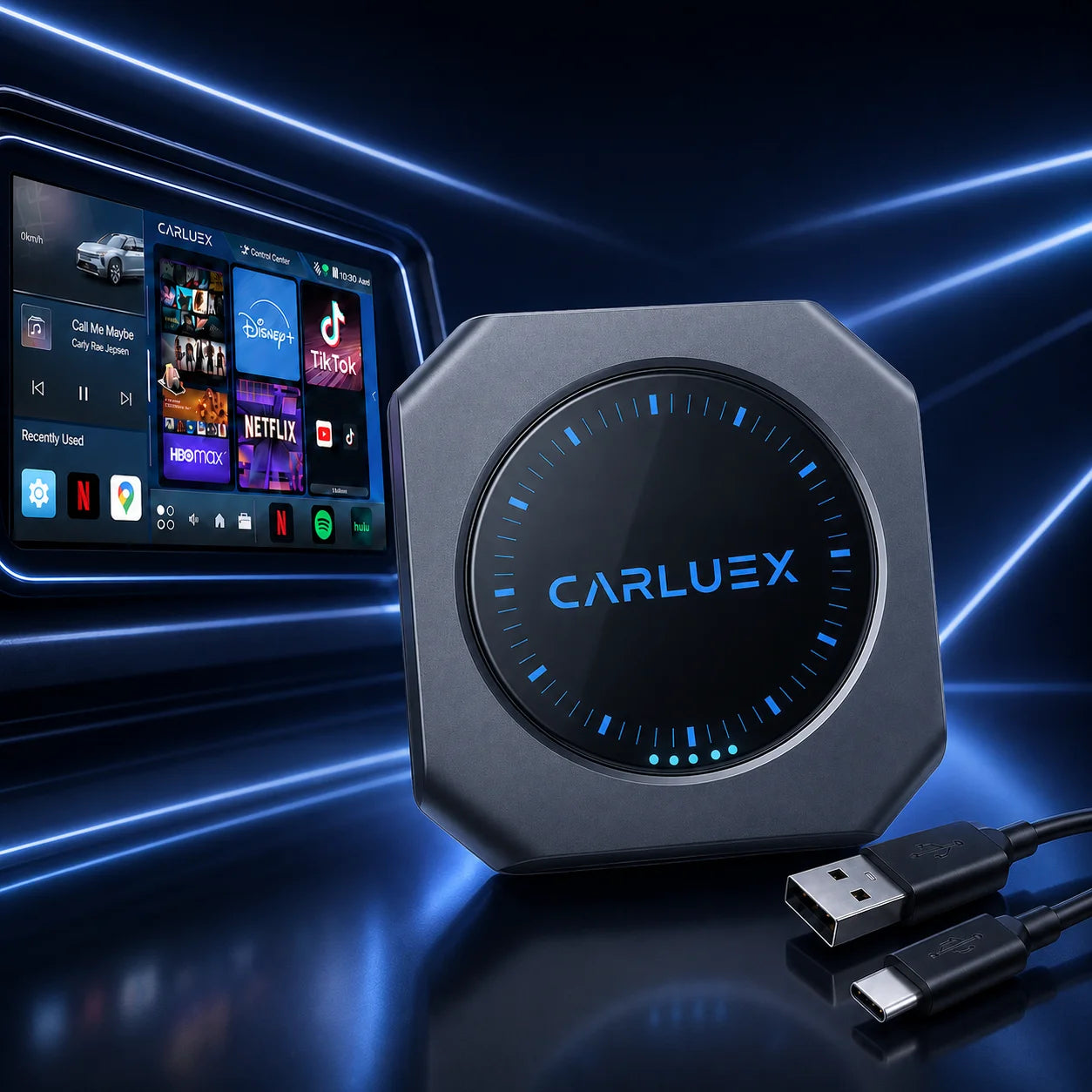
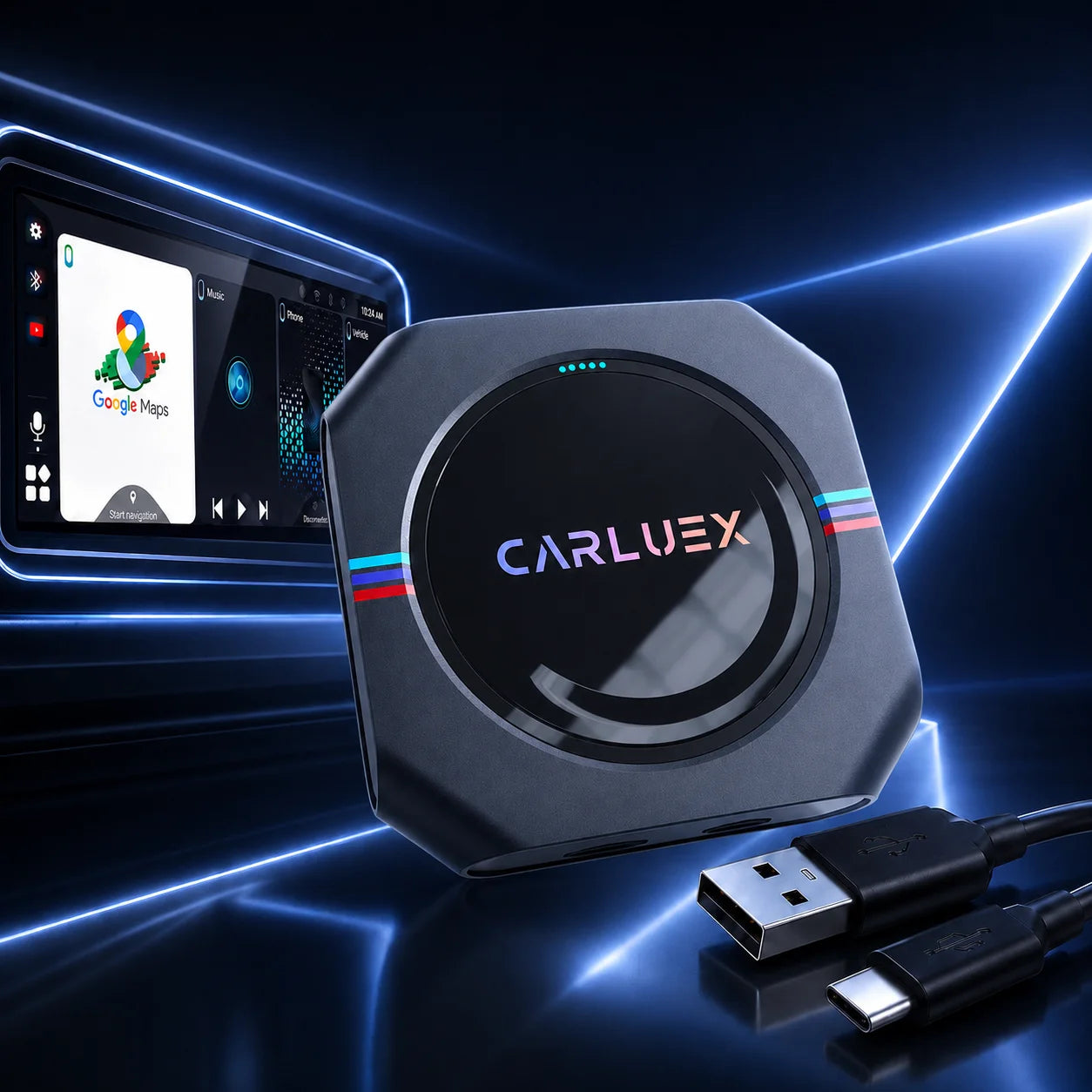
Imagine starting your Renault Captur on a busy morning—no more fumbling to plug in your phone while juggling coffee and keys. Upgrading to a Renault Captur wireless Android Auto dongle gives you instant, cable-free access to Google Maps for traffic-aware routing, hands-free Google Assistant for calls, and uninterrupted Spotify playlists. Many Captur models (especially 2019+) with factory wired Android Auto (via Easy Link or similar) can make this switch quickly using a plug and play Android Auto Renault Captur solution or Captur Android Auto upgrade adapter. This guide gets you there in minutes.
Why Upgrade to Wireless Android Auto on Your Renault Captur?
Wired Android Auto gets the job done, but it often feels restrictive during everyday drives or longer journeys.
The Limitations of Wired Android Auto in Daily Driving
Cables snag on gear shifts, strain ports over time, and limit how freely you can move your phone—especially annoying when rerouting on the fly or answering a quick call at a red light.
Key Benefits of a Plug and Play Android Auto Renault Captur Solution
- Auto-connects the moment you start the engine—no plugging required
- Freedom to mount your phone anywhere or charge via a separate cable
- Safer, eyes-forward driving with full-screen Google Maps and voice commands
- Reliable streaming for music, podcasts, or hands-free messaging on commutes and road trips
Compatibility Check: Does Your Renault Captur Support This Upgrade?
Most Renault Captur models from 2019 onward with factory wired Android Auto (common on Easy Link systems) are compatible. Older models may need a head unit upgrade first. Verify by checking your infotainment menu for "Android Auto" in phone projection settings—if wired works now, the wireless upgrade is typically straightforward.
Step-by-Step Guide to Adding Wireless Android Auto
No tools or expertise needed—just a few minutes and your phone.
Prerequisites – What You Need Before Starting
- Android phone running Android 11 or higher with the Android Auto app installed
- Renault Captur with factory wired Android Auto support
- A reliable Android Auto adapter for Renault Captur (USB-A or USB-C matching your car's port)
Step 1: Confirm Your Renault Captur's Android Auto Setup
Start the engine, connect your phone via USB, and ensure wired Android Auto appears on the screen. If it launches smoothly, your system is upgrade-ready.
Step 2: Choose and Prepare Your Android Auto Adapter
Pick a stable, low-latency dongle built for easy integration. Turn on the car, insert the adapter into the Android Auto USB port, and watch for the indicator light (solid or blinking to show it's ready).
Step 3: Plug In and Pair the Device
Enable Bluetooth and Wi-Fi on your phone. The adapter sets up a private Wi-Fi network—your device connects automatically. Follow the quick on-screen prompts to pair (one-time setup, often under 30 seconds). Wireless Android Auto launches right away.
Step 4: Complete Initial Setup and Test Connection
Restart the car—Android Auto should reconnect automatically in seconds. Test navigation, music playback, and voice commands to confirm everything runs smoothly.
Step 5: Troubleshooting Common Connection Issues
- No connection? Clear old Bluetooth pairings, restart phone and car.
- Occasional lag? Update your phone and close heavy background apps.
- Adapter undetected? Switch USB ports or reseat firmly.
Get the Best Performance with CARLUEX
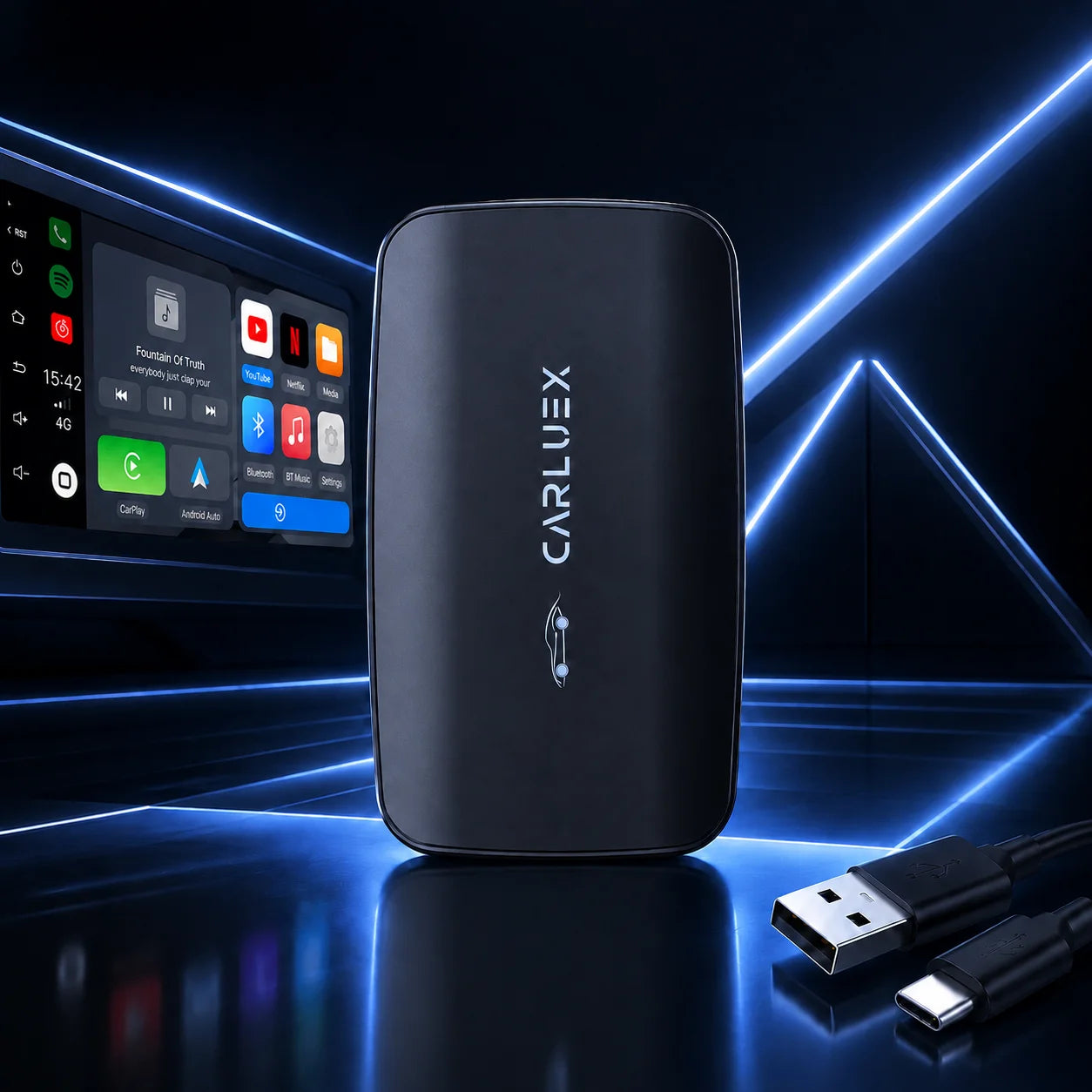
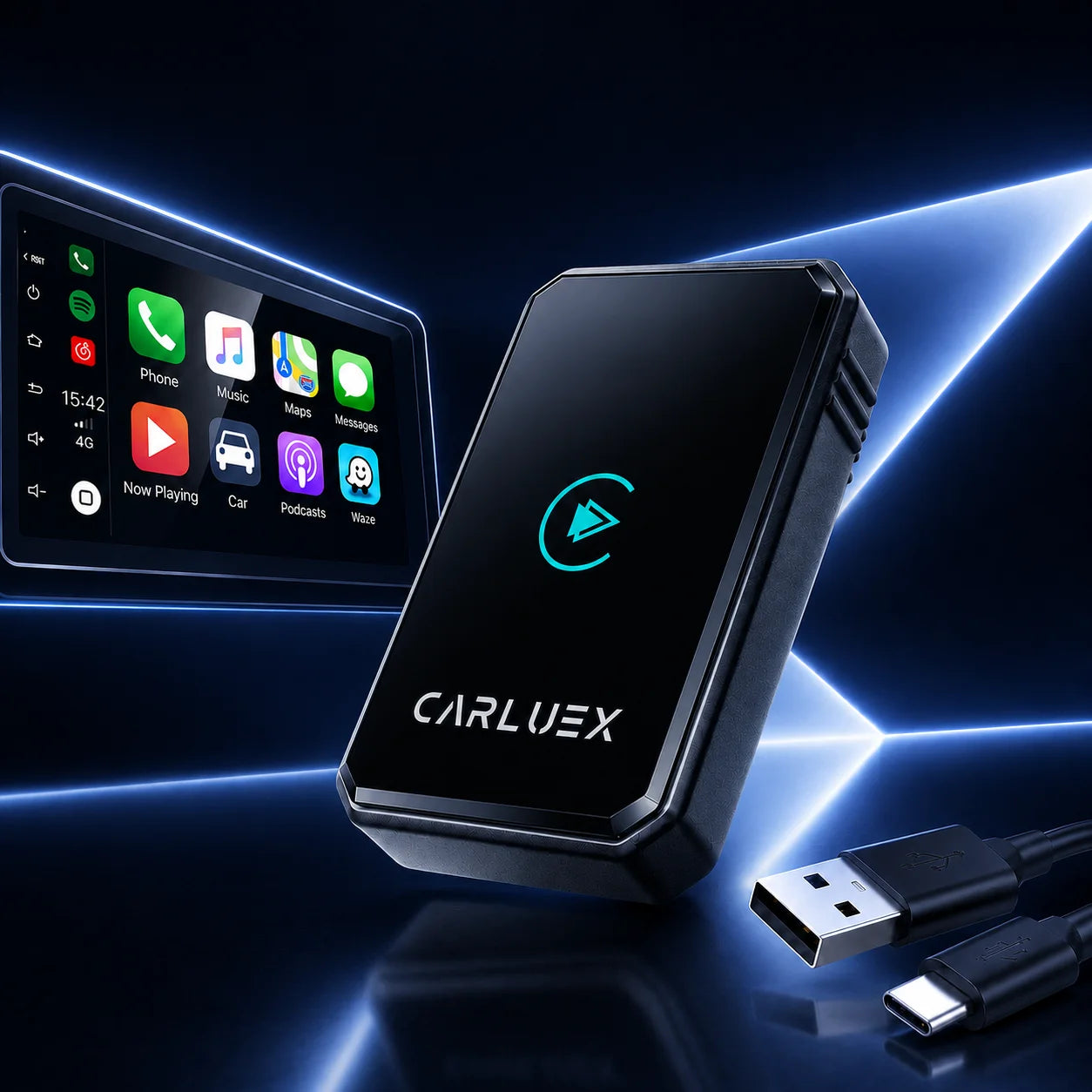
For Renault Captur drivers wanting dependable wireless Android Auto, CARLUEX delivers high-quality adapters with stable connectivity, quick pairing, and excellent call/music clarity—ideal for everyday reliability.
Why CARLUEX Is the Ideal Captur Android Auto Upgrade Adapter
CARLUEX options feature Bluetooth 5.0 for rock-solid performance and easy setup, letting you focus on the road instead of cables.
Explore the full range on the CARLUEX HOMEPAGE.
Easy Purchase and Setup Tips for Renault Captur Owners
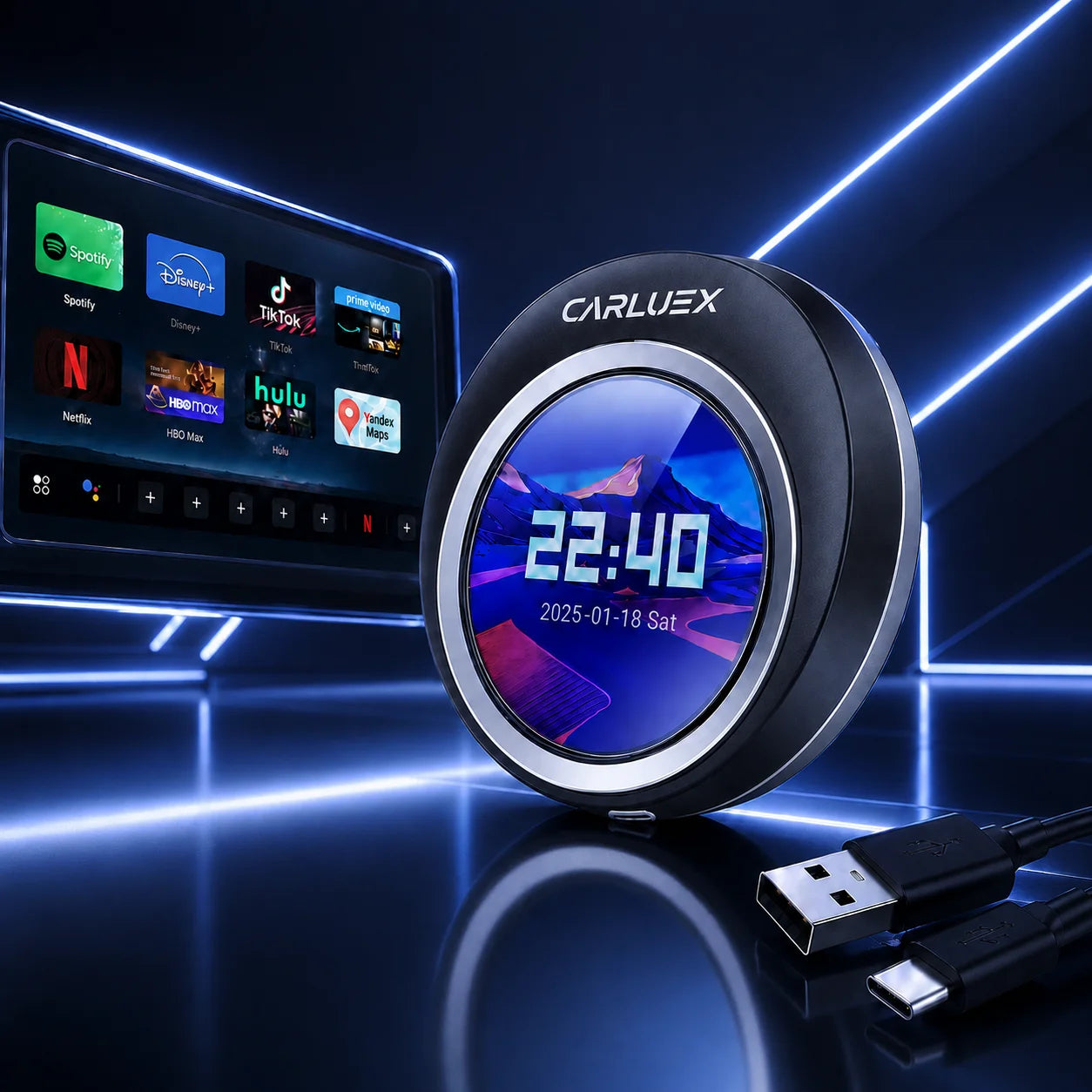
Try the CARLUEX PRO+2.0 for extra multimedia capabilities, or the compact CARLUEX AIR for straightforward wireless Android Auto at a great value.
Long-Term Advantages and User Tips
Benefit from ongoing improvements and strong app support. Check out Best Android Auto Apps Collection 2025: Changing How You Drive for app ideas that enhance your drives.
Article Recommendations
For more tips and upgrades:
- Discover How to Enjoy Uninterrupted Music and Navigation with a CarPlay and Android Auto Combo Dongle
- Learn about Best Music Player Apps for Android Auto in 2025
FAQ
Will this work on all Renault Captur models?
It works on most 2019+ models with factory wired Android Auto. Check your infotainment settings first; older models may require additional upgrades.
Do I need to root my phone or install extra apps?
No—it's a simple plug-and-play process using your existing Android Auto app.
What if the connection drops sometimes?
Restart the car/phone, ensure Wi-Fi/Bluetooth are enabled, or update firmware if your adapter supports it.
Can I still charge my phone?
Yes—use a separate charger or power bank since the adapter frees your phone from the USB cable.


