

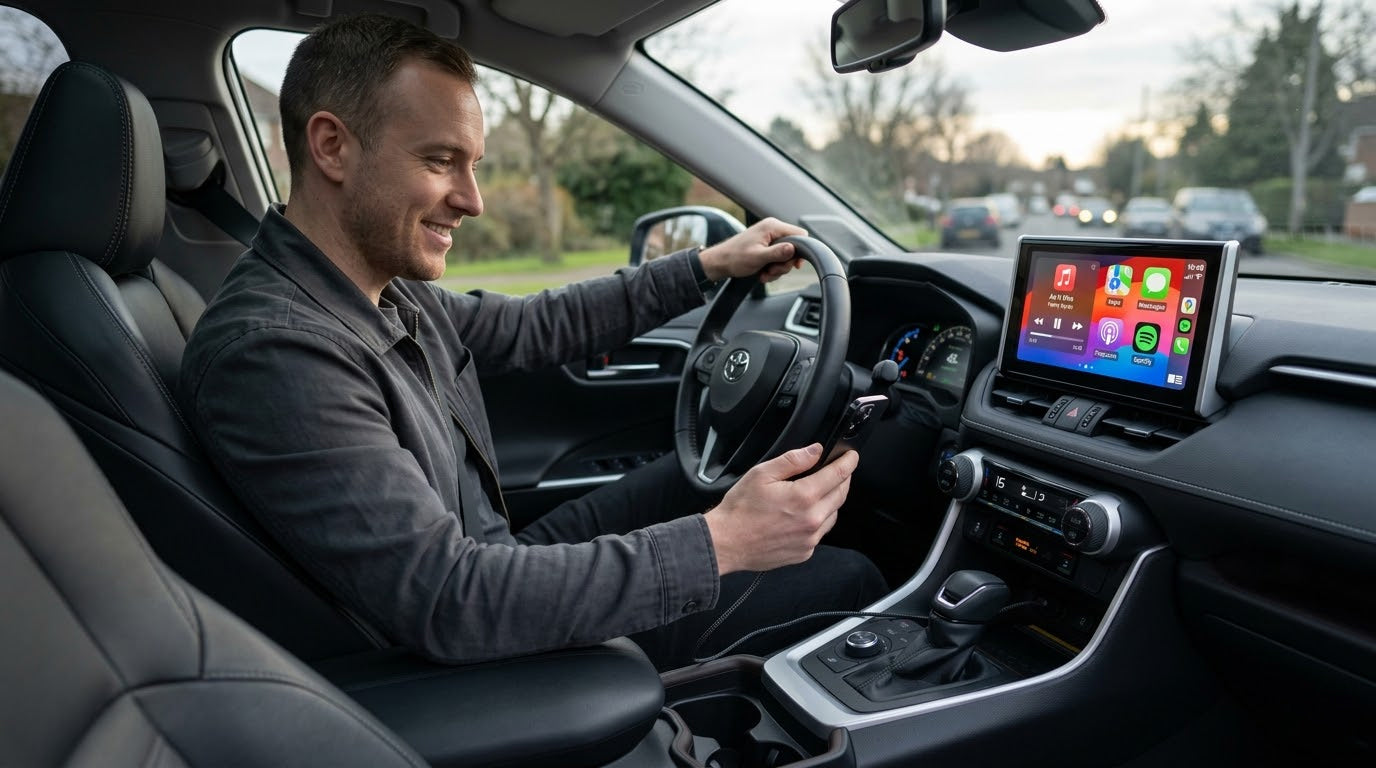
Toyota CarPlay or Android Auto Not Working? Start Here
If Apple CarPlay or Android Auto is not working in your Toyota, start with the basics: confirm your Toyota and phone support the feature, restart both systems, use a data-capable USB cable, check Siri or Android Auto permissions, remove old pairings, and confirm Toyota multimedia settings while parked. Apple and Google both recommend checking compatibility, cable quality, phone settings, vehicle infotainment settings, and software or firmware updates before assuming the vehicle hardware is faulty.
Change phone and infotainment settings only while the vehicle is parked. Do not adjust your iPhone, Android phone, Bluetooth, Wi-Fi, cable, or Toyota multimedia settings while driving.
Quick Answer: The Most Common Toyota Connection Fixes
| Symptom | Most likely cause | What to check first |
|---|---|---|
| Toyota does not detect the phone | Wrong USB port, charge-only cable, disabled setting, or old pairing | Try another data cable, restart both systems, and forget/reconnect the vehicle. |
| CarPlay does not launch | Siri disabled, CarPlay restricted, or unsupported vehicle setup | Check Siri, Screen Time restrictions, and Apple's CarPlay guidance. |
| Android Auto does not launch | Android Auto disabled in the car, cable issue, permission issue, or compatibility problem | Check Android Auto settings, USB cable, permissions, and Toyota multimedia settings. |
| Wireless connection fails | Bluetooth/Wi-Fi pairing issue or wired-only Toyota setup | Confirm your exact Toyota model, year, trim, region, and multimedia system supports wireless use. |
| Connection drops after it starts | Weak cable, dirty USB port, outdated phone software, or infotainment firmware issue | Replace the cable, clean the port carefully, update the phone, and check Toyota support. |
1. Confirm Your Toyota Supports CarPlay or Android Auto
Do not assume every Toyota model, year, trim, market, or head unit has the same CarPlay or Android Auto behavior. Toyota multimedia systems vary by model year, region, trim, and software version. A Toyota may support wired CarPlay but not wireless CarPlay, or it may support Android Auto only on certain model years or infotainment packages.
For Apple CarPlay, check Apple's official CarPlay available models page and compare it with your exact Toyota model and year. If you are unsure, use the owner's manual, Toyota support, or a Toyota dealer to confirm the multimedia package tied to your VIN.
For Android Auto, Google recommends checking whether your car is compatible and whether Android Auto is turned on in the vehicle's infotainment system. Google's Android Auto troubleshooting guide also points users to USB cable checks, car receiver settings, and firmware availability.
2. Check the USB Cable and Toyota USB Port

A cable can charge your phone but still fail to carry data. That is why Toyota CarPlay or Android Auto may fail even when your phone battery icon shows charging. Use a data-capable cable, connect directly to the Toyota USB port meant for smartphone projection, and avoid loose adapters or damaged extension cables while troubleshooting.
- Try a different high-quality USB cable that supports data transfer.
- Use the Toyota USB port intended for smartphone projection if your vehicle has more than one port.
- Check for dust, lint, or looseness in the phone port and Toyota USB port.
- Remove USB hubs, splitters, or extra adapters during troubleshooting.
- If one Toyota USB port only charges the phone, try another port before assuming CarPlay or Android Auto is broken.
Google's setup guidance for Android Auto notes that setup can use a USB cable or wireless Bluetooth connection depending on the car. If USB setup fails, Google recommends checking compatibility and connection issues or contacting the vehicle manufacturer through its Android Auto setup guidance.
3. Restart the Phone and Toyota Multimedia System

Restarting sounds simple, but it clears many temporary phone, Bluetooth, Wi-Fi, and infotainment glitches. Turn the phone off and back on. Then turn the Toyota off, wait briefly, and restart the vehicle while parked. If the Toyota multimedia screen is frozen, slow, or unresponsive, use the restart method in your owner's manual or ask Toyota support for the correct process for your multimedia system.
If the issue started right after a phone update, app update, or vehicle service visit, do not skip the restart step. A fresh pairing after restart often works better than repeatedly plugging in the same cable without clearing the old session.
4. Fix Apple CarPlay on Toyota

Apple's CarPlay troubleshooting page recommends checking whether CarPlay is restricted, forgetting the car in iPhone CarPlay settings, and confirming the car stereo is using the latest firmware from the manufacturer. On iPhone, the exact label can vary by iOS version, so use Settings search if you cannot find a menu.
Check Siri and CarPlay Restrictions
CarPlay relies on Siri, so make sure Siri is enabled. Then search iPhone Settings for Screen Time or CarPlay restrictions. If Content & Privacy Restrictions are turned on, confirm CarPlay is allowed.
Forget and Reconnect Your Toyota
On iPhone, go to Settings > General > CarPlay, select your Toyota, and choose Forget This Car. Restart your iPhone and Toyota, then reconnect. This removes old pairing data that can block a clean CarPlay session.
Check Wireless CarPlay Conditions
If your Toyota supports wireless CarPlay, Apple says Wi-Fi and Bluetooth need to be on, and the CarPlay network should have Auto-Join enabled. Apple's iPhone CarPlay setup guide also says to check the car manual for more information. Remember: supporting CarPlay does not automatically mean your Toyota supports wireless CarPlay.
5. Fix Android Auto on Toyota

Android Auto issues often come from cable quality, permissions, app settings, a disabled vehicle setting, or phone compatibility. Google's Android Auto help recommends checking whether Android Auto is turned on in the car infotainment system and restarting the car infotainment system when connection problems continue.
- On Android, search Settings for Android Auto and confirm the app or service is enabled.
- Check that Android Auto has the permissions it needs for phone, contacts, location, and notifications where applicable.
- Try another USB cable if wired setup fails.
- Disconnect old Bluetooth pairings that may be competing with the Toyota connection.
- If Android Auto opens but apps crash, update the apps through Google Play and restart the phone.
Toyota's support article for Android Auto setup says to connect an Android phone with a phone manufacturer-certified USB cable and follow the vehicle multimedia instructions. Use Toyota's Android Auto setup support as the Toyota-specific starting point.
6. Check Toyota Multimedia Settings and Updates

Toyota multimedia, Apple CarPlay, Android Auto, Bluetooth audio, native Toyota apps, and wireless adapters are different layers. Bluetooth music may work even when CarPlay does not. Toyota navigation or built-in apps may work even when smartphone projection is blocked. Treat each layer separately.
Open the Toyota multimedia phone, Bluetooth, projection, or connectivity menu while parked. The exact labels vary by model year, trim, region, and Toyota multimedia generation. Check whether the phone is paired, whether smartphone projection is enabled, and whether an old device is blocking the current connection.
For Toyota multimedia help, Toyota's Connected Services and Audio Multimedia resources include setup guidance for Toyota multimedia features. If the Toyota screen repeatedly freezes, does not recognize any phone, or loses connection after vehicle software changes, contact Toyota support or an authorized Toyota dealer.
7. When a Wireless Adapter Can Help
A wireless adapter may help after wired CarPlay or wired Android Auto already works. It does not fix unsupported vehicles, damaged USB ports, blocked phone settings, incompatible Toyota multimedia software, or vehicle hardware problems. Confirm the factory wired connection first, then consider an adapter if your main goal is cable-free daily use.
For Toyota owners comparing a simple wireless upgrade, review CARLUEX LINK and CARLUEX AIR. CARLUEX compatibility depends on the adapter model and your vehicle's factory infotainment system. Before buying, check the CARLUEX compatible vehicles page and confirm your Toyota model, year, trim, region, multimedia system, and factory wired CarPlay or Android Auto support.
If you want a fuller Android-based multimedia upgrade rather than only a wireless connection bridge, compare the product page for CARLUEX PRO+ 2.0. Do not use any adapter as a substitute for diagnosing a broken USB port, blocked phone setting, unsupported vehicle, or Toyota software issue.
Toyota Troubleshooting Checklist
- Confirm your exact Toyota model, year, trim, region, and multimedia system support the feature you want.
- Check Apple's official CarPlay model list for CarPlay support.
- Check Google and Toyota support for Android Auto setup requirements.
- Use a data-capable USB cable and the correct Toyota USB port.
- Restart the phone and Toyota multimedia system while parked.
- For iPhone, check Siri, Screen Time restrictions, and CarPlay pairing.
- For Android, check Android Auto permissions, app updates, and vehicle infotainment settings.
- Remove old pairings and reconnect from a clean setup.
- Check Toyota multimedia software or firmware guidance if the issue continues.
- Only consider a wireless adapter after the factory wired connection works.
Related CARLUEX Guides
- 2023 Toyota Camry CarPlay Not Working? Fixes
- How to Reset Apple CarPlay
- iPhone CarPlay Not Working: Fix Disconnects and Compatibility
- Android Auto Not Working? Causes and Fixes
- Toyota Android Auto Wireless Install Guide
FAQ
Why does my Toyota not detect my phone for CarPlay or Android Auto?
The most common causes are a charge-only USB cable, the wrong Toyota USB port, disabled CarPlay or Android Auto settings, old Bluetooth pairing data, missing phone permissions, or outdated phone or Toyota multimedia software. Start with the cable, port, restart, and phone setting checks before replacing hardware.
How do I know if my Toyota supports wireless CarPlay or wireless Android Auto?
Check your Toyota owner's manual, Toyota support, and your exact model year, trim, region, and multimedia system. A Toyota can support wired CarPlay or Android Auto without supporting wireless use. If wireless support is not built in, a compatible adapter may help only after the wired connection already works.
Can I use any USB port in my Toyota?
No. Some ports may only charge the phone, while another port may be intended for smartphone projection. If your Toyota has multiple USB ports, try the port marked or described for phone projection in the owner's manual.
Why does Bluetooth audio work but CarPlay or Android Auto does not?
Bluetooth audio and smartphone projection are different connection modes. Bluetooth music can work even when CarPlay or Android Auto is blocked by cable problems, phone permissions, Toyota multimedia settings, or compatibility limits.
Will a CARLUEX adapter fix Toyota CarPlay or Android Auto problems?
Only in the right situation. A wireless adapter can make a working wired CarPlay or Android Auto connection more convenient, but it does not repair unsupported vehicles, broken USB ports, blocked phone settings, or Toyota multimedia software problems. Confirm the wired connection first and check compatibility before purchase.


Commenta
Nota che i commenti devono essere approvati prima di essere pubblicati.
Questo sito è protetto da hCaptcha e applica le Norme sulla privacy e i Termini di servizio di hCaptcha.