

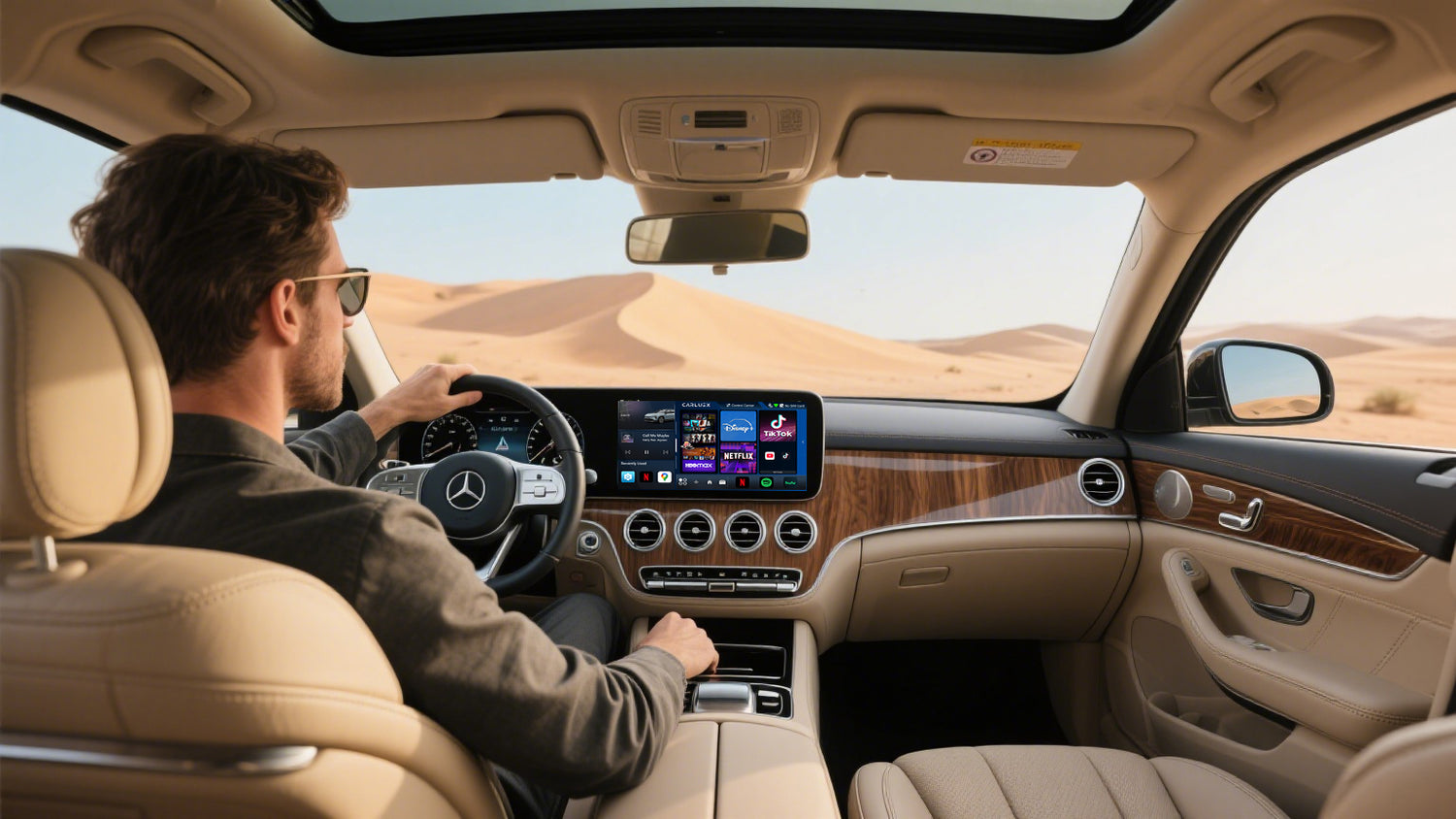
Quick answer: If Android Auto is not working in your Mercedes, start with the wired connection before blaming the adapter. Confirm that your Mercedes supports Android Auto, use the correct Smartphone Integration USB port, test a high-quality data cable, restart the phone and infotainment system, then forget and reconnect the car in Android Auto settings.
If wired Android Auto never works, a wireless Android Auto adapter is not the first fix. The problem may be compatibility, the USB port, phone permissions, Mercedes software, or the factory Smartphone Integration package. A CARLUEX adapter can help after the required factory wired Android Auto or wired CarPlay connection already works and your vehicle is compatible.
Safety note: Change settings only when the vehicle is parked. Do not adjust phone or infotainment settings while driving.
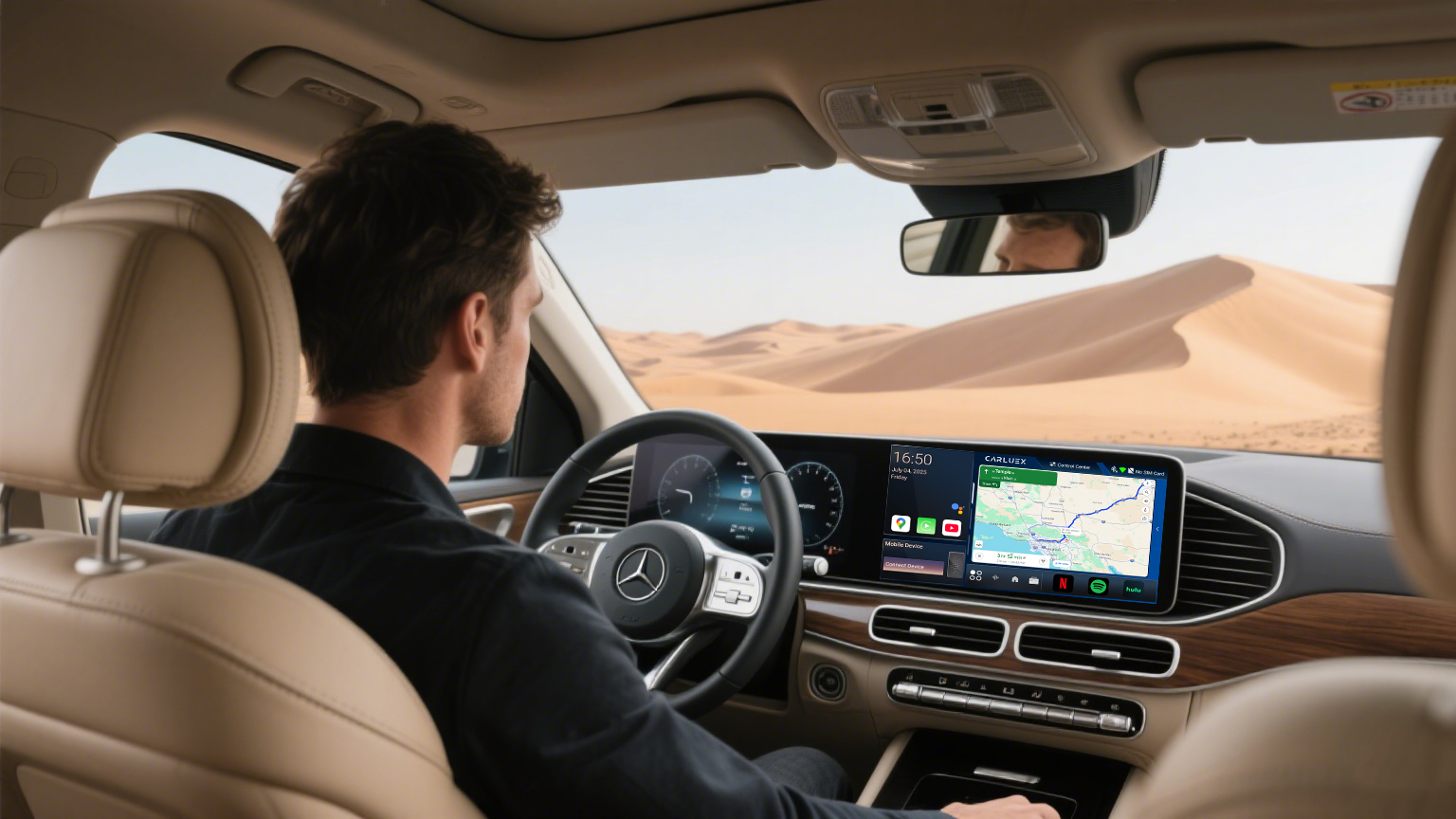
First Check: Is The Mercedes Connection Supported?
Android Auto needs three things before any adapter can help: a compatible Android phone, a compatible Mercedes or infotainment system, and a working data connection. Google says Android Auto with a USB cable needs an Android phone running Android 9.0 or higher, a compatible car, and a high-quality USB cable. For wireless Android Auto, Google also lists a compatible phone with 5 GHz Wi-Fi support and a compatible car or stereo.
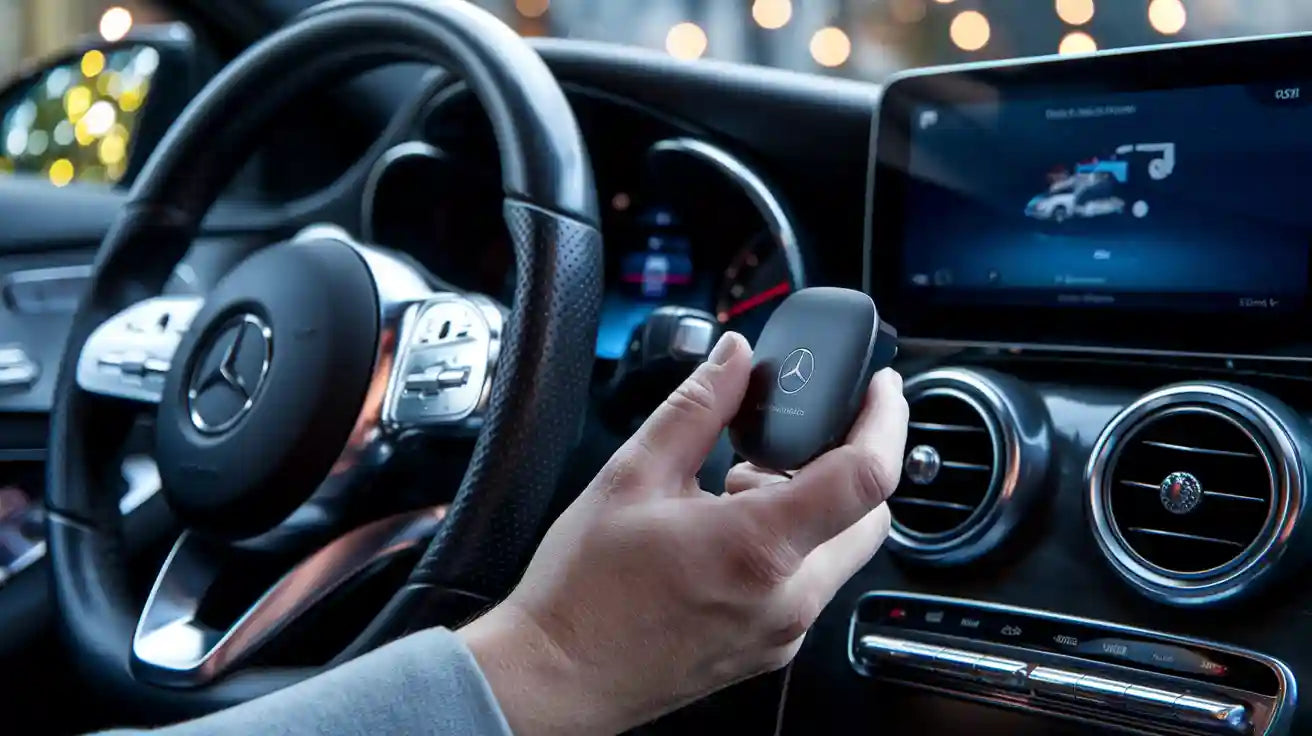
For Mercedes drivers, that means you should check the owner's manual, the infotainment menu, and the USB port marked for Smartphone Integration if your vehicle has one. Mercedes-Benz Mobile's Android Auto setup flow starts by locating the USB port in the centre console, connecting the Android phone by USB, and accepting the terms on the vehicle display.
| What you see | Likely meaning | Best next step |
|---|---|---|
| Android Auto launches by USB but wireless fails. | The factory wired connection works; the issue may be adapter pairing, phone wireless settings, or firmware. | Reset the adapter pairing, update firmware if available, and test one phone at a time. |
| Nothing happens with a USB cable. | The car may not support Android Auto, the USB port may be wrong, or the cable may be charge-only. | Try the Smartphone Integration USB port and a known data cable before changing adapter settings. |
| The screen goes black or disconnects. | The cause may be cable quality, USB power/data stability, phone software, or infotainment software. | Replace the cable, restart both systems, and check for phone and vehicle updates. |
| The Mercedes menu shows no Android Auto option. | The vehicle package, region, trim, or software may not include Android Auto. | Check Mercedes support or a qualified dealer/installer before buying an adapter. |
Mercedes Android Auto Adapter Troubleshooting Steps
Work through the steps in this order. The goal is to separate phone, cable, Mercedes system, and adapter problems instead of changing everything at once.
1. Test Android Auto by USB first
Plug your Android phone directly into the Mercedes USB port that supports Smartphone Integration. Use a short, high-quality data cable, then approve the prompts on the phone and vehicle screen. Google notes that Android Auto will not work in every car with a USB port, so a USB port alone is not proof of compatibility.
2. Replace the cable and avoid extensions
Google's troubleshooting guidance says not all USB cables work with all cars and recommends a high-quality cable. If Android Auto worked before but stopped, Google specifically recommends replacing the USB cable. Avoid USB hubs and cable extensions while testing.
3. Restart the phone, adapter, and Mercedes infotainment system
Restart the Android phone, unplug the adapter, turn the vehicle off, wait briefly, and then try the wired setup again. If your Mercedes infotainment system has a restart or soft reset procedure in the owner's manual, use that official process.
4. Check Android Auto settings on the phone
On Samsung, Pixel, OnePlus, and other Android phones, settings labels can vary. Search phone Settings for Android Auto, then check previously connected cars, permissions, battery restrictions, Bluetooth, Wi-Fi, and app updates. If the Mercedes appears under previously connected cars but will not reconnect, forget it and set it up again while parked.
5. Update the phone, Android Auto, and adapter firmware
Update Android, Google Play services, Android Auto, and the adapter firmware if the adapter vendor provides an update path. If the issue started after a phone or vehicle software update, record what changed and test with another phone before assuming the adapter has failed.
6. Test another Android phone
If a second Android phone works in the same Mercedes, the original phone is likely the problem. If no Android phone works by USB, focus on the Mercedes USB port, Smartphone Integration support, vehicle software, or the factory compatibility path.
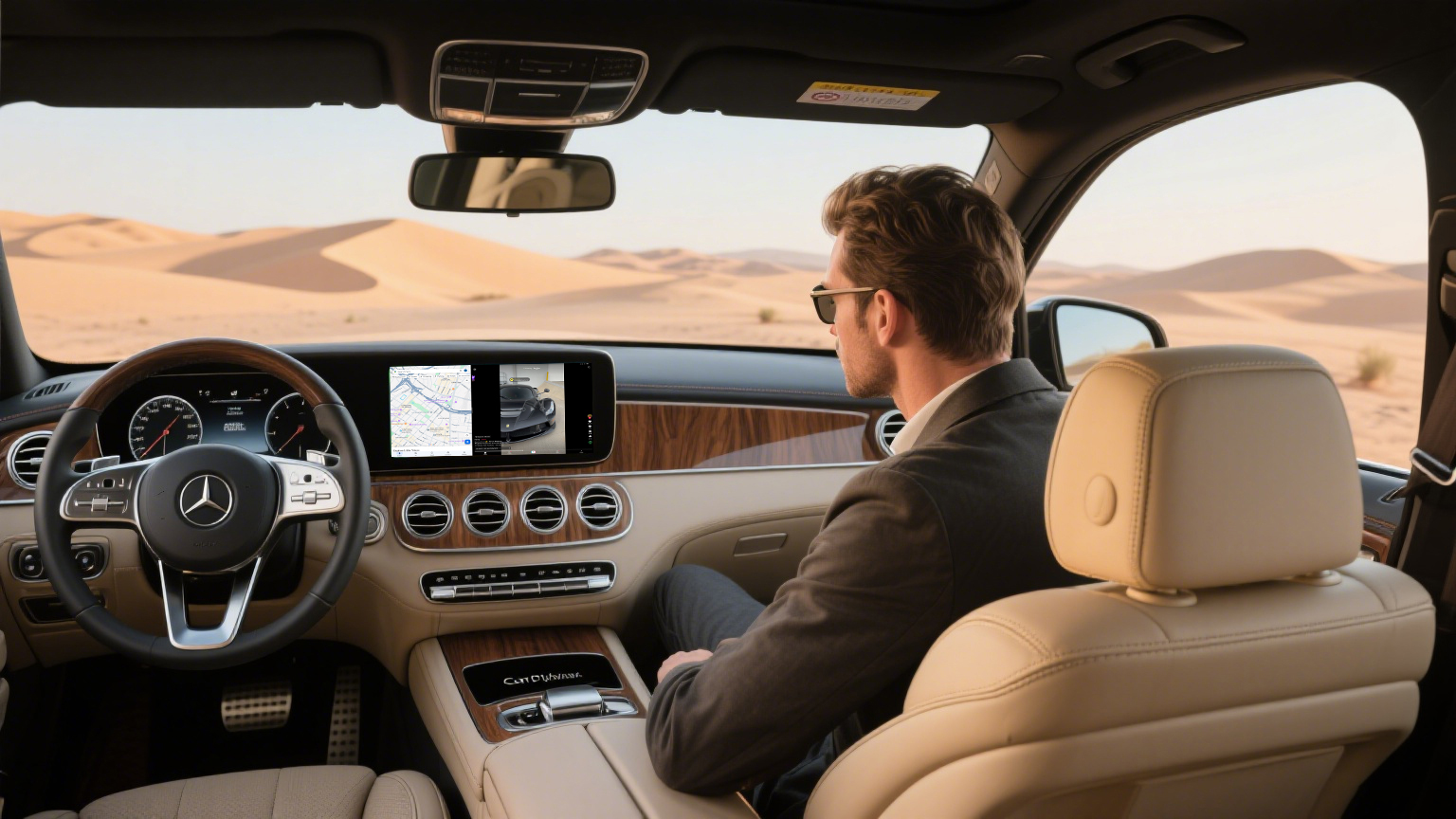
Common Mercedes Android Auto Symptoms And Fixes
| Symptom | Check first | What not to assume |
|---|---|---|
| Android Auto will not launch. | Correct USB port, cable data support, Android Auto permissions, and vehicle compatibility. | Do not assume any wireless adapter can add Android Auto to an unsupported Mercedes. |
| Wireless adapter keeps disconnecting. | Phone distance during setup, Bluetooth/Wi-Fi state, adapter firmware, and one-phone pairing. | Do not pair multiple phones during the first test. |
| Black screen after connection. | USB cable, phone restart, app update, display permissions, and Mercedes infotainment restart. | Do not treat a black screen as proof the adapter is incompatible until USB is tested. |
| Audio works but map does not show. | Android Auto app permissions, Google Maps update, phone lock state, and car display selection. | Do not assume Bluetooth audio and Android Auto projection are the same connection. |
| It worked yesterday, then stopped. | Recent phone update, vehicle software change, cable wear, and saved car profile. | Do not skip the simple cable and reconnect steps. |
When A CARLUEX Adapter Can Help
A wireless adapter can make daily connection easier after the factory connection is already working. It does not repair unsupported vehicles, damaged USB ports, missing Smartphone Integration, blocked phone settings, or Mercedes software problems.
For simple wireless convenience, check CARLUEX AIR or CARLUEX LINK only after confirming the required factory connection. For broader Android-based multimedia features, review CARLUEX PRO+ 2.0, but confirm Mercedes compatibility first because product fit depends on the vehicle's factory infotainment system.
Before purchase, check the CARLUEX compatible vehicles page or contact support with your Mercedes model year, trim, region, infotainment version, and whether wired Android Auto works today.
What To Avoid While Fixing It
- Do not buy an adapter before checking wired Android Auto. Wired failure usually needs diagnosis first.
- Do not use a charge-only cable for setup. Android Auto needs a stable data connection.
- Do not assume Bluetooth audio equals Android Auto. Calls or music over Bluetooth can work while Android Auto projection still fails.
- Do not change settings while driving. Park first, then test the phone and infotainment screen.
- Do not rely on model year alone. Mercedes trim, region, software, and Smartphone Integration package can matter.
Related CARLUEX Guides
FAQ
Why is Android Auto not working in my Mercedes?
The most common causes are an unsupported vehicle configuration, the wrong USB port, a weak or charge-only cable, phone permissions, outdated software, or a saved connection profile that needs to be reset. Start with a direct USB test before troubleshooting the wireless adapter.
Can a wireless Android Auto adapter fix my Mercedes?
Only if your Mercedes already supports the required wired Android Auto connection and the adapter is compatible. A wireless adapter is a convenience upgrade, not a repair for missing factory Android Auto support.
Which USB port should I use for Android Auto in a Mercedes?
Use the Mercedes USB port assigned to Smartphone Integration if your vehicle has one. Mercedes-Benz Mobile's setup guidance starts with the USB port in the centre console, but the exact location can vary by model and year, so check your owner's manual.
Why does Android Auto keep disconnecting?
Disconnects can come from cable wear, USB port movement, phone battery restrictions, Bluetooth/Wi-Fi instability, app updates, or adapter firmware. Test with a different cable and another Android phone to narrow the cause.
Should Mercedes drivers choose CARLUEX AIR, LINK, or PRO+ 2.0?
It depends on the factory connection and the features you need. AIR and LINK are more direct wireless-connection options, while PRO+ 2.0 is an Android-based multimedia box. Check product pages and vehicle compatibility before purchase.


Commenta
Questo sito è protetto da hCaptcha e applica le Norme sulla privacy e i Termini di servizio di hCaptcha.