

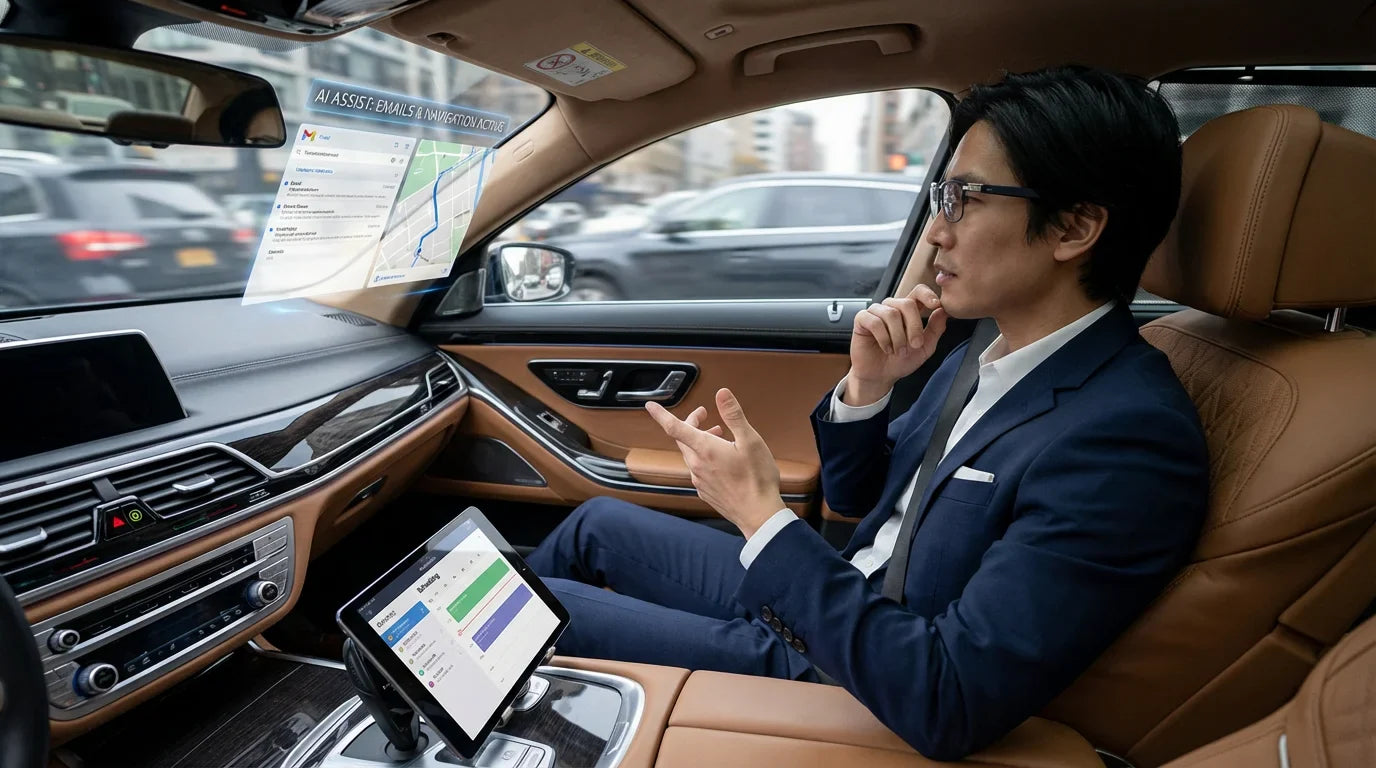
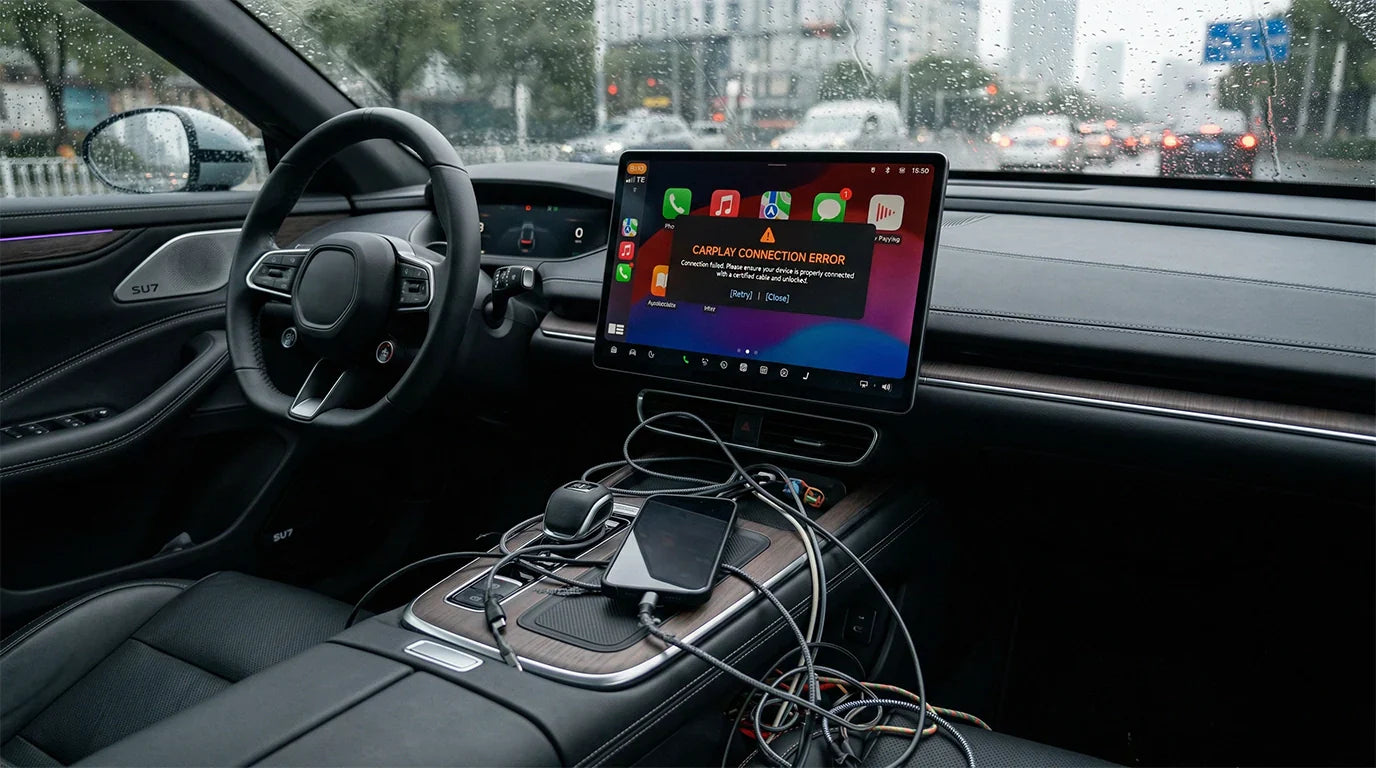
If wireless CarPlay stops working after an iOS update, the problem is usually in the wireless connection chain: Siri, Bluetooth, Wi-Fi, the saved vehicle profile, the car's infotainment software, or the wireless adapter firmware. Do not assume the update permanently broke CarPlay. Start with a clean pairing reset, then check software and compatibility.
Park safely before changing CarPlay settings, pairing devices, or testing adapters. Do not troubleshoot CarPlay while driving.
Quick Answer: Fix Wireless CarPlay After an iOS Update
- Restart your iPhone and vehicle infotainment system.
- On iPhone, open Settings and search for Siri. Make sure Siri is enabled. The exact label can vary by iOS version.
- Turn Bluetooth and Wi-Fi off and back on.
- Forget the car in iPhone CarPlay settings.
- Remove the iPhone from the vehicle's saved Bluetooth, phone, or projection list.
- If you use a wireless adapter, unplug it, wait briefly, and reconnect it after restarting the car.
- Check for iOS, vehicle infotainment, and adapter firmware updates.
- Confirm whether your vehicle supports factory wireless CarPlay or needs a wired CarPlay-to-wireless adapter.
Why This Page Is Different from General CarPlay Fixes
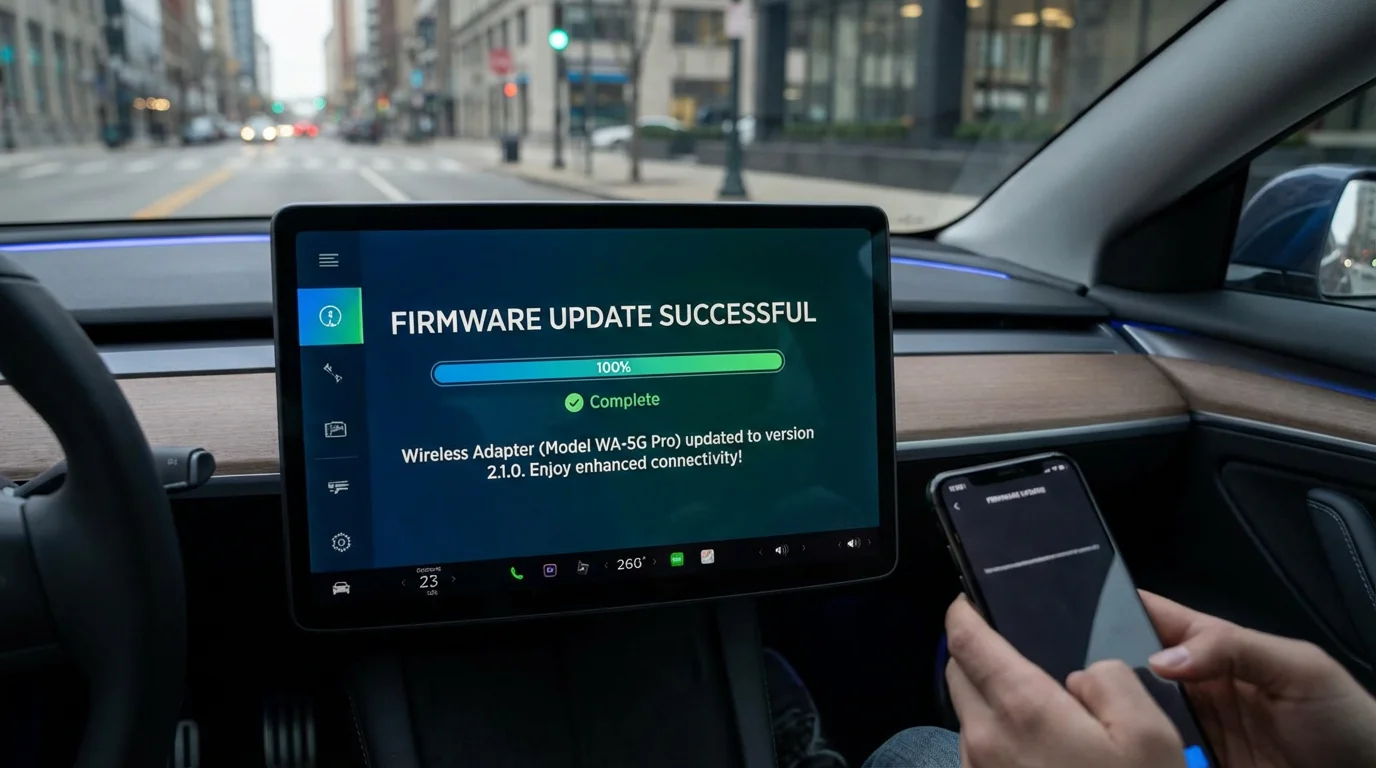
This guide is specifically about wireless CarPlay after an iOS update. If your issue is broader, such as CarPlay not launching at all, use our iOS CarPlay troubleshooting guide. If the issue is mostly your phone charging but not connecting, Siri, Screen Time, or a cable problem, use our iPhone CarPlay not working guide.
For this page, the search intent is narrower: wireless CarPlay was working before, then an iOS update, phone upgrade, vehicle update, or adapter update made the connection unstable.
Do Not Over-Anchor the Problem to iOS 26.4.2
The original version of this article focused heavily on iOS 26.4.2. That can make the page feel outdated as soon as users move to another iOS version. Treat iOS 26.4.2 as one example of a software update, not the only reason wireless CarPlay can fail.
Wireless CarPlay can break after many types of changes: an iOS update, a phone restore, a new iPhone, a vehicle software update, a changed Wi-Fi profile, or an adapter firmware mismatch. The troubleshooting sequence is similar across versions.
Check Official CarPlay Setup and Vehicle Support
Apple's CarPlay setup guidance says wireless CarPlay may require the vehicle stereo to be in wireless or Bluetooth mode and that Auto-Join should be enabled for the CarPlay network. This matters after an update because saved Wi-Fi and Bluetooth behavior can change.
Also confirm whether your car supports CarPlay in the first place. Apple's official CarPlay available models list can confirm broad model support, while your owner's manual can confirm whether your specific year, trim, region, and infotainment system supports wired or wireless CarPlay.
Support for CarPlay does not automatically mean support for factory wireless CarPlay. Some vehicles support wired CarPlay only. In those vehicles, a wireless adapter can make a working wired CarPlay connection wireless, but it does not add CarPlay to an unsupported car.
Reset Wireless CarPlay Pairing Cleanly
Wireless CarPlay uses Bluetooth for discovery and Wi-Fi for the higher-bandwidth connection. If either saved profile is stale, the car may keep searching, connect briefly, or show a blank screen.
- Park the vehicle and keep the infotainment system on.
- On iPhone, open Settings and search for CarPlay.
- Select your vehicle, then tap Forget This Car.
- In the vehicle menu, remove the same iPhone from saved Bluetooth, phone, and projection lists.
- Restart the iPhone.
- Turn the vehicle off, wait briefly, then restart the infotainment system.
- Pair again using the vehicle's official wireless CarPlay steps.
Apple's CarPlay troubleshooting page also recommends checking restrictions, forgetting the car, and setting CarPlay up again when it is not detected.
If You Use a Wireless CarPlay Adapter
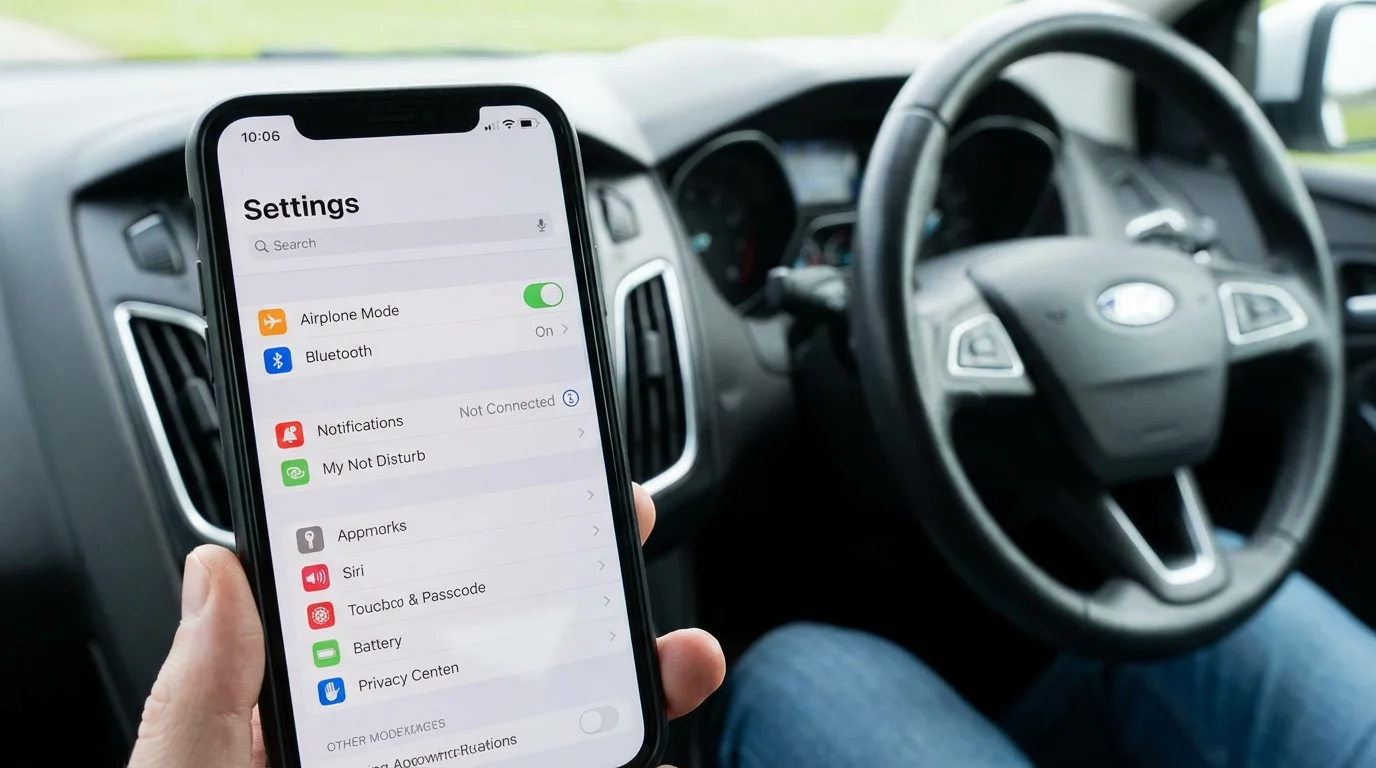
If your vehicle only has wired CarPlay and you use an adapter to make it wireless, treat the adapter as a separate device in the connection chain. The iPhone, vehicle USB port, adapter firmware, and saved Bluetooth/Wi-Fi records all need to agree.
Try this sequence:
- Confirm wired CarPlay still works without the adapter, if possible.
- Unplug the adapter from the car's USB port.
- Remove the adapter's Bluetooth and Wi-Fi records from the iPhone.
- Remove old phone records from the vehicle infotainment system.
- Restart the phone and car.
- Plug the adapter back into the CarPlay USB port.
- Pair again according to the adapter instructions.
A wireless adapter may help after wired CarPlay already works. It does not fix unsupported vehicles, damaged USB ports, blocked iPhone settings, or vehicle software problems.
Update iPhone, Vehicle, and Adapter Software
Software updates can improve compatibility, but they can also expose an old pairing profile. Check for iOS updates, app updates, vehicle infotainment updates, and adapter firmware updates. If your vehicle manual or manufacturer support page gives a specific update process, follow that first.
For CARLUEX users, OTA availability depends on the product. Current project product facts confirm that CARLUEX LINK, AIR, GO, PRO+ 2.0, VISION, and the BMW version include OTA updates. Do not treat OTA as a guarantee that every issue will be fixed instantly; use it as one part of a clean troubleshooting flow.

Choosing a CARLUEX Adapter for Wireless CarPlay
If your wired CarPlay works reliably and you want a wireless setup, start by comparing CARLUEX LINK. If you also want multimedia features in a compatible vehicle, compare CARLUEX AIR, CARLUEX GO, and CARLUEX PRO+ 2.0.
Before purchasing, check CARLUEX compatible vehicles or contact support if your vehicle is not listed. Compatibility depends on the adapter model and your vehicle's factory infotainment system.
| Situation | Best first check | CARLUEX note |
|---|---|---|
| Factory wireless CarPlay stopped after iOS update | Forget the car, remove Bluetooth profile, pair again | An adapter may not be needed if factory wireless CarPlay works again |
| Wired CarPlay works, wireless adapter stopped connecting | Reset adapter Bluetooth/Wi-Fi records and check firmware | Confirm the adapter model and vehicle are compatible |
| Wired CarPlay does not work either | Fix USB port, cable, iPhone settings, and vehicle support first | A wireless adapter is not a repair tool |
Related CARLUEX Guides
- iOS CarPlay Not Working? Fix Apple CarPlay Issues
- iPhone CarPlay Not Working? Fix Disconnects & Setup
- How to Reset Apple CarPlay
- Why Your Apple CarPlay Isn't Working and How to Fix It
- Browse CarPlay troubleshooting guides
FAQ
Can an iOS update break wireless CarPlay?
An iOS update can change permissions, Wi-Fi behavior, Bluetooth pairing, or app compatibility. In many cases, wireless CarPlay can be restored by forgetting the car, removing old Bluetooth/Wi-Fi records, restarting both systems, and pairing again.
Should I reset network settings on my iPhone?
Try smaller steps first: forget the car, remove the vehicle profile, restart, and reconnect. Resetting network settings affects Wi-Fi networks, Bluetooth pairings, and other saved connections, so use it only after simpler steps fail.
Why does wired CarPlay work but wireless CarPlay fails?
Wired and wireless CarPlay use different connection paths. Wired CarPlay depends mostly on the USB port and cable, while wireless CarPlay depends on Bluetooth discovery, Wi-Fi, saved profiles, vehicle support, and sometimes adapter firmware.
Will a CARLUEX adapter fix wireless CarPlay after an iOS update?
A CARLUEX adapter can help make a working wired CarPlay connection wireless in a compatible vehicle. It does not fix unsupported vehicles, broken USB ports, blocked iPhone settings, or vehicle software problems.
How often should I check adapter firmware?
Check after major iOS updates, phone upgrades, or repeated connection failures. If your adapter has OTA updates, follow the product instructions and confirm compatibility before changing settings.


Commenta
Nota che i commenti devono essere approvati prima di essere pubblicati.
Questo sito è protetto da hCaptcha e applica le Norme sulla privacy e i Termini di servizio di hCaptcha.