

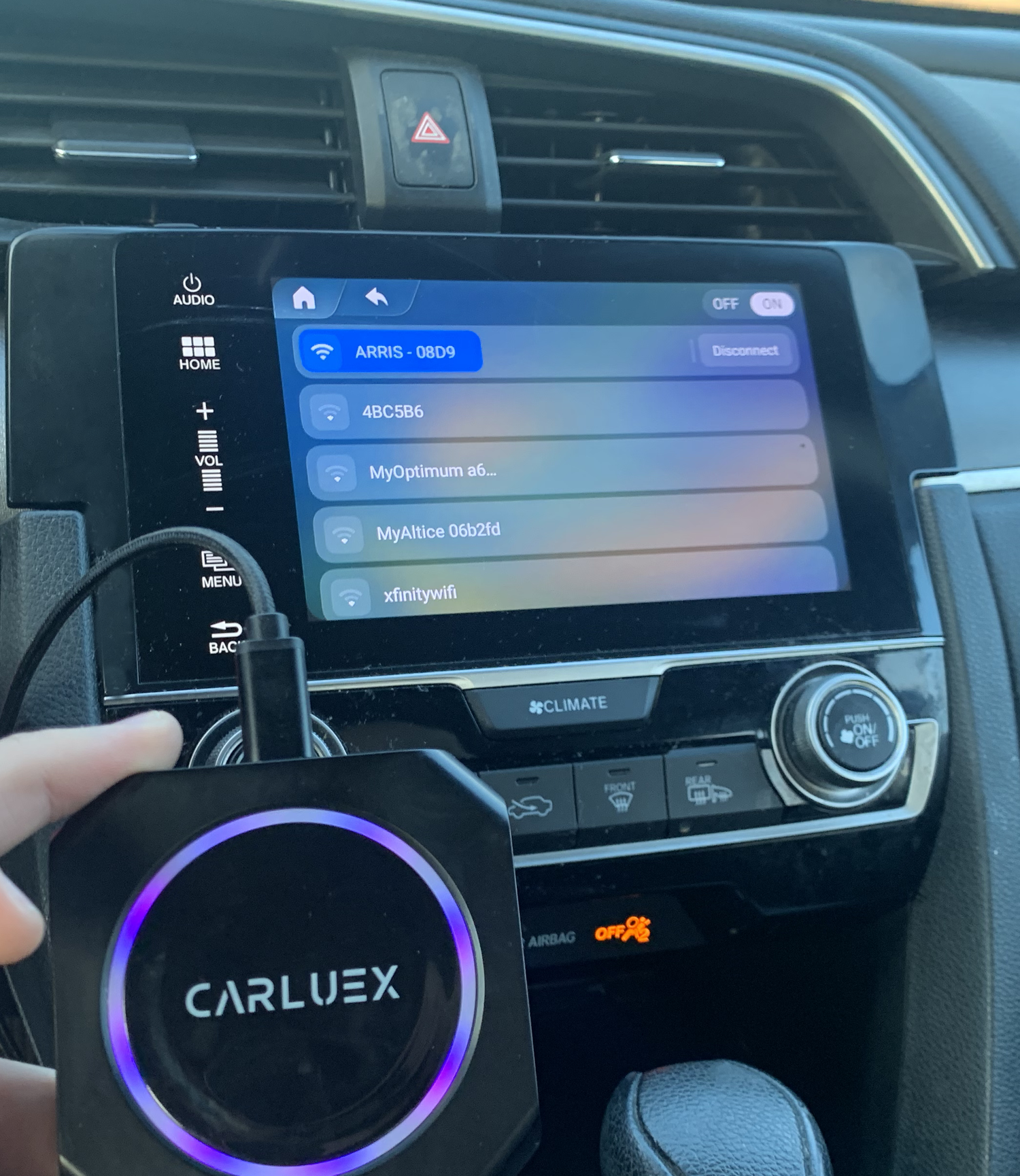
When your iPhone won't connect to CarPlay, the fix is usually straightforward. Whether you're using a wired USB connection or a wireless setup, CarPlay connection failures typically stem from a few common causes: outdated iOS software, incorrect Siri settings, USB cable issues, or incompatible CarPlay adapters.
In this guide, you'll learn exactly how to diagnose and fix each of these problems, starting with the quickest solutions.

What iPhone Models Support Apple CarPlay?
Before troubleshooting, verify your iPhone is compatible. According to Apple's official CarPlay documentation, CarPlay requires iOS 7.1 or later:
- Wireless CarPlay: Requires iPhone 15 or later (with iOS 17+)
- Wired CarPlay: Works with iPhone 5 and newer models
If you're using an older iPhone model with wired CarPlay, ensure your car's infotainment system supports CarPlay. Most vehicles manufactured after 2016 include CarPlay compatibility, but older vehicles may require a CarPlay adapter.
How to Fix CarPlay Connection Issues

Step 1: Check iOS Software Version
Outdated iOS is one of the most common causes of CarPlay connection failures. To update your iPhone:
- Open Settings on your iPhone
- Tap General
- Select Software Update
- Download and install any available updates
If you're using a wireless CarPlay adapter, also check for firmware updates. Manufacturers like CARLUEX regularly release updates to improve compatibility with the latest iOS versions.
Step 2: Verify Siri Is Enabled
Siri must be active for CarPlay to function. Here's how to check:
- Open Settings > General > Siri
- Confirm Listen for "Hey Siri" or Press Side Button for Siri is turned on
- If Siri is off, CarPlay won't recognize voice commands
Step 3: Check CarPlay Settings
Ensure CarPlay permissions are configured correctly:
- Go to Settings > General > CarPlay
- Select your vehicle
- Enable Allow CarPlay While Locked
- If the vehicle isn't listed, tap Add Other Car and follow the prompts
Step 4: Inspect USB Cable and Port
If using wired CarPlay, the issue may be physical:
- Use an Apple-certified USB cable (MFi certified)
- Inspect the cable for visible damage or fraying
- Try a different USB port in your vehicle
- Clean the Lightning port on your iPhone
If your vehicle doesn't have a factory CarPlay head unit, consider upgrading to a wireless CarPlay adapter like CARLUEX AIR for a seamless, cable-free experience.
Step 5: Reset Network Settings
As a last resort, reset your iPhone's network configuration:
- Go to Settings > General > Transfer or Reset iPhone
- Tap Reset
- Select Reset Network Settings
- Enter your passcode and confirm
After resetting, you'll need to reconnect to Wi-Fi networks and Bluetooth devices. Your personal data won't be affected, but you'll need to re-pair Bluetooth connections.
Why Is My iPhone Charging but CarPlay Not Working?
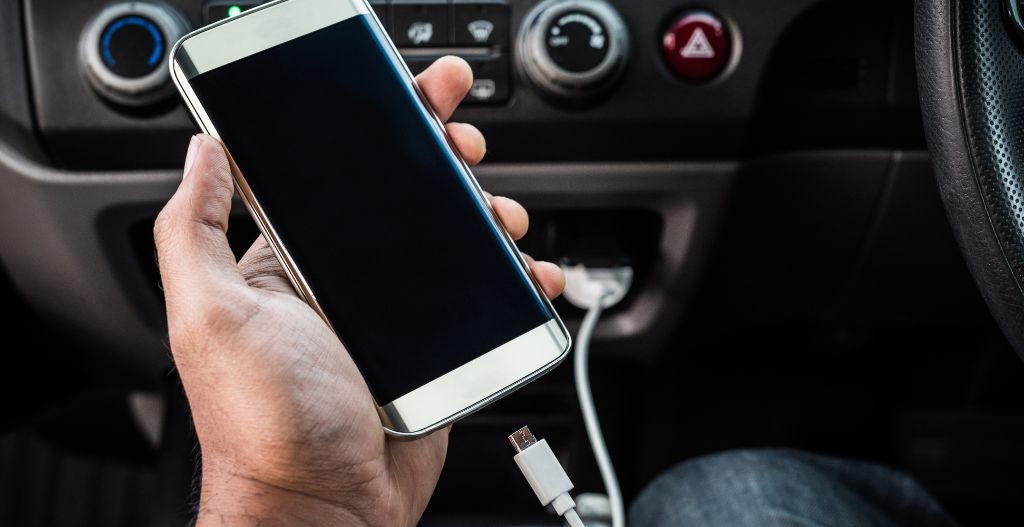
If your iPhone charges via USB but CarPlay won't connect, the issue is typically the cable or USB port configuration:
- The cable may support charging but lack data transfer capability
- Your car's USB port may be labeled "Charge Only" — try a different port
- The USB port may be damaged — test with another device
If none of the troubleshooting steps work, your car's infotainment system may need a software update from the manufacturer. You can also contact Apple Support for further assistance.
Frequently Asked Questions
Why is my Apple CarPlay not connecting?
CarPlay connection failures typically occur due to incompatible iPhone models, outdated iOS software, disabled Siri, damaged USB cables, or unsupported CarPlay adapters. Start by updating iOS, enabling Siri, and verifying your USB connection before trying more advanced solutions like network resets.
How do I force CarPlay to connect?
To force a CarPlay connection: (1) Restart your iPhone and vehicle, (2) Update to the latest iOS version, (3) Use an Apple-certified USB cable, (4) Enable Bluetooth and Wi-Fi for wireless connections, and (5) Reset network settings if all else fails.
How do you reset Apple CarPlay?
To reset CarPlay: Go to Settings > General > CarPlay, select your vehicle, and tap Forget This Car. Then reconnect by plugging in your iPhone or pairing via Bluetooth. Alternatively, reset network settings via Settings > General > Reset > Reset Network Settings.
Does wireless CarPlay work on all iPhones?
No. Wireless CarPlay requires iPhone 15 or later with iOS 17 or later. Older iPhones can only use wired CarPlay. If your vehicle doesn't support wired CarPlay natively, a wireless CarPlay adapter like CARLUEX PRO+ 2.0 can add wireless functionality to any compatible vehicle.


Leave a comment
This site is protected by hCaptcha and the hCaptcha Privacy Policy and Terms of Service apply.