


Quick answer: To enable Siri for CarPlay, first make sure Siri is enabled on your iPhone, then connect the iPhone to a CarPlay-compatible vehicle. On iPhone, open Settings and search for Siri. Make sure Siri is enabled. The exact label can vary by iOS version.
Safety note: Set up Siri, CarPlay, Bluetooth, Wi-Fi, and adapter pairing only while parked. Do not change phone or vehicle settings while driving.
| Goal | What to check | Where to check |
|---|---|---|
| Turn Siri on for CarPlay | Siri is enabled on iPhone | iPhone Settings, then search for Siri |
| Use Siri from the steering wheel | Vehicle voice command button works with CarPlay | Steering wheel button or vehicle manual |
| Use Siri by voice | Voice activation is enabled, if supported | iPhone Siri settings and vehicle support |
| Fix Siri not responding | CarPlay pairing, microphone, iOS, and vehicle system | iPhone, CarPlay settings, vehicle device list |
Why Siri Matters for Apple CarPlay
Siri is one of the main ways to use CarPlay without handling your phone. Apple's official Use Siri in your car guide explains that you can activate Siri in CarPlay with the steering wheel voice command button, the CarPlay screen controls, or voice activation in supported vehicles.
CarPlay is designed for driving scenarios, but it still depends on your iPhone, your vehicle controls, the car microphone, and the active CarPlay connection. If Siri is disabled on the iPhone, CarPlay voice control may not work properly.
How to Enable Siri for CarPlay on iPhone
Apple changes iOS labels over time, so do not rely on one fixed menu path. Use Settings search instead.
- Park your vehicle safely.
- On iPhone, open Settings.
- Search for Siri.
- Enable Siri options that appear on your iPhone, such as voice activation, side button activation, and Siri while locked if available.
- Connect your iPhone to CarPlay again and test Siri before driving.
The exact Siri labels can vary by iOS version, country or region, and device model. Apple's Turn on and activate Siri guide is the best official reference for current iPhone Siri settings.
How to Activate Siri in CarPlay
Once Siri and CarPlay are enabled, there are several ways to activate Siri. Apple notes that you can press and hold the voice command button on the steering wheel, touch and hold the Dashboard or Home button on the CarPlay screen, or use voice activation in supported vehicles.
- Steering wheel button: Press and hold the vehicle voice command button until Siri responds.
- CarPlay screen: Touch and hold the CarPlay Dashboard or Home button if your display supports it.
- Voice activation: Say the Siri wake phrase only if your iPhone and vehicle setup support it.
If the vehicle button opens the car's native voice assistant instead of Siri, check whether CarPlay is actively connected and whether your vehicle manual has a separate CarPlay voice control instruction.
Wired vs Wireless CarPlay Siri Setup
Siri can work with both wired and wireless CarPlay, but the connection path is different. Wired CarPlay depends mainly on a data-capable USB cable and the correct CarPlay USB port. Wireless CarPlay depends on Bluetooth, Wi-Fi, saved pairing, and vehicle support.
| Setup | What Siri depends on | Common issue |
|---|---|---|
| Wired CarPlay | USB cable, CarPlay port, Siri settings, car microphone | Phone charges but CarPlay or Siri does not start |
| Factory wireless CarPlay, if your vehicle supports it | Bluetooth, Wi-Fi, saved pairing, Siri settings | Siri works once, then wireless CarPlay fails to reconnect |
| Wireless adapter setup | Working factory wired CarPlay plus adapter pairing | Adapter pairing works but Siri does not hear commands |
Do not assume your vehicle has factory wireless CarPlay just because it supports CarPlay. Wireless behavior depends on model year, trim, region, infotainment system, and software.
What Can Siri Do in CarPlay?
Siri can help with common CarPlay tasks while keeping your hands closer to the wheel and your eyes closer to the road. Availability depends on the app, iOS version, language, country or region, network connection, and vehicle controls.
- Start navigation or ask for directions.
- Make phone calls.
- Send, read, or reply to supported messages.
- Play music, podcasts, or audiobooks through supported apps.
- Ask simple questions or control supported iPhone functions.
Set your route, music, and app choices before driving whenever possible. Voice control reduces the need to touch your phone, but it does not remove the need to stay focused on the road.
Fix Siri Not Working with CarPlay
If Siri does not respond in CarPlay, work through the basics before blaming the adapter or vehicle. Apple's CarPlay troubleshooting guidance recommends checking Siri, restarting devices, and making sure CarPlay is allowed.
- On iPhone, open Settings and search for Siri. Make sure Siri is enabled.
- Search Settings for CarPlay, select your car, and confirm the saved vehicle appears.
- Check Screen Time or content restrictions if CarPlay is blocked.
- Restart the iPhone and vehicle infotainment system.
- Forget the car from iPhone CarPlay settings and remove the phone from the vehicle device list, then pair again.
- For wired CarPlay, test a different data-capable USB cable and the correct USB port.
- For wireless CarPlay, turn Bluetooth and Wi-Fi off and on again, then rebuild the pairing.
- If Siri hears you poorly, check whether the vehicle microphone works for phone calls.
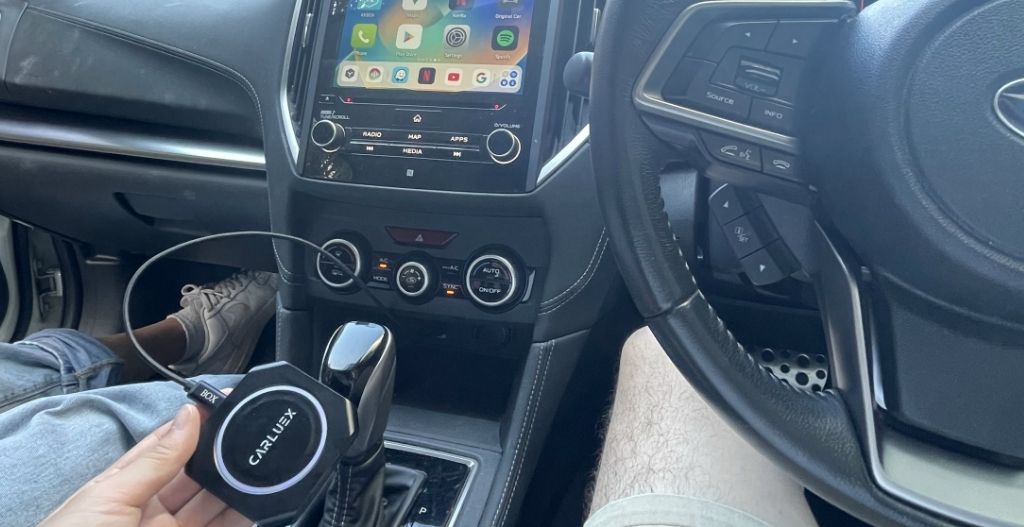
Using Siri with a CARLUEX Adapter
A wireless adapter can change how your iPhone connects to a compatible car, but it does not control Siri settings, iOS permissions, the car microphone, or app-level voice features. Fix Siri and wired CarPlay first, then test the adapter.
A wireless adapter may help after wired CarPlay already works. It does not fix unsupported vehicles, damaged USB ports, blocked iPhone settings, or vehicle software problems.
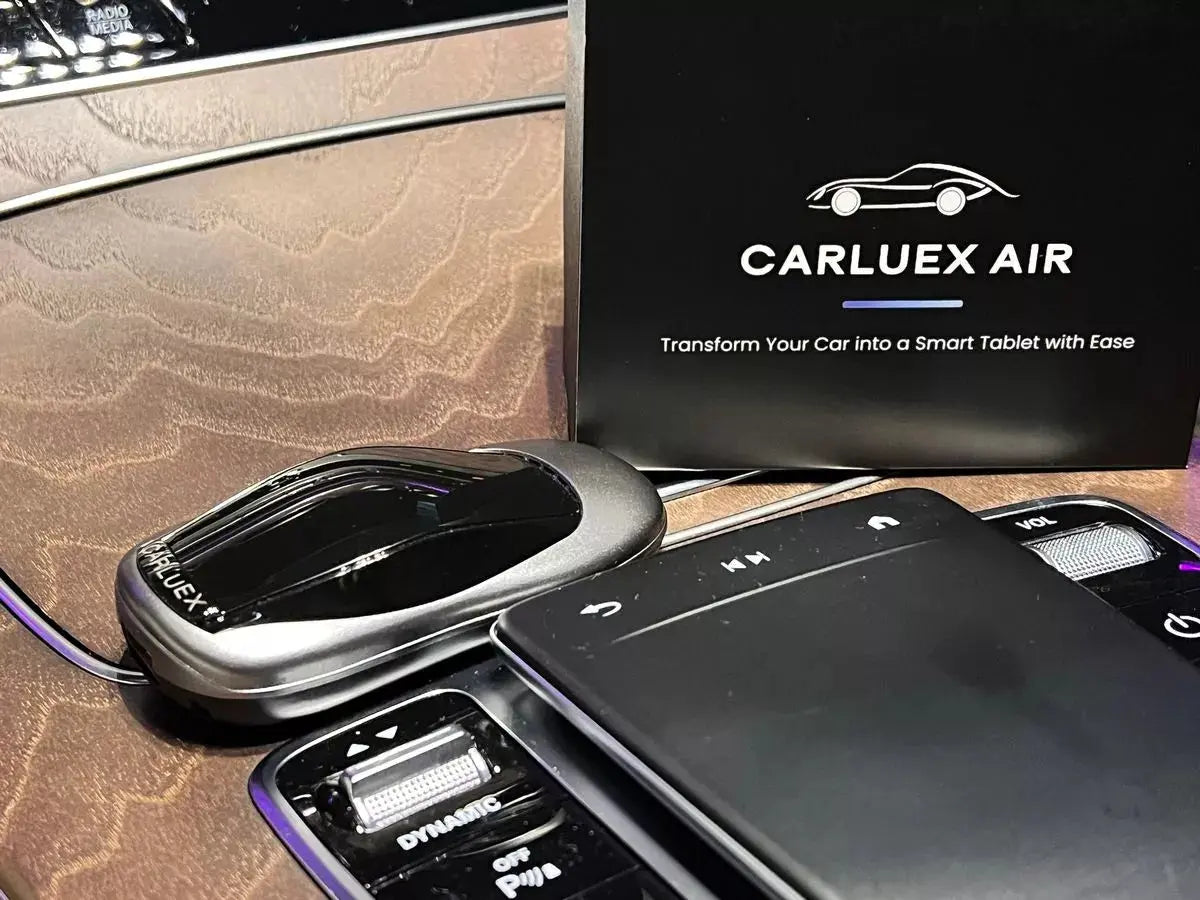
CARLUEX compatibility depends on the adapter model and your vehicle's factory infotainment system. Many CARLUEX adapters require factory wired CarPlay, while wireless Android Auto support may require factory wired Android Auto on selected models.
- Check CARLUEX LINK if you want a compact wireless CarPlay and Android Auto adapter for a compatible factory wired setup.
- Compare CARLUEX AIR if you want wireless CarPlay and Android Auto with additional adapter features in a compatible vehicle.
- Check CARLUEX compatible vehicles before purchasing or contact support if your vehicle is not listed.
Troubleshooting: Siri and CarPlay Problems
| Problem | Likely cause | Next step |
|---|---|---|
| CarPlay says Siri is not enabled | Siri is disabled or restricted on iPhone | Open Settings and search for Siri |
| Steering wheel button does not open Siri | CarPlay is not active or vehicle button mapping differs | Check CarPlay connection and vehicle manual |
| Siri opens but cannot hear you | Vehicle microphone, permissions, or connection issue | Test a phone call through the car microphone |
| Siri works wired but not wireless | Bluetooth/Wi-Fi pairing or wireless CarPlay issue | Forget and re-pair the car while parked |
| Siri works in CarPlay but not in one app | App support or app permission issue | Update the app and check its settings |
Related CARLUEX Guides
- How to Use Apple CarPlay: Setup, Tips & Fixes
- CarPlay Settings: What to Check on iPhone and Car
- Apple CarPlay Download? What You Actually Need
- Why Your Apple CarPlay Isn't Working and How to Fix It
FAQ
Do I need Siri for Apple CarPlay?
Yes, Siri is important for CarPlay voice control and may be required for some CarPlay functions. If Siri is disabled, CarPlay voice commands may not work correctly.
Where is the Siri setting for CarPlay?
On iPhone, open Settings and search for Siri. The exact menu label can vary by iOS version, so Settings search is safer than relying on one fixed path.
Why does Siri not respond when I press the steering wheel button?
CarPlay may not be active, the vehicle may be opening its native voice assistant, or the button behavior may differ by model. Confirm the iPhone is connected to CarPlay and check your vehicle manual.
Does Siri work with wireless CarPlay adapters?
Siri can work through a compatible wireless CarPlay setup, but the adapter does not manage Siri settings. Wired CarPlay should work first, and Siri must be enabled on the iPhone.
Can a CARLUEX adapter fix Siri not working?
No, not by itself. A CARLUEX adapter can change the connection method in a compatible vehicle, but it does not fix disabled Siri settings, blocked iPhone permissions, a broken car microphone, or unsupported CarPlay.
Bottom line: Enable Siri on your iPhone first, confirm CarPlay works in the car, then test steering wheel and screen controls while parked. If you use a CARLUEX adapter, verify wired CarPlay and Siri work before troubleshooting wireless pairing.


Laisser un commentaire
Ce site est protégé par hCaptcha, et la Politique de confidentialité et les Conditions de service de hCaptcha s’appliquent.