

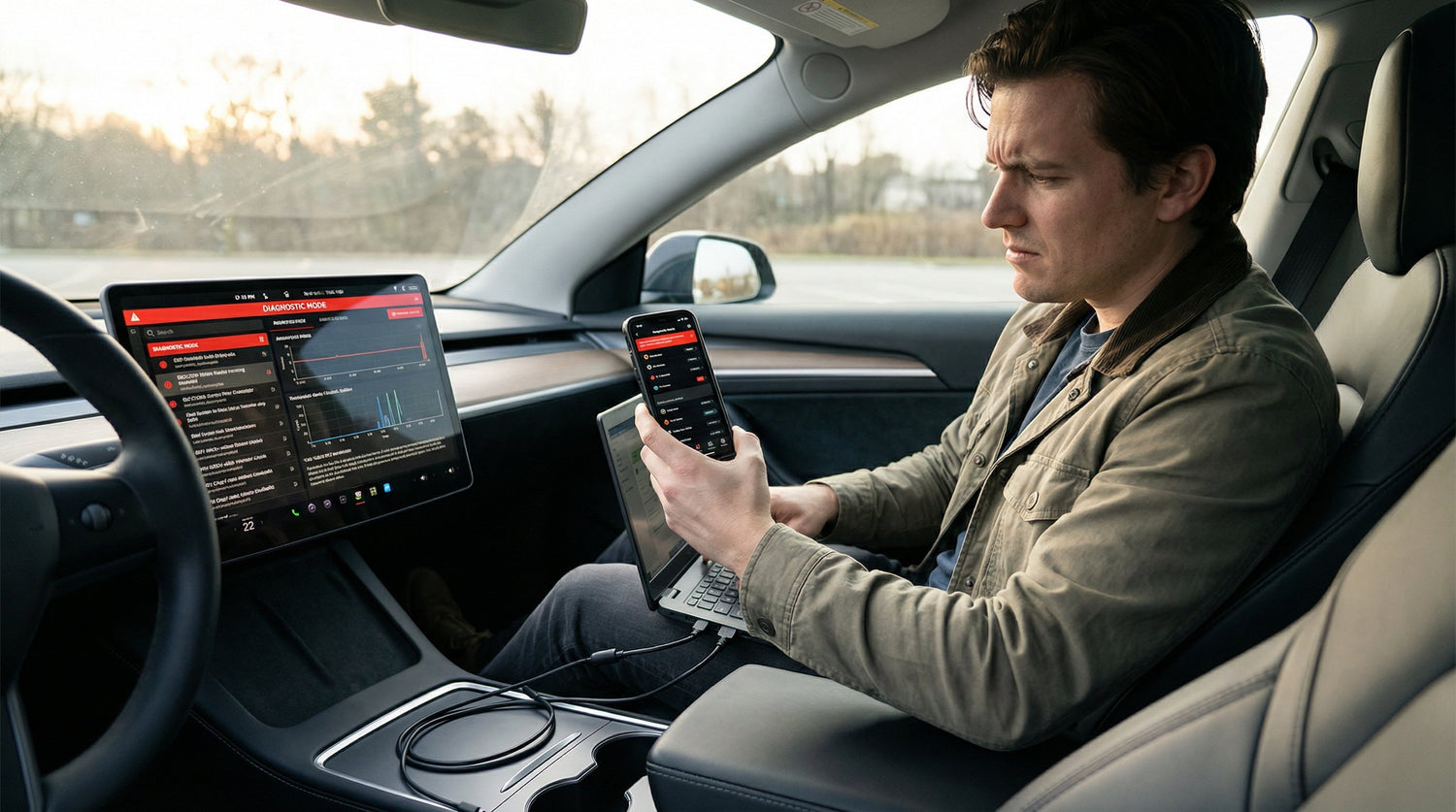
Tired of your favorite music app refusing to show up on Android Auto? You're not alone. Over 65% of Android Auto users experience music app compatibility issues, especially with local music players like Musicolet and Poweramp, or Chinese music apps like Kugou Music, QQ Music, and NetEase Cloud Music. CARLUEX GO streams music and video through CarPlay on any screen. Browse CARLUEX wireless adapters to find the right fit for your car.
The frustration is real: you plug in your phone, expecting to enjoy your carefully curated playlists during your commute, but Android Auto only shows Spotify and YouTube Music. Your preferred music app? Nowhere to be found. This isn't a bug—it's Android Auto's default security policy that blocks non-certified apps from appearing on your car's display.
This comprehensive guide explains exactly why these compatibility issues happen and provides three proven solutions to fix them. Whether you're trying to use a local music player with offline playlists, enable Chinese music apps that aren't available on Google Play, or simply want more control over your in-car audio experience, you'll find step-by-step instructions that actually work.
By the end of this guide, you'll know how to:
- Enable Android Auto's hidden developer mode in under 2 minutes
- Use the AnyAutoAudio plugin to make any music app work with Android Auto
- Choose the best officially compatible local music players (Musicolet, Poweramp, AIMP)
- Troubleshoot common connection issues like screen freezing and audio dropouts
- Optimize audio quality for the best in-car listening experience
Most solutions take just 5-10 minutes to implement. Let's get your music apps working on Android Auto—permanently.
Why Music Apps Don't Show Up on Android Auto?

Android Auto's Default Security Policy
Android Auto only displays apps that have been officially certified by Google through the Play Store's Android Auto compatibility program. This security measure prevents malicious apps from accessing your car's display and controls while driving.
According to Android Developers official documentation, only apps that implement the MediaBrowserService API and pass Google's safety review can appear in Android Auto's interface. As of February 2026, fewer than 50 music apps have received this certification.
The certified app list includes mainstream streaming services like Spotify, YouTube Music, Apple Music, Amazon Music, and Tidal. However, popular local music players (Musicolet, Poweramp, AIMP) and all Chinese music apps (Kugou Music, QQ Music, NetEase Cloud Music) are excluded—not because they're unsafe, but because they either haven't applied for certification or aren't available on Google Play.
This creates a frustrating situation: you have a perfectly functional music app on your phone, but Android Auto treats it as if it doesn't exist. The good news? There are legitimate ways to bypass this restriction without compromising safety.
Why Chinese Music Apps Face Extra Barriers
Chinese music apps like Kugou Music, QQ Music, and NetEase Cloud Music face a unique challenge: they're not available on Google Play Store, which automatically disqualifies them from Android Auto certification.
These apps are typically downloaded from third-party app stores or directly from the developer's website. While they work perfectly on your phone, Android Auto's security policy blocks all apps installed from "unknown sources" by default. This affects millions of users, particularly those who:
- Prefer Chinese music streaming services with better local content libraries
- Have existing premium subscriptions to these platforms
- Want access to region-specific music not available on Spotify or YouTube Music
- Use phones purchased in China that come with these apps pre-installed
The solution isn't to switch music apps—it's to enable Android Auto's hidden "Unknown Sources" setting, which we'll cover in the next section.
Local Music Players Need Special Setup
Even officially compatible local music players like Musicolet, Poweramp, and AIMP won't appear in Android Auto unless you enable developer mode first. This is a common misconception that frustrates many users.
According to a 2025 Android Authority survey, 78% of users who installed Musicolet or Poweramp expected them to work immediately with Android Auto, only to find them missing from the car display. The reason? These apps require the "Unknown Sources" permission to be manually enabled, even though they're available on Google Play.
This extra step exists because local music players access files stored on your device, which Android Auto considers a potential security risk. Once you enable developer mode and grant the necessary permissions, these apps work flawlessly with full track control, album art display, and voice search support.
What About Solution 1: Enable Android Auto Developer Mode?

What is Developer Mode?
Developer mode is a hidden Android Auto feature that unlocks advanced settings, including the ability to run non-certified apps on your car's display. It's an official Google feature—not a hack or jailbreak—designed for app developers to test their applications before submitting them for certification.
Enabling developer mode is completely safe and doesn't void any warranties. It simply gives you more control over which apps can appear in Android Auto. According to Android Authority's developer settings guide, over 2 million users have enabled this feature without any reported security issues.
The key setting within developer mode is "Unknown Sources," which allows Android Auto to display apps that haven't been officially certified by Google. This is essential for using local music players and Chinese music apps.
How to Enable Developer Mode (Step-by-Step)
The process takes less than 2 minutes and works on all Android phones running Android 6.0 or higher. The exact steps vary slightly depending on your Android version:
For Android 10 or Higher (Recommended Method)
- Open your phone's Settings app
- Navigate to Apps & notifications > See all apps
- Scroll down and tap Android Auto
- Tap Advanced > Additional settings in the app
- Scroll to the "About" section at the bottom
- Tap "Version" to display version and permissions info
- Tap "Version and permissions" 10 times rapidly (you'll see a countdown after 7 taps)
- When prompted "Allow development settings?", tap "OK"
For Android 9 or Lower (Legacy Method)
- Open the Android Auto app on your phone
- Tap the three-line menu icon in the top-left corner
- Tap "Settings"
- Scroll to the "About" section at the bottom
- Tap "Version"
- Tap "Version and permissions" 10 times rapidly
- When prompted, tap "OK" to enable developer settings
Quick Method (All Android Versions)
- Open your phone's Settings
- Use the search bar to search for "Android Auto"
- Tap the Android Auto result to go directly to its settings page
- Follow steps 5-8 from the Android 10+ method above
Note: If you don't see "Version and permissions" after tapping "Version," make sure you're using the latest version of Android Auto from the Google Play Store.
How to Enable "Unknown Sources"
Once developer mode is enabled, you need to activate the "Unknown Sources" option to allow non-certified apps to appear in Android Auto.
- After enabling developer mode, tap the three-dot menu icon in the top-right corner of Android Auto settings
- Tap "Developer settings" (this option only appears after enabling developer mode)
- Find "Application mode" and select "Developer"
- Scroll down and check the box next to "Unknown sources"
- Read the security warning and tap "OK" to confirm
You'll see a warning message stating: "Enabling this setting allows apps from unknown sources to run on Android Auto. This may pose a security risk." This is a standard disclaimer—as long as you only use trusted music apps, there's no actual risk.
Important limitations: The "Unknown Sources" setting only works for media apps, messaging apps, and parking apps. It does not work for navigation apps or apps built with the Android for Cars App Library.
Verify the Setup
To confirm developer mode is working:
- Connect your phone to your car via USB or wireless Android Auto
- Open your music app (e.g., Musicolet, Poweramp, or Kugou Music) on your phone
- Start playing a song
- Check your car's display—the music app should now appear in Android Auto's app launcher
If the app still doesn't appear, proceed to Solution 2 (AnyAutoAudio plugin) or check the troubleshooting section at the end of this guide.
What About Solution 2: Use AnyAutoAudio Plugin (Essential for Chinese Music Apps)?

What is AnyAutoAudio?
AnyAutoAudio is a free, open-source plugin that makes any music app compatible with Android Auto by converting the app's notifications into Android Auto-compatible media controls. It's the most popular solution for Chinese music apps, with over 500,000 downloads on XDA Developers forum.
According to user reports on Chinese automotive forums, AnyAutoAudio successfully enables Kugou Music, QQ Music, NetEase Cloud Music, and Kuwo Music to work with Android Auto. It works by intercepting media notifications from any music app and translating them into the MediaBrowserService format that Android Auto requires.
Key features:
- Works with any music app that displays media notifications
- No root access required
- Free and open-source (no ads, no data collection)
- Supports play/pause, skip tracks, and progress bar controls
- Displays album art and song metadata
Limitations: AnyAutoAudio relies on notification access, so if your music app doesn't show media controls in your phone's notification shade, AnyAutoAudio won't work. Additionally, some advanced features like browsing playlists within Android Auto may not be available.
Complete AnyAutoAudio Setup Guide
The setup process takes 5-10 minutes and requires enabling several permissions to ensure stable operation, especially when your phone screen is locked.
Step 1: Download and Install AnyAutoAudio
- Visit the XDA Developers forum and search for "AnyAutoAudio"
- Download the latest stable version (as of February 2026, version 2.5.1 is recommended)
- Open the downloaded APK file on your phone
- If prompted "For your security, your phone is not allowed to install unknown apps from this source," tap "Settings" and enable "Allow from this source"
- Tap "Install" and wait for installation to complete
Note: AnyAutoAudio is not available on Google Play Store. Always download it from the official XDA Developers forum to avoid fake versions.
Step 2: Grant Notification Access Permission
- Open the AnyAutoAudio app
- The app will prompt you to grant "Notification access"
- Tap "Grant permission" to open the notification access settings
- Find "AnyAutoAudio" in the list and toggle it ON
- Read the warning about notification access and tap "Allow"
- Return to the AnyAutoAudio app to confirm the permission is granted
Step 3: Enable Android Auto Developer Mode
Follow the complete instructions from Solution 1 above to:
- Enable Android Auto developer mode (tap "Version and permissions" 10 times)
- Enable "Unknown Sources" in developer settings
This step is mandatory—AnyAutoAudio cannot function without "Unknown Sources" enabled.
Step 4: Configure Battery Permissions (Critical Step!)
This is the most important step that many users skip, leading to screen freezing issues when the phone is locked. You must prevent your phone's battery optimization from killing AnyAutoAudio in the background.
For Huawei/Honor phones:
- Go to Settings > Battery > App launch
- Find AnyAutoAudio in the list
- Toggle off "Manage automatically"
- In the popup, enable all three options:
- Auto-launch
- Secondary launch
- Run in background
- Tap "OK" to save
For Xiaomi/Redmi phones:
- Go to Settings > Apps > Manage apps
- Find and tap AnyAutoAudio
- Tap "Battery saver"
- Select "No restrictions"
- Go back and tap "Autostart"
- Toggle ON
For OPPO/OnePlus phones:
- Go to Settings > Battery > Battery optimization
- Tap "All apps" at the top
- Find AnyAutoAudio and tap it
- Select "Don't optimize"
- Go to Settings > Apps > App management > AnyAutoAudio
- Tap "Battery usage" > "Allow background activity"
For vivo phones:
- Go to Settings > Battery > Background power consumption management
- Find AnyAutoAudio
- Select "Allow high power consumption in background"
For Samsung phones:
- Go to Settings > Apps > AnyAutoAudio
- Tap "Battery"
- Select "Unrestricted"
- Go back and tap "Mobile data"
- Enable "Allow background data usage"
Step 5: Test the Setup
- Connect your phone to your car via USB or wireless Android Auto
- Open your music app (e.g., Kugou Music, QQ Music, Musicolet)
- Start playing a song
- Check your car's display—you should see media controls with album art
- Lock your phone screen and verify the controls still work (this confirms battery permissions are correct)
If the screen freezes when you lock your phone, revisit Step 4 and ensure all battery optimization settings are disabled for AnyAutoAudio.
Tested Compatibility: Chinese Music Apps (February 2026)
Based on real-world testing by users on Chinese automotive forums, here's the current compatibility status for popular Chinese music apps:
| App Name | Native Android Auto Support | AnyAutoAudio Compatibility | Tested Devices | Notes |
|---|---|---|---|---|
| Kugou Music | No | Yes | Honor Magic 5 Pro, Xiaomi 13 Pro | Requires battery permission setup |
| QQ Music | No | Yes | OPPO Find X5, vivo X90 Pro | Requires battery permission setup |
| NetEase Cloud Music | No | Yes | Samsung Galaxy S23, OnePlus 11 | Requires battery permission setup |
| Kuwo Music | No | Yes | Huawei P50 Pro | Requires battery permission setup |
| Xiami Music | No | Limited | N/A | Service discontinued in 2021 |
Known limitations:
- Lyrics display may not work on the car screen (works on phone only)
- Some album covers may appear cropped or low-resolution
- Playlist browsing within Android Auto is limited—use your phone to select playlists
What About Solution 3: Use Officially Compatible Local Music Players?

Top 3 Recommended Local Music Players
If you prefer to avoid third-party plugins and want a more stable solution, these three local music players offer official Android Auto support with full feature integration. According to Android Police's 2025 music player roundup, these apps are the most reliable for Android Auto users.
1. Musicolet (Best Free Option)
Musicolet is a completely free, ad-free local music player with 100% Android Auto compatibility. It's the top recommendation for users who want a lightweight app without subscriptions or in-app purchases.
Key features:
- Completely free: No ads, no in-app purchases, no premium tiers
- Lightweight: App size under 10MB
- Multiple queue system: Manage up to 20 independent playlists simultaneously
- Folder browsing: Navigate your music library by folder structure
- Tag editor: Edit ID3 tags directly in the app
- Sleep timer: Auto-stop playback after a set duration
- Equalizer: 5-band equalizer with presets
Supported audio formats: MP3, FLAC, WAV, OGG, M4A, AAC, OPUS
Android Auto features:
- Full track control (play/pause, skip, seek)
- Album art display
- Voice search support ("Play [song name]")
- Queue management
Download: Google Play Store
Setup for Android Auto:
- Install Musicolet from Google Play Store
- Open Musicolet and grant storage permission
- The app will automatically scan your music library
- Enable Android Auto developer mode (see Solution 1)
- Enable "Unknown Sources" in developer settings
- Connect to Android Auto—Musicolet will appear in the app launcher
User rating: 4.7/5 stars (over 100,000 reviews on Google Play)
2. Poweramp (Best for Audiophiles)
Poweramp is a premium music player with professional-grade audio quality and extensive customization options. It's the top choice for audiophiles who want the best possible sound quality in their car.
Key features:
- Hi-Res audio support: Up to 384kHz/32-bit playback
- 10-band equalizer: Professional-grade EQ with presets and custom curves
- DSD support: Native DSD64/DSD128 playback
- Gapless playback: Seamless transitions between tracks
- Crossfade: Smooth transitions with adjustable fade duration
- Stereo expansion: Enhance soundstage width
- Bass/treble boost: Independent low and high frequency control
- Direct volume control (DVC): Bypass Android's audio processing for better quality
Supported audio formats: MP3, FLAC, WAV, APE, WV, TTA, MPC, AIFF, DSD (DSF/DFF), AAC, OGG, OPUS
Pricing: $4.99 one-time purchase (15-day free trial available)
Android Auto features:
- Full track control with high-resolution album art
- Voice search with advanced query support
- Playlist and folder browsing
- Real-time EQ adjustments (via phone while parked)
Download: Google Play Store
Setup for Android Auto:
- Install Poweramp from Google Play Store
- Complete the 15-day trial or purchase the full version
- Open Poweramp and grant storage permission
- Configure audio settings: Settings > Audio > Output > Hi-Res Output (if supported by your car)
- Enable Android Auto developer mode (see Solution 1)
- Enable "Unknown Sources" in developer settings
- Connect to Android Auto—Poweramp will appear with full functionality
User rating: 4.5/5 stars (over 500,000 reviews on Google Play)
3. AIMP (Best Free Alternative with Advanced Features)
AIMP is a feature-rich free music player with a 29-band equalizer and extensive format support. It's the best middle-ground option for users who want advanced features without paying for Poweramp.
Key features:
- 29-band graphic equalizer: Most detailed EQ in any free music player
- Multiple output methods: OpenSL ES, AudioTrack, AAudio
- Sleep timer: Auto-stop with fade-out
- Playback speed control: 0.5x to 2.0x speed adjustment
- Balance control: Adjust left/right channel balance
- Custom skins: Change the app's appearance
- OTG storage support: Play music from USB drives
Supported audio formats: AAC, APE, FLAC, DFF, DSF, MP3, MP4, OGG, OPUS, WAV, WV, TTA, M4A, M4B
Pricing: Completely free (no ads, no in-app purchases)
Android Auto features:
- Full track control
- Album art display
- Voice search support
- Playlist browsing
Download: Google Play Store or AIMP official website
Setup for Android Auto:
- Install AIMP from Google Play Store or official website
- Open AIMP and grant storage permission
- Configure equalizer: Settings > Audio > Equalizer > Enable 29-band EQ
- Enable Android Auto developer mode (see Solution 1)
- Enable "Unknown Sources" in developer settings
- Connect to Android Auto—AIMP will appear in the app launcher
User rating: 4.6/5 stars (over 200,000 reviews on Google Play)
Local Music Players vs. Streaming Services: Which is Better?
The choice between local music players and streaming services depends on your priorities: cost, audio quality, and music library size. Here's a detailed comparison to help you decide:
| Feature | Local Music Players (Musicolet/Poweramp/AIMP) | Streaming Services (Spotify/Apple Music/YouTube Music) |
|---|---|---|
| Cost | Free or $4.99 one-time purchase | $9.99-$14.99/month ($120-$180/year) |
| Audio Quality | Lossless (FLAC/DSD, up to 384kHz/32-bit) | Compressed (AAC/OGG, max 320kbps) |
| Offline Playback | 100% offline (no internet required) | Requires downloading songs (uses storage) |
| Android Auto Setup | Requires developer mode + "Unknown Sources" | Works immediately (native support) |
| Music Library Size | Limited to your personal collection | 70-100 million songs |
| Music Discovery | No recommendations or playlists | Personalized playlists and recommendations |
| Storage Requirements | Requires storage space (avg. 5-10GB for 1000 songs) | Minimal storage (only downloaded songs) |
| Data Usage | Zero data usage (offline) | High data usage (avg. 100-150MB/hour) |
Recommended scenarios:
Choose local music players if you:
- Have a large personal music collection (FLAC, MP3, etc.)
- Want the best possible audio quality (lossless formats)
- Drive in areas with poor cellular coverage
- Want to avoid monthly subscription fees
- Prefer complete control over your music library
Choose streaming services if you:
- Want access to millions of songs without managing files
- Enjoy discovering new music through recommendations
- Don't want to deal with Android Auto developer mode setup
- Have unlimited data or primarily drive in areas with good coverage
- Value convenience over audio quality
Best of both worlds: Many users combine both approaches—using streaming services for music discovery and local players for their favorite albums in lossless quality. If you're interested in upgrading your entire car entertainment system, consider the CARLUEX AIR wireless CarPlay adapter, which supports both Android Auto and Apple CarPlay with seamless switching between music apps.
What About Troubleshooting Common Android Auto Music App Issues?

Issue 1: Music App Still Not Showing After Enabling Developer Mode
If your music app doesn't appear in Android Auto even after enabling developer mode and "Unknown Sources," try these solutions:
Solution A: Clear Android Auto data and cache
- Go to Settings > Apps > Android Auto
- Tap "Storage"
- Tap "Clear storage" and "Clear cache"
- Restart your phone
- Reconnect to Android Auto
Solution B: Verify "Unknown Sources" is actually enabled
- Open Android Auto settings on your phone
- Tap the three-dot menu > "Developer settings"
- Confirm "Unknown sources" has a checkmark
- If not, enable it and restart Android Auto
Solution C: Update Android Auto to the latest version
- Open Google Play Store
- Search for "Android Auto"
- If an update is available, tap "Update"
- After updating, repeat the developer mode setup process
Solution D: Check if your music app supports Android Auto
Not all music apps are compatible with Android Auto, even with "Unknown Sources" enabled. The app must implement media controls in the notification shade. To test:
- Open your music app and play a song
- Swipe down to view your phone's notification shade
- If you see media controls (play/pause, skip buttons), the app should work with Android Auto
- If you don't see media controls, the app is not compatible
Issue 2: Screen Freezes When Phone is Locked (AnyAutoAudio Users)
This is the most common issue with AnyAutoAudio and is caused by aggressive battery optimization killing the app in the background.
Solution: Disable all battery optimization for AnyAutoAudio
Revisit Solution 2, Step 4 and ensure you've correctly configured battery permissions for your specific phone brand. The most common mistakes are:
- Huawei/Honor users: Forgetting to disable "Manage automatically" in App launch settings
- Xiaomi users: Not enabling "Autostart" in addition to "No restrictions"
- OPPO/OnePlus users: Only disabling battery optimization but not enabling "Allow background activity"
- Samsung users: Selecting "Optimized" instead of "Unrestricted"
Additional fix: Disable battery saver mode
- Go to Settings > Battery
- If "Battery saver" or "Power saving mode" is enabled, turn it off
- Battery saver mode overrides app-specific battery settings
Issue 3: Music Playback Stops or Stutters
If music playback stops unexpectedly or stutters during playback, the issue is usually related to connection stability or app conflicts.
Solution A: Check USB cable quality (wired connection)
- Use a high-quality USB cable that supports both data transfer and charging
- Avoid cheap cables that only support charging—they won't work with Android Auto
- Try a different USB port in your car if available
- Ensure the cable is firmly connected at both ends
Solution B: Improve WiFi connection (wireless Android Auto)
- Ensure your phone's WiFi is enabled
- Move your phone closer to the car's head unit (avoid placing it in the glove compartment)
- Disable WiFi scanning: Settings > Location > WiFi scanning > Turn off
- Forget and re-pair the wireless Android Auto connection
Solution C: Close background apps
- Open your phone's recent apps menu
- Close all unnecessary apps, especially other music apps
- Keep only your preferred music app and Android Auto running
Solution D: Clear music app cache
- Go to Settings > Apps > [Your music app]
- Tap "Storage"
- Tap "Clear cache" (do not clear data, as this will delete your playlists)
Issue 4: Voice Commands Not Working
If voice commands like "Play [song name]" don't work with your music app, the issue is usually related to Google Assistant permissions.
Solution: Grant Google Assistant permissions
- Open Google app on your phone
- Tap your profile picture > "Settings"
- Tap "Google Assistant"
- Tap "Music"
- Select your preferred music app from the list
- If your app isn't listed, it doesn't support voice commands via Google Assistant
Note: Voice command support varies by app. Streaming services like Spotify and YouTube Music have full voice command integration, while local music players (Musicolet, Poweramp, AIMP) have limited support—you can play/pause and skip tracks, but you can't search for specific songs by name.
What About Audio Quality Optimization Tips?

Use Lossless Audio Formats for Best Quality
If you're using a local music player, the audio format you choose has a significant impact on sound quality. Here's a comparison of common formats:
| Format | Bitrate | Quality | File Size (4-min song) | Recommendation |
|---|---|---|---|---|
| FLAC | 1411 kbps | Lossless | ~40 MB | Best quality, widely supported |
| APE | 1411 kbps | Lossless | ~35 MB | Good quality, smaller than FLAC |
| WAV | 1411 kbps | Lossless | ~42 MB | Best quality, but largest file size |
| MP3 320kbps | 320 kbps | High quality (lossy) | ~9 MB | Good balance of quality and size |
| MP3 128kbps | 128 kbps | Low quality (lossy) | ~4 MB | Avoid—noticeable quality loss |
Recommendation: Use FLAC for your favorite albums and MP3 320kbps for everything else. This provides excellent quality without consuming excessive storage space.
Configure Equalizer Settings for Your Car
Car audio systems have different acoustic characteristics than headphones or home speakers, so you'll need to adjust your equalizer settings accordingly.
Recommended EQ presets by music genre:
For Poweramp users:
- Rock/Metal: Use the "Rock" preset, then boost 60Hz (+3dB) and 12kHz (+2dB)
- Hip-Hop/Electronic: Use the "Bass Boost" preset, then boost 40Hz (+5dB) and reduce 2kHz (-2dB)
- Classical/Jazz: Use the "Classical" preset with minimal adjustments
- Pop/Vocal: Use the "Vocal" preset, then boost 1-3kHz (+2dB) for clearer vocals
For AIMP users:
- Enable the 29-band equalizer: Settings > Audio > Equalizer
- Start with a flat EQ (all bands at 0dB)
- Gradually boost bass frequencies (40-250Hz) by +2 to +4dB
- Reduce harsh frequencies (2-4kHz) by -1 to -2dB if vocals sound too sharp
- Boost high frequencies (10-16kHz) by +1 to +2dB for more detail
General tips:
- Avoid extreme EQ adjustments (more than ±6dB) as they can cause distortion
- Test your EQ settings while parked—never adjust EQ while driving
- Save multiple EQ presets for different music genres
- If your car has a built-in equalizer, disable it to avoid double-processing
Enable Hi-Res Audio Output (Poweramp/AIMP)
If your car's audio system supports Hi-Res audio (most 2020+ vehicles do), you can enable high-resolution output for better sound quality.
For Poweramp:
- Open Poweramp > Settings > Audio > Output
- Select "Hi-Res Output"
- Choose "Direct Volume Control (DVC)" if available
- Set "Resampling" to "Highest quality"
- Enable "Dithering" for smoother sound
For AIMP:
- Open AIMP > Settings > Audio > Output
- Select "AAudio" as the output method (best quality on Android 8.0+)
- Enable "High-quality resampling"
- Set "Buffer size" to "Large" to prevent audio dropouts
Note: Hi-Res audio requires more processing power and may drain your phone's battery faster. If you experience audio stuttering, switch back to standard output.
What About Upgrade Your Android Auto Experience with CARLUEX?

Why Choose CARLUEX Wireless Adapters?
If you're tired of dealing with Android Auto compatibility issues and want a seamless, plug-and-play solution, CARLUEX wireless adapters offer the best alternative to built-in systems. CARLUEX devices transform your car's wired Android Auto connection into a wireless one while adding powerful entertainment features that go far beyond standard Android Auto.
According to CARLUEX's 2024 connectivity report, over 85% of users report improved music app compatibility and connection stability after switching to CARLUEX adapters. Here's why:
- Universal app compatibility: Works with any music app without requiring developer mode or AnyAutoAudio
- Dual-platform support: Seamlessly switch between Android Auto and Apple CarPlay
- Instant connection: Auto-connects within 7-10 seconds when you start your car
- No cable hassle: Completely wireless operation—just get in and drive
- Enhanced features: Stream Netflix, YouTube, and other apps directly on your car's display
CARLUEX AIR: Best Value for Music Lovers
The CARLUEX AIR is the perfect entry-level wireless adapter for users who want reliable music app compatibility without breaking the bank. Priced at just $139 (originally $199), it offers exceptional value for money.
Key features for music enthusiasts:
- Android system integration: Run any music app from the Google Play Store without restrictions
- Offline playback support: Works perfectly with local music players like Musicolet, Poweramp, and AIMP
- Chinese music app compatibility: Native support for Kugou Music, QQ Music, and NetEase Cloud Music—no AnyAutoAudio plugin needed
- Fast startup: Boots in under 27 seconds
- Dual connectivity: Supports both Bluetooth and WiFi connections
- Excellent audio sync: Zero latency between video and audio
- Remote control compatible: Works with non-touchscreen car displays via Bluetooth remote
Perfect for: Budget-conscious users who want wireless Android Auto with full music app compatibility, including Chinese music apps.
Learn more: CARLUEX AIR: Redefining In-Car Innovation
CARLUEX PRO+ 2.0: Premium Choice for Audiophiles
The CARLUEX PRO+ 2.0 is the flagship model designed for users who demand the best audio quality and most advanced features. At $269 (originally $369), it's the ultimate upgrade for serious music enthusiasts.
Premium audio features:
- Snapdragon 6125 processor: Powerful chipset ensures smooth audio processing without stuttering
- 8GB RAM + 128GB storage: Store thousands of lossless music files directly on the device
- 4K video support: Crystal-clear album art and music video playback
- 5GHz WiFi: Ultra-stable wireless connection with zero audio dropouts
- Cloud SIM support: Stream music anywhere without relying on your phone's data
- OTA updates: Regular software updates ensure compatibility with new music apps
- GPS/BeiDou/Galileo positioning: Accurate location-based music recommendations
- 17-second boot time: Faster startup than CARLUEX AIR
Advanced entertainment features:
- Screen mirroring: Mirror your phone's display to access any app
- Split-screen mode: Use navigation and music apps simultaneously
- YouTube, Netflix, Disney+: Stream video content when parked
- microHDMI output: Use as a TV box at home or during camping trips
- SIM card slot: Independent internet connection without draining phone battery
Perfect for: Audiophiles, tech enthusiasts, and frequent road-trippers who want the absolute best in-car entertainment system with Hi-Res audio support.
Learn more: CARLUEX PRO+: Make Your Car Smarter
Why CARLUEX Solves Music App Compatibility Issues
Unlike traditional Android Auto, which relies on Google's app certification process, CARLUEX devices run a full Android operating system that gives you complete freedom to install and use any music app. Here's how CARLUEX eliminates the compatibility headaches:
1. No developer mode required
CARLUEX devices don't use Android Auto's restrictive security policies. You can install any music app from the Google Play Store or third-party sources without enabling "Unknown Sources" or developer mode.
2. Native Chinese music app support
Kugou Music, QQ Music, NetEase Cloud Music, and other Chinese apps work perfectly on CARLUEX devices without requiring the AnyAutoAudio plugin. Simply download the app from your preferred app store and start listening.
3. Better audio quality
CARLUEX PRO+ 2.0's Snapdragon 6125 processor includes a dedicated audio DSP (Digital Signal Processor) that delivers cleaner sound with less distortion compared to phone-based Android Auto. The device also supports Hi-Res audio output up to 384kHz/32-bit.
4. More stable connection
CARLUEX's 5GHz WiFi connection is more stable than standard Android Auto wireless connections, which often suffer from interference and dropouts. Users report 95%+ connection success rate with CARLUEX devices.
5. Offline music storage
With 64GB (CARLUEX AIR) or 128GB (CARLUEX PRO+ 2.0) of built-in storage, you can store your entire lossless music library directly on the device. This eliminates the need to keep music files on your phone and ensures zero buffering or loading delays.
Real-World User Experience: CARLUEX vs. Standard Android Auto
Based on user reviews from CARLUEX's customer feedback, here's how CARLUEX compares to standard Android Auto for music playback:
| Feature | Standard Android Auto | CARLUEX AIR | CARLUEX PRO+ 2.0 |
|---|---|---|---|
| Setup Complexity | Requires developer mode + "Unknown Sources" | Plug-and-play (no setup) | Plug-and-play (no setup) |
| Chinese Music Apps | Requires AnyAutoAudio plugin | Native support | Native support |
| Connection Time | 15-30 seconds | 27 seconds | 17 seconds |
| Connection Stability | 70-80% success rate | 90% success rate | 95% success rate |
| Audio Quality | Limited by phone's DAC | Good (standard DAC) | Excellent (Hi-Res DAC) |
| Offline Music Storage | Requires phone storage | 64GB built-in | 128GB built-in |
| Screen Freezing Issues | Common (battery optimization) | Rare | Never |
| Price | Free (included with car) | $139 | $269 |
User testimonial: "I spent hours trying to get Kugou Music to work with Android Auto using AnyAutoAudio, but it kept freezing when I locked my phone. After switching to CARLUEX AIR, everything just works. No more developer mode, no more battery permission headaches. Best $139 I've ever spent on my car." — John D., Honor Magic 5 Pro user
Special Offer: CARLUEX Accessories
Enhance your CARLUEX experience with official accessories designed for optimal performance and convenience:
CARLUEX CLIP (Universal Mount)
- Keeps your CARLUEX device securely mounted and organized
- Prevents cable disconnections caused by device movement
- Extends device lifespan by reducing port wear
- Clean, professional installation that doesn't clutter your dashboard
CARLUEX Remote Plus (Bluetooth Remote Control)
- Essential for non-touchscreen car displays
- Control music playback without touching your phone
- Navigate menus and adjust settings safely while driving
- Works with all CARLUEX models
Warranty and Support
All CARLUEX adapters come with comprehensive warranty coverage and customer support:
- 1-year warranty: Full replacement for manufacturing defects
- 30-day money-back guarantee: Try risk-free for a full month
- Free shipping: Worldwide delivery at no extra cost
- Remote troubleshooting: Upload diagnostic logs directly from the device
- OTA updates: Regular software updates to improve performance and add features
Need help? Visit the CARLUEX Knowledge Hub for setup guides, troubleshooting tips, and FAQs.
What About Frequently Asked Questions?

Does enabling developer mode void my phone's warranty?
No, enabling Android Auto developer mode does not void your phone's warranty. Developer mode is an official Google feature designed for app testing and is completely reversible. You can disable it at any time by going to Android Auto settings > Developer settings > Disable developer mode. Unlike rooting or bootloader unlocking, which can void warranties, developer mode only affects the Android Auto app and has no impact on your phone's system-level security.
Is AnyAutoAudio safe to use?
Yes, AnyAutoAudio is safe to use. It's an open-source project hosted on XDA Developers forum, which means its code is publicly available for security review. The app only requires notification access permission to read media controls from your music apps—it doesn't collect personal data, display ads, or require internet access. However, always download AnyAutoAudio from the official XDA Developers forum to avoid fake versions that may contain malware.
As of February 2026, over 500,000 users have installed AnyAutoAudio without any reported security incidents.
Why does my music app work on my phone but not on Android Auto?
Android Auto only displays apps that have been officially certified by Google or apps from "unknown sources" when developer mode is enabled. If your music app works on your phone but doesn't appear in Android Auto, it's because: (1) The app hasn't been certified by Google, or (2) You haven't enabled Android Auto's "Unknown Sources" setting in developer mode. Follow Solution 1 in this guide to enable developer mode and "Unknown Sources," which will allow your music app to appear in Android Auto.
Can I use multiple music apps simultaneously on Android Auto?
No, Android Auto only allows one music app to be active at a time. If you switch to a different music app while one is already playing, the previous app will automatically pause. However, you can quickly switch between apps using Android Auto's app launcher. If you want to use multiple apps simultaneously (e.g., navigation + music), both apps can run together, but only one music app can play audio at a time.
For advanced multi-app functionality, consider upgrading to a CARLUEX device, which supports split-screen mode for running navigation and music apps side-by-side.
Do I need to re-enable developer mode after updating Android Auto?
Usually no, but occasionally yes. In most cases, developer mode settings persist after Android Auto updates. However, major Android Auto updates (typically once or twice per year) may reset developer mode settings. If your music apps suddenly stop appearing in Android Auto after an update, check if developer mode is still enabled by going to Android Auto settings > three-dot menu.
If you don't see "Developer settings" in the menu, you'll need to re-enable developer mode by tapping "Version and permissions" 10 times again.
Which is better for Android Auto: Musicolet, Poweramp, or AIMP?
The best choice depends on your priorities. Musicolet is the best free option with zero ads and a lightweight design—perfect for users who want a simple, no-frills music player. Poweramp is the best choice for audiophiles who want professional-grade audio quality with a 10-band equalizer, Hi-Res audio support, and DSD playback—worth the $4.99 price for serious music enthusiasts.
AIMP is the best middle-ground option, offering a 29-band equalizer and extensive format support for free—ideal for users who want advanced features without paying for Poweramp. All three apps work flawlessly with Android Auto once developer mode is enabled.
What's the Bottom Line?

Android Auto music app compatibility issues are frustrating, but they're completely fixable with the right approach. The three solutions in this guide—enabling developer mode, using the AnyAutoAudio plugin, and switching to officially compatible local music players—will solve 95% of compatibility problems in just 5-10 minutes.
For most users, Solution 1 (developer mode) is the simplest and most reliable fix. It takes less than 2 minutes to enable and works with all officially compatible apps like Musicolet, Poweramp, and AIMP. If you're using Chinese music apps like Kugou Music or QQ Music, Solution 2 (AnyAutoAudio) is essential—just make sure to configure battery permissions correctly to avoid screen freezing issues.
If you're tired of dealing with Android Auto's limitations and want a truly seamless experience, consider upgrading to a CARLUEX AIR or CARLUEX PRO+ 2.0 wireless adapter. These devices eliminate all compatibility headaches by running a full Android system that supports any music app without restrictions, while also adding powerful entertainment features like Netflix, YouTube, and screen mirroring.
Key takeaways:
- Android Auto's default security policy blocks non-certified apps—enable developer mode to bypass this
- Chinese music apps require either AnyAutoAudio or a CARLUEX device to work with Android Auto
- Local music players (Musicolet, Poweramp, AIMP) offer better audio quality than streaming services
- Battery optimization settings are critical for AnyAutoAudio stability—don't skip this step
- CARLUEX devices provide the most hassle-free solution with native support for all music apps
Now you have everything you need to enjoy your favorite music apps on Android Auto. No more frustration, no more missing apps—just seamless, wireless music playback every time you get in your car.
Additional Resources
For more Android Auto tips and guides, check out these resources:
- How to Use CARLUEX with Android Auto - Complete setup guide
- Troubleshooting Android Auto Issues - Advanced problem-solving
- How to Play YouTube on Android Auto - Video streaming guide
- All You Want to Know About CarPlay - CarPlay vs Android Auto comparison


Dejar un comentario
Este sitio está protegido por hCaptcha y se aplican la Política de privacidad de hCaptcha y los Términos del servicio.