

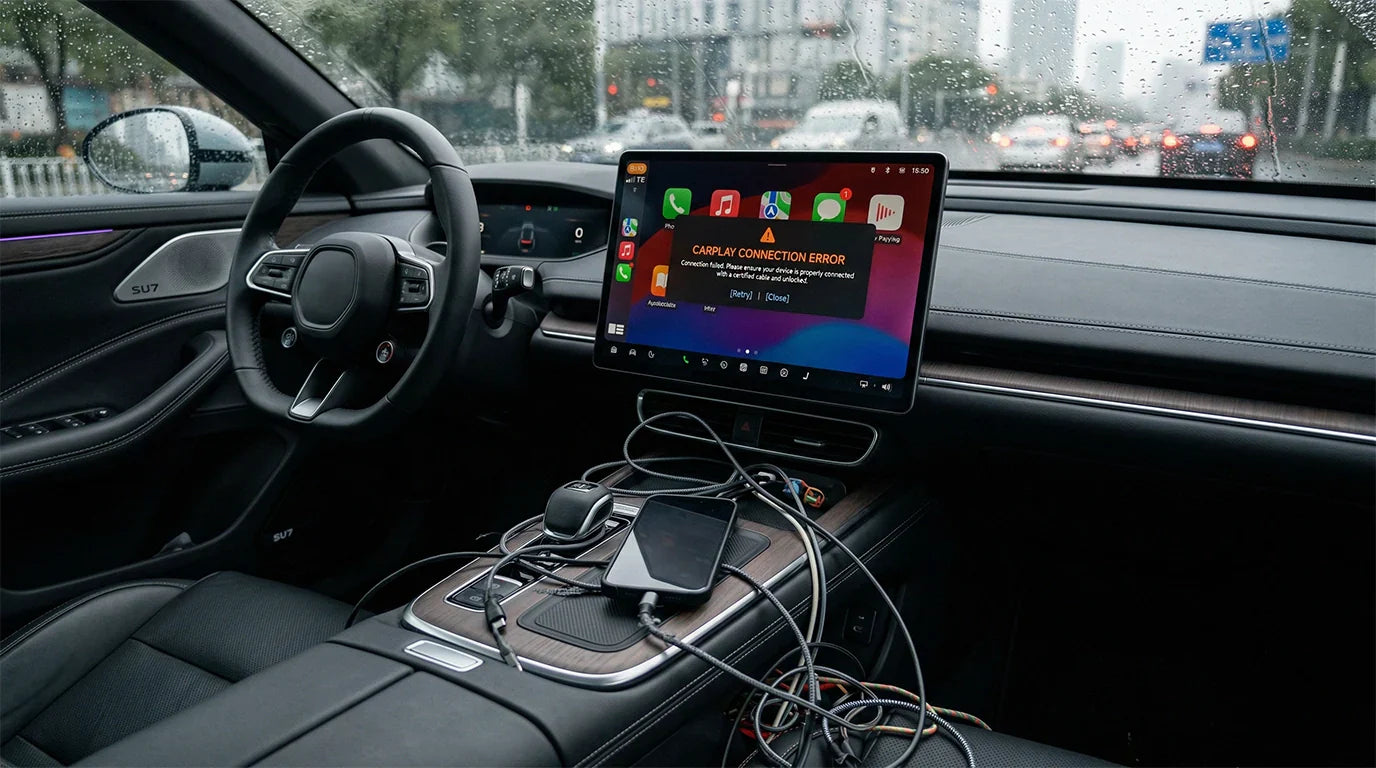
Apple CarPlay USB Cable Issues After iOS 26: Cable or Software Fix?
If Apple CarPlay started disconnecting, freezing, or crashing after an iOS 26 update, do not assume one cause too quickly. A worn USB cable, a dirty or loose port, a vehicle USB data issue, iPhone settings, or a software bug can all create similar symptoms. Start with the cable and port because they are the fastest checks, then move to iOS, vehicle software, and CarPlay settings.
Before you test anything, park the vehicle safely. Do not change iPhone, cable, or infotainment settings while driving.

Quick Answer: Cable Problem or iOS 26 Bug?
| Symptom | Most likely first check | What to try while parked |
|---|---|---|
| CarPlay drops when the phone or cable moves | Loose cable, worn connector, dirty port | Try a short data-capable cable, inspect both ports, and test another USB port if available. |
| iPhone charges but CarPlay does not launch | Charge-only cable or wrong USB port | Use the CarPlay-labeled USB port and a cable that supports data, not only charging. |
| Issue began right after iOS 26 | iOS setting, permission, or software conflict | Update iOS, restart the iPhone, forget the car in CarPlay settings, then pair again. |
| Several cables fail in the same vehicle | Vehicle USB port or infotainment software | Check the vehicle manual, try another supported port, and look for vehicle software updates. |
Apple's CarPlay troubleshooting guidance recommends checking the wired connection with a different USB cable and another USB port if available. Apple also recommends checking iPhone settings such as Siri, CarPlay restrictions, and whether the car is still trusted in CarPlay settings.
Why a Cheap or Aging USB Cable Can Break Wired CarPlay
Wired CarPlay needs more than power. The cable must carry data reliably between the iPhone and the vehicle head unit. A cable can still charge your phone while failing to maintain the data connection CarPlay needs.
Signs the cable may be the problem
- CarPlay disconnects when the cable bends or the phone moves.
- The iPhone charges, but CarPlay does not appear.
- The connection works with one cable but fails with another.
- The connector feels loose, bent, frayed, or warm.
- The cable works for charging at home but fails in the car.
Apple's device support guidance warns users not to use damaged accessories and recommends checking charging cables and adapters for visible damage. For CarPlay, treat visible damage as a strong reason to stop using that cable.
Check the iPhone Port and Car USB Port

A good cable can still fail if the iPhone port or vehicle USB port is dirty, loose, or not designed for CarPlay data. If your vehicle has several USB ports, only some may support smartphone projection.
- Unplug the iPhone and cable.
- Inspect the iPhone connector area for lint, debris, or visible damage.
- Inspect the cable connector for bent, cracked, or loose parts.
- Try the vehicle's CarPlay-labeled USB port, often marked with a CarPlay icon or smartphone icon.
- If your car has another data-capable USB port, test it while parked.
Do not force a connector into the port. If the USB port feels physically loose or damaged, the safer next step is vehicle service, not repeated cable swapping.
How iOS 26 Can Still Be Part of the Problem
If the cable and port look good, and the problem started only after iOS 26, software is still possible. That does not prove that iOS 26 alone caused the failure. Updates can expose an older cable problem, reset permissions, change connection behavior, or interact differently with a vehicle head unit.
Use a conservative troubleshooting path:
- Install the latest iOS 26 update available for your iPhone.
- Restart the iPhone and the vehicle infotainment system.
- On iPhone, go to Settings > General > CarPlay, select your car, then use Forget This Car if the saved connection seems corrupted.
- Reconnect using the vehicle's supported CarPlay setup method.
- Check Screen Time or Siri restrictions if CarPlay is missing or blocked.
Apple's iPhone guide says you can check for software updates in Settings > General > Software Update. Menu labels can vary slightly by iOS version, so use Settings search if you cannot find the exact path.
USB-C iPhones, Adapters, and Direct Cable Connections
Some iPhone and vehicle combinations add another layer: USB-C, Lightning, and adapters. Apple's USB-C guidance notes that non-compliant USB-C accessories and cables might not work as expected. Apple's USB-C to Lightning Adapter guidance also says some combinations of adapters, cables, and vehicle entertainment systems may disrupt wired CarPlay, and that a direct USB cable can be the better option for cars that support only wired CarPlay.
For a clean test, avoid hubs, extensions, multi-adapter chains, or damaged third-party cables. Connect the iPhone directly to the vehicle's CarPlay USB port using a reliable data-capable cable that matches your iPhone and vehicle port.
Step-by-Step Fix: Stable Wired CarPlay Test
- Park the vehicle and keep the phone unlocked for setup.
- Restart the iPhone.
- Restart the vehicle infotainment system or power-cycle the vehicle according to the owner's manual.
- Use a short, data-capable USB cable.
- Connect directly to the CarPlay USB port.
- If CarPlay launches, leave the phone still for a few minutes, then gently move the cable near each connector.
- If movement triggers a drop, replace the cable or inspect the port.
- If movement does not matter but CarPlay still crashes, update iOS and check vehicle software.
If you see an accessory warning, charging issue, or repeated disconnect immediately after plugging in, stop using that cable and test with another one.
When a Wireless Adapter Helps and When It Does Not
A wireless CarPlay adapter can reduce daily cable wear after wired CarPlay already works. It is not a repair tool for a damaged iPhone port, broken vehicle USB port, unsupported car, blocked iPhone setting, or unresolved vehicle software issue.
If your vehicle has compatible factory wired CarPlay and the wired connection works reliably with a good cable, a CARLUEX adapter may make everyday use more convenient by reducing repeated plug-in cycles. Compatibility depends on the adapter model and your vehicle's factory infotainment system, so check fit before buying.

For higher-feature in-car entertainment, review the CARLUEX PRO+ 2.0. For a simpler wireless CarPlay / Android Auto adapter path, review CARLUEX AIR. BMW owners should check the CARLUEX BMW version instead of assuming a standard adapter is the right fit. Always confirm your vehicle on the CARLUEX Compatible Vehicles page before purchase.
Video: CarPlay Cable and Connection Checks
The original article included this video reference. Use it as a visual supplement only; still follow Apple and vehicle manufacturer instructions for actual troubleshooting.
Related CARLUEX Guides
- How to Reset Apple CarPlay on iPhone
- How to Use Apple CarPlay: Setup, Connect, and Customize
- Wireless CarPlay Adapter Not Connecting? Troubleshooting Checklist
- Check CARLUEX vehicle compatibility
FAQ
Can a bad USB cable make Apple CarPlay crash?
Yes. A cable can charge an iPhone but still fail to carry stable CarPlay data. If CarPlay drops when the cable moves, test with a different data-capable cable and another supported USB port if available.
Why did CarPlay start disconnecting after iOS 26?
The timing can point to software, but it does not prove software is the only cause. Update iOS, restart the phone and vehicle system, forget and reconnect the car, then test the cable and USB port.
Does Apple recommend trying another USB cable for CarPlay?
Yes. Apple's CarPlay troubleshooting guidance says that for wired CarPlay, you can try connecting again with a different USB cable and another USB port if available.
Can a wireless CarPlay adapter fix a broken USB port?
No. A wireless adapter should be considered only after the vehicle's wired CarPlay connection works. It does not fix damaged ports, unsupported vehicles, iPhone restrictions, or vehicle software problems.
Should I replace my cable before updating iOS?
Do both checks, but start with the simplest test. If you have another reliable data-capable cable, test it while parked. Also install the latest iOS update available for your iPhone and check vehicle software updates when available.
Final Takeaway
For Apple CarPlay USB cable issues after iOS 26, the safest diagnosis is step-by-step: inspect the cable, test the CarPlay USB port, update iOS, restart both systems, forget and reconnect the car, and only then consider hardware or adapter changes. If wired CarPlay works again and you want fewer cable connections, check CARLUEX compatibility before choosing a wireless adapter.


Αφήστε ένα σχόλιο
Όλα τα σχόλια ελέγχονται πριν δημοσιευθούν.
Αυτή η τοποθεσία προστατεύεται από το hCAPTCHA και ισχύουν η Πολιτική απορρήτου και οι Όροι Παροχής Υπηρεσιών του hCaptcha.