

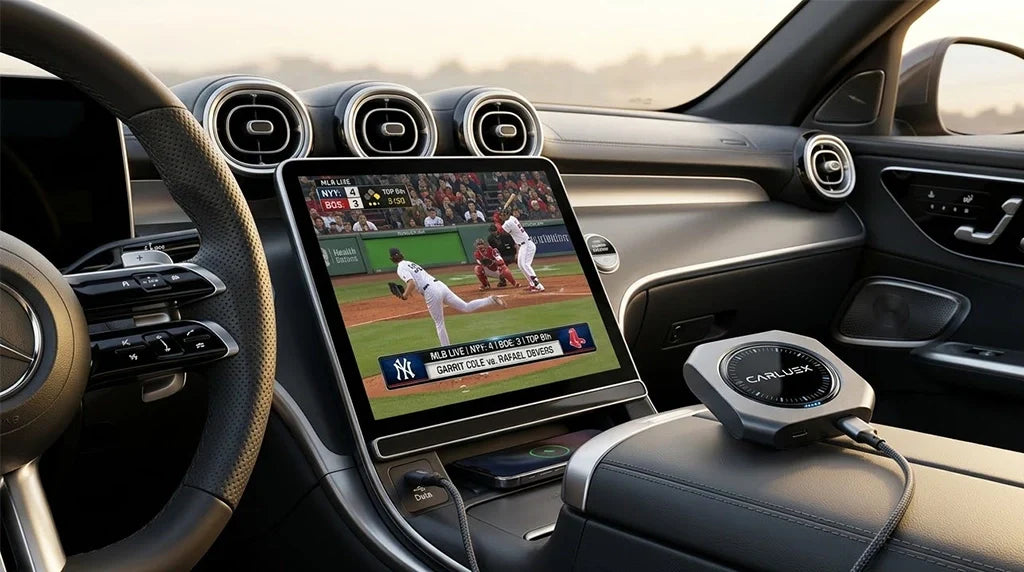
You can turn your wired carplay to wireless and enjoy MLB.TV games in your car with just a few simple steps. T-Mobile gives you a free MLB.TV subscription, so you do not miss out on any out-of-market baseball action. Using a wireless CarPlay adapter or the advanced PRO + 2.0 device helps you stream games easily and safely. Always follow local laws and keep your eyes on the road when using in-car entertainment. CARLUEX AIR makes wireless CarPlay work in any car with a USB port. CARLUEX PRO works out of the box — no wiring or tools needed. Browse CARLUEX wireless adapters to find the right fit for your car.
What About Key Takeaways?
-
Change wired CarPlay to wireless with a wireless adapter. This lets you stream MLB.TV games easily in your car.
-
T-Mobile gives you a free MLB.TV subscription. You can watch baseball games that are not in your area while in your car.
-
Make sure your car works with CarPlay. Your car should have a touchscreen for the best use.
-
Use the PRO + 2.0 device for more features. You can watch videos and use split-screen viewing.
-
Always stay safe by following local laws. Only use video features when your car is parked.
What Do You Need to Watch Sports on CarPlay?
Car Compatibility and Requirements
You need a CarPlay-compatible car to watch sports in your vehicle. Most modern cars support Apple CarPlay. Check your car’s manual or dashboard for the CarPlay logo. You also need an iPhone with the latest iOS version. Make sure your car’s head unit has a touchscreen for the best experience. A stable internet connection is important for streaming MLB.TV games. You can use your phone’s cellular data or connect to Wi-Fi if your car supports it.
Tip: If your car does not have a touchscreen, you may not be able to use all features of advanced devices like PRO + 2.0.
Devices and Adapters for Wired CarPlay to Wireless
You can turn wired CarPlay into wireless with a wireless CarPlay adapter or the PRO + 2.0 device. These adapters let you connect your iPhone without plugging in a cable. The PRO + 2.0 device offers extra features like app downloads and split-screen viewing. Here is a quick comparison of popular wireless CarPlay adapters:
|
Adapter |
Boot Time |
Connection Time |
Audio Delay |
FPS |
|---|---|---|---|---|
|
CarlinKit Mini Ultra |
9 seconds |
12 seconds |
1.04 seconds |
60 |
|
Ottocast Mini |
21.22 sec |
N/A |
N/A |
N/A |
Choose an adapter that fits your needs. Faster boot and connection times mean you can start watching games sooner.
MLB.TV App and T-Mobile Offer

T-Mobile gives you a free MLB.TV subscription for the baseball season. You can watch out-of-market games and listen to live audio for all matches. To redeem your offer, follow these steps:
-
Open the T-Life app and log in with your T-Mobile or Metro credentials.
-
Find the MLB.TV offer tile in the benefits section.
-
Tap to save and redeem the offer.
-
Download or update the MLB app.
-
Sign in or create an MLB account, then activate your subscription.
You must have an eligible T-Mobile plan. Make sure you redeem the offer during the promotion period. With MLB.TV, you can enjoy baseball anywhere your car takes you.
How Do I Set Up Wired CarPlay to Wireless in Your Car?
Connecting a Wireless CarPlay Adapter
You can convert wired carplay to wireless in your car with a wireless carplay adapter. The process is quick and simple. Most adapters offer an easy setup that takes only a few minutes. You start by plugging the adapter into your car’s USB port. Make sure Bluetooth and Wi-Fi are enabled on your iPhone.
Go to your phone’s Settings, tap General, and select CarPlay. Choose your car from the list of available cars. Confirm pairing on both your car’s screen and your phone. CarPlay should load wirelessly, letting you access your favorite apps without cables.
Many users describe the easy wireless carplay setup as plug-and-play. You do not need technical skills to get started.
If you run into issues, check this table for common problems and solutions:
|
Issue |
Solution |
|---|---|
|
No Connection |
Enable Bluetooth and Wi-Fi. Restart both devices. |
|
Adapter Not Recognized |
Try a different USB port or cable. Check the adapter connection. |
|
CarPlay Screen Blank |
Restart or reset your car’s infotainment system. |
Wireless carplay adapters make wired carplay to wireless a reality for most modern vehicles.
Setting Up the PRO + 2.0 Device

You can upgrade your car’s entertainment system with the PRO + 2.0 device. This device transforms wired carplay to wireless and adds advanced features. Begin by connecting the device to your car’s USB-C port. Follow the easy setup instructions in the user manual. On first use, perform a one-time screen calibration and restart the system. Update the device to the latest firmware for best performance.
Connect to Wi-Fi or insert a SIM card for network access. You can expand storage with a MicroSD card.
The PRO + 2.0 device runs on CARLUEX OS 2.0, turning your car’s head unit into a tablet-like dashboard. You can download apps, stream media, and use split-screen features.
For a smooth setup, follow these steps:
-
Connect the device to your car’s USB-C port.
-
Calibrate the screen as prompted.
-
Restart the system.
-
Update firmware using the Software Update app.
-
Connect to Wi-Fi or insert a SIM card.
-
Expand storage with a MicroSD card if needed.
You can enjoy wireless carplay, high-performance streaming, and app expansion with this device.
Pairing Your iPhone and Car
You need to pair your iPhone with your car’s wireless carplay system for a stable connection. Start by enabling Bluetooth and Wi-Fi on your phone. Turn on your car’s infotainment system and open the CarPlay settings. Look for the option to add or pair a new device. Your car should detect your iPhone automatically. Confirm the connection on your phone and follow the instructions on the screen. Test the connection by making a call or playing music.
If you experience pairing errors, remove unnecessary Bluetooth connections. Restart your iPhone and your car’s infotainment system to clear glitches.
Some users fix persistent wireless carplay issues by changing the Private Wi-Fi Address setting to "Fixed" in CarPlay Wi-Fi settings. This adjustment helps maintain a stable connection. You can now use wired carplay to wireless for streaming MLB.TV and other apps in your car.
How Do I Watch Sports on CarPlay with MLB.TV?

Installing and Using the MLB.TV App
You want to watch sports on CarPlay, so you need the right app. Start by opening the T-Life app on your iPhone. If you have a T-Mobile plan, you can redeem your free MLB.TV subscription here. After you claim your offer, download the MLB app from the App Store. Sign in with your MLB account. This gives you access to live sports and game highlights.
Not all apps work with CarPlay, so always check compatibility before installing new streaming services.
Tip: Keep your MLB app updated for the best experience and new features.
Streaming MLB Games in Your Car
You can watch sports on CarPlay by using the MLB app. When you connect your iPhone to CarPlay, you see the MLB app icon on your car’s screen. Tap it to listen to live sports audio streams. Due to safety rules, Apple CarPlay supports only audio streaming for MLB games. You cannot watch live video directly on the CarPlay screen.
You still get live sports updates, scores, and play-by-play action. If you want to watch live sports video, you need video streaming with third-party solutions like the PRO + 2.0 device.
-
Only audio streaming is available on standard CarPlay.
-
Video streaming with third-party solutions can unlock more features.
Split-Screen and Video Playback Options

If you want to watch sports on CarPlay and enjoy live sports video, the PRO + 2.0 device gives you more options. This device lets you use video streaming with third-party solutions and supports split-screen mode. You can watch live sports on one side of the screen and use navigation or other apps on the other. To use split-screen, open the floating ball or Split Screen app on the dashboard.
Choose the MLB app for one side and another app for the other. Adjust the screen ratio for your needs. This makes it easy to follow MLB games while keeping track of directions or messages.
Note: Always use video features when parked or as a passenger. Safety comes first.
You now know how to watch sports on CarPlay, listen to live sports, and use advanced features with the right devices and streaming services.
What About Troubleshooting CarPlay Sports Streaming Issues?
Fixing Connection Problems
Sometimes, you might have trouble streaming sports on CarPlay. You could lose your carplay connection, hear audio delays, or your adapter might not work. To fix these, check if Bluetooth and Wi-Fi are turned on. Restart your iPhone and your car’s infotainment system to clear small problems. Remove your car from CarPlay settings, then add it again to reset the connection.
Make sure Siri is on and CarPlay is not blocked in your iPhone settings. Look at your adapter to see if it is plugged in well or has any damage. Update the firmware if there is a new version.
If you still have problems, see if your adapter works well with your car’s head unit. Some adapters only work best with certain cars.
Improving Streaming Quality
Good streaming needs a strong internet connection and the right devices. You can get better audio and video by using a strong Wi-Fi network or good cellular data. Restart your devices if you notice any delays or stops. Keep your apps and firmware updated. If you use the PRO + 2.0 device, add a MicroSD card for more storage and smoother playback. Update your car’s head unit for the best results.
|
Issue |
Solution |
|---|---|
|
Audio delays |
Make Wi-Fi signal stronger |
|
Video interruptions |
Restart your devices |
|
App lag |
Update firmware and apps |
App Compatibility Solutions
Some apps do not work with CarPlay or third-party devices. This can make streaming harder. Check the App Store or your device dashboard to see if your app is compatible. If an app does not work, delete it and install it again. Always update your app to the newest version. For advanced devices like PRO + 2.0, use the dashboard to manage your apps and remove any that cause problems. If you need help, upload logs and contact support.
How to upload logs and contact support:
-
Find the upload log button on your device dashboard.
-
Fill in the form with your car’s model year and your question.
-
Take a screenshot of the form.
-
Send the screenshot to the support team for help.
-
If you cannot use the screen, leave a message on the blog.
You can get help by email, Amazon order service, WhatsApp, or during working hours.
Fast support helps you fix compatibility and connection problems quickly.
What About Safety and Legal Tips for Watching Sports in Your Car?
Legal Restrictions on In-Car Video
You need to follow state laws about video in your car. Most states do not let drivers see video screens while driving. These rules help keep people safe on the road. Some states let you use GPS or check your car’s status. Florida says extra devices cannot block your view. Many cars turn off video features when moving. Always check your local laws before using video in your car.
|
State Law Description |
Key Points |
|---|---|
|
Most states do not let drivers see video screens while driving. |
This rule is common in many states. |
|
Some displays are allowed. |
GPS and car status screens are okay. |
|
Florida says extra devices cannot block your view. |
This is a special rule for Florida. |
|
Video features turn off when the car moves. |
This keeps drivers safe in many cars. |
Safe Viewing Practices
You can watch sports in your car safely if you follow some rules. Never watch videos on your car screen while driving. This helps stop accidents and keeps you focused. Only watch live sports when your car is parked. Passengers can watch sports while the car moves, but drivers should use audio streams.
-
Only watch live sports on CarPlay when parked.
-
Passengers can watch sports while the car moves.
Responsible Use Guidelines
You can use your car’s system safely by following easy steps. Always pull over to a safe spot if you need to use the system. Enter GPS directions before you start driving. Set up your entertainment before you leave or while parked. Pick cars with voice controls that are simple.
-
Pull over to a safe spot to use the system or ask a passenger to help.
-
Enter GPS directions before you start your trip.
-
Set up the system before you drive or while parked.
-
Pick cars with easy voice controls.
Remember, safety comes first for you and others. Use your car’s entertainment wisely and follow all laws.
You can turn your wired CarPlay into a wireless system and stream MLB.TV games in your car. T-Mobile’s MLB.TV offer gives you free access to out-of-market baseball games. The PRO + 2.0 device lets you enjoy more features, like split-screen and video playback.
Always follow safety rules and local laws when using in-car entertainment.
Explore more ways to upgrade your drive with these smart products and enjoy every MLB moment on the road.
FAQ
How do you convert wired CarPlay to wireless in your car?
You connect a wireless adapter to your car’s USB port. Your carplay device pairs with your iPhone using Bluetooth and Wi-Fi. This setup gives you wireless freedom and lets you use carplay on your car's display screen. Plug & play makes the process simple.
You can enjoy wireless carplay without cables. Check your car’s manual for compatibility.
Can you stream MLB.TV video on your car's display?
You can stream MLB.TV video on your car's display with a carplay enabled device like PRO + 2.0. Standard carplay only supports audio. For video, use android apps or entertainment apps for sports streaming on your car's display screen.
Always watch video when parked. Use audio streams while driving.
What is the difference between wireless CarPlay and wireless Android Auto?
Wireless carplay connects your iPhone to your car's display. Wireless android auto connects your android phone to your car's display screen. Both let you use apps, navigation, and car entertainment without cables. You get wireless access to carplay and android auto features.
|
Feature |
Wireless CarPlay |
Wireless Android Auto |
|---|---|---|
|
Device |
iPhone |
Android phone |
|
Connection |
Bluetooth/Wi-Fi |
Bluetooth/Wi-Fi |
|
Apps Supported |
Apple apps |
Android apps |
How do you fix connection issues with wireless carplay?
You restart your carplay device and your phone. Make sure Bluetooth and Wi-Fi are on. Remove old connections from your car's display. Update your carplay device firmware. If problems continue, contact support or upload logs from your car's display.
Strong Wi-Fi improves wireless carplay performance.
Can you use split-screen mode for sports streaming in your car?
You can use split-screen mode with PRO + 2.0 on your car's display. Open the split-screen app and select entertainment apps for sports streaming and navigation. Adjust the screen ratio for your needs. This feature works on android auto and carplay.
Split-screen lets you multitask on your car's display.


Αφήστε ένα σχόλιο
Όλα τα σχόλια ελέγχονται πριν δημοσιευθούν.
Αυτή η τοποθεσία προστατεύεται από το hCAPTCHA και ισχύουν η Πολιτική απορρήτου και οι Όροι Παροχής Υπηρεσιών του hCaptcha.