

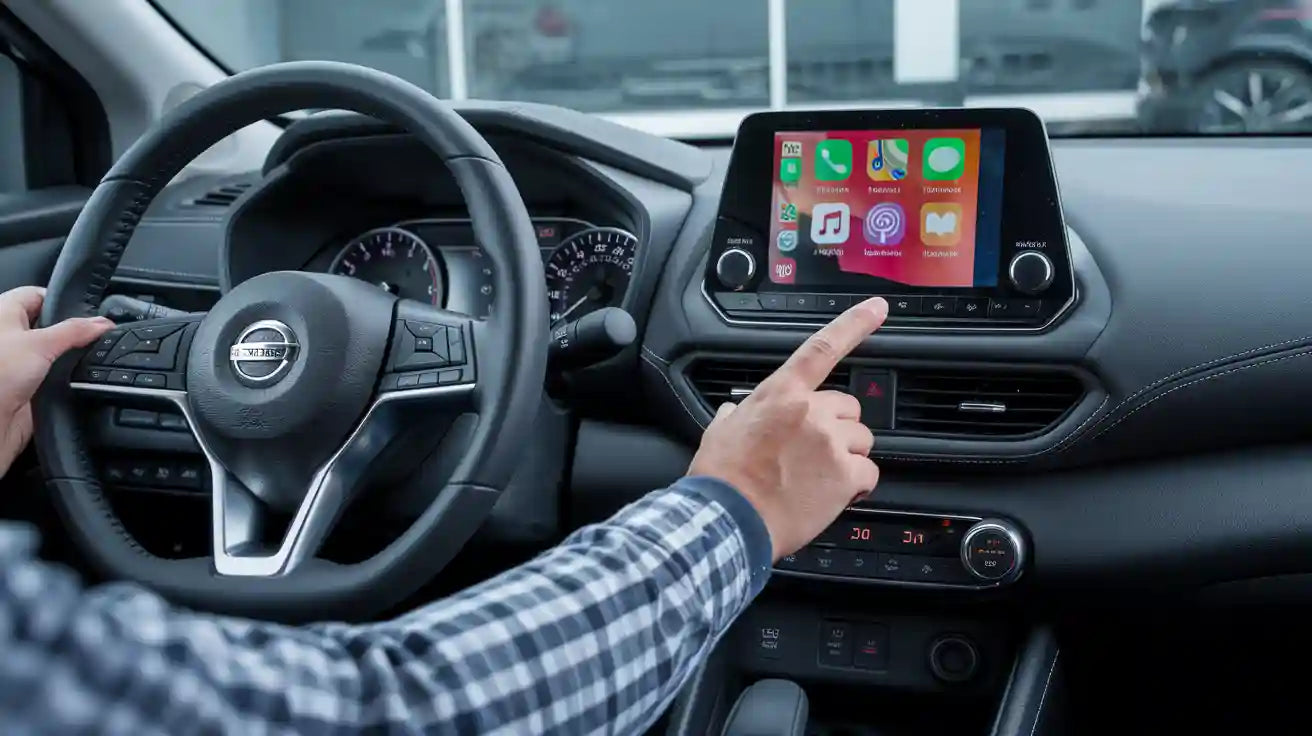
Quick answer: The best Android Auto apps for a Nissan Sentra beginner are the ones you can understand before you start driving: Google Maps, Waze, Google Messages, WhatsApp, Spotify, YouTube Music, Pocket Casts, Audible, Weather & Radar, and the MyNISSAN app if your vehicle and services support it. Set them up while parked, sign in on your phone first, and confirm your exact Sentra year and trim supports Android Auto or Wireless Android Auto before relying on the dashboard screen.
Safety note: Set up Android Auto, app permissions, music, messages, maps, and adapter pairing only while parked. Do not browse apps, type destinations, or change phone settings while driving.
Before You Pick Apps: Check Your Nissan Sentra Setup
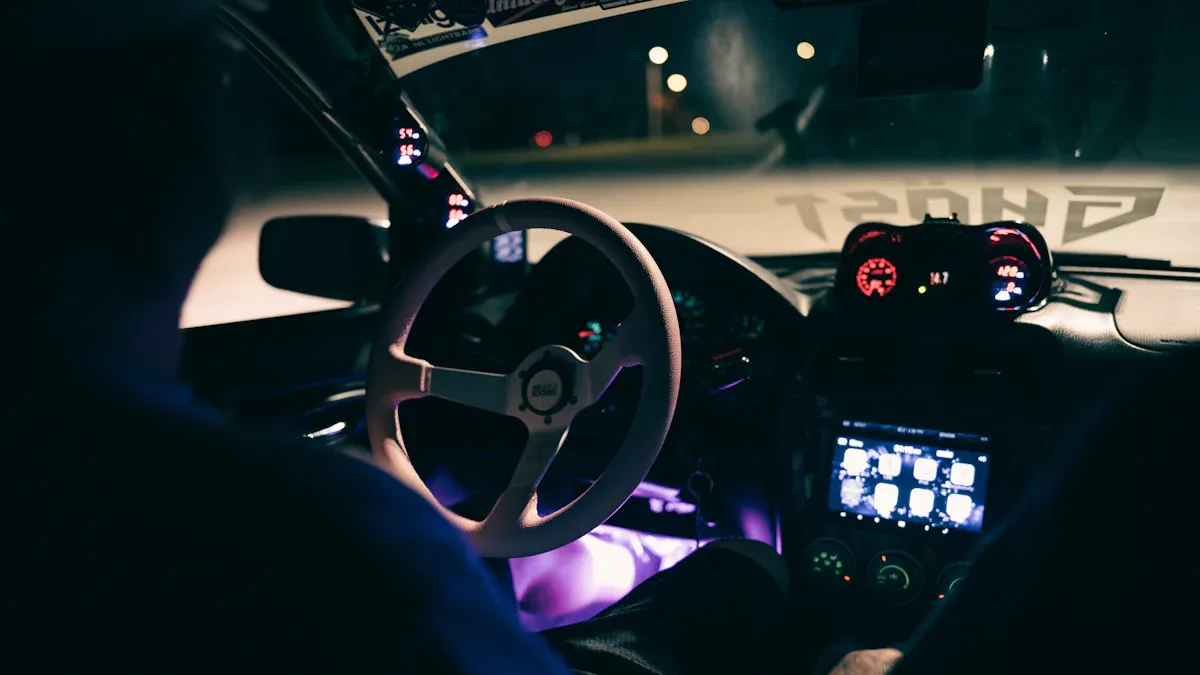
Android Auto app choice depends on the connection first. Nissan's Android Auto guidance says Android Auto brings phone features into compatible Nissan vehicles for driving-focused use, including directions, calls, messages, music, and voice actions. For first-time setup, Nissan says to park the vehicle, confirm compatibility, connect by USB for wired Android Auto, or use Bluetooth and Wi-Fi for Wireless Android Auto where supported.
For newer Sentra shoppers, Nissan's 2026 Sentra connected services page describes Wireless Android Auto as a way to access navigation, apps, calls, messages, and music through the touch-screen display or hands-free with Google Assistant. That does not mean every older Sentra, every trim, or every region has the same feature. Check your owner manual, infotainment menu, Nissan feature availability, and Android Auto compatibility before buying accessories or planning a long trip.
| Check | Why it matters | Beginner-friendly action |
|---|---|---|
| Sentra year and trim | Android Auto and Wireless Android Auto availability can vary by model year, trim, market, and package. | Check Nissan feature availability or your owner's manual before assuming support. |
| Phone compatibility | Android Auto needs a compatible Android phone and current app/software support. | Update your phone and Android Auto before the first drive. |
| Wired vs wireless connection | Some cars connect by USB first; some support wireless pairing with Bluetooth and Wi-Fi. | Test the connection while parked and keep a data-capable USB cable as backup. |
| App sign-in | Google says media apps may require sign-in, subscriptions, or app-specific troubleshooting. | Open each app on your phone and sign in before starting Android Auto. |
| CARLUEX compatibility | A wireless adapter depends on the adapter model and your vehicle's factory infotainment support. | Check the CARLUEX compatible vehicles page before purchase. |
10 Beginner-Friendly Android Auto Apps For Nissan Sentra Drivers
This list is organized by job, not by unsupported "best app for everyone" claims. App behavior can change, and availability may depend on your country, phone, subscription, account, and app provider. The goal is simple: choose apps that are easy to launch, easy to control by voice, and useful during normal Sentra commuting.
1. Google Maps: easiest default navigation app
Google Maps is the first app most beginners should test because it is familiar, widely supported, and built around search, routes, traffic, and voice guidance. Nissan's Android Auto page says drivers can open Google Maps from the app launcher, search for a destination, or ask Google Assistant for turn-by-turn directions.
Beginner setup tip: save Home and Work in Google Maps on your phone before connecting to the Sentra. Start a short test route while parked so you can check voice volume, route prompts, and display layout before traffic gets busy.
2. Waze: helpful for road alerts and commuting
Waze is useful if you care about route reports, traffic slowdowns, and incident alerts. It can be a good second navigation app for Sentra owners who already understand Google Maps and want a more commute-focused option.
Beginner setup tip: choose only the alert types you actually need. Too many alerts can become distracting, especially for a new Android Auto user.
3. Google Messages: simple voice-friendly texting
For basic texting, Google Messages is often the easiest starting point. Nissan says Android Auto can let Google Assistant read incoming texts and help send replies aloud. Keep messages short, and use voice replies only when it is safe and legal.
Beginner setup tip: check notification permissions on your phone before connecting. If message alerts do not appear, the issue may be the phone app, notification settings, Android Auto permissions, or Do Not Disturb mode.
4. WhatsApp: familiar messaging for many drivers
WhatsApp can be useful if your family, coworkers, or travel group already uses it. Keep expectations conservative: Android Auto support and voice behavior can depend on phone settings, app version, region, and account state.
Beginner setup tip: open WhatsApp on the phone first, confirm you are signed in, and test one hands-free reply while parked.
5. Spotify: easy music for daily drives
Spotify is a good beginner music app because many drivers already have playlists, liked songs, and podcasts saved. Google's Android Auto media guidance says compatible media apps can play through the car's speakers, and users should sign in to apps on the phone before starting Android Auto.
Beginner setup tip: create a few playlists on your phone before driving. It is easier to ask for a playlist by voice than to browse a long library on the car screen.
6. YouTube Music: simple if you use Google services
YouTube Music is another beginner-friendly choice if you already use a Google account for music. It can fit drivers who want voice commands and familiar Google account integration.
Beginner setup tip: confirm your subscription, downloads, and data settings before a long commute. Do not assume every media feature works offline or without a paid account.
7. Pocket Casts: clean podcast listening
Podcast apps are helpful for long drives because you can choose shows before leaving and continue listening with fewer screen taps. Pocket Casts is a simple option for drivers who want a podcast-focused app instead of mixing podcasts into a music app.
Beginner setup tip: queue episodes on your phone before connecting Android Auto. A prepared queue is safer than searching episode lists from the dashboard.
8. Audible: audiobooks for longer trips
Audible can be useful if you prefer audiobooks over podcasts or music. It is especially beginner-friendly when you start a book on your phone first and resume it through Android Auto.
Beginner setup tip: download chapters before a trip if mobile data coverage may be weak. Keep playback speed and sleep timer settings simple until you are comfortable with the app.
9. Weather & Radar: check conditions before leaving
A weather app is useful before a commute, but it should not become a dashboard distraction. Use weather apps to check storms, snow, heat, or travel conditions while parked, then rely on navigation and local alerts during the drive.
Beginner setup tip: add your commute cities or favorite places on the phone. Keep alerts practical so you are not overloaded with notifications.
10. MyNISSAN app: useful for owner services when supported
The MyNISSAN app is not the same thing as Android Auto navigation or media, but it can be useful for owners because Nissan describes it as a companion for owner information, roadside emergency assistance, service details, and available vehicle functions. Feature access depends on vehicle support, services, account setup, and region.
Beginner setup tip: treat MyNISSAN as an owner-services app, not as a replacement for Google Maps, Waze, Spotify, or message apps inside Android Auto.
Best App Setup Order For A New Nissan Sentra Owner
If you are new to Android Auto, do not install everything at once. Set up the apps in this order so each one has a clear job.
- Start with navigation: Set up Google Maps first, then add Waze if you want traffic reports.
- Add one messaging app: Use Google Messages or WhatsApp, not every messaging app you own.
- Pick one audio app: Choose Spotify, YouTube Music, Pocket Casts, or Audible as your main driving audio app.
- Check weather before leaving: Use weather apps while parked, especially for storms or winter routes.
- Keep owner services separate: Use MyNISSAN for supported owner features, not for dashboard browsing while driving.
| Beginner goal | Start with | Add later if needed |
|---|---|---|
| Daily commuting | Google Maps + Spotify | Waze for road alerts |
| Hands-free communication | Google Messages | WhatsApp if your contacts use it |
| Long drives | Google Maps + Audible | Pocket Casts or YouTube Music |
| Bad weather planning | Weather & Radar before departure | Navigation traffic alerts during the drive |
Can A CARLUEX Adapter Help A Nissan Sentra Owner?
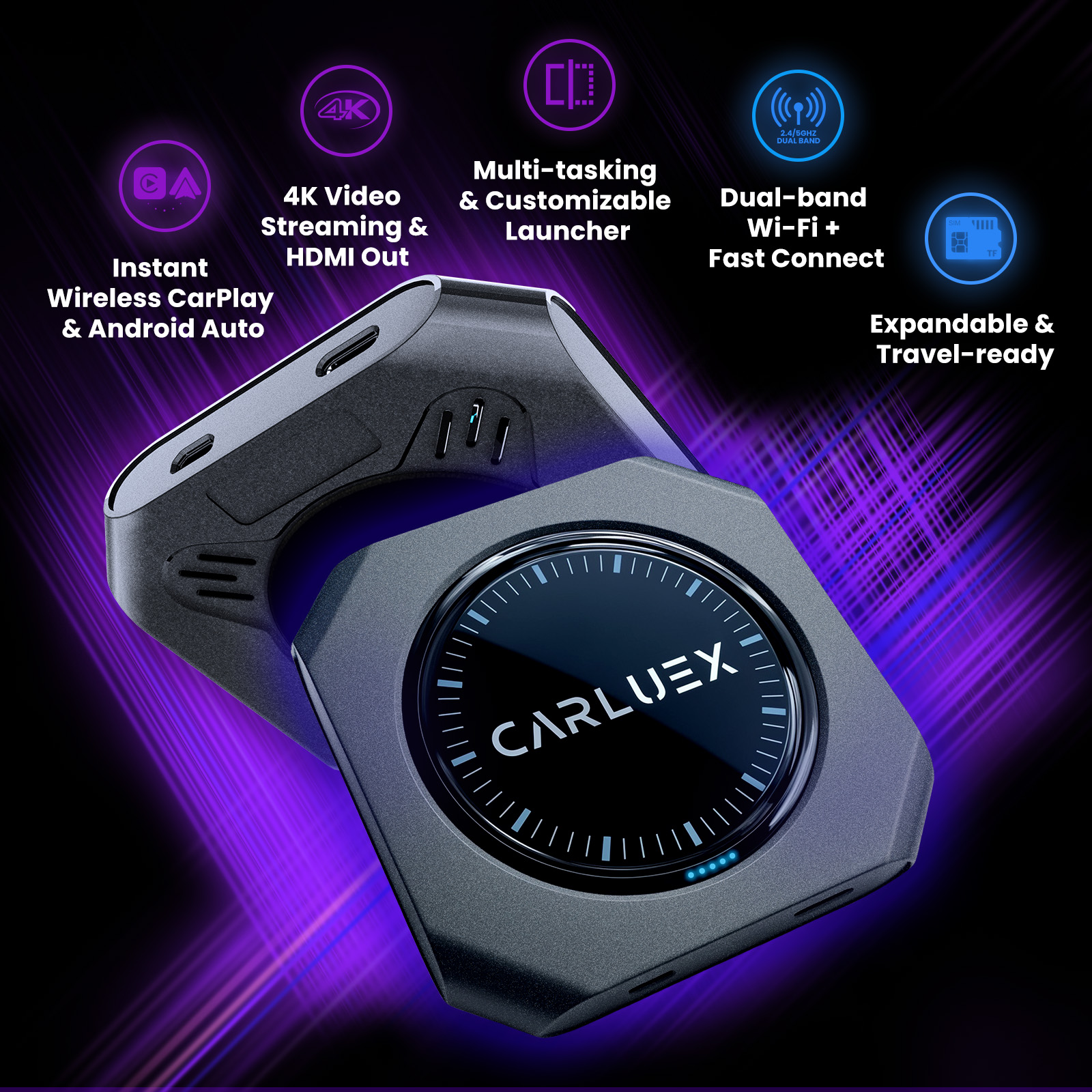
A CARLUEX adapter can make daily connection easier after your vehicle already supports the required wired Android Auto or wired CarPlay path. It should not be treated as a universal fix. It does not add Android Auto to an unsupported vehicle, repair a damaged USB port, override phone restrictions, or guarantee every third-party app will work the same way forever.
For a Nissan Sentra owner, the safest buying path is:
- Confirm your exact Sentra year, trim, region, and infotainment system.
- Test the factory wired Android Auto or wired CarPlay connection first where applicable.
- Check the CARLUEX compatible vehicles page.
- Compare the CARLUEX product page that matches your goal.
- Ask support before purchase if the vehicle fit is unclear.
| Driver need | CARLUEX path to review | Important boundary |
|---|---|---|
| Simple wireless CarPlay or wireless Android Auto convenience | CARLUEX LINK | Wireless CarPlay needs factory wired CarPlay; wireless Android Auto needs factory wired Android Auto. |
| Wireless connection with Android-based app access where available | CARLUEX AIR | Third-party app behavior depends on the app provider, account, network, and region. |
| Compact multimedia option with phone mirroring support | CARLUEX GO | Use video or entertainment features only when parked or by passengers where law and safety allow. |
| Higher-spec multimedia AI box features | CARLUEX PRO+ 2.0 | Designed for built-in wired CarPlay vehicles; not for BMW models; does not support phone mirroring. |
Beginner Troubleshooting Checklist
If an app does not appear or Android Auto does not start, do the simple checks first.
- Unlock the phone during first setup. Nissan notes that first-time setup may require accepting terms and safety messages on the phone and car display.
- Try a better USB cable. For wired setup, use a data-capable cable, not a charge-only cable.
- Check the Android Auto app launcher. Nissan says the app launcher shows frequently used compatible apps.
- Sign in to media apps first. Google says some media apps require sign-in or a subscription before use.
- Check phone permissions. Location, microphone, notifications, contacts, and Bluetooth/Wi-Fi permissions can affect app behavior.
- Keep the car parked for setup. Nissan notes the on-screen keyboard is not available while driving.
How To Set Up Android Auto In A Nissan Sentra
Use this simple flow before your first drive:
- Park the Sentra and turn on the vehicle.
- Confirm your Sentra supports Android Auto or Wireless Android Auto.
- For wired Android Auto, connect your Android phone to the car's USB data port.
- For Wireless Android Auto, pair with Bluetooth and allow Wi-Fi if your Sentra supports the wireless flow.
- Accept the prompts on your phone and the vehicle display.
- Open the Android Auto app launcher and test Google Maps plus one media app.
- Set navigation, audio, and message preferences before leaving the parking spot.
Related CARLUEX Guides
- Nissan CarPlay adapter compatibility and installation guide
- Android Auto adapter troubleshooting checklist
- Waze and smart navigation with a CARLUEX adapter
- Android Auto video apps guide for parked entertainment checks
FAQ
Which Android Auto app should a Nissan Sentra beginner try first?
Start with Google Maps because it solves the most common driving need: directions. After that, add one music app, one messaging app, and one podcast or audiobook app if you use them regularly.
Does every Nissan Sentra support Wireless Android Auto?
No. Android Auto and Wireless Android Auto availability can vary by model year, trim, region, and package. Check Nissan feature availability, your owner's manual, and your infotainment system before assuming support.
Why are some Android Auto apps missing from my Sentra screen?
The app may not be compatible with Android Auto, may need an update, may require sign-in, or may not have the right phone permissions. Google also notes that some media apps may require subscriptions or app-provider troubleshooting.
Can a CARLUEX adapter add Android Auto to an unsupported Sentra?
No. A wireless adapter is a convenience upgrade for compatible vehicles with the required factory wired Android Auto or wired CarPlay path. It is not a retrofit for a vehicle that does not support the underlying system.
Can I watch video apps through Android Auto while driving?
No. Keep the driver's attention on the road. Entertainment and video features should only be used while parked or by passengers where local law and vehicle safety allow, and third-party app behavior may vary.
Bottom Line
For most Nissan Sentra beginners, the smartest Android Auto setup is not a giant app list. Start with Google Maps, add Waze if traffic alerts matter, choose one audio app, keep messages voice-friendly, and set everything up while parked. If you want fewer cables, compare CARLUEX options only after confirming that your Sentra supports the required wired Android Auto or wired CarPlay connection.
Start with the CARLUEX compatibility page, then compare LINK, AIR, GO, and PRO+ 2.0 before buying.


Hinterlasse einen Kommentar
Diese Website ist durch hCaptcha geschützt und es gelten die allgemeinen Geschäftsbedingungen und Datenschutzbestimmungen von hCaptcha.