

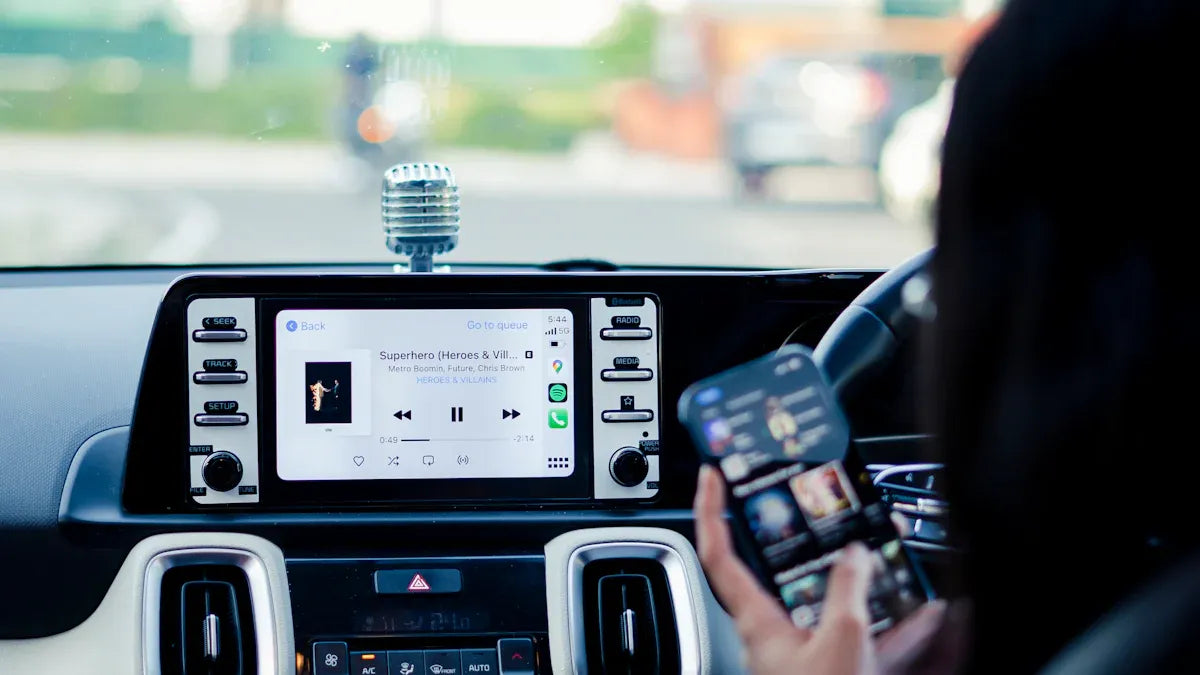
If CarPlay is not working on your iPhone, start with the phone-side connection chain: Siri, Screen Time, the USB cable or wireless pairing, Bluetooth, Wi-Fi, and the saved vehicle profile. Most failures happen before you need a new adapter or a dealership visit.
Park safely before changing settings, pairing devices, or testing cables. Do not troubleshoot CarPlay while driving.
Quick Answer: Fix iPhone CarPlay Not Working
- Restart your iPhone and the vehicle infotainment system.
- On iPhone, open Settings and search for Siri. Make sure Siri is enabled. The exact label can vary by iOS version.
- Search Settings for Screen Time and make sure CarPlay is not restricted.
- For wired CarPlay, use a data-capable USB cable and the vehicle's CarPlay USB port.
- For wireless CarPlay, make sure Wi-Fi and Bluetooth are on, then remove and re-pair the car.
- Forget the car from iPhone CarPlay settings and remove the phone from the vehicle's saved device list.
- Confirm your vehicle supports CarPlay and whether it supports wired or wireless CarPlay.
- After wired CarPlay works, consider a compatible wireless adapter if you want a cable-free setup.
iPhone CarPlay vs iOS CarPlay Issues
This guide focuses on iPhone-side CarPlay problems: your iPhone does not show CarPlay, keeps disconnecting, charges but does not connect, or fails to pair wirelessly. If your problem started right after an iOS update and affects several CarPlay apps or vehicles, see our broader iOS CarPlay troubleshooting guide.
Apple's own CarPlay troubleshooting guidance points users toward CarPlay restrictions, pairing reset, firmware updates, and setup checks. That is why this guide starts with iPhone settings and connection basics before discussing adapters.
Check Whether Your iPhone and Car Support CarPlay
Apple says CarPlay is available on select vehicles and aftermarket systems, and the official CarPlay available models list is the safest place to confirm whether your vehicle family supports it. Your exact year, trim, region, and infotainment system can still matter, so check the owner's manual if the model list looks ambiguous.
Support for CarPlay does not automatically mean support for wireless CarPlay. Some vehicles support wired CarPlay only. If wired CarPlay works but wireless CarPlay does not, the problem may be a wireless setup limitation rather than a broken iPhone.
Turn On Siri and Check iPhone Restrictions
CarPlay requires Siri. On iPhone, open Settings and search for Siri. Make sure Siri is enabled. The exact menu label can vary by iOS version, so search is more reliable than one fixed path.
Next, search Settings for Screen Time. If content and privacy restrictions are enabled, check whether CarPlay is blocked. This is especially important on work phones, family-managed phones, or phones restored from an older backup.
Fix Wired CarPlay When iPhone Charges but Does Not Connect
If your iPhone charges but CarPlay does not launch, the cable or USB port may not be passing data. Use a data-capable USB cable and connect to the vehicle's CarPlay USB port, not a charge-only port. Apple notes in its iPhone CarPlay setup guide that the USB port may be labeled with a CarPlay icon or smartphone icon.
For USB-C iPhones, be careful with adapter chains. Apple's car connection guidance says some adapter, cable, and vehicle combinations may disrupt wired CarPlay, and a direct USB cable connection may work better for vehicles that only support wired CarPlay.
Fix Wireless CarPlay Not Showing Up
If your vehicle supports wireless CarPlay, make sure Wi-Fi and Bluetooth are both on. Apple's CarPlay setup instructions also note that the vehicle may need to be in wireless or Bluetooth pairing mode, and that Auto-Join should be enabled for the CarPlay network.
If the car does not appear, remove the iPhone from the vehicle's Bluetooth or phone list, then remove the vehicle from iPhone CarPlay settings. Restart both systems and pair again. This is often cleaner than repeatedly toggling Bluetooth.
Forget the Car and Reconnect Your iPhone
Use this reset when CarPlay used to work but now disconnects, does not launch, or connects to the wrong phone.
- Park the vehicle and keep the infotainment system on.
- On iPhone, open Settings and search for CarPlay.
- Select your car if it appears.
- Tap Forget This Car.
- In the vehicle menu, remove the same iPhone from the saved phone, Bluetooth, or projection list.
- Restart the iPhone and the vehicle infotainment system.
- Reconnect by USB first if possible, then test wireless CarPlay if your vehicle supports it.
For a more detailed walkthrough, use our Apple CarPlay reset guide.
If CarPlay Keeps Disconnecting on iPhone
When CarPlay disconnects after a few minutes, test one variable at a time. First try a different data cable and CarPlay USB port. Then test with another iPhone if available. If another iPhone works in the same car, focus on your iPhone settings, cable, saved profile, or iOS update. If no iPhone works, the vehicle USB port or infotainment system may need attention.
If the issue happens only around multiple paired phones, remove older phones from the vehicle's saved device list. Some vehicles automatically connect to the last paired or strongest nearby device, which can make CarPlay appear unreliable when several phones are in the car.
When a Wireless Adapter Can Help
A wireless adapter may help after wired CarPlay already works. It does not fix unsupported vehicles, damaged USB ports, blocked iPhone settings, or vehicle software problems.
If wired CarPlay is reliable and you want your iPhone to connect without a phone cable after setup, start with CARLUEX LINK. If you need additional multimedia or adapter features, compare CARLUEX AIR and CARLUEX GO.
Before purchasing, check CARLUEX compatible vehicles or contact support if your vehicle is not listed. Compatibility depends on the adapter model and your vehicle's factory infotainment system.

Related CARLUEX Guides
- Why Your Apple CarPlay Isn't Working and How to Fix It
- iOS CarPlay Not Working? Fix Apple CarPlay Issues
- How to Reset Apple CarPlay
- Remove a Phone from CarPlay and Stop Auto-Reconnect
- Cars with Apple CarPlay
- Browse CarPlay troubleshooting guides
FAQ
Why is CarPlay not working on my iPhone?
The most common causes are disabled Siri, Screen Time restrictions, a charge-only USB cable, the wrong USB port, wireless pairing conflicts, an unsupported vehicle, or outdated infotainment software.
Why does my iPhone charge but CarPlay does not start?
Your cable or USB port may only support charging. Use a data-capable USB cable and the vehicle's CarPlay USB port. If your owner's manual identifies a specific smartphone projection port, use that port first.
Does iPhone 17 require a different CarPlay fix?
Start with the same CarPlay chain: Siri, Screen Time, USB-C cable or adapter, wireless pairing, and vehicle support. Avoid assuming the phone model is the root cause until you test the cable, port, and saved vehicle profile.
Can a CARLUEX adapter fix iPhone CarPlay not working?
Only if wired CarPlay already works and you want to make the connection wireless. An adapter does not repair an unsupported vehicle, damaged USB port, blocked iPhone setting, or vehicle software issue.
Should I reset my iPhone to fix CarPlay?
Try smaller steps first: restart, enable Siri, check Screen Time, use a different data cable, forget the car, and re-pair. A broader iPhone reset can affect more settings, so it should not be the first fix.


Hinterlasse einen Kommentar
Diese Website ist durch hCaptcha geschützt und es gelten die allgemeinen Geschäftsbedingungen und Datenschutzbestimmungen von hCaptcha.