

Quick answer: If Apple CarPlay is not connecting in your Ford, start with the simple checks first: use a data-capable USB cable, try the correct USB port, make sure Siri and CarPlay are enabled on your iPhone, restart both the phone and vehicle, and check whether your Ford SYNC system has an available update. Make these changes while parked, then test CarPlay before driving.
Safety note: Change phone, CarPlay, and SYNC settings only when the vehicle is parked. Do not adjust phone or infotainment settings while driving.
| Problem | First thing to check | Where to look |
|---|---|---|
| CarPlay does not launch | USB cable and CarPlay-capable USB port | Ford USB port, owner manual, iPhone prompt |
| Ford SYNC does not detect the iPhone | Siri, CarPlay permission, and Screen Time restrictions | iPhone Settings |
| Wireless CarPlay drops or will not reconnect | Bluetooth, Wi-Fi, and saved vehicle pairing | iPhone Bluetooth/Wi-Fi and Ford SYNC device list |
| CarPlay worked before but stopped | iOS update, SYNC update, or old pairing conflict | Apple Software Update and Ford SYNC update page |
How Do You Fix Apple CarPlay Not Connecting in a Ford?
Most Ford CarPlay connection issues come from one of four places: the cable or USB port, iPhone CarPlay permissions, Ford SYNC pairing, or outdated software. Apple recommends checking Siri, restarting the iPhone and car, and confirming Bluetooth and Wi-Fi for wireless CarPlay in its CarPlay troubleshooting guidance. Ford also provides official help for setting up Apple CarPlay with SYNC.
Check the USB Cable and Ford USB Port First
If your Ford uses wired CarPlay, the cable and USB port are the fastest things to check. A cable can charge your iPhone but still fail to pass data reliably enough for CarPlay.
- Use an Apple USB cable or another high-quality data-capable cable.
- Plug into the USB port that supports CarPlay. Some Ford vehicles have multiple USB ports, and not every port may support CarPlay.
- Look for a CarPlay or smartphone icon near the USB port, if your vehicle has one.
- Clean the USB port gently if dust or debris is visible.
- If the phone charges but CarPlay does not appear, test another cable before changing deeper settings.
If the connection drops when the cable moves, the issue may be the cable, the port, or the physical connection. Test while parked before relying on CarPlay for navigation.
Wired vs Wireless CarPlay in Ford: Know Which Setup You Have
Before troubleshooting, confirm whether your Ford uses wired CarPlay, factory wireless CarPlay, or wired CarPlay with a wireless adapter. Wired CarPlay depends more on the USB cable and CarPlay-capable USB port. Factory wireless CarPlay depends more on Bluetooth, Wi-Fi, and saved pairing. If you use a wireless adapter, first confirm that wired CarPlay works directly with a cable before troubleshooting the adapter.
For setup basics, Apple explains how to connect iPhone to CarPlay with a cable or wireless connection, depending on what the vehicle supports.

Make Sure CarPlay, Siri, and iPhone Permissions Are Enabled
CarPlay depends on iPhone permissions as well as the Ford SYNC connection. The exact labels can vary by iOS version, but these are the main areas to check:
- Open Settings > General > CarPlay, then select your Ford if it appears.
- Make sure CarPlay is allowed for that vehicle.
- Check whether Allow CarPlay While Locked appears, and enable it if available.
- Open Siri settings and make sure Siri is enabled.
- Check Screen Time restrictions if CarPlay is missing or blocked.
If the setting names do not match your iPhone exactly, search iPhone Settings for "CarPlay" or "Siri." Apple changes menu labels over time, so avoid assuming every iPhone shows the same path.
Restart Your iPhone and Ford SYNC System
A restart can clear temporary pairing and software issues. Do this while parked. Depending on your Ford model, the SYNC screen may take a short time to fully power down after you turn the vehicle off.
- Disconnect your iPhone from the Ford USB port or wireless pairing.
- Restart the iPhone.
- Turn the vehicle off safely and allow the infotainment system to power down.
- Start the vehicle again.
- Reconnect the iPhone and watch for the CarPlay prompt on the Ford display.
If CarPlay still does not start, remove the old pairing and set it up again.
Remove and Re-Add the Ford CarPlay Pairing
Old pairings can cause CarPlay to fail after an iOS update, SYNC update, or phone change. Try a clean pairing:
- On iPhone, go to Settings > General > CarPlay.
- Select your Ford, then choose Forget This Car if the option appears.
- On the Ford SYNC screen, remove the iPhone from the saved device list.
- Restart both the iPhone and the vehicle.
- Set up CarPlay again from the Ford display prompt.
For wireless CarPlay, also confirm that Bluetooth and Wi-Fi are on. Apple notes that wireless CarPlay uses both, so turning off Wi-Fi can prevent wireless CarPlay from reconnecting.
Update iOS and Ford SYNC
Software updates can affect CarPlay behavior. Before assuming the vehicle or phone has a hardware problem, check both sides:
- On iPhone, go to Settings > General > Software Update.
- For Ford, check the official SYNC software update page or sign in with your Ford account/VIN if required.
- If an update fails or the SYNC screen shows errors, contact Ford support or your dealer.
Do not write down or share private vehicle, account, or VIN information in public comments. Use Ford's official support channels for account-specific or VIN-specific help.
What If Wireless CarPlay Keeps Disconnecting in a Ford?
Wireless CarPlay needs a stable Bluetooth and Wi-Fi connection. If it connects once and then drops, check these areas:
- Make sure Bluetooth is turned on.
- Make sure Wi-Fi is turned on, even if you are not using a hotspot.
- Remove old Bluetooth pairings that may conflict with your Ford.
- Forget and re-add the Ford CarPlay connection.
- Check for iOS and SYNC updates.
Some connection drops can be caused by local wireless interference, but do not assume interference is the cause until you have tested the cable, pairing, Bluetooth, Wi-Fi, and software steps first.
Which Ford Vehicles Support Apple CarPlay?
Ford says Apple CarPlay can be used in select 2016 and newer vehicles equipped with SYNC or Ford Digital Experience. Compatibility can still depend on model year, region, trim, and the installed infotainment system, so confirm your vehicle through Ford's official Apple CarPlay compatibility page, your owner's manual, or VIN-based Ford support tools.
Also confirm iPhone compatibility with Apple. Apple CarPlay availability and features can depend on the iPhone model, iOS version, vehicle, and country or region.

When Should You Consider a CARLUEX Adapter?
If your Ford already supports factory wired CarPlay and you want a wireless setup, a CARLUEX adapter may help reduce daily cable use. It will not fix every Ford SYNC issue, replace a required Ford software update, or make an incompatible vehicle support CarPlay.
CARLUEX compatibility depends on the adapter model and your vehicle's factory infotainment system. Many CARLUEX adapters require factory wired CarPlay, while wireless Android Auto support may require factory wired Android Auto on selected models. Before buying, check the product page and compatibility list for your vehicle's year, make, and model.
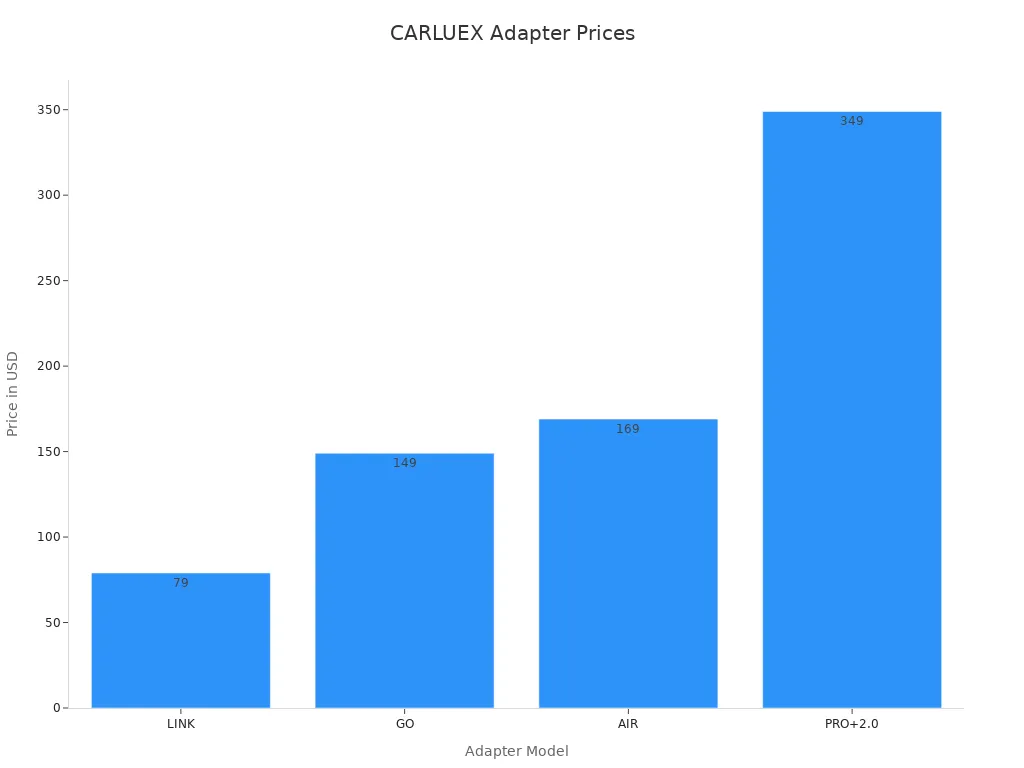
- Check CARLUEX LINK if you mainly want a compact wireless CarPlay / Android Auto adapter and your vehicle meets the product requirements.
- Check CARLUEX PRO+ 2.0 if you want a multimedia AI box for a compatible factory wired CarPlay vehicle.
- Check CARLUEX compatible vehicles before purchasing.
If you drive a BMW, check the dedicated CARLUEX for BMW version instead of assuming a Ford-focused or universal adapter recommendation applies.
Troubleshooting: Why Is Ford CarPlay Still Not Working?
| Symptom | Possible cause | What to try next |
|---|---|---|
| iPhone charges but CarPlay does not open | Cable charges but does not pass data, or wrong USB port | Try a data-capable cable and another Ford USB port |
| Ford display does not show CarPlay | CarPlay permission, Siri, or Screen Time restriction | Check iPhone CarPlay, Siri, and Screen Time settings |
| Wireless CarPlay will not reconnect | Bluetooth/Wi-Fi off or old pairing conflict | Turn on Bluetooth/Wi-Fi, forget the car, and pair again |
| Problem started after an update | iOS or SYNC software change | Check Apple and Ford updates, then re-pair CarPlay |
| CarPlay fails in one Ford but works elsewhere | Vehicle-specific SYNC setting, USB port, or update issue | Check Ford support, owner's manual, or dealer support |
Related CARLUEX Guides
- Why Your Apple CarPlay Isn't Working and How to Fix It
- How to Reset Apple CarPlay
- Enhance Your Ford Driving Experience with Wireless CarPlay Adapters
- Browse CarPlay troubleshooting guides
FAQ
Why does Apple CarPlay keep disconnecting in my Ford?
Common causes include a worn cable, the wrong USB port, an old pairing, Bluetooth or Wi-Fi problems, outdated iOS software, or a Ford SYNC issue. Start with the cable and port, then check iPhone permissions and SYNC updates.
Why does my iPhone charge but CarPlay does not work?
The cable or USB port may support charging but not stable data transfer. Try a high-quality data-capable cable and the Ford USB port that supports CarPlay.
Can a CARLUEX adapter fix Ford SYNC software problems?
No. A CARLUEX adapter can change how a compatible phone connects to a compatible vehicle, but it does not replace Ford SYNC updates, iPhone settings, or vehicle software repairs. Fix the underlying CarPlay or SYNC issue first.
Can I use wireless CarPlay in any Ford model?
No. Wireless CarPlay support depends on your Ford model, model year, region, and infotainment system. If your Ford only supports wired CarPlay, a compatible wireless adapter may be an option, but you should check the product page and compatibility list before buying.
Should I reset network settings on my iPhone?
Resetting network settings can help in some stubborn cases, but it also removes saved Wi-Fi networks and Bluetooth connections. Try simpler steps first: cable, port, restart, CarPlay permission, and re-pairing.
Bottom line: Fix the Ford CarPlay connection first, then consider a wireless adapter only if your Ford and the adapter model are compatible. For product fit, check the CARLUEX product page and compatible vehicles page before purchasing.


Leave a comment
This site is protected by hCaptcha and the hCaptcha Privacy Policy and Terms of Service apply.