

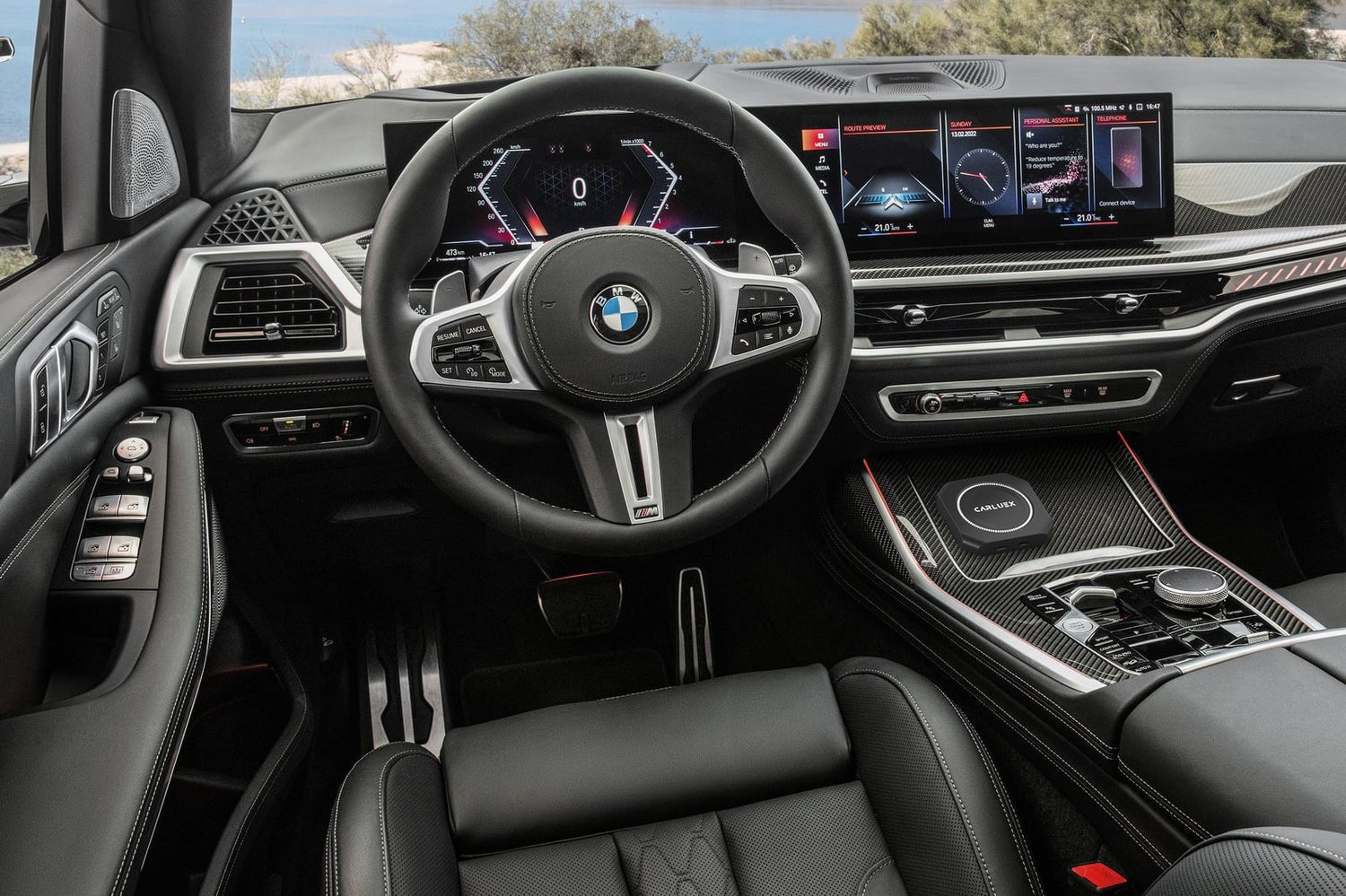
Is your CarPlay refusing to connect? The fix is usually straightforward. This guide covers the most common reasons CarPlay fails and proven solutions to get it working again.
Why Is My CarPlay Not Connecting?
Before trying fixes, check two things: Does your car support CarPlay? Is your iPhone running iOS 13 or later? Most connection issues stem from compatibility problems, USB cable quality, or software glitches. If your car predates 2014 or your iPhone is ancient, CarPlay simply won't work.
How to Enable CarPlay: Step-by-Step
Follow these steps in order. Most users resolve their issue within the first three steps.
- Check compatibility. Your car must support CarPlay (most 2014+ models). Your iPhone needs iOS 13+ (iPhone 6s and newer).
- Use a genuine Apple USB cable or a certified MFi cable. Many third-party cables lack data transfer capability.
- Connect and authenticate. Plug your iPhone into the car's USB port. Unlock your iPhone when prompted and tap "Allow" on the CarPlay permission dialog.
- Verify CarPlay is enabled. Go to Settings > General > CarPlay on your iPhone. Select your car and ensure CarPlay is toggled ON.
Why Is My iPhone Charging but CarPlay Not Working?
This is one of the most common complaints. Your phone charges via USB power, but CarPlay requires a data-capable connection. Possible causes:
- Faulty or charge-only cable. Test with a different cable known to support data transfer.
- Dirty USB port. Lint and debris can block the data pins. Clean gently with compressed air.
- CarPlay disabled in Settings. Go to Settings > General > CarPlay and check permissions.
- iOS bug. Try a forced restart of your iPhone (iPhone 8+: Volume Up, Volume Down, then hold Side button).
How to Fix CarPlay That Keeps Disconnecting?
If CarPlay connects briefly then drops, try these solutions:
- Update iOS. Go to Settings > General > Software Update. Apple frequently patches CarPlay bugs.
- Reset CarPlay settings. Settings > General > CarPlay > [Your Car] > Forget This Car. Then pair again.
- Update your car's firmware. Check your automaker's website for infotainment updates.
- Reset network settings. Settings > General > Transfer or Reset iPhone > Reset > Reset Network Settings.
Why Is CarPlay Showing a Black Screen?
A black screen usually indicates a software or connection issue rather than hardware failure. Try these steps in order:
- Press and hold the car's voice control button on the steering wheel for 3 seconds to force重启.
- Unplug and reconnect the USB cable firmly.
- Power cycle your iPhone completely.
- If using wireless CarPlay, toggle Bluetooth off/on and try again.
- As a last resort, factory reset your car's infotainment system (consult your owner's manual).
How to Use Wireless CarPlay Without Cables?
Want to ditch the cable? You have two options:
- Built-in wireless CarPlay. Many 2019+ vehicles support wireless connections. Pair via Bluetooth first, then CarPlay connects automatically.
- Wireless CarPlay adapter. Devices like the CARLUEX AIR or CARLUEX PRO+ 2.0 plug into your car's USB port and enable wireless CarPlay instantly.
What Cars Support Apple CarPlay?
CarPlay is available in over 600 vehicle models as of 2024. Most major automakers offer it standard or as an option:
- Standard (no extra cost): BMW, Hyundai, Kia, Toyota, Honda, Ford, Chevrolet, and most 2020+ models.
- Requires option package: Some Mercedes-Benz, Audi, and luxury brands.
- Not supported: Most vehicles before 2014, certain budget models, and some commercial vehicles.
For the complete list of supported vehicles, check Apple's official CarPlay page.
Why Is Siri Not Working with CarPlay?
Siri is your voice interface for CarPlay. If she won't respond:
- Check microphone placement. Ensure you're speaking clearly and not too far from the microphone.
- Verify Siri is enabled. Settings > Siri & Search > Listen for "Hey Siri".
- Restart Siri. Go to Settings > General > Siri > toggle off, wait 10 seconds, toggle back on.
- Check CarPlay Siri settings. Settings > General > CarPlay > [Your Car] > Siri.
Quick Troubleshooting Checklist
Before calling your dealer, run through this checklist:
- Is iOS updated to the latest version?
- Is the USB cable a genuine Apple or MFi-certified cable?
- Have you tried a different USB port in your car?
- Have you restarted both your iPhone and car's infotainment system?
- Is CarPlay enabled in Settings > General > CarPlay?
- Have you "Forgotten This Car" and re-paired?
Conclusion
Most CarPlay issues resolve with basic troubleshooting: updating iOS, using the right cable, and restarting devices. If you've tried everything and CarPlay still won't work, your car's USB port or infotainment system may need service. Consider a wireless CarPlay adapter like the CARLUEX PRO+ 2.0 for a cable-free experience.
Visit CARLUEX for premium CarPlay adapters that make wireless connectivity effortless.


Leave a comment
This site is protected by hCaptcha and the hCaptcha Privacy Policy and Terms of Service apply.