

CarPlay Widgets in iOS 27: Live Activities, Compatibility, and Limits
CarPlay widgets are designed to put useful information where a driver can see it with less searching. In the same CarPlay environment, Live Activities can surface time-sensitive updates. But the phrase “CarPlay widgets in iOS 27” needs a careful explanation: Apple’s documentation describes the platform behavior, while the exact apps, rollout timing, iPhone settings, and vehicle experience can still vary.
This guide explains what Apple documents, how widgets differ from Live Activities, and what to check when something appears on an iPhone but not on the car display. It also separates software support from the job of a wireless CarPlay adapter.
What CarPlay widgets are in iOS 27
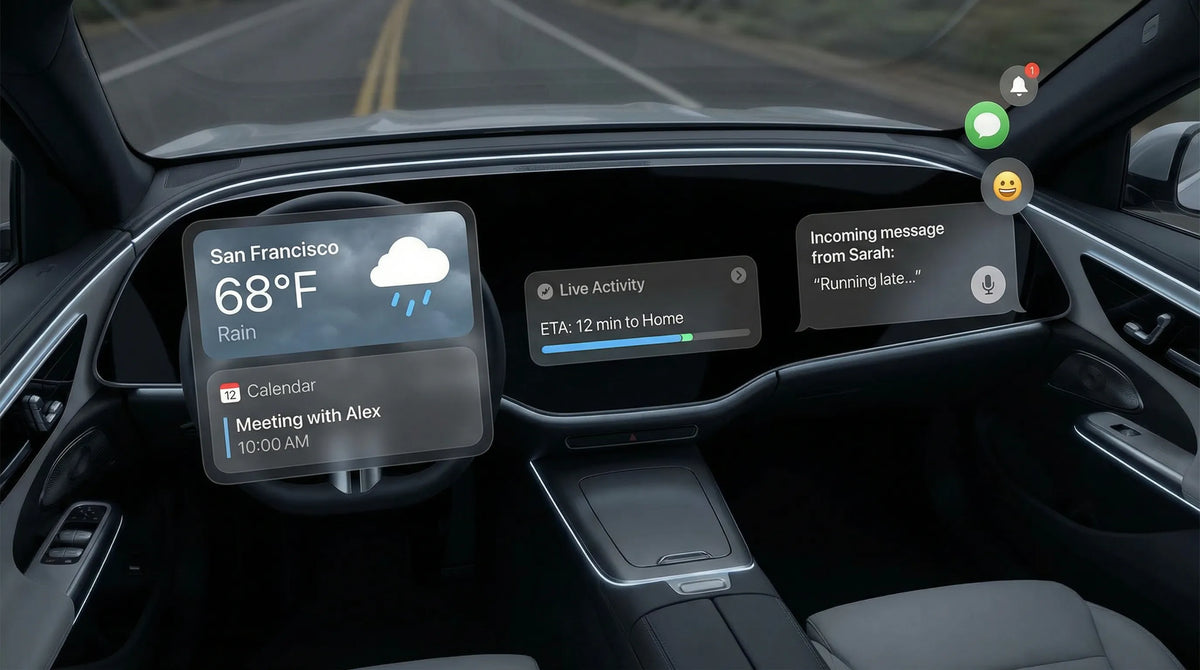
A widget is a compact view of information from an app. It is meant for quick glances rather than a full app session. Apple describes CarPlay widgets as a way to show glanceable information in the in-car context, while the CarPlay Dashboard keeps the most relevant information visible beside the main app experience. The official Apple CarPlay overview is the right reference for the platform-level behavior.
Live Activities are related but different. They are designed for information that changes while an activity is in progress, such as an update that becomes less useful once the activity ends. Apple’s ActivityKit documentation describes Live Activities as capable of displaying up-to-date data in CarPlay.

Widgets show information without replacing the main CarPlay app
Think of a widget as a small information surface: it can summarize something from an app without requiring the full app interface. The available size, layout, and interaction depend on the app implementation and the CarPlay context. A widget that looks useful on an iPhone is not automatically guaranteed to appear or behave the same way on every vehicle display.
Live Activities are time-sensitive updates
A Live Activity is intended for current status while something is happening. It should not be treated as a replacement for a complete navigation, messaging, media, or vehicle-control interface. Apple also documents that buttons and toggles on Live Activities do not perform actions in CarPlay, so the driver should not assume that every on-screen control is interactive in the car.
Why the exact iOS version still needs to be checked
The keyword “iOS 27” identifies the search topic for this article. It does not, by itself, prove that every documented CarPlay widget behavior is exclusive to iOS 27. Apple’s current documentation and the app’s own release notes remain the authority for version-specific changes. If a feature is important, verify the iPhone version, app version, and current Apple documentation together.
How widgets and Live Activities appear in CarPlay
Apple’s CarPlay overview describes widgets appearing to the left of the CarPlay Dashboard and notes that widgets can support touchscreen interaction in a suitable vehicle context. That is a platform design boundary, not a promise that every app will provide a widget or that every vehicle will expose the same layout.
Apple’s WidgetKit documentation also explains that people can configure iPhone widgets on the CarPlay widgets screen. In practical terms, there are three separate questions: does the app provide the widget, is the widget enabled for CarPlay, and can the connected vehicle display the relevant CarPlay surface?

Where Apple places widgets in the CarPlay Dashboard
The Dashboard is designed for quick access to selected information. A widget may appear as a compact card rather than as a full-screen application. The exact arrangement can depend on the vehicle display, the CarPlay implementation, and the current software version.
How an iPhone widget can be configured for CarPlay
Start with the iPhone settings and the CarPlay widgets screen. Look for the app in the list of available widgets, check whether it is enabled, and then reconnect the iPhone if the change does not appear immediately. If the app is not offered at all, the missing step may be app support rather than a connection problem.
What Live Activities can show while driving
Live Activities can present current information in the CarPlay environment when the app and system are eligible. Their purpose is to reduce the need to open a full app for a short-lived status update. However, the lack of action support for buttons and toggles in CarPlay is important: treat the display as information first, and use the vehicle safely.
Why CarPlay widget support varies
When a widget does not appear, the cause is often not one single setting. Apple says developers can provide widgets and Live Activities for CarPlay, and developers can also mark a widget as not optimized for CarPlay when it is not suitable for the in-car context. The app therefore has to opt into the relevant experience and implement it responsibly.
The vehicle display matters too. Screen size, touchscreen capability, CarPlay generation, and manufacturer implementation can affect how a widget is shown. None of those conditions can be inferred from the name of an iPhone feature alone.

The app developer decides whether a widget is suitable
There is no universal rule that every iPhone app must have a CarPlay widget. An app may have an iPhone widget but no CarPlay version, or it may expose only a particular widget size or a Live Activity. Check the app’s current documentation before treating the absence of a widget as a hardware failure.
Vehicle display and touchscreen capabilities can affect the experience
Apple’s description of widget interaction includes a suitable touchscreen vehicle context. That wording is useful because it avoids assuming that every dashboard behaves identically. If the widget is enabled but the layout or interaction is different, compare the result with the vehicle owner guide and the CarPlay support information for that model.
Settings, app permissions, and rollout timing matter
Check whether the iPhone is connected to the intended vehicle, the app is up to date, notifications or Live Activities are allowed, and the relevant widget is enabled. A staged app rollout or a feature that is limited to a particular region can also make two otherwise similar phones behave differently.
A practical checklist for trying CarPlay widgets
Use the following order so that a software eligibility issue is not mistaken for a cable or adapter issue. Make changes while parked, and reconnect only after the iPhone and vehicle are ready.
- Confirm the software versions. Check the iPhone, the app, and the vehicle’s infotainment software. Do not rely only on a feature name or a screenshot from another release.
- Connect the iPhone normally. Confirm that ordinary CarPlay works before testing a widget. If the main CarPlay connection is unstable, fix that baseline first.
- Open the CarPlay widgets screen. Check whether the app is listed and whether the widget is enabled. If it is missing from the list, investigate app support before changing hardware.
- Check notification and Live Activity permissions. A Live Activity needs the app and system to be allowed to provide current information.
- Test the display while parked. Confirm what is visible, and remember that Apple documents a limitation on buttons and toggles inside Live Activities in CarPlay.
- Compare with primary documentation. Use Apple’s current CarPlay and app documentation, then consult the vehicle manual if the display still differs from the expected behavior.

Update and connect the iPhone safely
Do the setup before driving. If a wired connection works but a wireless connection does not, record that distinction instead of assuming that the widget itself is unsupported. A stable baseline connection makes the next checks more meaningful.
Check the CarPlay widgets screen and the app permissions
Verify the widget list, the app’s notification settings, and any Live Activity permission presented by the app. If the app is not present in the CarPlay widget list, an adapter cannot create the missing app integration.
Do not assume every on-screen control is available while driving
CarPlay is designed for safer in-car access, but the feature is still subject to the interaction boundaries documented by Apple and the vehicle maker. If a control does not respond in CarPlay, use the app documentation instead of repeatedly tapping the screen while the vehicle is moving.
What a wireless CarPlay adapter can and cannot change
A wireless CarPlay adapter can change how an eligible wired CarPlay connection is established. It does not create an app’s widget, turn an iPhone feature into a vehicle feature, or add Live Activity data that the app and system do not provide. In particular, it should not be presented as adding vehicle telemetry, battery information, or iOS features to an unsupported car.
If you are separately checking whether aftermarket hardware is appropriate for your vehicle, review the CARLUEX compatibility reference and CARLUEX Help Center. You can also review the Smart Box CarPlay collection and the CARLUEX PRO+ 2.0 product page as conditional hardware references. These links are not a recommendation to buy; only consider them after confirming your vehicle’s existing wired CarPlay eligibility and the product’s current compatibility information.
For connection follow-up, see the related CarPlay settings guide and Apple CarPlay reset guide. Neither a product page nor a setup guide proves that a widget or Live Activity is supported in a particular vehicle.
Check hardware eligibility separately from iOS feature support
There are two different questions: can the vehicle run the required CarPlay connection, and can the app expose the desired widget or Live Activity? Answer the first from the vehicle and product compatibility sources; answer the second from Apple and app documentation. Keeping these questions separate prevents an adapter from being credited with software behavior it does not control.
When to use the vehicle manual or Apple documentation
Use the vehicle manual when the dashboard layout, touchscreen behavior, or wired CarPlay requirement is unclear. Use Apple’s documentation when the question is about widgets, Live Activities, WidgetKit, or ActivityKit. If the sources disagree with a screenshot or a forum post, treat the primary source as the safer baseline and record the exact software versions.
Frequently asked questions
Are CarPlay widgets exclusive to iOS 27?
Not necessarily. The search phrase points to an iOS 27 topic, but the official sources used here document CarPlay widgets and Live Activities without establishing a complete iOS 27-exclusive feature list. Verify the current iOS release notes, app support, and vehicle behavior before making a version-specific claim.
Can Live Activities appear in CarPlay?
Yes, Apple documents Live Activities as capable of displaying current data in CarPlay when the app and system support the experience. Availability is still dependent on the app implementation and the connected CarPlay context.
Why does a widget appear on an iPhone but not in CarPlay?
The app may not provide a CarPlay-optimized widget, the widget may not be enabled for CarPlay, the vehicle display may not expose the same context, or the relevant software and permissions may not be ready. Check those layers in order.
Can every CarPlay app provide a widget?
No. The app developer decides what the app supports and whether its widget is suitable for CarPlay. An iPhone widget alone does not prove that a CarPlay widget exists.
Does a wireless CarPlay adapter add widget or Live Activity support?
No verified fact in this article supports that claim. An adapter may affect the connection method for eligible CarPlay hardware, but widget and Live Activity availability comes from the iPhone, app, Apple software, and vehicle context.



Leave a comment
This site is protected by hCaptcha and the hCaptcha Privacy Policy and Terms of Service apply.