
Quick answer: Most CarPlay settings live in two places: your iPhone settings and your vehicle's infotainment settings. On iPhone, open Settings and search for CarPlay, Siri, Notifications, or Focus. The exact labels can vary by iOS version.
Safety note: Customize CarPlay, notification, Focus, Siri, Bluetooth, Wi-Fi, and adapter settings only while parked. Do not change phone or vehicle settings while driving.

| Setting area | What it controls | Where to start |
|---|---|---|
| CarPlay app layout | App order and which supported apps appear | iPhone Settings, then search for CarPlay |
| Siri | Voice control, steering wheel button, voice activation | iPhone Settings, then search for Siri |
| Notifications and announcements | Message alerts, app alerts, announcement behavior | iPhone Settings, then search for Notifications |
| Driving Focus | Reducing interruptions while driving | iPhone Settings, then search for Focus |
| Connection settings | USB, Bluetooth, Wi-Fi, saved vehicle pairing | iPhone and vehicle device list |
Where Are Apple CarPlay Settings?
CarPlay settings are split between the iPhone and the car. Apple explains how to connect an iPhone to CarPlay in the official Connect iPhone to CarPlay guide. After the car is connected, your iPhone can manage saved vehicles and supported CarPlay app layout, while your car may manage phone projection, USB ports, Bluetooth, Wi-Fi, display behavior, and factory settings.
Because iOS menu labels can change, Settings search is the safest path. Search for the exact feature you need, such as CarPlay, Siri, Announce Notifications, Bluetooth, Wi-Fi, or Driving Focus.
Set Up or Reconnect CarPlay
If CarPlay is not already connected, start with setup before customizing. For wired CarPlay, use a data-capable USB cable and the vehicle's CarPlay-capable USB port. For factory wireless CarPlay, if your vehicle supports it, turn on Bluetooth and Wi-Fi and follow the vehicle pairing prompt.
- Park the vehicle.
- Make sure Siri is enabled on iPhone.
- Connect by USB or pair wirelessly if the vehicle supports wireless CarPlay.
- On iPhone, open Settings and search for CarPlay.
- Select your vehicle if it appears, then review available options.
Do not assume every CarPlay vehicle supports wireless CarPlay. Wired CarPlay and wireless CarPlay availability depends on model year, trim, region, infotainment system, and software.
Customize the CarPlay App Layout
You can decide which supported iPhone apps appear on the CarPlay screen and in what order. On iPhone, open Settings and search for CarPlay. Select your vehicle, then look for the option to customize the app layout if it appears.
- Move frequently used apps such as Maps, Phone, Music, Podcasts, or Waze closer to the first page.
- Remove supported apps you do not want on the CarPlay screen.
- Keep distracting or rarely used apps off the first screen.
- If an app does not appear, confirm that the iPhone app supports CarPlay and is installed on the phone.

Adjust Siri and Voice Controls
Siri is central to CarPlay. Apple's official Use Siri in your car guide explains that Siri can be activated through the steering wheel voice command button, CarPlay screen controls, or voice activation in supported vehicles.
On iPhone, open Settings and search for Siri. Make sure Siri is enabled. The exact label can vary by iOS version. If the steering wheel button opens the vehicle's native voice assistant instead of Siri, confirm that CarPlay is active and check your vehicle manual.
Manage Notifications, Messages, and Driving Focus
Notifications can be useful, but too many alerts can make CarPlay distracting. On iPhone, open Settings and search for Notifications, Announce Notifications, or Focus. The exact label can vary by iOS version.
- Use Driving Focus to reduce interruptions while driving.
- Review whether messages are announced aloud through Siri.
- Limit nonessential app notifications before you start driving.
- Set important navigation or audio choices before leaving.
Apple's Focus guidance for iPhone can help you review current Focus options, including driving-related settings where available.
Change CarPlay Display and App Settings
Some settings appear on the CarPlay screen, some appear inside individual apps, and some only appear on the iPhone. For example, map voice guidance, distance units, music playback behavior, or podcast settings may live inside the app rather than the main CarPlay settings screen.
If a setting is missing, check three places while parked:
- The iPhone app settings.
- The app itself on the CarPlay screen.
- The vehicle infotainment or phone projection menu.

Wired vs Wireless CarPlay Settings
Wired and wireless CarPlay rely on different connection paths. Wired CarPlay depends on a data-capable USB cable and the correct USB port. Wireless CarPlay depends on Bluetooth, Wi-Fi, and saved pairing. If one mode works and the other does not, troubleshoot the connection path that is failing.
| Setup | Most important setting | Common fix |
|---|---|---|
| Wired CarPlay | USB cable and CarPlay-capable port | Try a data-capable cable and the correct USB port |
| Factory wireless CarPlay, if supported | Bluetooth, Wi-Fi, and saved car pairing | Forget the car and pair again while parked |
| Wireless adapter setup | Factory wired CarPlay must work first | Test wired CarPlay before troubleshooting the adapter |
How CARLUEX Fits into CarPlay Settings
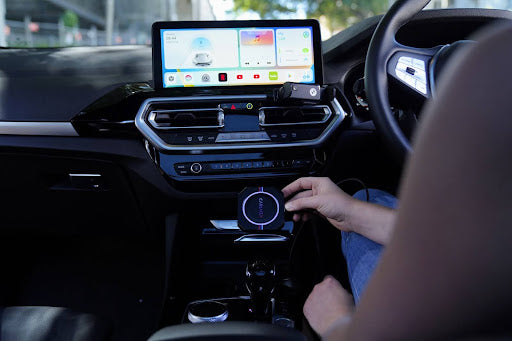
A wireless adapter can change how your iPhone connects to a compatible vehicle, but it does not control iOS settings, app permissions, Siri, notifications, Driving Focus, or the car's factory software. Fix the underlying CarPlay connection first, then consider wireless convenience.
A wireless adapter may help after wired CarPlay already works. It does not fix unsupported vehicles, damaged USB ports, blocked iPhone settings, or vehicle software problems.
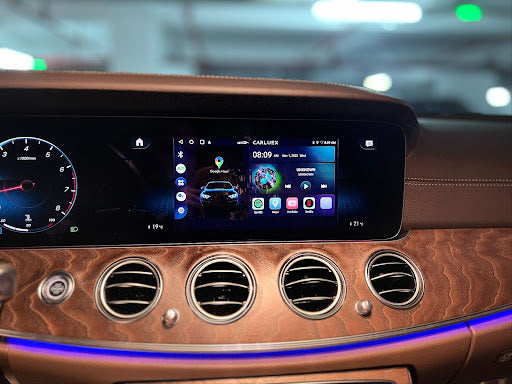
CARLUEX compatibility depends on the adapter model and your vehicle's factory infotainment system. Many CARLUEX adapters require factory wired CarPlay, while wireless Android Auto support may require factory wired Android Auto on selected models.
- Check CARLUEX LINK if you want a compact wireless CarPlay and Android Auto adapter for a compatible factory wired setup.
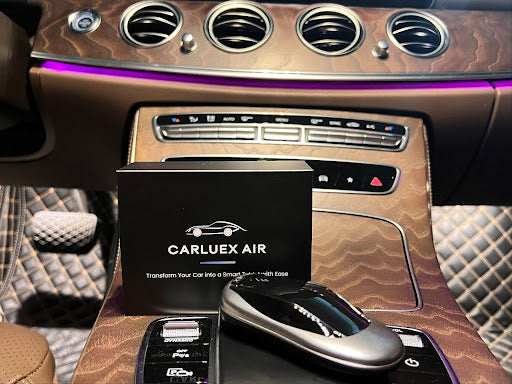
- Compare CARLUEX AIR if you want wireless CarPlay and Android Auto with additional adapter features in a compatible vehicle.
- Check CARLUEX compatible vehicles before purchasing or contact support if your vehicle is not listed.
Troubleshooting CarPlay Settings
If settings do not seem to apply, or CarPlay behaves differently than expected, start with Apple's official CarPlay troubleshooting guidance. Then work through the most likely setting area.
| Problem | Likely setting area | Next step |
|---|---|---|
| CarPlay does not show up | Connection, Siri, vehicle support | Search iPhone Settings for CarPlay and Siri |
| App is missing from CarPlay | App support or CarPlay layout | Confirm the app supports CarPlay and customize layout |
| Siri does not respond | Siri, microphone, vehicle voice button | Search Settings for Siri and test a phone call microphone |
| Too many notifications | Notifications or Focus | Search Settings for Notifications or Focus |
| Wireless CarPlay keeps reconnecting | Bluetooth, Wi-Fi, saved pairing | Forget the car and pair again while parked |
Related CARLUEX Guides
- Enable Siri for CarPlay: Setup & Fixes
- How to Use Apple CarPlay: Setup, Tips & Fixes
- Apple CarPlay Download? What You Actually Need
- Why Your Apple CarPlay Isn't Working and How to Fix It
FAQ
Where do I find CarPlay settings on iPhone?
Open Settings and search for CarPlay. If your car is saved, select it to review available options. Menu labels can vary by iOS version.
How do I change the apps on my CarPlay screen?
On iPhone, search Settings for CarPlay, select your vehicle, and look for the option to customize app order. Only apps that support CarPlay can appear.
Where are Siri settings for CarPlay?
Open iPhone Settings and search for Siri. Make sure Siri is enabled, then test the steering wheel voice command button or CarPlay screen control while parked.
Can a wireless adapter change my CarPlay settings?
No. A wireless adapter changes the connection method in a compatible vehicle. CarPlay layout, Siri, notifications, Focus, and app permissions are controlled by your iPhone, apps, and vehicle system.
Why do some CarPlay settings look different on my iPhone?
Apple can change labels by iOS version, and some options depend on the vehicle, region, app, or connection type. Use Settings search and check your vehicle manual when a setting is missing.
Bottom line: Start with iPhone Settings search for CarPlay, Siri, Notifications, and Focus. Then check your vehicle's phone projection menu. If you use a CARLUEX adapter, confirm wired CarPlay works first and check compatibility before treating the adapter as the problem.


Leave a comment
This site is protected by hCaptcha and the hCaptcha Privacy Policy and Terms of Service apply.