

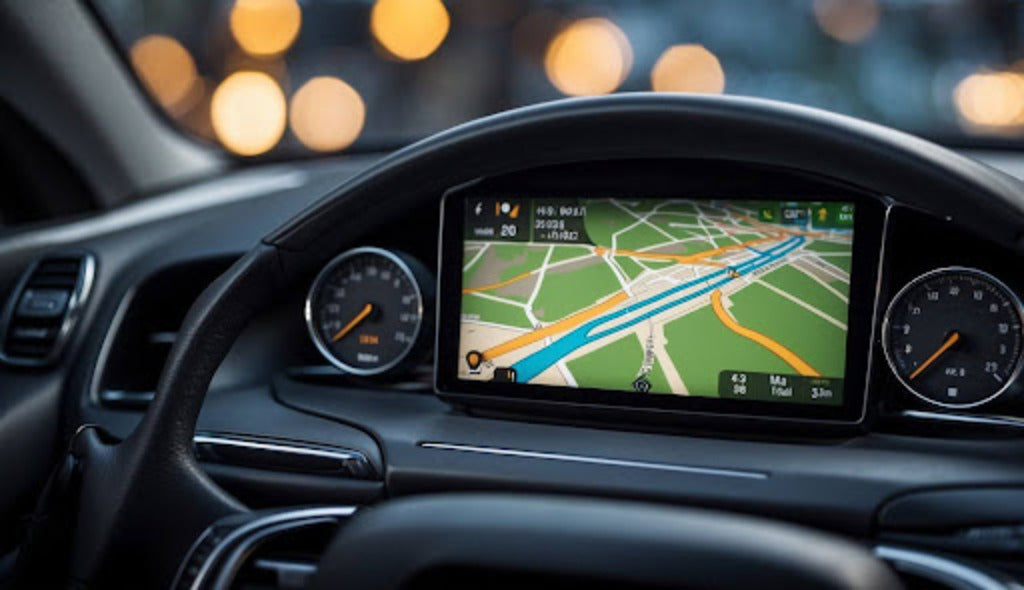
Quick answer: To set up Apple CarPlay for GPS navigation, start your car, make sure Siri is enabled, connect your iPhone by USB or wireless CarPlay, then open Apple Maps, Google Maps, or Waze from the CarPlay screen. For the most reliable directions, turn on Location Services, keep your iPhone connected to the internet, and set up or troubleshoot everything while the vehicle is parked.
Safety note: Change CarPlay, Maps, Bluetooth, Wi-Fi, and navigation settings only while parked. Do not adjust phone or infotainment settings while driving.

What Does Apple CarPlay GPS Navigation Mean?
Apple CarPlay does not replace your iPhone with a separate GPS system. It lets your compatible car display show supported iPhone navigation apps, including Apple Maps and many third-party map apps. The route, traffic information, voice guidance, and search results still depend on your iPhone, the app you choose, your vehicle system, location settings, and network connection.
Apple's own guidance says CarPlay can provide turn-by-turn directions, traffic conditions, and estimated travel time where available. Apple also notes that directions require internet access and Location Services. That makes the setup checklist simple: connect CarPlay first, confirm location and data access, then choose the navigation app that fits your route.
Apple CarPlay GPS Setup Checklist
Before starting a route, park the vehicle and run through this checklist.
| Step | What to check | Why it matters |
|---|---|---|
| 1 | Make sure your car supports CarPlay | CarPlay availability depends on the vehicle, head unit, region, and model year. |
| 2 | Turn on Siri | Apple lists Siri as part of the CarPlay setup flow, and voice input is useful for navigation. |
| 3 | Connect by USB or wireless CarPlay | Some vehicles use a cable; some support wireless pairing through Bluetooth and Wi-Fi. |
| 4 | Enable Location Services and data access | Maps need location and internet access for routes, traffic, and estimated arrival time. |
| 5 | Open Apple Maps, Google Maps, or Waze in CarPlay | Pick the app before driving so you are not changing settings on the road. |
How to Connect Your iPhone to CarPlay for Navigation
The exact pairing flow depends on the vehicle, so always check the car manual or head unit instructions. In most cases, use one of these paths.
For wired CarPlay
- Start your car and keep it parked.
- Plug your iPhone into the vehicle's CarPlay USB port with a reliable data cable.
- Unlock your iPhone if prompted.
- Select the CarPlay logo or phone projection option on the car display if CarPlay does not open automatically.
- Open your navigation app from the CarPlay home screen.
For wireless CarPlay
- Make sure your vehicle supports wireless CarPlay.
- Turn on Bluetooth and Wi-Fi on your iPhone.
- Put your vehicle in wireless or Bluetooth pairing mode, or hold the steering-wheel voice command button if your vehicle uses that setup path.
- On your iPhone, go to Settings > General > CarPlay, then choose your car.
- Open Maps from the CarPlay screen and test a short route while parked before driving.

Which Navigation App Should You Use in CarPlay?
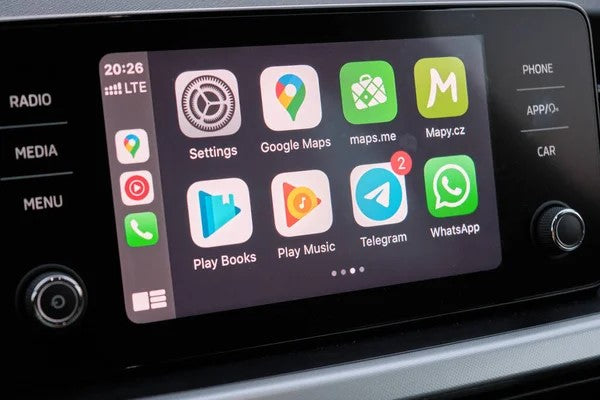
Apple Maps is the default CarPlay navigation app for many iPhone users, but it is not the only option. Google Maps and Waze are also common choices when supported on your iPhone and available in your region.
| App | Best fit | What to check first |
|---|---|---|
| Apple Maps | Drivers who want native iPhone, Siri, Calendar, and CarPlay integration. | Location Services, internet access, spoken directions, and region availability. |
| Google Maps | Drivers who already use Google search, saved places, or Google route preferences. | App installation, app permissions, account settings, and CarPlay app visibility. |
| Waze | Drivers who prefer community traffic alerts and route reports where available. | App permissions, data connection, region support, and notification settings. |
How to Start GPS Directions in CarPlay
After CarPlay is connected, you can start directions from the car display or by using Siri. Apple says you can use Siri or open Maps to get directions, traffic conditions, and estimated travel time where available.
- Use Siri: Say a route request such as "Give me directions home" or "Find a gas station nearby."
- Use the CarPlay screen: Open your map app, search for the destination, choose the route, and start navigation before driving.
- Use recent or saved locations: Choose home, work, calendar locations, or recent destinations if they are shown by your app.
- Check audio before leaving: Make sure spoken directions are loud enough and routed through the car speakers.

Troubleshooting: Why Is CarPlay GPS Not Working?
If navigation fails, do not assume the GPS hardware is broken. Start with the simplest connection, permission, and app checks.
| Problem | Likely cause | What to try while parked |
|---|---|---|
| CarPlay does not open | USB cable, wrong port, wireless pairing, Siri, Screen Time restriction, or vehicle firmware issue. | Restart iPhone and car, check Siri, try another data cable or USB port, and re-pair CarPlay. |
| Map app does not show your location | Location Services or app permission is disabled. | Review iPhone Location Services and the navigation app's location permission. |
| Directions start but traffic is missing | Weak data connection, app settings, region limits, or temporary service issue. | Check cellular data, app permissions, and whether the feature is available in your region. |
| Voice guidance is too quiet | Spoken directions or car audio routing is not set correctly. | Adjust spoken directions and volume before the route begins. |
| Google Maps or Waze is missing | App is not installed, not updated, or not enabled for CarPlay. | Update the app on iPhone, then check CarPlay app layout under iPhone settings. |
Can a Wireless CarPlay Adapter Improve Navigation?
A wireless CarPlay adapter can make daily navigation more convenient if your vehicle already supports the required wired CarPlay path. It can reduce cable plugging, but it does not make every vehicle compatible, repair a broken USB port, or guarantee that every third-party app will behave the same forever.
For CARLUEX users, the safer buying path is to start with compatibility. Check the CARLUEX compatible vehicles page, then review the product page that matches your goal.
| Driver goal | CARLUEX product path to review | Important boundary |
|---|---|---|
| Basic wireless CarPlay or Android Auto for maps, music, calls, and messages | CARLUEX LINK | Wireless CarPlay generally needs factory wired CarPlay; wireless Android Auto needs factory wired Android Auto. |
| Wireless connection plus entertainment-oriented product options | CARLUEX AIR or CARLUEX GO | Check the current product page and compatibility list before purchase. |
| Multimedia AI box features beyond basic CarPlay navigation | CARLUEX PRO+ 2.0 | Confirm built-in wired CarPlay and non-BMW fit before buying. |
| BMW-specific upgrade path | CARLUEX Multimedia Streaming Box for BMW | BMW users should review the BMW-specific CARLUEX product first. |

Best Practices Before a Road Trip
- Test your route before leaving, especially if you use a new app or adapter.
- Download offline maps in your chosen app when the route may include poor cellular coverage.
- Update iOS and navigation apps before the trip, then test them while parked.
- Keep a reliable data cable in the car as a backup for wired CarPlay troubleshooting.
- Confirm the navigation voice volume before entering traffic.
- Ask a passenger to adjust navigation settings when changes are needed on the road.

Bottom Line
Apple CarPlay can make GPS navigation easier when your iPhone, vehicle, app permissions, and connection method are set up correctly. Start with Apple Maps, Google Maps, or Waze, verify Location Services and internet access, then troubleshoot the connection before blaming the car screen. If you want a cleaner daily navigation routine without plugging in a phone cable, review a compatible CARLUEX wireless CarPlay option only after confirming your vehicle fit.
FAQ
Does Apple CarPlay have built-in GPS?
CarPlay displays navigation from your iPhone and supported apps on the car screen. Route accuracy and features depend on your iPhone, app permissions, data connection, vehicle system, and region availability.
Can I use Google Maps or Waze with Apple CarPlay?
Yes, many drivers use Google Maps or Waze in CarPlay when the app is installed, updated, supported in their region, and visible in the CarPlay app layout.
Why is CarPlay GPS not showing traffic?
Traffic can be affected by data connection, app permissions, app settings, feature availability, or temporary service issues. Check your cellular data and location permissions first.
Do I need wireless CarPlay for GPS navigation?
No. Wired CarPlay can also support navigation. Wireless CarPlay is mainly a convenience upgrade if your vehicle and phone support the required connection path.
Can a CARLUEX adapter add CarPlay to any car?
No. Compatibility depends on the vehicle and product. Check the CARLUEX compatibility page and product page before buying, especially for BMW vehicles and cars without factory wired CarPlay.


اترك تعليقًا
This site is protected by hCaptcha and the hCaptcha Privacy Policy and Terms of Service apply.