

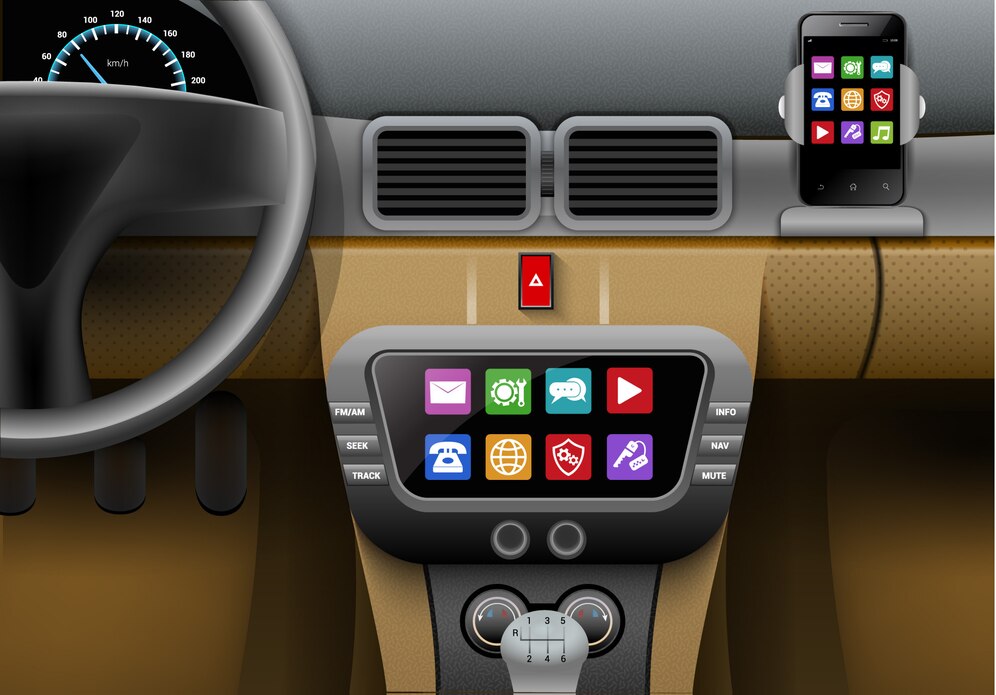
If you own a Toyota and an iPhone, you can integrate your phone with your vehicle through Apple CarPlay — Toyota has offered this feature across most of its lineup since 2017. This guide answers the most common questions Toyota owners ask: which models support it, how to connect, common issues and fixes, and how to add wireless functionality with a CARLUEX Pro+ wireless adapter.
Which Toyota Models Support Apple CarPlay in 2025?
According to Toyota official connected services documentation, Apple CarPlay has been available across the Toyota lineup since 2017. Popular models with CarPlay support include the Camry (2018+), RAV4 (2019+), Corolla (2018+), Tacoma (2023+), Tundra (2022+), Sienna (2021+), and Highlander (2020+). For a complete list and upgrade options, visit the CARLUEX Toyota CarPlay adapter collection.
How to Connect Your iPhone to Toyota CarPlay
Wired CarPlay Setup
- Start your Toyota and make sure the infotainment system is fully powered on.
- Connect your iPhone to the USB port using an Apple-certified Lightning cable (the USB port is typically labeled with a smartphone icon).
- On your iPhone, go to Settings, General, CarPlay and select your Toyota from the available cars list.
- Tap Allow when prompted to give CarPlay access to your contacts, calendars, and other app data.
- CarPlay should launch automatically. If not, press the HOME button and select the CarPlay icon on the infotainment screen.
Wireless CarPlay Setup (2022+ Models)
Newer Toyota models support wireless CarPlay on select trims. To connect wirelessly: go to Settings, Bluetooth on your infotainment system, enable Bluetooth on your iPhone, pair the devices, and select CarPlay when prompted. For older Toyota models with only wired CarPlay, use a Toyota wireless CarPlay upgrade adapter.
What Apps and Features Does Toyota CarPlay Support?
Per Apple CarPlay support documentation, CarPlay on your Toyota provides: Siri voice control for hands-free calls and messages; Apple Maps, Google Maps, and Waze for turn-by-turn navigation; Apple Music, Spotify, and Pandora for audio playback; iMessage, WhatsApp, and Telegram for messaging; and phone calls through your car's audio system with caller ID on the touchscreen.
How to Add Wireless CarPlay to Older Toyota Models
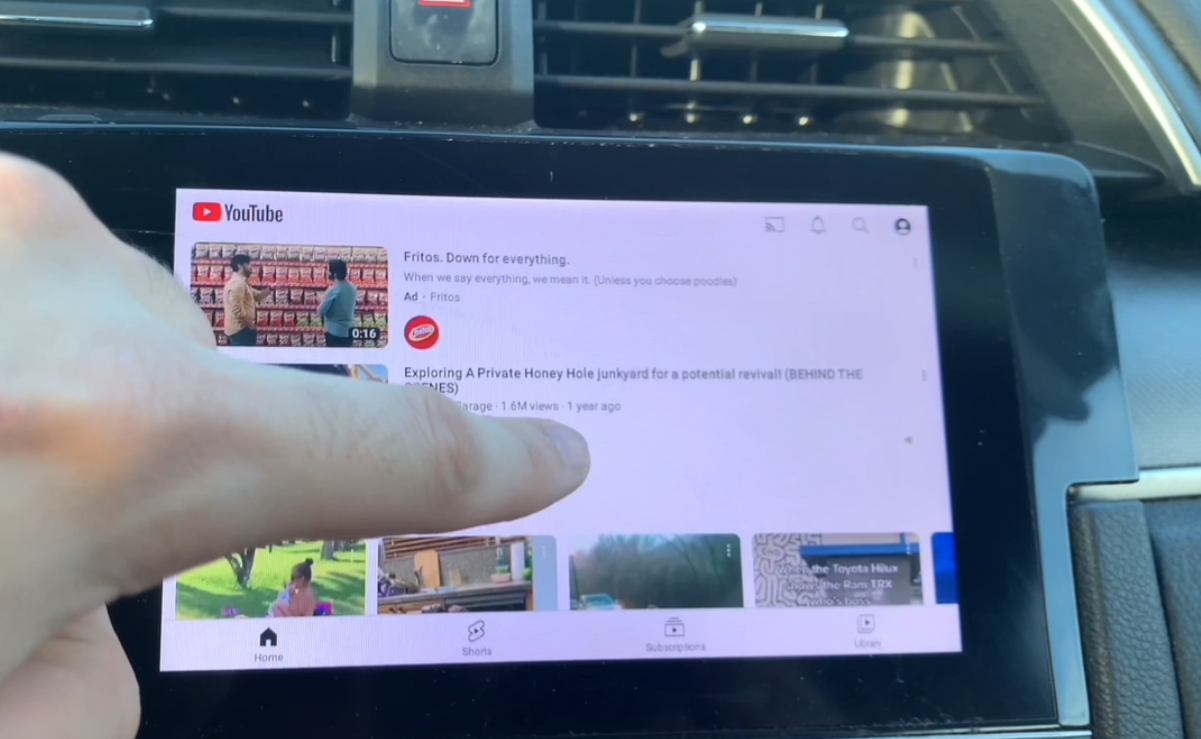
For Toyota models predating 2022 with only wired CarPlay, upgrade to wireless with a CARLUEX Pro+ 2.0 wireless adapter. Key features: Qualcomm Snapdragon 6125 processor, 8GB RAM, 128GB storage, automatic connection every time you start the car, and CARLUEX OS 2.0 with OTA updates. Watch the demo: CARLUEX Pro+ on Your Car Screen: Netflix, YouTube, HBO Max
Troubleshooting Common Toyota CarPlay Issues
- CarPlay not appearing after USB connection: Use an Apple-certified Lightning cable. Try a different USB port — not all USB ports on your Toyota support CarPlay. Restart your iPhone and the infotainment system.
- Bluetooth interference with wireless CarPlay: Turn off Bluetooth on nearby devices. Go to Settings, Bluetooth on your iPhone and remove unrecognized paired devices.
- Siri not responding: Enable Siri in Settings, Siri and Search on your iPhone. Hold the voice button on your steering wheel to activate.
- Apps not appearing: Only Apple-certified CarPlay apps appear. Download apps from the App Store that have the CarPlay designation.
- Outdated software: Contact your Toyota dealer to check for available multimedia system updates.
Frequently Asked Questions
Which Toyota models support Apple CarPlay?
Most Toyota models from 2018 onward support Apple CarPlay, including Camry, Corolla, RAV4, Tacoma (2023+), Tundra (2022+), Sienna, and Highlander. Check your specific model's infotainment documentation for confirmation.
How do I set up CarPlay in my Toyota?
For wired CarPlay: connect your iPhone to the USB port with a Lightning cable, select CarPlay on the infotainment screen, and confirm on your iPhone. For wireless (2022+ models): pair your iPhone via Bluetooth on the infotainment system and follow the prompts.
Does my Toyota support wireless CarPlay?
Select Toyota models from 2022 onward support wireless CarPlay natively on higher trims. For older models, a CARLUEX wireless adapter adds wireless functionality.
Why is CarPlay not connecting in my Toyota?
Try an Apple-certified cable, restart your iPhone, verify CarPlay is enabled in Settings, General, CarPlay on your iPhone, and ensure your Toyota's infotainment software is up to date.
Can I use Google Maps on Toyota CarPlay?
Yes. Google Maps, Waze, and other third-party navigation apps work on CarPlay alongside Apple Maps. Download the app on your iPhone and it will appear automatically on your CarPlay screen.


Zanechať komentár
Táto lokalita je chránená testom reCAPTCHA a vzťahujú sa na ňu pravidlá ochrany súkromia a podmienky poskytovania služby hCaptcha.