

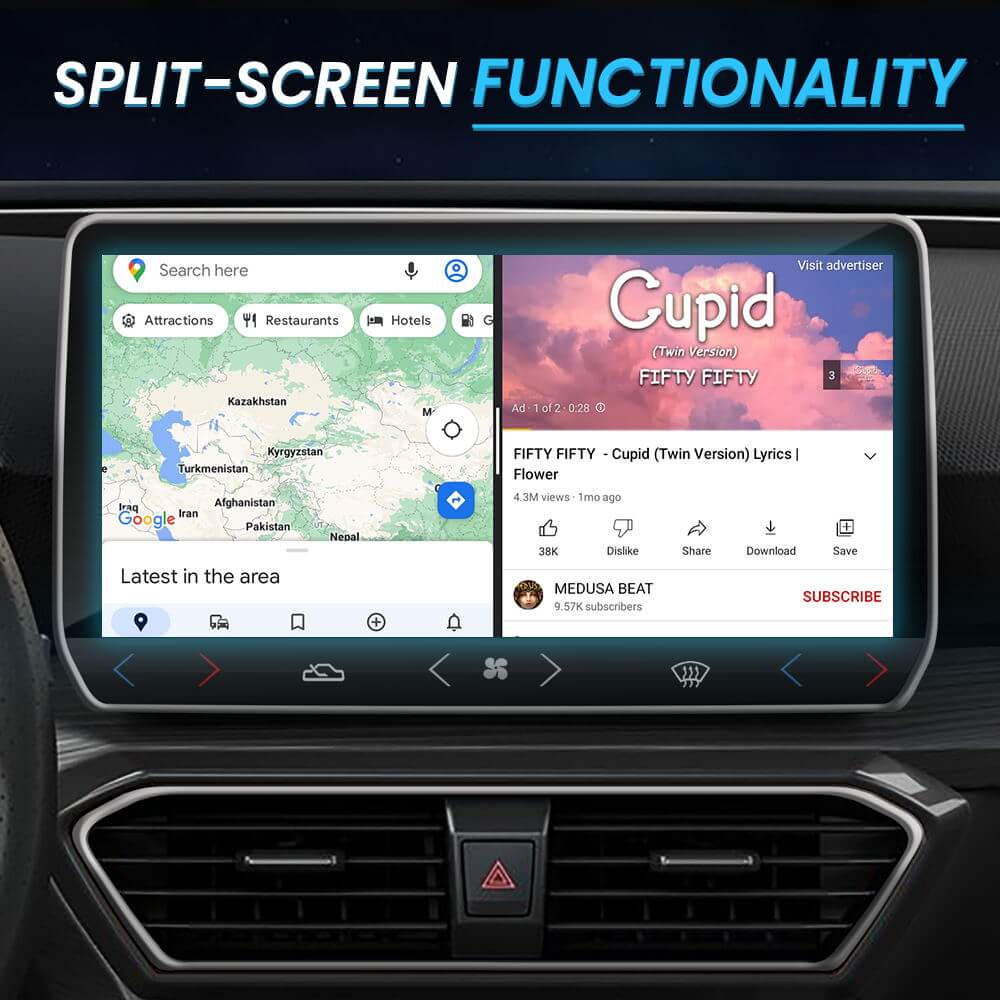
CARLUEX PRO+ allows you to mirror your smartphone's screen to your car's display, enabling you to use your favorite apps, navigation, and streaming services on a larger screen. This guide explains how to set up and use screen mirroring.
Important: DRM and Copyright Notice
Copyright Notice: Screen mirroring is intended for personal use only. Content protected by Digital Rights Management (DRM), including copyrighted movies, TV shows, and music streaming services (such as Netflix, Hulu, Disney+, Spotify, etc.), may not be mirrored due to licensing restrictions. Users are responsible for ensuring their use of screen mirroring complies with all applicable laws and content licensing agreements.
What is Screen Mirroring?
Screen mirroring (also known as screen casting) allows you to duplicate your smartphone's display onto your car's infotainment screen. This enables:
- Use of navigation apps like Google Maps, Waze, or Apple Maps on the big screen
- Access to messaging apps with larger text for safer reading
- Display of personal photos and videos
- Use of apps not natively supported by CarPlay or Android Auto
Compatible Devices
Screen mirroring works with both Android and iOS devices:
- Android: Supports Miracast and Cast protocols
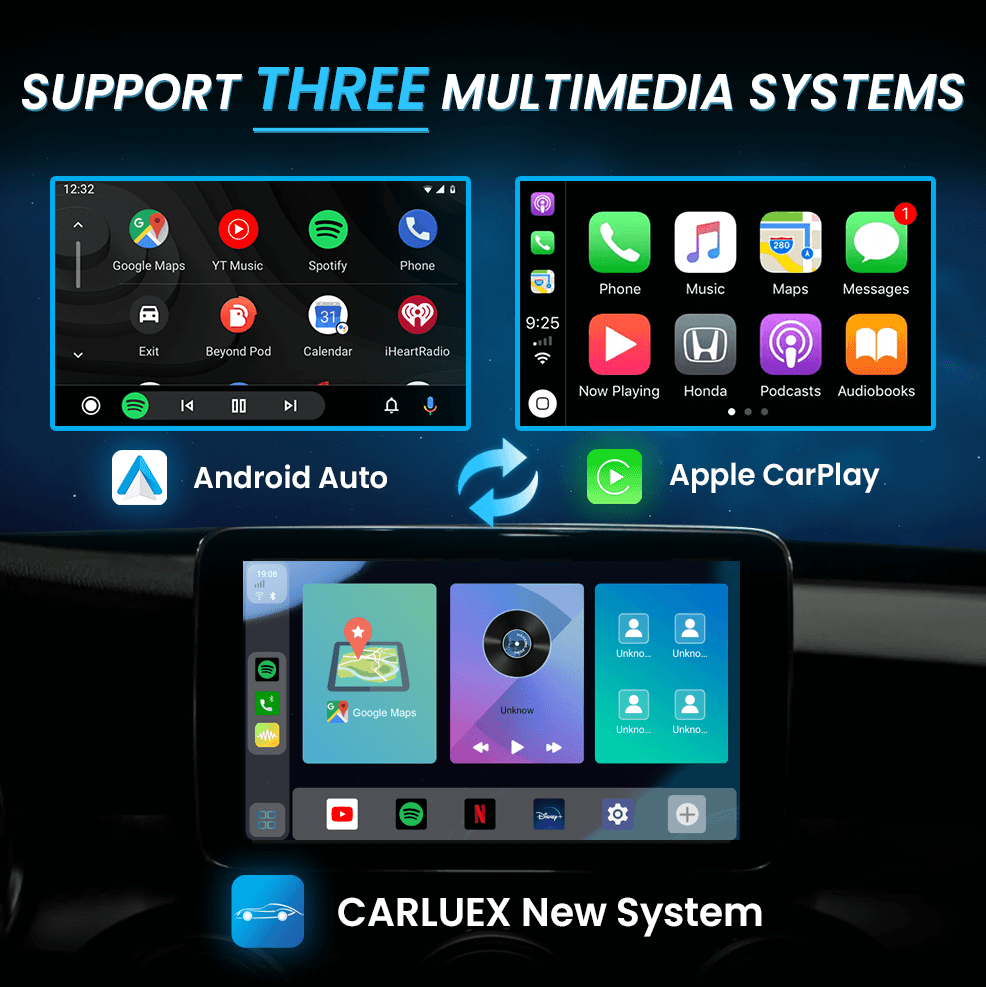
- iOS: Supports AirPlay (requires additional adapter for non-Apple CarPlay vehicles)
How to Set Up Screen Mirroring
- Connect to WiFi: Link your CARLUEX PRO+ WiFi settings to your phone's mobile hotspot. Ensure your phone's hotspot is active and within range.
-
Enable Screen Mirroring on Your Phone:
- iOS: Go to Settings > Control Center > Screen Recording, or use AirPlay
- Android: Go to Settings > Display > Cast, or access Quick Settings
- Select CARLUEX: Choose "CARLUEX PRO+" from the available devices list
- Start Mirroring: Your phone screen will now display on your car's screen
Best Apps for Screen Mirroring
- Navigation: Google Maps, Waze, Apple Maps, HERE WeGo
- Music: Spotify (non-premium works), local music players
- Podcasts: Spotify, Apple Podcasts, Overcast
- Audiobooks: Audible, Libby, Google Play Books
Troubleshooting
Screen is black or not responding
- Ensure WiFi connection is stable
- Restart both CARLUEX PRO+ and your phone
- Move your phone closer to the device
Video playback is choppy
- Check your mobile data signal strength
- Close other apps running in the background
- Lower the video quality if streaming
Audio is not playing through car speakers
- Ensure CARLUEX PRO+ is connected to your car's audio system via Bluetooth or AUX
- Check that your phone volume is turned up
Frequently Asked Questions
Can I mirror Netflix or Disney+?
Most streaming services use DRM protection that prevents screen mirroring. However, some navigation and music apps work without issues.
Does screen mirroring work with wireless CarPlay/Android Auto?
Yes, screen mirroring is separate from CarPlay/Android Auto and can be used alongside or instead of these systems.
Is there a delay when mirroring?
There may be slight latency (typically 100-300ms), which is normal for wireless screen mirroring.


Lasă un comentariu
Toate comentariile sunt moderate înainte de a fi publicate.
Acest site este protejat de hCaptcha și hCaptcha. Se aplică Politica de confidențialitate și Condițiile de furnizare a serviciului.