

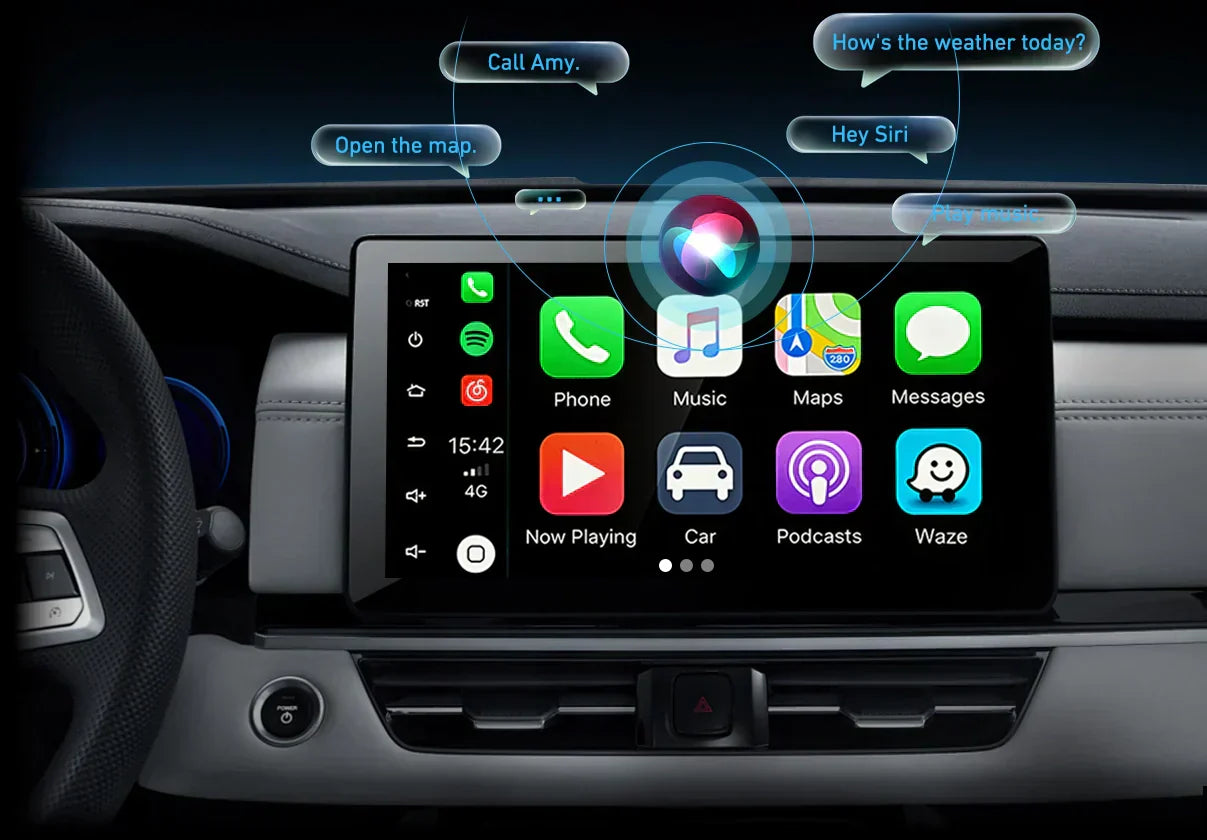
If text alerts keep appearing on your car screen, you can turn them off from your phone settings. For Apple CarPlay, use Driving Focus, turn off message announcements, hide previews, or disable CarPlay message alerts if that option appears. For Android Auto, open Android Auto settings and turn off message notifications or message previews. Make these changes while parked, then test them before driving.
Safety note: Change notification settings only when the vehicle is parked. Do not adjust phone or infotainment settings while driving.
For broader safety guidance, review the NHTSA's distracted driving safety tips before changing phone or car display settings.
This guide covers the practical settings that help reduce message pop-ups, protect private previews from passengers, and stop voice announcements from interrupting navigation or music.
Quick Answer: Which Setting Should You Use?
| Goal | Best setting | Where to change it |
|---|---|---|
| Silence most driving notifications | Driving Focus | iPhone Settings > Focus > Driving |
| Stop Siri from reading texts aloud | Announce Notifications | iPhone Settings > Notifications > Announce Notifications, or search Announce Messages |
| Hide message content from passengers | Show Previews | iPhone Settings > Notifications > Messages |
| Stop Android Auto message pop-ups | Message notifications | Android Auto settings on your phone |
How to Turn Off Message Notifications on Apple CarPlay
Apple gives you several ways to control what appears on your CarPlay screen. The best option depends on whether you want to silence most notifications, stop Siri announcements, or hide message previews.

According to Apple, Driving Focus on iPhone can silence or limit text messages and other notifications while driving. You can also review Apple CarPlay settings if you want to adjust how CarPlay behaves on your vehicle display.
Option 1: Turn on Driving Focus
Driving Focus is the cleanest option if you want fewer interruptions during every drive. It can silence non-urgent notifications while still allowing selected people or apps if you choose.
- Open Settings on your iPhone.
- Tap Focus.
- Select Driving.
- Set when Driving Focus should activate.
- If available on your iPhone, choose activation with CarPlay or while connected to your car.
- Review allowed people and apps so urgent contacts can still reach you if needed.
This option is best for drivers who want a broad, automatic way to reduce distractions without changing every app one by one.
Option 2: Stop Siri from announcing messages
If Siri reads incoming texts aloud through your car speakers, turn off Announce Messages or Announce Notifications. The exact label can vary by iOS version.
- Open Settings on your iPhone.
- Go to Notifications > Announce Notifications, or search Settings for Announce Messages.
- Tap CarPlay or Messages if that option appears.
- Turn off message announcements.
This helps when you still want visual alerts on your phone, but do not want private messages read aloud during navigation, music, or calls.
Option 3: Hide message previews in CarPlay
If you want to protect privacy but still receive alerts, hide preview text instead of blocking all notifications.
- Open Settings on your iPhone.
- Tap Notifications.
- Tap Messages.
- Look for Show Previews.
- Choose Never or another privacy-focused option available on your device.
This is useful when passengers can see your infotainment screen and you do not want message contents displayed.
Option 4: Turn Off CarPlay Message Alerts, If Available
If your iPhone offers a Show in CarPlay setting for Messages, you can turn it off to reduce message alerts on the CarPlay screen.
- Open Settings.
- Tap Notifications.
- Tap Messages.
- Turn off Show in CarPlay if the option appears.
Available settings can vary by iOS version and region, so if you do not see the exact label, check the closest notification or CarPlay-related option on your iPhone.
How to Turn Off Message Notifications on Android Auto
Android Auto notification controls are usually managed from your Android phone. The exact wording can vary by phone brand and Android version, but the setting is typically under Android Auto preferences.

Google explains that Android Auto message notifications can appear on your car screen and can be read aloud through Gemini or Google Assistant.
- Open Settings on your Android phone.
- Go to Connected devices or search for Android Auto.
- Open Android Auto settings.
- Find the messaging or notification section.
- Turn off Show message notifications.
- If available, also turn off group message notifications or message previews.
On some Android phones, the setting may appear under Settings > Google > Android Auto, Connected devices > Android Auto, or inside the Android Auto app settings. Look for labels such as Show message notifications, Show group message notifications, Preview incoming messages, or Play message chime.
If your phone has a search bar inside Settings, searching for Android Auto notifications is often faster than browsing through menus manually.
CarPlay vs Android Auto Notification Controls
| Feature | Apple CarPlay | Android Auto |
|---|---|---|
| Best broad setting | Driving Focus | Android Auto notification settings |
| Voice announcements | Announce Notifications | Message preview or assistant settings |
| Privacy previews | Show Previews | Message preview settings, if available |
| Best for passengers nearby | Hide previews or disable Messages in CarPlay | Turn off message notifications and previews |
Troubleshooting: Why Are Messages Still Showing?
If notifications still appear after changing the settings, check these common causes.
Your phone is using a different Focus or notification profile
Make sure the profile you changed is the one active while driving. If Driving Focus is not turning on automatically, activate it manually and test again while parked.
Your phone update changed notification behavior
iOS and Android updates can move settings or restore some notification behavior. Recheck notification settings after major system updates.
The notification is coming from a different app
If you disabled Messages but still see alerts, the notification may come from WhatsApp, Messenger, Telegram, or another app. Check notification settings for that specific app.
Your car display or adapter needs to reconnect
Disconnect and reconnect your phone, then restart the car infotainment system if needed. If you use a wireless adapter, unplug and reconnect the adapter after confirming phone settings.
Can You Turn Off Notifications Only on the Car Screen?
In many cases, yes, but it depends on the phone, app, and vehicle system. Some settings only stop CarPlay or Android Auto alerts, while others silence the app notification entirely on your phone. If you still want alerts on your phone but not on the car display, start with CarPlay-specific or Android Auto-specific settings before turning off all app notifications.
Does This Also Work for WhatsApp, Messenger, or Telegram?
Usually, yes, but third-party messaging apps may have their own notification settings. If Messages is disabled but alerts still appear, check the notification settings for WhatsApp, Messenger, Telegram, or any other messaging app that appears on your car screen.
Quick Checklist Before Driving
- Turn on Driving Focus or your preferred driving mode.
- Disable Siri message announcements if you do not want texts read aloud.
- Hide message previews if passengers can see your screen.
- Turn off Android Auto message notifications if you use Android.
- Test the change while parked before starting your trip.
Using CARLUEX with CarPlay or Android Auto
CARLUEX compatibility depends on the adapter model and your vehicle's factory infotainment system. Many CARLUEX adapters require factory wired CarPlay, while wireless Android Auto support may require factory wired Android Auto on selected models.
Notification settings are still controlled by your phone, iOS, Android, and individual app settings. A wireless adapter can change how your phone connects to the car, but it does not manage message alerts for you.
Before buying, check the product page and compatibility list for your vehicle's year, make, and model. BMW vehicles may require the CARLUEX for BMW version rather than PRO+ 2.0 or PRO+.
Check CARLUEX PRO+ 2.0 compatibility or view the CARLUEX compatibility list before purchase.
FAQ
Can I turn off message notifications only in CarPlay?
In many cases, yes. On iPhone, check Messages notification settings and look for CarPlay-related options such as Show in CarPlay. You can also use Driving Focus for a broader driving-only setup.
How do I stop Siri from reading my texts in the car?
Open iPhone Settings and search for Announce Messages or Announce Notifications. Depending on your iOS version, you may be able to turn off announcements for CarPlay, Messages, or notifications more broadly.
How do I stop Android Auto text pop-ups?
Open Android Auto settings on your Android phone and look for message notification controls. Turn off message notifications, group message notifications, or message previews if those options are available.
Will turning off CarPlay notifications stop all iPhone notifications?
Not always. It depends on which setting you change. Driving Focus can silence many notifications while driving, while app-level settings only affect selected apps such as Messages.
Can CARLUEX remove notifications from my phone?
No. Notification behavior is controlled by your phone, iOS, Android, and app settings. CARLUEX can support wireless CarPlay or Android Auto in compatible vehicles, but it does not replace your phone notification settings.


Lasă un comentariu
Toate comentariile sunt moderate înainte de a fi publicate.
Acest site este protejat de hCaptcha și hCaptcha. Se aplică Politica de confidențialitate și Condițiile de furnizare a serviciului.