

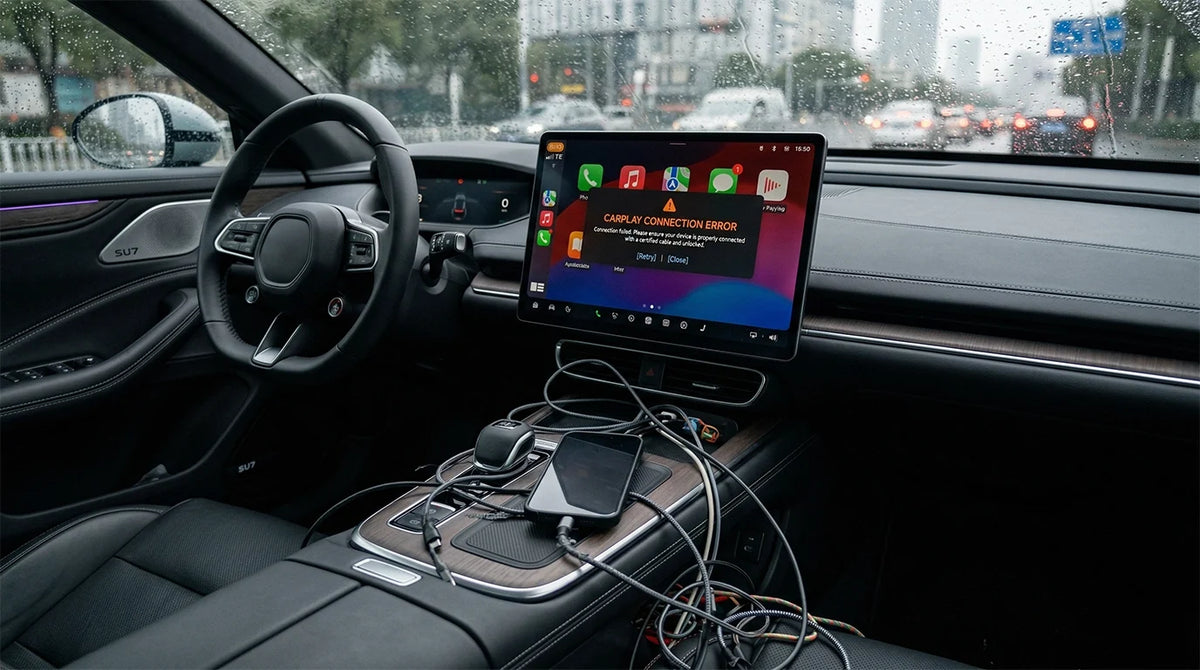
2019 Nissan Altima CarPlay Keeps Disconnecting: Check the Cable, USB Port, iPhone, and Head Unit
When 2019 Nissan Altima CarPlay is not working or keeps dropping out, start with the wired connection path before assuming that the head unit has failed. Nissan's official 2019 Altima materials describe Apple CarPlay and the vehicle USB connection, while Apple recommends checking the cable, port, iPhone settings, vehicle restart, and firmware in a deliberate order.
This is a safe troubleshooting checklist, not a diagnosis of every 2019 Altima. Trim equipment, USB-port condition, iPhone model, cable, software, and head-unit behavior can differ. Work through one change at a time so you can tell which step changes the symptom.
Quick answer: start with the wired connection
If CarPlay connects and then disconnects, reconnect the iPhone directly to the vehicle's designated USB connection with a known-good cable, then test again after restarting both the iPhone and the car. Apple specifically recommends trying another cable or USB port when available, restarting the iPhone and car, and checking CarPlay after each step.
What Nissan and Apple confirm
Nissan's official 2019 Altima model information describes Apple CarPlay as standard on the model page. Nissan's 2019 Quick Reference Guide and NissanConnect manual provide the connection context. These documents do not identify the cause of a specific dropout in an individual car.
What this guide cannot diagnose remotely
A model-year label is not enough to prove the exact trim's USB-port layout, software state, or head-unit condition. The reported symptom also does not prove that the cable, phone, port, or vehicle system is the cause. Those are NEEDS_SOURCE or vehicle-test items, so this guide uses conditional language instead of promising a universal fix.
Confirm the 2019 Altima's correct CarPlay connection
Begin with the physical path from the iPhone to the vehicle's designated USB connection before changing deeper settings. These checks help separate a cable or port issue from a phone or head-unit issue.

Use the vehicle's USB connection port
The Nissan Quick Reference Guide directs the driver to connect a compatible iPhone to the vehicle USB connection and follow the Apple CarPlay prompts. The NissanConnect manual also identifies the USB connection for using Apple CarPlay and notes that equipment can vary. Follow the port and startup instructions for the exact system in your car rather than assuming that every USB socket has the same data function.
Check the cable and port without changing several variables at once
Apple's wired connection guidance recommends checking the cable, trying another cable or USB port if possible, checking the phone's charging port for debris or damage, and confirming that the cable is properly inserted. Make one change, reconnect, and note whether CarPlay remains stable. A charging connection alone does not establish that the data connection required by CarPlay is working.
Follow a safe reset order for iPhone and vehicle
Restart the iPhone and car
Before changing deeper settings, disconnect the cable, restart the iPhone, restart the vehicle system using the vehicle's normal controls, and reconnect after the system is ready. Apple lists restarting the iPhone and car as an early check. Do not perform a factory reset or alter vehicle settings as a first step.

Check Siri and CarPlay restrictions
Apple's CarPlay troubleshooting guidance says to make sure Siri is on and to check Screen Time restrictions if the iPhone is not detected. On the iPhone, review Settings > Screen Time > Content & Privacy Restrictions > Allowed Apps and make sure CarPlay is enabled when those restrictions are active.
Forget the car and set up CarPlay again
If the connection still drops, Apple recommends going to Settings > General > CarPlay, selecting the vehicle, choosing Forget This Car, and setting up CarPlay again. Reconnect using the Nissan instructions and observe whether the same dropout returns. This step removes the existing phone-side CarPlay pairing; it does not prove that the vehicle hardware is defective.
Separate cable, USB port, iPhone, and head-unit causes
When another cable or port changes the symptom
If a different cable or another documented data-capable port makes the connection stable, keep that result as a diagnostic clue. It does not prove which component was defective, but it narrows the next check toward the original cable, port, or connection fit. Avoid changing the cable, iPhone, vehicle settings, and software simultaneously because the result becomes harder to interpret.

When the same symptom remains after the phone-side reset
If the dropout remains with a direct connection after the Apple checks, review the vehicle manufacturer's documentation for available infotainment firmware information. Apple says to check that the CarPlay stereo uses the latest firmware from the car manufacturer. If the exact trim, port, phone, and firmware status are still unknown, seek vehicle-specific service rather than assuming that an adapter or reset will solve the problem.
Compatibility limits to verify before choosing hardware
Why a model-year label is not enough
Nissan's owner documentation warns that specifications and optional equipment can vary. The official materials used here support the existence of the CarPlay connection path, but they do not verify the exact trim or guarantee that a third-party product is compatible with the reported vehicle. This article therefore does not make a product recommendation or a compatibility promise.

When to use the compatibility and support links
After you identify the exact trim and confirm how the factory system connects, you can check the CARLUEX compatibility page for a separate eligibility review. If you still need help isolating the issue, open the CARLUEX Help Center. If factory wired CarPlay is confirmed and you want a product reference, you can review the CARLUEX LINK product page as a conditional reference only; this is not a recommendation, and exact compatibility must be verified before purchase. Only after exact wired-CarPlay eligibility is independently verified should you review the wireless CarPlay adapter category; this article does not claim that a wireless adapter will fix this 2019 Altima.
FAQ
Why does CarPlay keep disconnecting in a 2019 Nissan Altima?
The available evidence does not identify one universal cause. Check the direct cable and vehicle USB connection first, then follow Apple's restart, Siri, restriction, Forget This Car, and vehicle-firmware checks. The exact cause still requires testing the individual phone, cable, port, and head unit.
Does the 2019 Nissan Altima use wired CarPlay?
Nissan's 2019 documentation describes connecting a compatible iPhone through the vehicle USB connection, and the model page lists Apple CarPlay. Exact trim and equipment details can vary, so verify the system in the individual car before making a wired-only or wireless-compatibility claim.
Should I reset CarPlay first?
Start with the cable, USB connection, and a restart. If the phone is still not detected or the problem returns, Apple documents checking Siri and restrictions and then forgetting the vehicle in Settings > General > CarPlay before setting it up again.
Can a wireless adapter fix this exact Altima?
That cannot be confirmed from the model year and symptom alone. Exact trim eligibility and product compatibility need separate evidence. Do not treat a wireless adapter as a proven solution for a wired CarPlay dropout.
Official Sources Used
- Nissan USA: 2019 Altima
- Nissan USA: 2019 Altima Quick Reference Guide
- Nissan USA: 2019 NissanConnect Owner's Manual
- Apple Support: If you need help with CarPlay
- Apple Support: How to connect your iPhone to your car


Zostaw komentarz
Ta strona jest chroniona przez hCaptcha i obowiązują na niej Polityka prywatności i Warunki korzystania z usługi serwisu hCaptcha.