


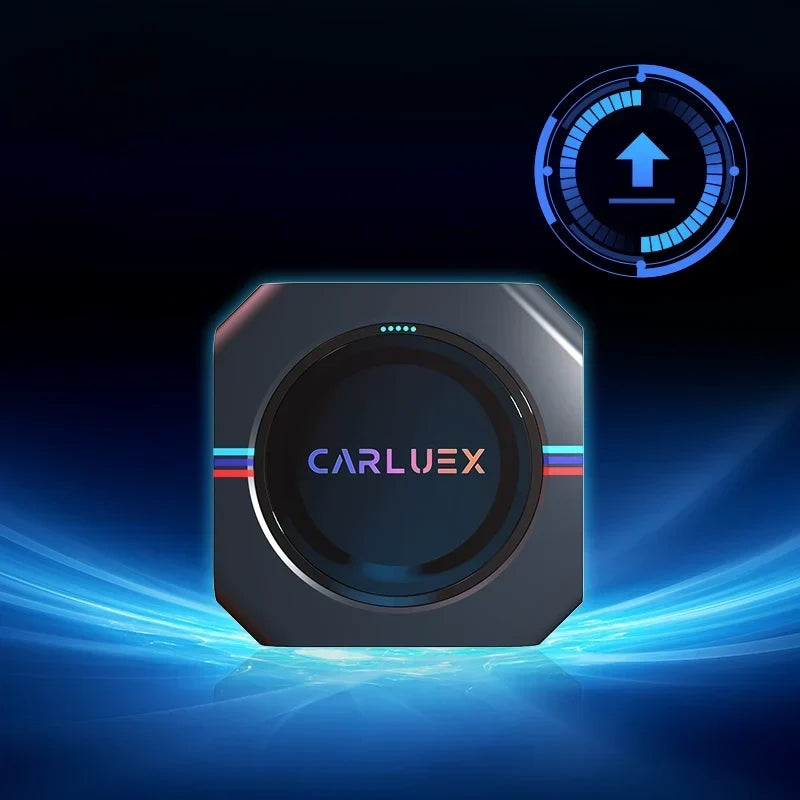
We are pleased to announce the release of the latest software update for the CARLUEX PRO+ 2.0 — Version 20260305. Please follow the guide below carefully to ensure a smooth and successful installation. See all CARLUEX product updates for the latest news. Browse CARLUEX wireless adapters to find the right fit for your car.
|
⇓ Download Update File Version 20260305 · CARLUEX PRO+ 2.0 · Google Drive |
⇓ Download Now |
Primary Method
What About 🔧 Installation via Vehicle Head Unit?
Alternative Method
What About ⚡ Power-On Update?
Recommended if your device cannot connect to the head unit despite the vehicle supporting wired CarPlay.
Power source: Use a stable phone charging adapter + the original CARLUEX data cable. Do not use a computer USB port.
LED status reference
Power on the CARLUEX PRO+ 2.0 and wait for the LED to change from red to solid blue.
Insert the prepared TF card with the update file.
The LED indicator will begin flashing red — this indicates the update is in progress.
Once complete, the LED will return to solid blue.
Remove the TF card and delete the update file from it.
Need help with your update?
If you encounter any issues, please feel free to reach out to the CARLUEX Support team.



Zostaw komentarz
Wszystkie komentarze są moderowane przed opublikowaniem.
Ta strona jest chroniona przez hCaptcha i obowiązują na niej Polityka prywatności i Warunki korzystania z usługi serwisu hCaptcha.