

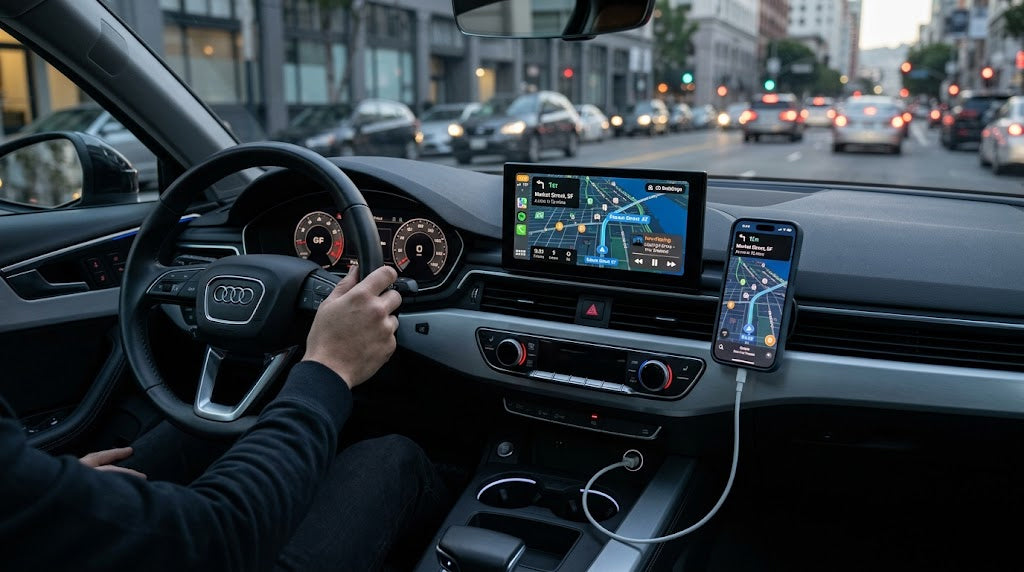
When I encounter issues with Apple CarPlay troubleshooting, I start by checking the simple things first. Many users mistakenly use the wrong cable or forget to enable Wi-Fi and Bluetooth, which can lead to connection issues. Occasionally, CarPlay may fail to start, disconnect unexpectedly, or Siri might not function properly. Fortunately, these problems are typically straightforward to resolve. By concentrating on the basics, addressing Apple CarPlay troubleshooting becomes significantly easier. CARLUEX PRO works out of the box — no wiring or tools needed. Browse CARLUEX wireless adapters to find the right fit for your car.
Tip: Always verify your cables and wireless settings before attempting more complex solutions.
What About Key Takeaways?
-
Make sure your car and iPhone work with CarPlay before you try to fix problems. Check your USB cable and see if it is Apple-certified so you do not have connection issues. Restart your iPhone and your car’s infotainment system to help reset the connection. Keep your iPhone and car software up to date to stop bugs and make things work better. Use certified accessories and keep your infotainment system clean to help CarPlay work well.
What About Quick Checks?

Check CarPlay Compatibility
Before I start troubleshooting, I always make sure my car and iPhone support CarPlay. Not every car or region supports this feature. I check my car’s manual or the manufacturer’s website to confirm compatibility. I also make sure my iPhone runs the latest version of iOS. If either the car or phone does not support CarPlay, the feature will not work.
Inspect USB Cable or Wireless Setup
When I use a wired setup, I check the USB cable for any damage. I prefer using the cable that came with my iPhone or a certified replacement. Sometimes, switching to a different USB port in the car solves the problem. For wireless CarPlay, I make sure my car supports wireless connections. I also check that Bluetooth and Wi-Fi are both turned on.
If the car supports wireless CarPlay, I look for the CarPlay logo on the car’s display to confirm the connection.
Tip: A faulty cable or weak wireless signal can stop CarPlay from working. Try a different cable or move closer to the car’s receiver if you have trouble.
Enable CarPlay on iPhone
I follow these steps to enable CarPlay on my iPhone:
-
I update my iPhone to the latest iOS version.
-
I connect my iPhone to the car using a USB cable or wireless setup.
-
I look for the CarPlay logo on the car’s screen.
-
I restart both my iPhone and the car if CarPlay does not appear.
-
I make sure Siri is turned on.
-
I check Screen Time settings to see if CarPlay is restricted.
-
If needed, I remove the car from CarPlay settings and set it up again.
Verify Bluetooth and Wi-Fi
For wireless CarPlay, I always check that Bluetooth and Wi-Fi are active on my iPhone. These features help the iPhone and car communicate. If I have many devices paired, the car might get confused and fail to connect. I remove extra devices from the car’s system to avoid this issue. I also know that the handshake process between the iPhone and car is important.
Any error here can break the connection. I keep my car’s firmware updated to improve CarPlay performance.
What About Apple CarPlay Troubleshooting Steps?
Restart Devices
When I face apple carplay troubleshooting, I always restart both my iPhone and my car’s infotainment system. This simple step often fixes apple carplay connection issues. I have seen that users with cars like the 2025 Ioniq 5 Limited report that rebooting their iPhone solves the problem. Sometimes, the connection works right away. Other times, it fails with an error. Restarting both devices helps reset the connection and gives carplay a fresh start.
-
I turn off my car and wait a few seconds before starting it again.
-
I power off my iPhone, wait, and then turn it back on.
-
I try to connect carplay again.
Tip: Restarting is quick and often solves many carplay issues.

Update iOS and Car Software
I always check for updates when troubleshooting apple carplay. Apple releases new iOS versions to fix bugs and improve performance. Car manufacturers also update their infotainment systems. I make sure my iPhone has the latest iOS. I check my car’s manual or website for software updates. Keeping both systems updated helps prevent carplay problems.
-
I open the Settings app on my iPhone.
-
I tap General, then Software Update.
-
I follow the instructions to install any updates.
-
I check my car’s system for updates and install them if needed.
Reset Network Settings

If I still cannot connect my phone, I reset the network settings on my iPhone. This step can fix wireless carplay pairing problems. I know that resetting network settings deletes all saved Wi-Fi and Bluetooth connections. I have to reconnect my devices and re-enter Wi-Fi passwords. This process can take time, but it often helps with stubborn carplay issues.
Note: Resetting network settings removes all saved Wi-Fi and Bluetooth devices. I always write down important passwords before I reset.
Try Different USB Port or Cable
When I use a wired connection, I check the USB cable and port. I look for damage or loose connections. I try a different cable, especially one that is Apple-certified. I also switch to another USB port in my car. Sometimes, a simple change fixes apple carplay troubleshooting problems.
-
I inspect the cable for any signs of wear.
-
I use the original cable that came with my iPhone.
-
I try all available USB ports in my car.
Remove and Reconnect CarPlay Profile
If carplay still does not work, I remove my car from carplay settings and set it up again. This step refreshes the connection and clears old data. Here is how I do it:
-
I open the Settings app on my iPhone.
-
I scroll down and tap on General.
-
I tap on CarPlay.
-
I select my car from the list.
-
I tap on Forget This Car.
After removing the profile, I reconnect my iPhone to the car and set up carplay again. This step often solves apple carplay troubleshooting problems.
Close All Apps on iPhone
Sometimes, open apps on my iPhone interfere with carplay. I close all running apps before I try to connect my phone. This frees up memory and helps carplay run smoothly. I swipe up from the bottom of the screen and swipe away each app.
Check Auto-Join Settings
For wireless carplay, I check the Auto-Join settings on my iPhone. If Auto-Join is off, my phone may not connect to the car’s Wi-Fi network. I follow these steps:
-
I open the Settings app.
-
I tap the Wi-Fi tab and turn on the Wi-Fi toggle.
-
I return to the main Settings page, tap the Bluetooth tab, and turn on the Bluetooth toggle.
-
In the Wi-Fi or Bluetooth lists, I tap the name of my carplay network and turn on the Auto-Join toggle.
This step helps my iPhone connect to carplay automatically.
Test with Another iPhone
If none of the above steps work, I test carplay with another iPhone. This helps me find out if the problem is with my phone or the car. I borrow a friend’s iPhone and try to connect it to carplay. If the other phone works, I know my iPhone needs more troubleshooting. If it does not work, the issue may be with the car’s system.
Tip: Testing with another iPhone can save time and point to the real cause of the problem.
Apple carplay troubleshooting can feel frustrating, but these steps help me solve most issues. I always start with the basics and move to advanced steps if needed. I keep my devices updated and use certified accessories for the best carplay experience.
What About Advanced Fixes?

Sometimes, simple steps do not fix my Apple CarPlay issues. When this happens, I try more advanced fixes. These steps help if CarPlay keeps turning off or will not start. I only use these methods after trying all the easy steps.
Reset Car Infotainment System
I found that resetting my car’s infotainment system can fix hidden problems. This step is helpful if CarPlay still will not connect after I restart my iPhone and check all cables. I always look in my car’s manual to see how to reset the system. Some cars have a reset button. Others need you to use a menu.
Before I reset, I check some important settings. I use the table below to help me:
|
Step |
Description |
|---|---|
|
1 |
Look under 'Projection Manager' and make sure 'smartphone device mirroring' is on. |
|
2 |
Make sure 'enable Apple CarPlay' is turned on for the iPhone. |
|
3 |
Use a certified USB cable to stop connection problems. |
If these settings are right and CarPlay still does not work, I reset the infotainment system. After the reset, I set up CarPlay again from the beginning.
Note: Resetting the infotainment system can erase saved radio stations and Bluetooth devices.
Contact Support
If nothing works, I ask support for help. I talk to my car dealer or Apple Support. They have special tools to find bigger problems. Sometimes, the problem is a hardware issue or a software bug that needs a pro to fix.
I have seen that most CarPlay problems get fixed with easy steps. Advanced fixes, like checking cables and updating software, help with tough problems. Most people do not need advanced troubleshooting. This shows that simple steps usually work best.
-
Easy steps fix most CarPlay problems.
-
I always try simple things first before using advanced ones.
If I still cannot use CarPlay, I know it is time to let the experts help.
What About Prevent Issues?

Update Devices Regularly
I always update my iPhone and car system. Updates fix bugs and make CarPlay work better. I check for updates in the Settings app on my iPhone. I tap Software Update to see if there is a new version. I also look in my car’s settings menu for software updates. Updating often stops problems with CarPlay, especially after big changes to iOS.
I turn on Wi-Fi and Bluetooth before I start any update. This helps the update go smoothly and stops connection problems.
Tip: I set a reminder to check for updates every month. This habit keeps CarPlay working and stops surprises.

Use Certified Accessories
I learned that good cables matter a lot. Once, CarPlay did not work until I used an Apple-certified cable. The connection was stable right away. I always pick cables with the MFi label. These cables work best with CarPlay and last longer.
|
Criteria |
Apple Official |
Third-Party (MFi Certified) |
|---|---|---|
|
Compatibility |
Perfect integration |
Full compatibility |
|
Price Point |
Premium pricing |
Better value |
|
Innovation |
Conservative design |
Creative features |
I do not use cheap cables without certification. They can make CarPlay disconnect or not start.
Keep Car System Clean
I keep my car’s infotainment system neat and tidy. I remove old Bluetooth pairings I do not use. Too many devices can confuse CarPlay and cause pairing problems. I make sure Wi-Fi is on and not busy with other connections. I check that CarPlay works when my iPhone is locked. This setting helps CarPlay start by itself.
-
I clear unused devices from the car’s memory.
-
I check Wi-Fi and Bluetooth settings before each drive.
-
I limit how many devices connect at the same time.
Note: A clean system helps CarPlay run well and stops frequent disconnections.
By doing these steps, I keep CarPlay working every day. I focus on updates, certified cables, and a clean car system. These habits help me avoid most connection problems and enjoy driving more.
Most Apple CarPlay problems go away with easy steps. I make sure to update my iPhone and CarPlay apps often. If I still have trouble, I restart my iPhone and the car’s system. I also check the audio settings so nothing is muted. Updates help CarPlay work faster and better. Good accessories from brands like Pioneer or Kenwood help CarPlay last longer.
-
Update your iPhone and car system often.
-
Use high-quality cables and accessories.
-
Restart devices if CarPlay does not connect.
FAQ
Why does Apple CarPlay disconnect randomly?
I notice CarPlay disconnects when my cable is loose or my wireless signal is weak. I always check my cable and move my phone closer to the receiver. I update my devices to fix bugs that cause random disconnects.
Can I use Apple CarPlay with any USB cable?
No, I cannot use just any cable. I always pick an Apple-certified or MFi-certified cable. Cheap or damaged cables often cause connection problems. I keep a spare certified cable in my car.
What should I do if CarPlay does not appear on my car’s screen?
I restart my iPhone and car. I check if CarPlay is enabled on my phone. I try another USB port or cable. If CarPlay still does not show, I update my car’s software.
Does CarPlay work with Android phones?
No, CarPlay only works with iPhones. Android users need Android Auto. I always check my car’s manual to see which system it supports.
How do I stop CarPlay from starting automatically?
I open Settings on my iPhone. I tap General, then CarPlay. I select my car and turn off “Allow CarPlay While Locked.” This stops CarPlay from starting every time I connect my phone.


Zostaw komentarz
Wszystkie komentarze są moderowane przed opublikowaniem.
Ta strona jest chroniona przez hCaptcha i obowiązują na niej Polityka prywatności i Warunki korzystania z usługi serwisu hCaptcha.