

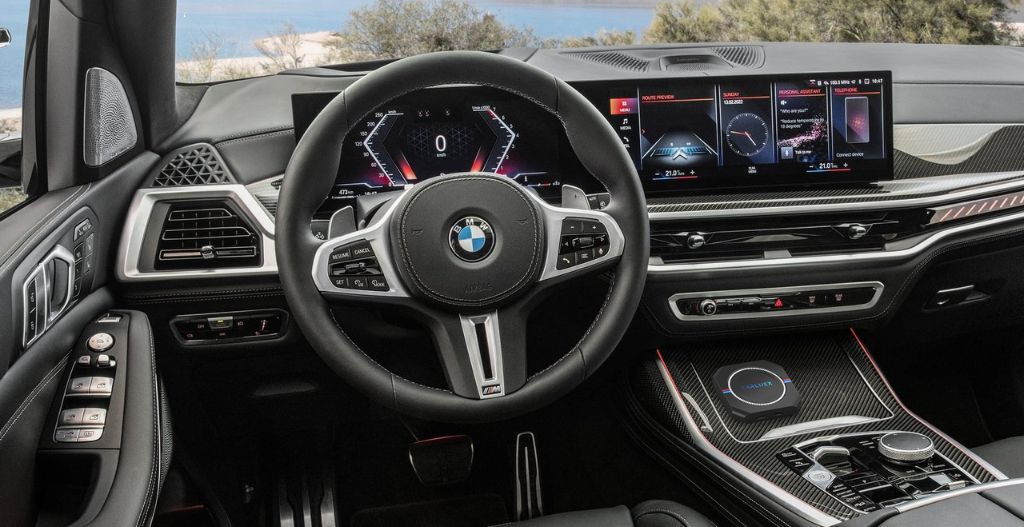
Quick Answer: How Do You Set Up Apple CarPlay in a BMW?
Park the BMW, make sure Siri, Bluetooth, and Wi-Fi are enabled on the iPhone, then start the pairing flow from the BMW's Mobile devices menu. The exact path depends on the vehicle's BMW Operating System or iDrive version. Select the iPhone, confirm that the control number shown on both screens matches, and choose Use Apple CarPlay.
BMW USA describes its current Apple CarPlay connection as wireless. Do not assume that a Lightning or USB cable is part of the BMW pairing flow unless the owner's manual for your exact vehicle says otherwise. If CarPlay does not connect, remove the saved BMW from both the vehicle and iPhone, update the phone and BMW services where available, and pair again while parked.
Compatibility comes first: model name or model year alone is not enough. Confirm the exact VIN, market, BMW Operating System/iDrive version, and whether Apple CarPlay is factory-equipped or available for that vehicle.

BMW CarPlay Setup Paths at a Glance
| BMW system | Start here in the vehicle | Key pairing step |
|---|---|---|
| BMW Operating Systems 8, 8.5, or 9 | MENU or Apps > All apps > Mobile devices > Connect new device | Select the iPhone, compare the control number, then choose Use Apple CarPlay. |
| BMW iDrive 7 | COM > Mobile devices > New device > Phone calls and audio | Pair by Bluetooth, confirm the matching control number, then accept Apple CarPlay on the iPhone. |
| BMW iDrive 6 | Communication > Manage Mobile Devices > Connect New Device > Apple CarPlay | Confirm the vehicle ID, then select the BMW under iPhone Settings > General > CarPlay. |
| System/version unknown | Check the owner's manual, My BMW/My Garage information, or ask a BMW Center with the VIN | Do not buy an adapter or retrofit based only on a broad year list. |
These menu paths come from BMW USA's current Apple CarPlay setup instructions. Menu labels can differ by software version and market, so follow the vehicle display if it differs from this summary.
Before Pairing: Check BMW CarPlay Compatibility
BMW's service information lists Apple CarPlay availability across many model lines and production periods, but an individual vehicle can still differ because of market, factory equipment, software, or feature activation. A used BMW advertised as “CarPlay ready” should not be treated as confirmed until the exact vehicle is checked.
- Identify the exact model year, production date, market, and VIN.
- Check the BMW Operating System or iDrive generation shown in the vehicle settings or owner's manual.
- Look for Apple CarPlay in Mobile devices or Communication menus.
- Use BMW My Garage, ConnectedDrive information, the owner's manual, or a BMW Center to confirm feature availability.
- Update the iPhone to the latest supported iOS and review available BMW software or services updates.
BMW USA's Service Availability Matrix is useful background, but it should not replace a VIN-level compatibility check.

How to Connect Apple CarPlay in BMW Operating Systems 8, 8.5, and 9
- Park the vehicle and start the BMW.
- On the iPhone, enable Siri, Bluetooth, and Wi-Fi.
- In the BMW, open MENU or the Apps menu, then choose All apps > Mobile devices > Connect new device.
- Select the iPhone when it appears.
- Compare the control number shown on the BMW display with the number on the iPhone. Confirm only if they match.
- Select Use Apple CarPlay and accept the prompts on both screens.
- Test Maps, audio, calls, and Siri while the vehicle remains parked.
BMW Operating System 9 and earlier systems can organize apps differently. If the expected menu is missing, search Mobile devices on the BMW display or use the exact owner's manual rather than guessing from another BMW model.
How to Set Up BMW CarPlay in iDrive 7
- Open COM > Mobile devices in iDrive.
- Move the Controller to the right, choose New device, then Phone calls and audio.
- On the iPhone, open Bluetooth settings and select the BMW's displayed vehicle name.
- Confirm that the control number matches on the iPhone and BMW display.
- On the iPhone, open Settings > General > CarPlay and select the BMW under Available Cars if prompted.
- Choose Use Apple CarPlay and complete the on-screen permissions.
After CarPlay connects, the iPhone Bluetooth page may show the BMW as “Not Connected.” BMW says this can be normal because the active CarPlay session uses its wireless connection path.

How to Set Up BMW CarPlay in iDrive 6
- Open Communication > Manage Mobile Devices.
- Select Connect New Device > Apple CarPlay.
- Select Confirm so the BMW displays its vehicle ID.
- On the iPhone, go to Settings > General > CarPlay.
- Select the matching BMW vehicle ID under Available Cars.
- Accept the prompts and test the connection before driving.
Do not enter a guessed default PIN. BMW's current instructions tell you to compare and confirm the control number displayed by the vehicle and phone.
What BMW Apple CarPlay Can Do
Apple CarPlay brings supported iPhone functions to the BMW control display. Depending on the vehicle and app, you can use navigation, music and audio, calls, messages, and Siri. BMW controls may include the touchscreen, iDrive Controller, steering-wheel buttons, and voice controls.
CarPlay does not put every iPhone app on the vehicle screen. App availability and behavior depend on Apple, the app provider, region, account, subscription, iOS version, and the vehicle interface. Set destinations, accounts, playlists, and permissions while parked.
Apple's current CarPlay connection guidance also recommends checking that the country or region, vehicle, iOS version, and vehicle software support the intended connection.

BMW CarPlay Not Working? Try These Checks in Order
Test CarPlay after each step so you know what fixed the connection.
- Confirm vehicle compatibility. Make sure Apple CarPlay is actually available for the exact BMW, market, and equipment state.
- Turn on the required iPhone features. BMW says Wi-Fi, Bluetooth, and Siri should be enabled. Do not turn off Wi-Fi as a generic CarPlay fix.
- Restart the iPhone and vehicle. Complete the restart while safely parked.
- Update supported software and services. Use the latest supported iOS and check BMW's system-specific app/service update path.
- Remove the saved connection on both sides. Delete the iPhone from the BMW's Mobile devices list. On the iPhone, forget the BMW in Bluetooth and Wi-Fi where present, and remove it under Settings > General > CarPlay.
- Pair again from the BMW menu. Compare the control number instead of using a default PIN.
- Check iPhone restrictions. Apple recommends confirming that CarPlay is allowed under Screen Time restrictions if the iPhone is not detected.
- Use BMW's version-specific reset instructions. BMW publishes different update and iDrive reboot paths for Operating Systems 9, 8/8.5, iDrive 7, and iDrive 6. Follow the official guide rather than applying another model's reset procedure.
Use BMW USA's CarPlay connectivity troubleshooting page and Apple's CarPlay troubleshooting checklist for the latest system-specific steps. If the feature is missing or still fails, contact a BMW Center with the VIN.

Factory BMW CarPlay vs a CARLUEX BMW Multimedia Box
Factory Apple CarPlay and a BMW-specific multimedia box solve different problems. If your BMW already has CarPlay and you only need maps, music, calls, messages, and Siri, start with the factory setup and troubleshooting flow above.
The current Shopify product page positions the CARLUEX Multimedia Streaming Box for BMW as a separate multimedia upgrade for BMW drivers, with Android-based app access through Google Play or APK installation and streaming services where available. This should not be described as a universal way to add factory Apple CarPlay to every BMW.
| Your goal | Safer next step |
|---|---|
| Connect an iPhone to factory BMW CarPlay | Use the BMW pairing steps for the exact Operating System/iDrive version. |
| Fix factory BMW CarPlay that stopped connecting | Troubleshoot the saved phone/vehicle connection before buying hardware. |
| Add multimedia app access on a compatible BMW screen | Review the BMW-specific CARLUEX product and confirm exact vehicle fit before purchase. |
| Add CarPlay to an older BMW that has no factory CarPlay | Ask BMW or a qualified installer about compatible activation, retrofit, or module paths for the exact head unit. |
Before purchase, check the CARLUEX compatibility page and contact support if the BMW's model year, market, or infotainment configuration is unclear. Third-party app performance can depend on the app provider, account, network, region, and updates. Entertainment features should only be used while parked or by passengers where local law and vehicle safety allow.

Frequently Asked Questions
Is BMW Apple CarPlay wired or wireless?
BMW USA describes its Apple CarPlay pairing flow as wireless and says the USB connector is not used for that BMW CarPlay connection path. Vehicle equipment and regional configurations can differ, so follow the owner's manual for the exact BMW.
Why does my BMW show as not connected in iPhone Bluetooth after CarPlay pairs?
BMW says the Bluetooth page can show the BMW as “Not Connected” after CarPlay is active. This can be normal because the CarPlay session uses its wireless connection path.
Does every BMW from 2017 onward have Apple CarPlay?
No universal model-year claim is safe. BMW's availability matrix lists many supported model lines and production periods, but the exact vehicle can differ by market, equipment, software, and feature activation. Verify the VIN and vehicle configuration.
Can I use Android Auto on a BMW?
Apple CarPlay itself is for iPhone. Android Auto is a separate system, and BMW support depends on the exact model, BMW Operating System, market, and configuration. Check the owner's manual or BMW feature information for the vehicle.
Will a CARLUEX BMW box fix factory CarPlay that is not connecting?
Do not use a product as the first repair step. Confirm factory feature availability, update supported software, remove and re-pair the phone, and follow BMW's troubleshooting path first. Consider a BMW-specific CARLUEX product only after its separate use case and exact compatibility are confirmed.
Should I change CarPlay settings while driving?
No. Complete pairing, resets, permissions, destination entry, and app setup while parked. Use supported voice and vehicle controls without taking attention away from the road.
Bottom Line
The safest BMW CarPlay setup starts with two checks: identify the BMW Operating System/iDrive version and confirm Apple CarPlay is available for the exact vehicle. Then pair through the BMW Mobile devices menu, compare the control number on both screens, and accept Apple CarPlay on the iPhone.
If the connection fails, fix the factory phone-to-vehicle pairing before buying hardware. If your goal is multimedia app access beyond standard CarPlay, compare the BMW-specific CARLUEX product only after confirming the exact BMW configuration and intended use.


Zostaw komentarz
Ta strona jest chroniona przez hCaptcha i obowiązują na niej Polityka prywatności i Warunki korzystania z usługi serwisu hCaptcha.