

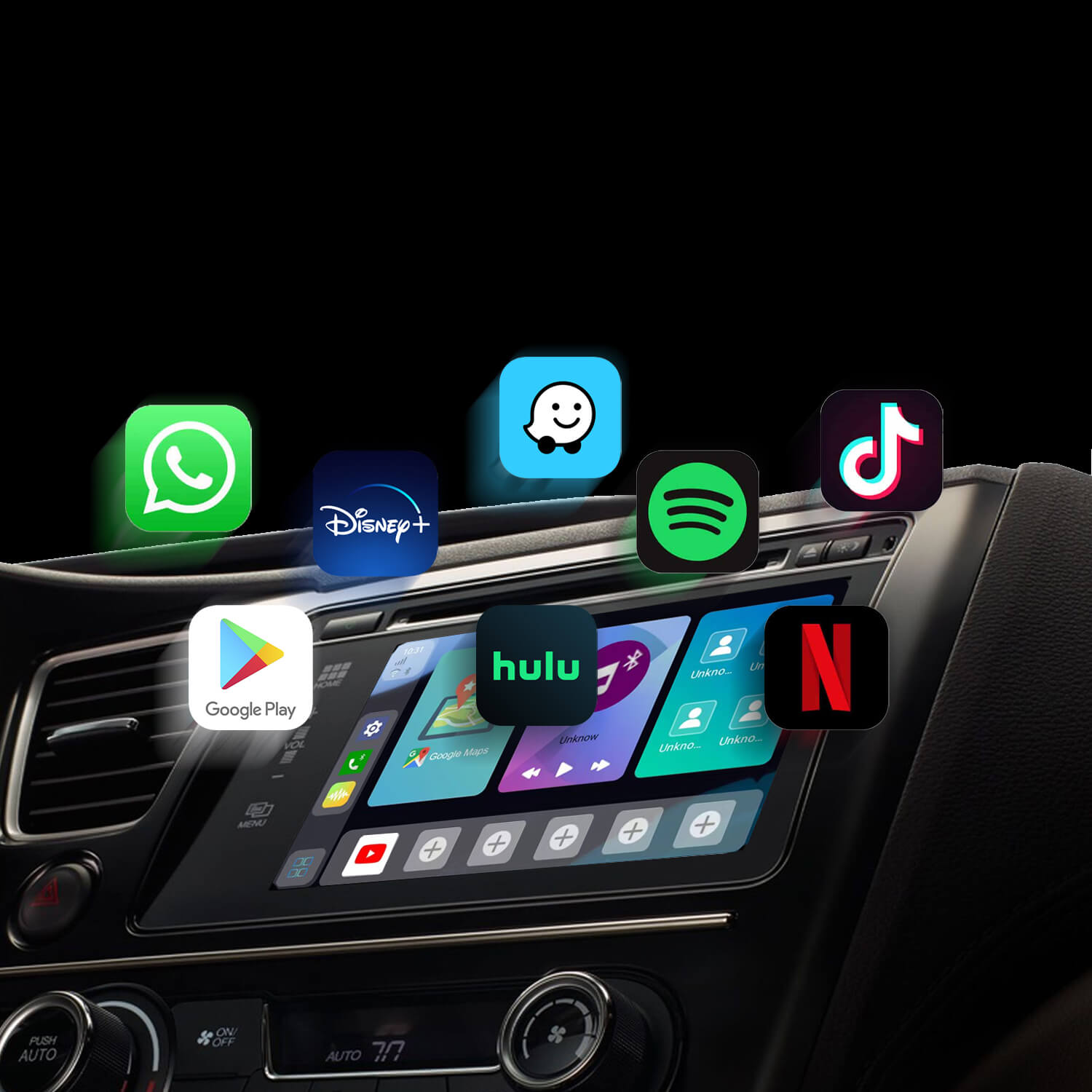
You can easily download apps on your CARLUEX PRO+ using the following methods:
Method 1:
- Tap the "Play Store" app on your device to access the Google Play Store.
- Log in to your Google account if required.
- Search for the app you want to download and select it.
- Click the "Download" or "Install" button to install the app directly from the Google Play Store.
Method 2:
- Download the APK file of the app you want on your computer.
- Transfer the APK file to a TF (microSD) card.
- Insert the TF card into your CARLUEX PRO+.
- Open the "ES File Explorer" app on your device.
- Navigate to "SD Card" and find the downloaded APK installation file.
- Click "INSTALL" to initiate the installation process.
Wait for the installation to complete, and the app will be installed on your CARLUEX PRO+. This method is useful for installing apps not available on the Google Play Store.
Understanding App Availability on CARLUEX
CARLUEX brings your smartphone's apps to your vehicle's display, but the specific apps available depend on whether you're using Apple CarPlay or Android Auto. Each platform has its own approved app ecosystem designed for safe in-car use.
Apps Available on Apple CarPlay
CarPlay supports a curated selection of apps from Apple and third-party developers:
- Navigation: Apple Maps, Google Maps, Waze
- Communication: Phone, Messages, WhatsApp, Skype
- Music: Apple Music, Spotify, Pandora, Amazon Music, Tidal
- Podcasts: Apple Podcasts, Spotify, Overcast
- Audiobooks: Audible, Apple Books
- News: Apple News, NPR
Apps Available on Android Auto
Android Auto offers a similar but distinct app selection:
- Navigation: Google Maps, Waze, Sygic, TomTom GO
- Communication: Messages, WhatsApp, Telegram, Skype
- Music: Google Play Music, Spotify, YouTube Music, Amazon Music
- Podcasts: Google Podcasts, Spotify, Pocket Casts
How to Install and Update Apps
Since CARLUEX uses your phone's apps, you manage them on your phone:
- For iPhone: Open the App Store, search for the app, and install or update
- For Android: Open Google Play Store, search for the app, and install or update
- After Installation: The apps should appear on your CarPlay/Android Auto screen automatically
Why Some Apps Are Not Available
Apple and Google have strict guidelines for in-car app usage:
- Safety: Video apps and distracting content are prohibited while driving
- Optimization: Apps must be specifically designed for CarPlay/Android Auto
- Distraction: Complex interfaces are simplified for safe in-vehicle use
Requesting New App Support
If you want a specific app added to CarPlay or Android Auto:
- For CarPlay: Contact the app developer or Apple directly
- For Android Auto: Contact the app developer or submit feedback through Google
- Developers: Apple and Google provide developer resources for creating CarPlay/Android Auto compatible apps
Last Updated: 2026-05-08 | This article was updated to provide the most comprehensive and accurate information for CARLUEX users.
Understanding App Availability on CARLUEX
CARLUEX brings your smartphone's apps to your vehicle's display, but the specific apps available depend on whether you're using Apple CarPlay or Android Auto. Each platform has its own approved app ecosystem designed for safe in-car use.
Apps Available on Apple CarPlay
CarPlay supports a curated selection of apps from Apple and third-party developers:
- Navigation: Apple Maps, Google Maps, Waze
- Communication: Phone, Messages, WhatsApp, Skype
- Music: Apple Music, Spotify, Pandora, Amazon Music, Tidal
- Podcasts: Apple Podcasts, Spotify, Overcast
- Audiobooks: Audible, Apple Books
- News: Apple News, NPR
Apps Available on Android Auto
Android Auto offers a similar but distinct app selection:
- Navigation: Google Maps, Waze, Sygic, TomTom GO
- Communication: Messages, WhatsApp, Telegram, Skype
- Music: Google Play Music, Spotify, YouTube Music, Amazon Music
- Podcasts: Google Podcasts, Spotify, Pocket Casts
How to Install and Update Apps
Since CARLUEX uses your phone's apps, you manage them on your phone:
- For iPhone: Open the App Store, search for the app, and install or update
- For Android: Open Google Play Store, search for the app, and install or update
- After Installation: The apps should appear on your CarPlay/Android Auto screen automatically
Why Some Apps Are Not Available
Apple and Google have strict guidelines for in-car app usage:
- Safety: Video apps and distracting content are prohibited while driving
- Optimization: Apps must be specifically designed for CarPlay/Android Auto
- Distraction: Complex interfaces are simplified for safe in-vehicle use
Requesting New App Support
If you want a specific app added to CarPlay or Android Auto:
- For CarPlay: Contact the app developer or Apple directly
- For Android Auto: Contact the app developer or submit feedback through Google
- Developers: Apple and Google provide developer resources for creating CarPlay/Android Auto compatible apps
Last Updated: 2026-05-08 | This article was updated to provide the most comprehensive and accurate information for CARLUEX users.


Laat een reactie achter
Alle reacties worden gemodereerd voordat ze worden gepubliceerd.
Deze site wordt beschermd door hCaptcha en het privacybeleid en de servicevoorwaarden van hCaptcha zijn van toepassing.