

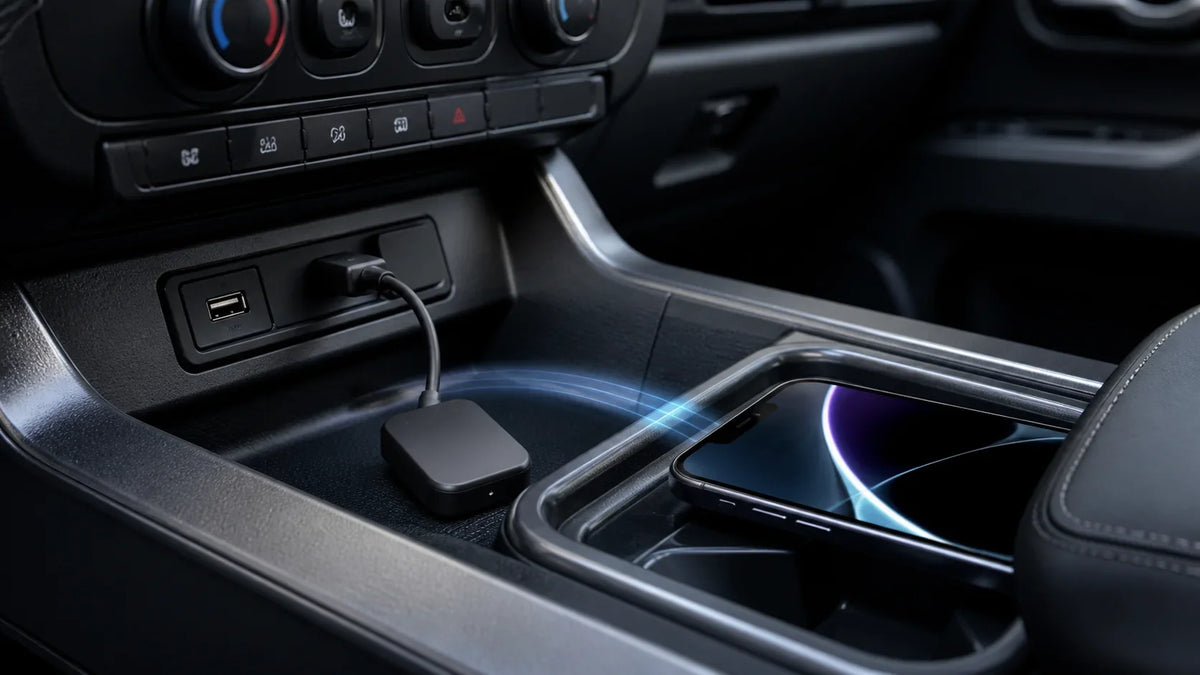
Wireless CarPlay Adapter Connects but CarPlay Won’t Open: Fix the Screen, Startup, and Pairing
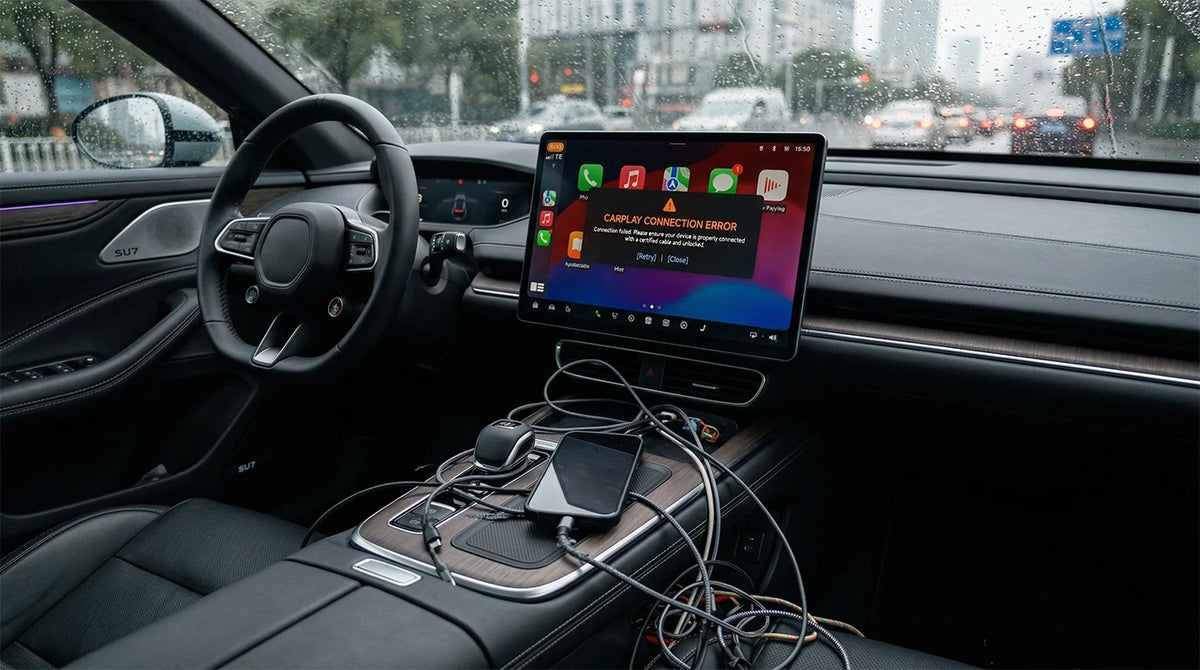
When a wireless CarPlay adapter is connected but not working, the adapter may appear powered or paired while the CarPlay interface is still not open on the vehicle display. Start with the screen, phone permissions, Bluetooth and Wi-Fi path, and the pairing record before assuming the adapter or vehicle hardware has failed.
This guide is a controlled troubleshooting sequence, not a diagnosis of every vehicle or adapter. The exact trim, factory head unit, adapter firmware, cable, phone, and vehicle software are NEEDS_SOURCE items until they are checked. Change one variable at a time and note what the screen and audio do after each step.
Quick answer: check the screen and startup path first
If the adapter connects but CarPlay will not open, first select the CarPlay icon on the vehicle display if it does not launch automatically. Then confirm that the iPhone is unlocked, Siri is available, Bluetooth and Wi-Fi are on, and the phone is allowed to use CarPlay. Only after those checks should you forget the old pairing and set it up again.
What the symptom tells you
A connection light, a Bluetooth connection, or audio from the vehicle is useful diagnostic information, but none of those observations alone proves that the CarPlay interface has completed its startup path. Treat “music plays but the screen is blank” or “the adapter keeps reconnecting” as a symptom pattern that needs isolation, not as proof of one failed component.
What this guide can and cannot prove
Apple’s documented checks support the phone, connection, permissions, restart, and firmware steps below. They do not identify the cause of a particular vehicle’s failure. The community signal that motivated this topic also does not prove that a background-mode setting exists on, or applies to, every third-party adapter. This article therefore avoids a guaranteed-fix or exact-compatibility claim.
Confirm the wireless CarPlay connection sequence
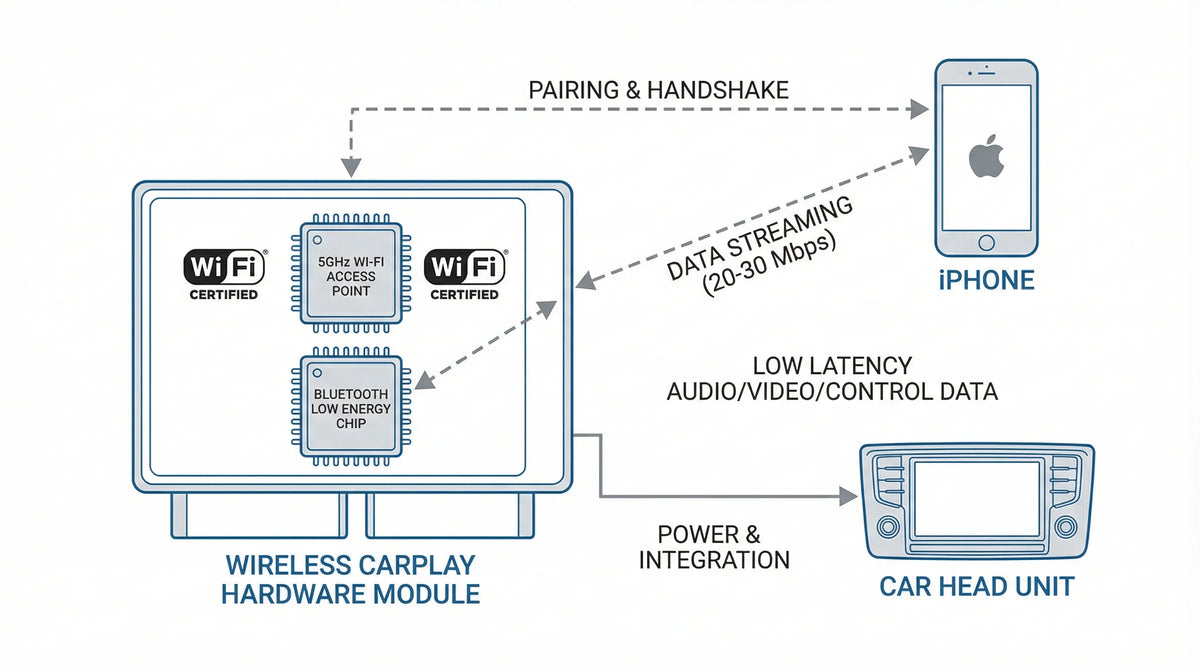
Before resetting anything, check the handoff from the adapter to the vehicle display. A wireless connection can be present while the vehicle is waiting for the user to select CarPlay, the phone is waiting for permission, or the CarPlay network is not being joined automatically.

Select the CarPlay icon on the vehicle display
Apple’s CarPlay troubleshooting guidance recommends selecting the CarPlay logo when the system does not open automatically. Look for the vehicle’s CarPlay or smartphone-integration tile after the adapter and iPhone show a connection. If the screen changes only after that selection, record the behavior; it points to a startup or display-selection step rather than proving that the adapter is defective.
Confirm Bluetooth, Wi-Fi, Auto-Join, Siri, and permissions
For wireless CarPlay, Apple’s setup guidance says Bluetooth and Wi-Fi should be enabled and the CarPlay network’s Auto-Join setting should be on. Also confirm Siri is enabled and accept the CarPlay permission prompt when it appears. These settings are phone-side requirements; they do not prove that a particular adapter firmware or vehicle head unit is compatible.
Reset the pairing in a controlled order
If the startup path is correct but the CarPlay screen still does not open, reset the phone-side pairing without changing multiple hardware or firmware variables at the same time. A clean sequence makes it easier to tell whether the old pairing was stale or whether the symptom returns after a fresh setup.

Forget the old CarPlay vehicle entry
On the iPhone, open Settings > General > CarPlay, select the vehicle, and choose Forget This Car. Apple documents this as a troubleshooting step when CarPlay is not working. It removes the saved phone-side CarPlay relationship; it does not reset the vehicle head unit or establish that the adapter is the cause.
Restart the iPhone, vehicle, and adapter
After forgetting the vehicle, restart the iPhone and the vehicle system using the vehicle’s normal controls. Power-cycle the adapter only according to its own instructions, then wait for the vehicle display to be ready before starting a new pairing. Avoid a factory reset or firmware change as the first response to a screen that will not open.
Pair one device at a time
Keep other nearby phones from trying to claim the same adapter while you test. Pair the intended iPhone, accept the permission prompts, and observe whether the CarPlay icon appears. If the result changes when another phone is removed, keep that as a clue about pairing competition rather than calling it a confirmed hardware failure.
Test power, USB, and the vehicle’s wired CarPlay path
Many wireless adapters depend on the vehicle’s USB connection for power and for the factory wired CarPlay relationship. Confirm that the vehicle has a data-capable CarPlay USB path and that the adapter is fully seated before investigating advanced settings. A charging-only port can power a device without completing the data path required for CarPlay.

Use the designated data-capable USB port
Apple’s wired CarPlay connection guidance describes using the vehicle’s CarPlay USB connection for wired setup. Use the port identified by the vehicle manual or marked for smartphone integration, not a port that is only intended for charging. The vehicle manual remains the source of truth for the exact port and trim, so this general step does not verify another vehicle or trim.
Test one cable or port variable at a time
If your setup includes a USB cable, try a known-good cable and, where the vehicle documentation supports it, another data-capable port. Check the phone connector for debris or damage. Reconnect after each single change and write down whether the screen opens, stays blank, or reconnects; changing the cable, port, phone, and settings together hides the useful clue.
When background mode or auto-connect settings matter
A community report can reveal a useful question to test: some adapters may expose background-mode, auto-connect, or firmware settings that affect startup behavior. That possibility is adapter-specific and is not established for every device. Check only the manual or support page for the exact adapter, and do not copy an undocumented setting from another product.

Treat third-party settings as device-specific
Do not assume that a setting called background mode, standby mode, or auto-connect has the same meaning across adapters. If the exact manufacturer documentation does not define it, leave it unchanged and mark the behavior as NEEDS_SOURCE. A setting that helps one adapter cannot be presented as a universal CarPlay fix.
Record a repeatable symptom before changing firmware
Before updating or downgrading firmware, record the phone model and iOS version, vehicle and trim, adapter model and firmware, USB port, whether audio works, whether the CarPlay icon appears, and when the screen fails. Firmware changes can add another variable and should follow the exact device documentation or support process.
Know when the issue is compatibility or firmware
If the controlled phone, pairing, power, and display checks do not isolate the issue, stop treating the symptom as a simple pairing error. Confirm the vehicle’s factory CarPlay support, the exact trim and head-unit documentation, and the adapter’s stated requirements before evaluating replacement hardware.
Confirm factory wired CarPlay first
Apple says the vehicle must support CarPlay. A wireless adapter is not a substitute for a factory system that lacks the required CarPlay path. If the vehicle’s original wired CarPlay behavior is unknown, test that path directly or use the vehicle manufacturer’s documentation before making an adapter-compatibility decision.
Check vehicle and adapter documentation
Check for vehicle infotainment firmware information and the adapter’s current support instructions. The exact root cause remains unverified until the relevant phone, vehicle, port, and adapter are tested together. If the same failure persists across a known-good phone or documented setup, vehicle-specific service or the adapter manufacturer’s support channel is the safer next step.
Conditional CARLUEX reference and related guides
Verify eligibility before evaluating hardware
If your vehicle passes a separate factory wired CarPlay and exact-eligibility check, you can check the CARLUEX compatibility page before evaluating hardware. If you need help documenting the symptom, open the CARLUEX Help Center. The CARLUEX LINK product page is included as a conditional reference only, not a recommendation or a promise that it will fix this symptom. Review the wireless CarPlay adapter category only after exact eligibility is independently verified.
Related CARLUEX guides
For adjacent phone-side checks, read the Apple CarPlay reset guide and review the CarPlay settings guide. For a broader connection symptom, compare the iPhone CarPlay troubleshooting guide.
FAQ
Why does the adapter connect but CarPlay not open?
The connection indicator may show that power, Bluetooth, or Wi-Fi is present without proving that the CarPlay interface has completed startup. Select the vehicle’s CarPlay icon, confirm Apple’s wireless requirements, and then reset the old pairing if needed.
Why is audio available but the CarPlay screen blank?
Audio is a clue, not a diagnosis. Check the vehicle display-selection step, phone permissions, Siri, Bluetooth, Wi-Fi, Auto-Join, and the documented USB or power path. The exact cause still needs a vehicle and device test.
Should I reset the pairing?
Yes, after the basic screen, phone, and wireless checks. Apple documents forgetting the vehicle under Settings > General > CarPlay and setting it up again. Restart the phone and vehicle, then pair one phone at a time.
Can a CARLUEX adapter fix this exact issue?
That cannot be confirmed from the symptom alone. Exact vehicle eligibility, factory wired CarPlay support, adapter requirements, and the root cause are separate NEEDS_SOURCE checks. Do not treat a product as a proven fix until those checks are complete.


Commenta
Questo sito è protetto da hCaptcha e applica le Norme sulla privacy e i Termini di servizio di hCaptcha.