

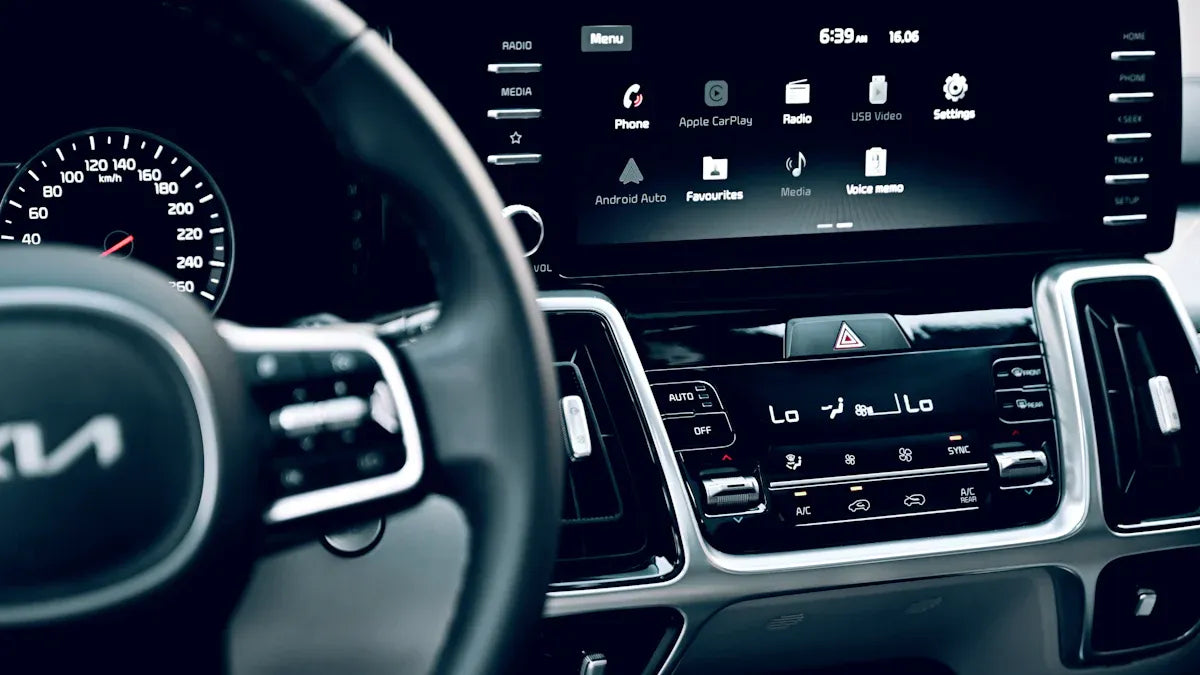
How to Reset Apple CarPlay on iPhone
If Apple CarPlay freezes, disappears from your screen, or will not reconnect, the fastest reset is usually simple: forget the car on your iPhone, clear the old pairing from the vehicle if needed, then set CarPlay up again. This does not erase your iPhone. It only removes the old CarPlay connection so your phone and car can create a fresh one.
Before you start, park safely. Do not reset CarPlay while driving. Menu names can vary by iOS version and by vehicle infotainment system, so use the closest matching label if your screen looks a little different.
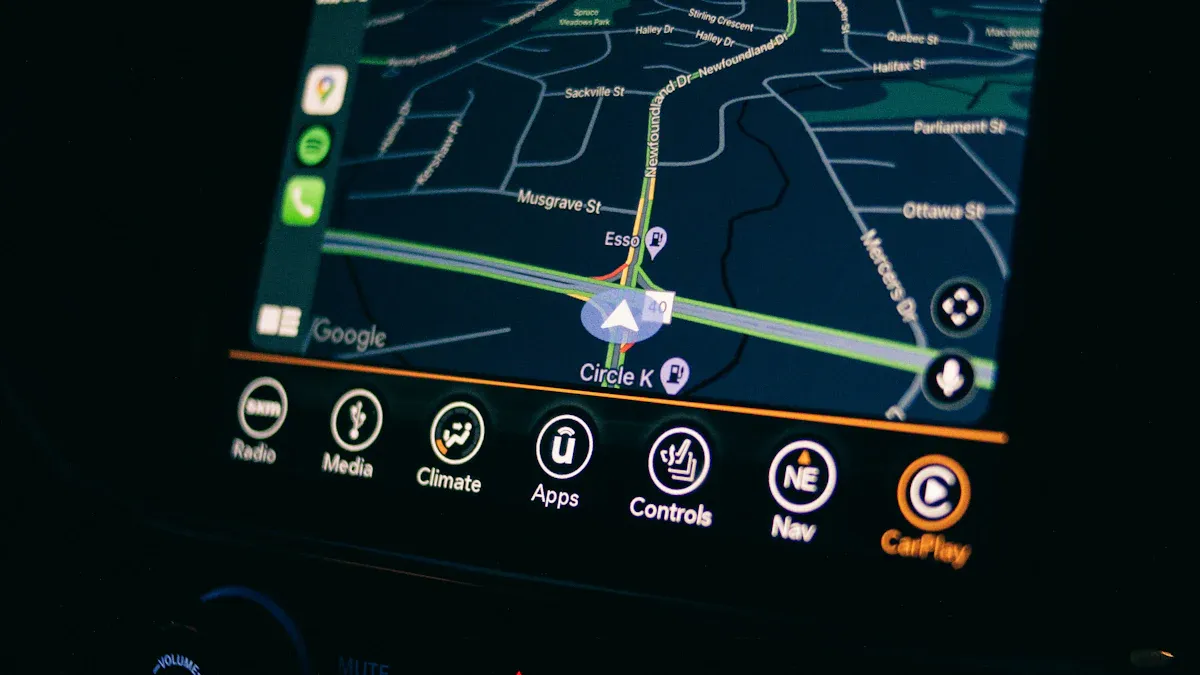
Quick Answer: The Best Way to Reset Apple CarPlay
- On your iPhone, open Settings.
- Go to General > CarPlay.
- Tap your vehicle.
- Tap Forget This Car.
- Restart your iPhone and your vehicle's infotainment system.
- Set up CarPlay again using USB or wireless pairing, depending on your vehicle.
Apple lists Forget This Car as a recommended troubleshooting step when CarPlay does not work as expected. You can review Apple's guidance in If you need help with CarPlay.
When Should You Reset Apple CarPlay?
A reset is useful when CarPlay previously worked but now behaves inconsistently. Common signs include:
- CarPlay does not appear on the vehicle screen.
- Your iPhone charges but CarPlay does not launch.
- Wireless CarPlay keeps disconnecting or reconnecting.
- The CarPlay screen freezes or becomes slow.
- Your vehicle still shows an old iPhone pairing that no longer works.
- You recently updated iOS or the vehicle software and CarPlay changed behavior.
If CarPlay has never worked in the vehicle, confirm compatibility first. A reset cannot add CarPlay to a car that does not support it. You can check Apple's CarPlay setup guidance and compare your vehicle with the manufacturer's manual.
Step 1: Forget the Car on Your iPhone
This is the main Apple CarPlay reset step for most iPhone users.
- Open Settings on your iPhone.
- Tap General.
- Tap CarPlay.
- Select your vehicle.
- Tap Forget This Car.
- Confirm the action if your iPhone asks.
After this, your iPhone should no longer treat the vehicle as a saved CarPlay connection. You can now reconnect it as if it were a new setup.
Step 2: Remove the Old Pairing from Your Vehicle
If your car still remembers the old iPhone, the next setup can fail or create duplicate entries. Open your vehicle's Bluetooth, phone, device, or CarPlay settings and delete the old iPhone profile if the option appears.
The exact path depends on the car brand and infotainment system. Look for labels such as Phone List, Device Manager, Bluetooth Devices, Smartphone Projection, Apple CarPlay, or Paired Devices. If you are not sure, check the owner's manual or the vehicle manufacturer's support page.
Step 3: Restart Your iPhone and Infotainment System
Restarting clears temporary connection states before you pair again.
- Restart your iPhone normally.
- Turn the vehicle off, open the door if needed, and wait for the infotainment system to fully shut down.
- Start the vehicle again before reconnecting.
Some vehicles keep the infotainment system awake for a short time after the engine is turned off. Waiting a minute or two can make the reset cleaner.
Step 4: Set Up CarPlay Again
Use the setup method your vehicle supports.
For wired CarPlay
- Use a data-capable USB cable, not a charge-only cable.
- Connect your iPhone to the vehicle's CarPlay USB port.
- Unlock your iPhone if prompted.
- Allow CarPlay permissions on the iPhone and vehicle screen.
For wireless CarPlay
- Make sure Bluetooth and Wi-Fi are turned on.
- Put your vehicle in wireless CarPlay or phone-pairing mode.
- On iPhone, go to Settings > General > CarPlay and select your car if it appears.
- If your vehicle creates a CarPlay Wi-Fi network, check that Auto-Join is enabled for that network.
Apple notes that wireless CarPlay setup may require Bluetooth mode, Wi-Fi, and selecting the vehicle from CarPlay settings. See Use CarPlay with your iPhone for Apple's current setup wording.
If CarPlay Still Will Not Connect
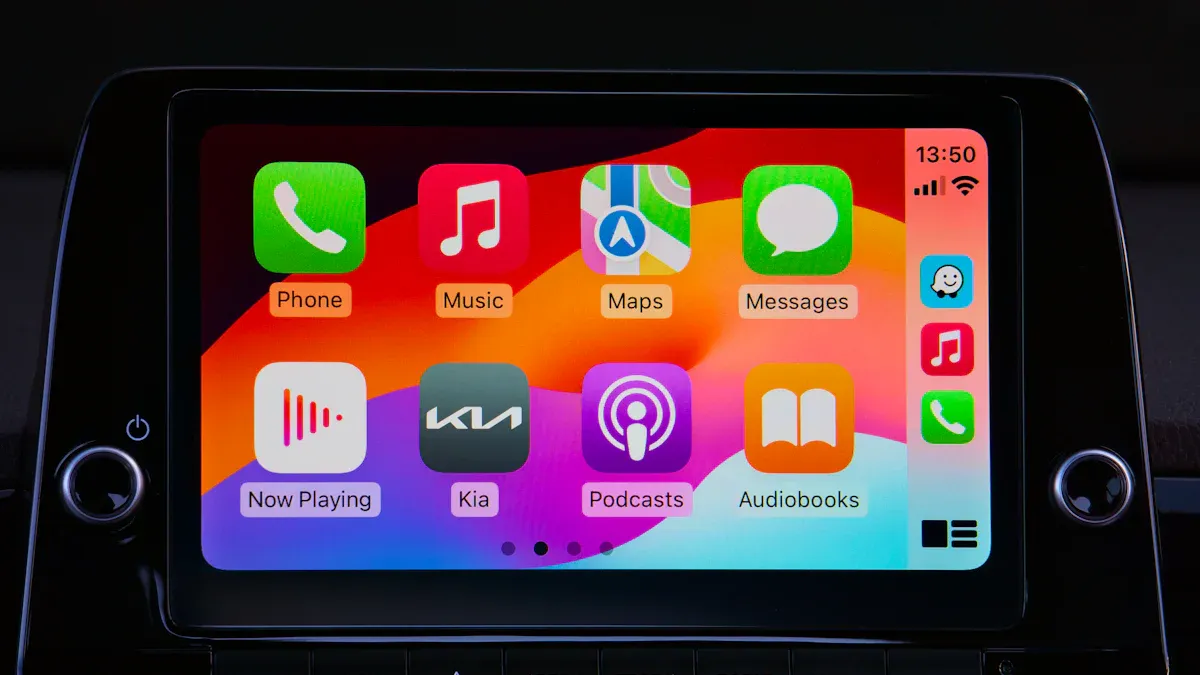
If forgetting and reconnecting the car does not solve the issue, work through these checks before assuming the adapter, phone, or vehicle is defective.
Check Siri and CarPlay restrictions
CarPlay depends on iPhone permissions and Siri availability. In iPhone Settings, search for Siri and make sure Siri is enabled. Also check Screen Time restrictions if CarPlay is missing or blocked. Apple includes CarPlay restrictions in its official troubleshooting steps.
Check Bluetooth and Wi-Fi
Wireless CarPlay uses Bluetooth for discovery and Wi-Fi for the main connection. Turn both off and back on, then try pairing again. If your vehicle has a saved CarPlay Wi-Fi network on your iPhone, open its Wi-Fi details and confirm Auto-Join is on if that option appears.
Try a different USB cable or port
For wired CarPlay, a charging cable is not always enough. Use a short, reliable data cable and connect to the vehicle's CarPlay-enabled USB port. Some cars have multiple USB ports, but only one supports data for CarPlay.
Update iOS and vehicle software
Use the latest iOS version available for your iPhone, and check whether the vehicle manufacturer offers infotainment firmware updates. Vehicle update steps vary, so follow the manufacturer's instructions.
Reset network settings only after easier checks
If the connection still fails, you can reset iPhone network settings. This removes saved Wi-Fi networks, Wi-Fi passwords, cellular settings, VPN settings, and APN settings, so treat it as a later step. Apple's iPhone guide explains what Reset Network Settings changes.
Does Resetting CarPlay Delete Anything?
Forgetting a car in CarPlay settings does not erase your iPhone, apps, photos, contacts, or messages. It removes that vehicle's saved CarPlay relationship from the iPhone. You may need to pair again and approve permissions again.
Resetting network settings is different. That does not erase your iPhone content either, but it does remove saved network-related settings. Save important Wi-Fi passwords before using it.
What If Wired CarPlay Works but Wireless CarPlay Is Annoying?
If your car's built-in wired CarPlay works reliably but you want fewer daily cable connections, a wireless adapter can be worth considering. It is not a repair tool for a broken iPhone, damaged USB port, unsupported vehicle, or vehicle software issue. It simply helps convert a compatible factory wired CarPlay connection into a wireless CarPlay experience.
CARLUEX compatibility depends on the adapter model and your vehicle's factory infotainment system. Before buying, check your vehicle and product fit on the CARLUEX Compatible Vehicles page or browse the CARLUEX Wireless CarPlay Adapter collection.
Related CARLUEX Guides
- CarPlay Not Working: Troubleshooting Tips
- How to Use Apple CarPlay: Setup, Tips & Fixes
- Check CARLUEX vehicle compatibility
- Browse CARLUEX Wireless CarPlay Adapters
FAQ
How do I reset Apple CarPlay on my iPhone?
Go to Settings > General > CarPlay, tap your vehicle, then tap Forget This Car. Restart your iPhone and car system, then set up CarPlay again.
How do I reset CarPlay after forgetting my device?
After using Forget This Car, remove the old iPhone profile from your vehicle if it still appears. Then reconnect by USB or wireless pairing, depending on what your vehicle supports.
Is restarting CarPlay the same as resetting it?
No. Restarting usually means rebooting your iPhone or vehicle screen. Resetting CarPlay usually means forgetting the saved car connection and pairing again.
Should I factory reset my iPhone to fix CarPlay?
Usually no. Start with Forget This Car, restarting devices, checking Siri, Wi-Fi, Bluetooth, USB, and software updates. Reset network settings only if easier steps fail. Erasing all iPhone content should not be a normal CarPlay troubleshooting step.
Why does CarPlay still fail after I reset it?
The issue may be the USB cable, USB port, vehicle firmware, iOS permissions, Screen Time restrictions, Bluetooth/Wi-Fi state, or vehicle compatibility. If wired CarPlay does not work at all, confirm the vehicle and iPhone setup before considering a wireless adapter.
Final Check
Resetting Apple CarPlay is usually a connection cleanup, not a full phone reset. Start by forgetting the car on your iPhone, clearing the old vehicle pairing, restarting both systems, and reconnecting carefully. If the problem keeps coming back, check software, cables, restrictions, and compatibility before replacing hardware.


Leave a comment
All comments are moderated before being published.
Ezt a webhelyet a hCaptcha rendszer védi, és a hCaptcha adatvédelmi szabályzata, valamint szolgáltatási feltételei vonatkoznak rá.