

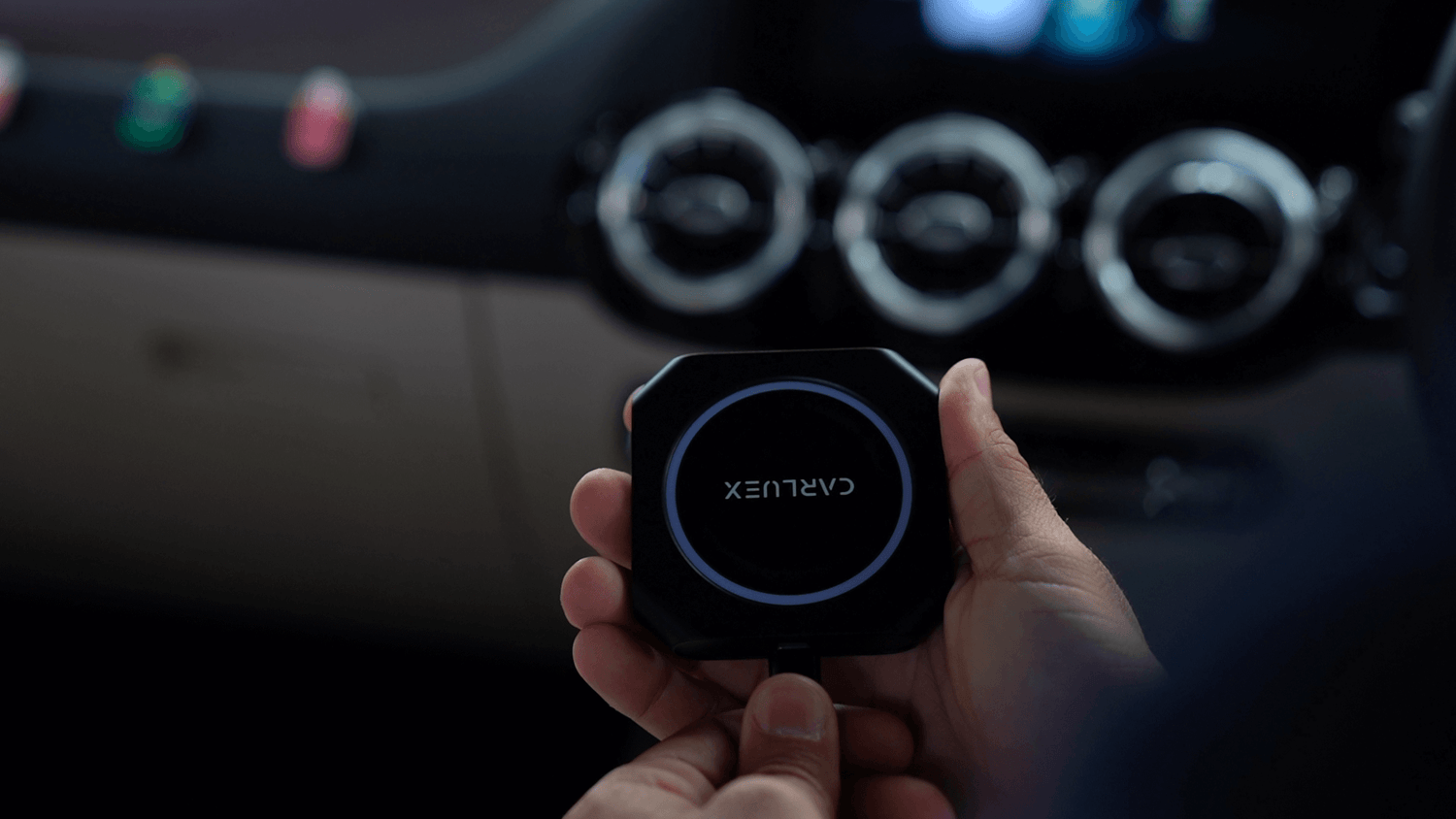
If your wireless CarPlay adapter is not connecting, start with the basics before assuming the adapter is defective. Most connection issues come from one of six places: vehicle compatibility, the USB data port, iPhone Wi-Fi or Bluetooth settings, old pairing records, adapter firmware, or the vehicle head unit taking too long to boot.
Use the checklist below in order. It is designed for drivers who already have a wireless CarPlay adapter and want to fix connection failures such as “adapter powers on but CarPlay does not appear,” “Bluetooth connects but the car screen stays blank,” “wireless CarPlay keeps disconnecting,” or “the adapter status light stays red.”
Important compatibility note: many wireless CarPlay adapters are designed to convert an existing factory wired CarPlay connection into a wireless one. If your vehicle does not support the required wired CarPlay or Android Auto connection, an adapter may not solve the problem. Before buying or replacing an adapter, check your vehicle on the CARLUEX compatible vehicles page and Apple’s official CarPlay available models list.
Quick Checklist Before You Reset Anything
Before changing firmware or replacing hardware, confirm these items first:
- Vehicle compatibility: confirm that your vehicle supports the CarPlay or Android Auto connection required by your adapter.
- Correct USB port: plug the adapter into a data-capable USB port, not a charging-only port.
- Phone settings: make sure Wi-Fi, Bluetooth, and CarPlay are enabled on your iPhone.
- Old pairings: remove old Bluetooth or CarPlay records if the phone keeps connecting to the wrong device.
- Adapter power: check whether the adapter powers on consistently when the car starts.
- Firmware/support: only update firmware by following the adapter manufacturer’s official instructions.
Apple’s CarPlay setup guidance also recommends checking Wi-Fi, Auto-Join, and Settings > General > CarPlay when wireless CarPlay does not connect as expected. The exact labels may vary by iOS version, so use Apple’s current instructions if your screen looks different: Connect iPhone to CarPlay.
If the Adapter Powers On but CarPlay Does Not Appear
This usually means the adapter is receiving power, but the car and phone are not completing the CarPlay session.
- Turn the vehicle off, wait briefly, then start it again and let the infotainment system fully boot.
- Unplug the adapter and plug it back into the main USB data port used for wired CarPlay.
- On your iPhone, check Settings > Wi-Fi and Settings > Bluetooth. Both usually need to be enabled for wireless CarPlay setup.
- Go to Settings > General > CarPlay and check whether the car or adapter appears in the list.
- If the adapter creates a Wi-Fi network, check whether Auto-Join is enabled for that network when Apple’s setup flow exposes that option.
If your vehicle normally launches wired CarPlay with a cable but does not launch with the adapter, the adapter, USB port, pairing record, or firmware is more likely to be involved. If wired CarPlay does not work either, troubleshoot the vehicle/phone wired CarPlay connection first.
If Bluetooth Connects but the Car Screen Stays Blank
A wireless CarPlay adapter may use Bluetooth during pairing while the active CarPlay session depends on Wi-Fi and the car’s USB data connection. That is why “Bluetooth connected” does not always mean CarPlay is ready on the screen.
- On the iPhone, forget the old car or adapter record under Settings > General > CarPlay if it appears.
- Remove old Bluetooth records for the car and adapter, then pair again from a clean state.
- Restart the iPhone and the vehicle head unit.
- Plug the adapter into the car first, wait for it to boot, then follow the pairing screen shown by the adapter or vehicle.
- If the car has multiple USB ports, test the port that originally supported wired CarPlay.
Do not keep repeatedly tapping random Bluetooth devices. A clean re-pairing sequence is usually safer than stacking multiple failed pairing attempts.
If the Wireless CarPlay Adapter Keeps Disconnecting
Frequent disconnections can come from unstable power, old pairing data, iOS settings, vehicle boot timing, or firmware mismatch. Try these checks:
- Use the main USB data port and avoid loose cables, damaged adapters, or unstable USB extension cables.
- Restart the phone and car system after clearing old pairing records.
- Make sure the iPhone is not trying to join another saved Wi-Fi network inside the car.
- Disable VPN or network filtering temporarily if it interferes with local Wi-Fi connections.
- Update iOS if your phone is far behind, then test again.
- Check the adapter maker’s official firmware guidance before attempting an adapter update.
If the issue happens only after short stops, give the infotainment system time to boot before forcing a new connection. Some vehicles and adapters behave better when the adapter powers on after the car system is ready.
Check the USB Port and Adapter Status Light
USB port behavior matters. Some ports charge phones but do not pass enough data for CarPlay. Others may provide unstable power after ignition, especially when the car is waking from sleep.
- Test the original wired CarPlay port if your car has one.
- Avoid using a charging-only USB port.
- Check whether the adapter light changes when you unplug and reconnect it.
- Use the adapter manual or support page for exact light meanings, because red, blue, blinking, and solid lights vary by product.

If the adapter never powers on in any USB port, the issue may be power, the adapter, or the USB cable/port. If it powers on but never appears on the car screen, continue with pairing and compatibility checks.
Test the Adapter in Another Compatible Vehicle
Testing in a second compatible vehicle can help separate a vehicle-specific issue from an adapter issue. This test is only useful if the second vehicle is known to support the required wired CarPlay or Android Auto connection for that adapter.
- Works in another compatible vehicle: the original vehicle’s USB port, head unit setting, software, or compatibility path may be the issue.
- Fails in another compatible vehicle: the adapter, firmware, or pairing setup may be the issue.
- Wired CarPlay fails in both vehicles: troubleshoot the iPhone, cable, vehicle settings, or CarPlay permission first.
This step is especially useful before contacting support because it gives the support team clearer evidence.
Update Firmware Only from the Official Source
Firmware can fix compatibility bugs, but it can also create problems if the wrong file or process is used. Only update firmware with the instructions provided by your adapter manufacturer or seller.
- Confirm the exact adapter model and current firmware version if the product interface shows it.
- Read the official update instructions before starting.
- Keep the adapter powered during the update.
- After the update, restart the adapter, car system, and iPhone before testing again.
If you use a CARLUEX adapter, check the product page or contact support before applying any firmware instructions from a third-party forum. Firmware steps are product-specific.
When a Different Adapter May Help
A new adapter may help if your current adapter is defective, outdated, or not designed for your vehicle’s connection type. But a replacement will not fix every case. First confirm the vehicle compatibility path.
For CARLUEX shoppers, start with the main product options below and compare them based on the connection your vehicle already supports:
- CARLUEX PRO+ 2.0: compare this only if your vehicle meets the product compatibility requirements and you want a richer multimedia AI box path.
- CARLUEX for BMW: BMW users should compare the BMW-specific version instead of assuming PRO+ 2.0 is the right fit.
- CARLUEX AIR: consider this for a simple wireless CarPlay / Android Auto adapter use case after checking compatibility.
- CARLUEX LINK: also compare this if you specifically need wireless CarPlay and Android Auto support, noting that wireless CarPlay requires factory wired CarPlay and wireless Android Auto requires factory wired Android Auto.

If you are unsure, check CARLUEX vehicle compatibility or contact support before purchasing. Vehicle incompatibility should not be treated as a guaranteed return reason.
When to Contact Support
Contact the adapter manufacturer or seller if:
- the adapter does not power on in a known working USB data port;
- wired CarPlay works but the adapter never appears after clean pairing;
- the same adapter fails in more than one compatible vehicle;
- a firmware update fails or the adapter becomes stuck during update;
- the status light indicates an error and the product manual does not resolve it.
For CARLUEX products, include your order number, vehicle year/model, phone model, iOS or Android version, adapter model, and a short video of the issue if available. These details make troubleshooting faster.
FAQs
Why is my wireless CarPlay adapter not connecting?
The most common causes are vehicle incompatibility, a charging-only USB port, old Bluetooth or CarPlay pairing records, disabled Wi-Fi/Bluetooth, firmware mismatch, or a vehicle head unit that has not fully booted.
Do wireless CarPlay adapters need factory wired CarPlay?
Many adapters do. For CARLUEX LINK, wireless CarPlay requires factory wired CarPlay, and wireless Android Auto requires factory wired Android Auto. Always check the compatibility requirements for your specific product before buying.
Why does Bluetooth connect but CarPlay does not show on the screen?
Bluetooth may only be part of the pairing process. Wireless CarPlay also depends on Wi-Fi and the car’s CarPlay interface. Check Wi-Fi, Auto-Join if shown, and Settings > General > CarPlay on your iPhone.
How do I reset a wireless CarPlay adapter?
Reset steps vary by product. A safe first step is to unplug the adapter, restart the car system and phone, forget old CarPlay/Bluetooth records, then pair again. Use the manufacturer’s reset instructions for model-specific steps.
When should I stop troubleshooting and contact support?
Contact support if the adapter fails in a known compatible vehicle, will not power on, repeatedly disconnects after clean pairing, or shows an error light that the manual does not explain.
Bottom Line
A wireless CarPlay adapter connection issue is usually fixable once you separate compatibility, USB port, phone settings, pairing, firmware, and hardware symptoms. Work through the checklist in order, avoid unsupported firmware files, and confirm your vehicle’s compatibility before replacing the adapter.
If your current adapter is not the right match, compare CARLUEX options on the all products page or start with the compatibility page before choosing a replacement.


Laisser un commentaire
Tous les commentaires sont modérés avant d'être publiés.
Ce site est protégé par hCaptcha, et la Politique de confidentialité et les Conditions de service de hCaptcha s’appliquent.