

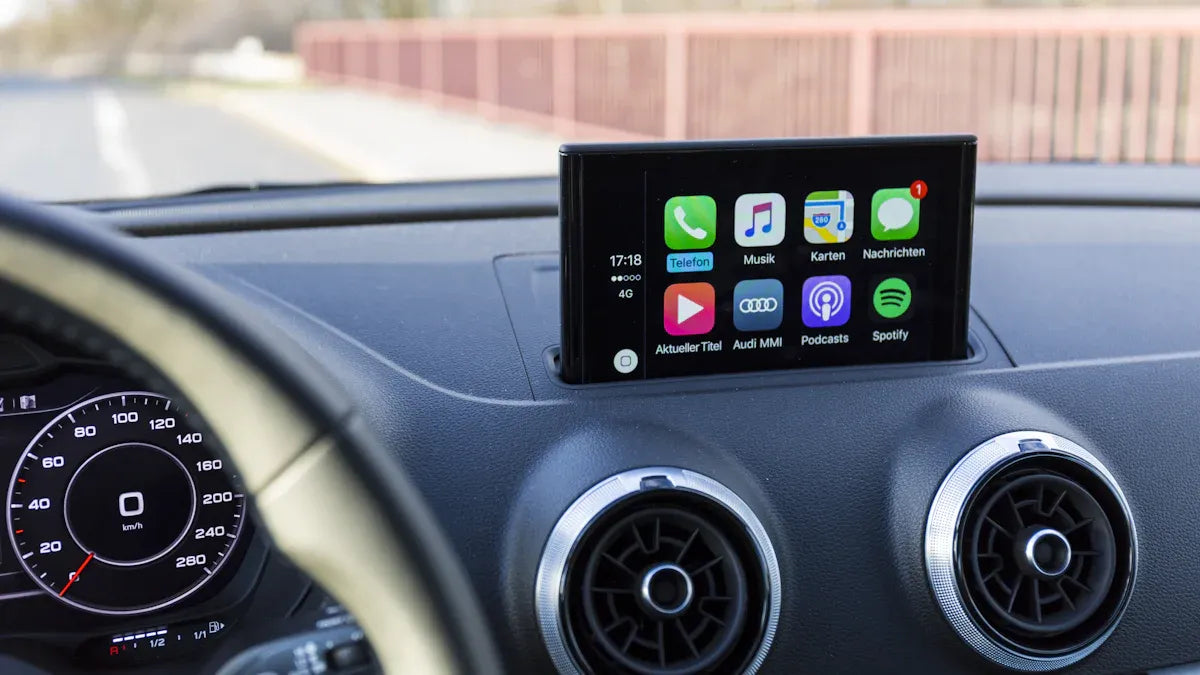
Quick answer: To remove your phone from CarPlay, open Settings > General > CarPlay on your iPhone, select the vehicle, and choose Forget This Car if that option appears. Then delete the phone from the vehicle's Bluetooth, phone, or device list. If you use a wireless adapter, also clear the adapter's saved phone list or reset the adapter pairing. Do all of this while parked.
Safety note: Change CarPlay, Bluetooth, vehicle, and adapter settings only when the vehicle is parked. Do not adjust phone or infotainment settings while driving.
| Goal | Best place to remove it | What it helps prevent |
|---|---|---|
| Stop iPhone from using CarPlay in one car | iPhone CarPlay settings | Future CarPlay prompts or saved vehicle pairing |
| Stop the car from recognizing your phone | Vehicle Bluetooth / phone / device list | Auto-reconnect from the car side |
| Remove a shared or rental car connection | Both iPhone and vehicle system | Contacts, call history, or pairing records staying behind |
| Stop adapter auto-reconnect | Wireless adapter pairing list or reset process | The wrong phone connecting first |
How Do You Remove a Phone from CarPlay?
Start from the iPhone, then remove the phone from the car. Apple's CarPlay troubleshooting guidance says you can remove a saved car from Settings > General > CarPlay by choosing the vehicle and tapping Forget This Car. For wireless CarPlay, Apple also notes that Bluetooth, Wi-Fi, and the CarPlay network's Auto-Join setting can affect the connection. The exact labels can vary by iOS version and vehicle system, so use the closest matching CarPlay, Bluetooth, phone, or device menu.
For official setup context, see Apple's guide to connecting iPhone to CarPlay and Apple's CarPlay troubleshooting guidance.
Remove the Car from Your iPhone CarPlay Settings
Use this step when you want your iPhone to stop remembering a specific vehicle.
- Park the vehicle safely.
- On iPhone, open Settings.
- Go to General > CarPlay.
- Select the vehicle you want to remove.
- Tap Forget This Car if the option appears.
- Restart the iPhone if the old pairing still appears.
If you do not see the vehicle in CarPlay settings, check Bluetooth and Wi-Fi as well. Some wireless CarPlay setups also use a saved Wi-Fi network or Bluetooth pairing.
Delete the Phone from the Car's Device List
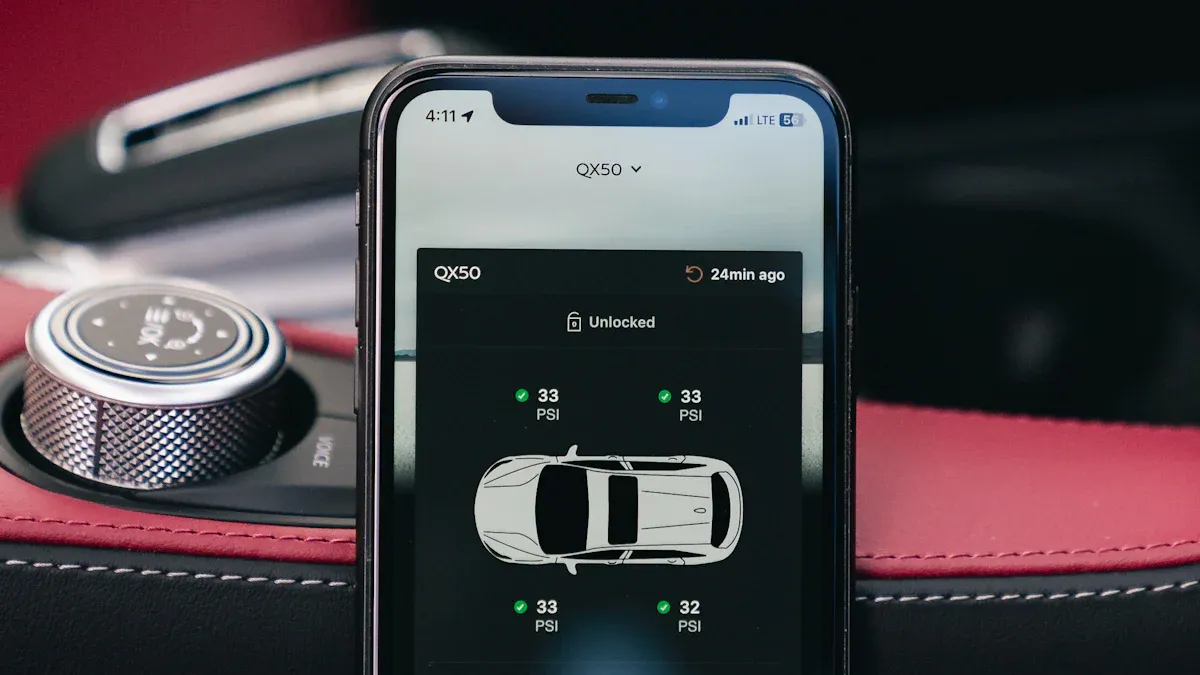
Removing the vehicle from your iPhone is only half of the cleanup. The car may still keep a saved phone profile, Bluetooth pairing, contact sync permission, or call history depending on the infotainment system.
Look for menus with names like:
- Phone
- Bluetooth
- Devices
- Connected devices
- Apple CarPlay
- Smartphone connection
Then choose the old iPhone and select an option such as Delete, Forget, Remove device, or Unpair. The exact wording depends on the vehicle brand, model year, region, and infotainment software.
Stop CarPlay Auto-Reconnect
If your iPhone keeps reconnecting after you remove it, check every connection layer. CarPlay can involve the iPhone, the vehicle, Bluetooth, Wi-Fi, and sometimes a wireless adapter.
- Forget the car in iPhone CarPlay settings.
- Delete the phone from the vehicle's Bluetooth or device list.
- For wireless CarPlay, check the saved Wi-Fi network and Auto-Join setting if it appears.
- If you use a wireless adapter, clear the adapter pairing list or reset the adapter according to its product instructions.
- Restart the iPhone and vehicle system before testing again.
Do not turn off Bluetooth or Wi-Fi permanently just to block one vehicle unless you understand the tradeoff. That can affect AirPods, smartwatch features, maps, hotspot use, and other wireless connections.
Wired CarPlay vs Wireless CarPlay vs Adapter Pairing
Before troubleshooting auto-reconnect, confirm which setup you use:
| Setup | What to remove | Common mistake |
|---|---|---|
| Wired CarPlay | iPhone CarPlay record and vehicle device list | Assuming unplugging the cable deletes the saved profile |
| Factory wireless CarPlay | CarPlay, Bluetooth, and Wi-Fi pairing records | Deleting only Bluetooth while Wi-Fi Auto-Join remains |
| Wireless adapter | Phone, vehicle, and adapter pairing records | Resetting the phone but leaving the adapter paired to the old phone |
What Should You Do Before Returning a Rental or Selling a Car?
For shared cars, rental cars, company cars, or a vehicle you are selling, remove your phone from both sides: the iPhone and the vehicle infotainment system. This helps reduce the chance that the next driver sees saved phone names, recent calls, contacts, navigation destinations, or old pairing prompts.
- Forget the car from iPhone CarPlay settings.
- Delete your iPhone from the car's phone or Bluetooth list.
- Clear navigation favorites or recent destinations if you used the vehicle's built-in navigation.
- Sign out of any vehicle apps or streaming accounts you used on the car screen.
- Check the owner's manual for a factory reset or personal data reset option if you are selling the vehicle.
NHTSA reminds drivers that phone use and screen interaction can be distracting. Make privacy cleanup part of your parked pre-trip or return checklist, not something you do while driving. See NHTSA distracted driving guidance for the broader safety context.
How to Remove a Phone from Different Car Brands
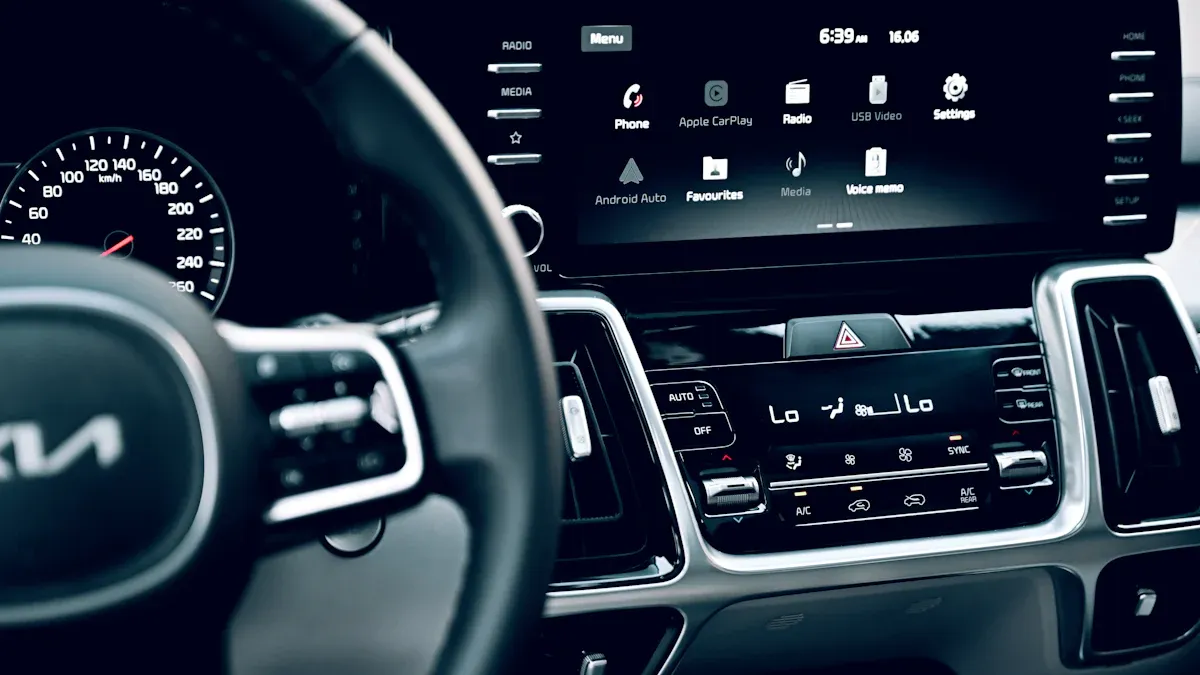
Most vehicles follow the same basic logic, but the menu names differ by brand. A Honda, Toyota, Ford, BMW, Jeep, Hyundai, or Lexus may use labels such as Remove Phone, Delete Device, Forget Device, Unpair Bluetooth, or Reset Smartphone Connection. If you cannot find the option, search the infotainment menus for Phone, Bluetooth, Devices, Connected Devices, Apple CarPlay, or Smartphone Connection.
How This Works with CARLUEX Wireless Adapters
A CARLUEX adapter can change how a compatible phone connects to a compatible vehicle, but it does not control iPhone privacy settings, vehicle Bluetooth records, or your car's saved phone list. If your phone keeps reconnecting, check the phone, the vehicle, and the adapter pairing list.
CARLUEX compatibility depends on the adapter model and your vehicle's factory infotainment system. Many CARLUEX adapters require factory wired CarPlay, while wireless Android Auto support may require factory wired Android Auto on selected models. Before buying or troubleshooting, check the product page and compatibility page for your vehicle's year, make, and model.
- Check CARLUEX LINK for a compact wireless CarPlay / Android Auto adapter option.
- Check CARLUEX PRO+ 2.0 for a multimedia AI box option for compatible vehicles.
- Check CARLUEX compatible vehicles before buying.
If you drive a BMW, check the dedicated CARLUEX for BMW version instead of assuming a general adapter recommendation applies.
Troubleshooting: Why Does CarPlay Keep Reconnecting?
| Problem | Likely cause | What to check |
|---|---|---|
| The car still shows your iPhone | The vehicle saved the phone profile | Delete the phone from the car's device list |
| Wireless CarPlay reconnects automatically | Bluetooth or Wi-Fi pairing still exists | Check Bluetooth, Wi-Fi, and CarPlay records |
| The wrong phone connects first | Adapter or car priority list still has old pairing | Clear adapter pairing or change device priority |
| You removed CarPlay but calls still route to the car | Bluetooth phone pairing remains | Forget the car in Bluetooth settings too |
| You cannot find a delete option | Menu labels vary by vehicle | Search for phone, Bluetooth, devices, or smartphone connection |
Related CARLUEX Guides
- How to Reset Apple CarPlay
- Why Your Apple CarPlay Isn't Working and How to Fix It
- Ford CarPlay Not Connecting? Fix Apple CarPlay in Ford
- Browse CarPlay troubleshooting guides
FAQ
How do I remove my iPhone from CarPlay?
On iPhone, go to Settings > General > CarPlay, choose the vehicle, and tap Forget This Car if the option appears. Then delete the phone from the car's Bluetooth or device list.
Why does CarPlay keep reconnecting after I remove my phone?
A saved Bluetooth, Wi-Fi, vehicle, or adapter pairing may still exist. Remove the connection from the iPhone, the car's device list, and the wireless adapter if you use one.
Should I remove my phone before returning a rental car?
Yes. Remove the phone from iPhone CarPlay settings and from the vehicle's phone or Bluetooth list. Also clear navigation favorites or signed-in apps if you used them.
Can CARLUEX stop my phone from auto-reconnecting?
A CARLUEX adapter can help your phone connect wirelessly in a compatible setup, but it does not control your iPhone privacy settings or the vehicle's saved phone list. To stop auto-reconnect, clear the phone, vehicle, and adapter pairings.
Do I need to reset my whole car system?
Usually no. Start by deleting the specific phone pairing. A full infotainment reset may remove other drivers' settings and should only be used when you understand what it will erase.
Bottom line: To stop CarPlay auto-reconnect and protect privacy, remove the pairing from your iPhone, the vehicle system, and any wireless adapter you use. Test the result while parked before your next drive.


Laisser un commentaire
Ce site est protégé par hCaptcha, et la Politique de confidentialité et les Conditions de service de hCaptcha s’appliquent.