

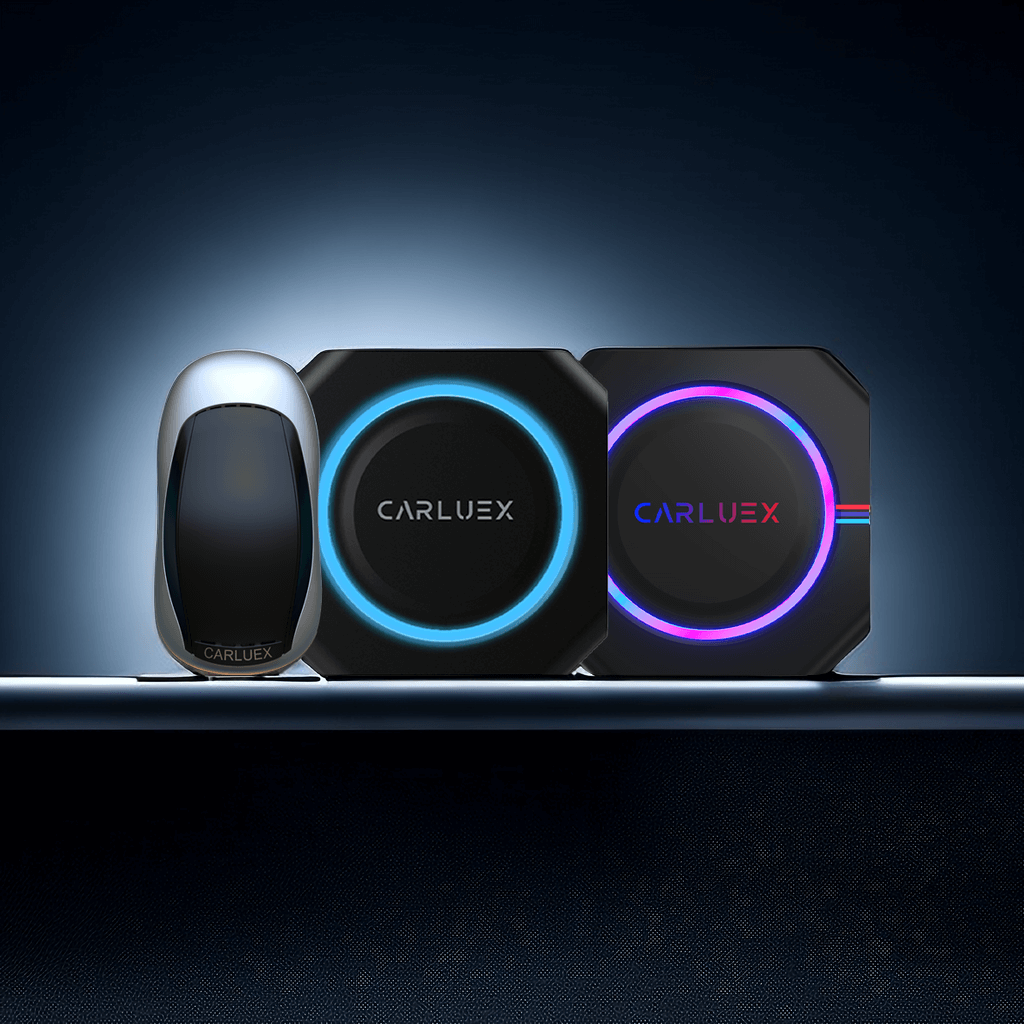
Updating Firmware for Cars in Normal Operation
1. How to Perform Online Upgrades?: Connect the CARLUEX Smart CarPlay box to the internet (via WiFi or mobile hotspot). Click on the "Updater" application icon. A screen similar to the one below will appear: Click “check for update” Click DOWNLOAD Click INSTALL NOW start updating. *The aforementioned steps are specifically designed for CARLUEX PRO+ products acquired in December 2023 or later [Learn more about CARLUEX]. If your product was purchased before December 2023, kindly proceed to step 'TF card / USB Drive Update' below to install the update package for ensuring continued online functionality in the future: Link to Update Package. *CARLUEX AIR already supports online updates; for online updates of CARLUEX BMW, please contact our customer service. 2. TF card / USB Drive Update: Copy the firmware update file you want to update to the root directory of a TF card / USB flash drive (do not unzip). Insert the TF card / USB drive into the CARLUEX Smart CarPlay box, power it on, and the update will commence automatically. When the red LED light flashes rapidly, unplug the box. After a brief 1-second blue LED flash, the update is complete. Note: Do not power off during the update; the process takes approximately 10 minutes. For Cars That Cannot Connect, and the Screen Shows No Display
Attempt the USB update method mentioned above (2).
Retrieving How to Retrieve Issue Logs?
How to 1. Online Log Upload: Navigate to "Carsmart Settings" in the CARLUEX Smart CarPlay box settings. Click on "Upload Logs." We will analyze the logs to provide a solution promptly. 2. USB Log Copy: Create a new file named "logcat" at the root of the USB drive. Insert the USB drive into the CarPlay box. Wait for "LOG DONE" to be displayed (approximately 20 seconds). Remove the USB drive; a new folder named "Debuglite" will be created. Compress the folder and send it to us. If the car screen shows no display, insert the USB drive into the CarPlay box, wait for 30 seconds, and then remove the USB drive to copy logs. Feel free to reach out if you have any questions or encounter issues during the process. We are here to assist you in ensuring a smooth update and resolving any concerns. Thank you for choosing CARLUEX! #CARLUEX #WirelessCarplayAdapter #AndroidAuto#Carbox #Automotive #CarAccessories #VehicleAccessories #AutomotiveParts #AIBox #Technology #Marketing #Products Upgrade Understanding CARLUEX Firmware Updates?
Regular firmware updates are essential for maintaining optimal performance, security, and compatibility with the latest smartphone features. This guide walks you through the complete process of updating your CARLUEX device and retrieving important system information.
How to Firmware Updates Matter?
Firmware updates provide multiple benefits:
- Security: Patches vulnerabilities and protects against threats
- Performance: Improves connection stability and response times
- Compatibility: Adds support for new smartphone OS features
- Bugs: Fixes known issues reported by users
- Features: Introduces new functionality over time
How to Perform an How to Perform Online Upgrades?
Follow these steps to update your CARLUEX firmware:
- Connect to Internet: Ensure your CARLUEX device is connected to a stable Wi-Fi network or has cellular data from your phone
- Check for Updates: Access the CARLUEX app or settings menu to check for available updates
- Download: If an update is available, download it to your device (this may take a few minutes)
- Install: Follow on-screen prompts to install the firmware update
- Restart: The device will restart automatically to apply the update
- Verify: Confirm the update was successful by checking the firmware version
How to Use Screen Mirroring on CARLUEX PRO+
Video Tutorial: CARLUEX Pro+ Unboxing and Setup
How to Retrieving Device Information?
To troubleshoot or register your device, you may need these details:
- Serial Number: Found on the device label or in the CARLUEX app
- Firmware Version: Check in Settings > About > Firmware Version
- MAC Address: Required for network configuration
- Model Number: Listed on the original packaging
How to Troubleshoot CARLUEX PRO+ Issues? Update Issues
Common problems and solutions:
- Update fails to download: Check internet connection and try again
- Installation stuck: Power off the device, wait 30 seconds, and restart
- Device not recognized: Try a different USB cable or port
- Update causes issues: Reset to factory settings and reconfigure
How to When to Update Manually?
In some cases, you may need to update firmware manually:
- Download the firmware file from the official CARLUEX website
- Transfer the file to a USB flash drive formatted as FAT32
- Rename the file to "update.bin" (without quotes)
- Connect the USB drive to your CARLUEX device
- Power on the device - it will automatically detect and install the update
How to Post-Update Checklist?
After updating, verify everything works correctly:
- Test wireless CarPlay/Android Auto connection
- Check that all apps load properly
- Verify audio output is working
- Confirm navigation apps display correctly
- Test voice assistant functionality
Last Updated: 2026-05-08 | This article was updated to provide comprehensive guidance for CARLUEX users.
Frequently Asked Questions
How do I update the firmware on CARLUEX PRO+?
Connect your CARLUEX PRO+ to WiFi, open the Updater app, and follow the on-screen prompts. For products purchased before December 2023, use the TF card method instead.
Why should I retrieve issue logs?
Issue logs help CARLUEX support diagnose problems quickly, ensuring faster troubleshooting and resolution for any technical difficulties you may experience.
What should I do if the online upgrade fails?
If the online upgrade fails, try restarting your device and WiFi connection. If the issue persists, use the TF card/USB update method or contact CARLUEX support.
How often should I update CARLUEX PRO+ firmware?
CARLUEX releases firmware updates periodically to improve performance, add features, and fix bugs. Check for updates monthly or whenever you experience issues.


Dejar un comentario
Todos los comentarios se revisan antes de su publicación.
Este sitio está protegido por hCaptcha y se aplican la Política de privacidad de hCaptcha y los Términos del servicio.