

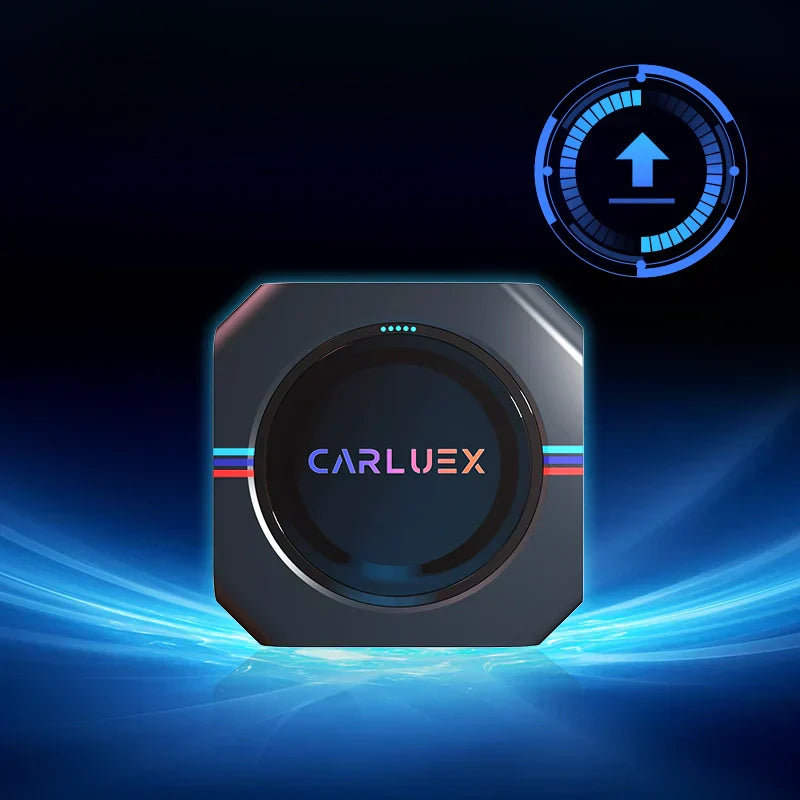
We are pleased to announce the latest software update for the CARLUEX BMW system.
This release is Version 20251225, bringing system optimizations and an improved user experience. CARLUEX PRO+ 2.0 adds wireless CarPlay and Android Auto to CARLUEX-equipped vehicles. See all CARLUEX product updates for the latest news. Browse CARLUEX wireless adapters to find the right fit for your car.
Update highlight: Android Auto now supports full-screen display on vehicle screens with a resolution below 1920 × 1080, providing a more immersive and smoother experience.
⬇️ Download Link:
https://drive.google.com/drive/folders/1jovlRIKxkfZB21_IFk8gJdE9ixdFE9Fa?usp=drive_link
What About Update Instructions?
Please follow the steps below carefully to ensure a successful update.
⚠️ Do not unzip the update file.
What About Method 1: In-Car Update (Recommended)?
Step 1: Download the Update File
-
Download the update file via the official download link
-
Do not unzip the file
Step 2: Prepare the TF Card
-
Save the update file directly to a TF (microSD) card
Step 3: Start the Update
-
Make sure the CARLUEX BMW device is powered on and connected to your vehicle’s display
-
Insert the TF card into the device
-
Follow the on-screen instructions to complete the update
⏱️ The update process usually takes 10–15 minutes.
What About Post-Update Recommendation?
For better system performance, we recommend performing a factory reset after the update:
Settings → System → Reset Options → Erase All Data (Factory Reset)
-
Please wait 1–2 minutes for the reset to complete
-
Do not disconnect the power during this process
What About Method 2: External Power Update (No Vehicle Required)?
If you are unable to access your vehicle’s screen, you can update the device using an external power source.
Step 1: Prepare the TF Card
-
Save the same update file to a TF card (do not unzip)
Step 2: Power the Device
-
Use the original data cable
-
Connect the data cable to a 5V / 2A phone charger to power the CARLUEX BMW device
-
A stable and sufficient power supply helps ensure a smooth update
Step 3: Start the Update
-
When the blue LED starts flashing rapidly, insert the TF card
-
The LED will switch to flashing red, indicating that the update is in progress
⏱️ After approximately 10–15 minutes, the LED will return to flashing blue, confirming the update is complete.
Step 4: Final Step
-
Remove the TF card
-
Delete the update file from the TF card to prevent automatic reinstallation in the future
What About Support?
If you encounter any issues during the update process, please contact the CARLUEX support team for assistance.


Αφήστε ένα σχόλιο
Όλα τα σχόλια ελέγχονται πριν δημοσιευθούν.
Αυτή η τοποθεσία προστατεύεται από το hCAPTCHA και ισχύουν η Πολιτική απορρήτου και οι Όροι Παροχής Υπηρεσιών του hCaptcha.