

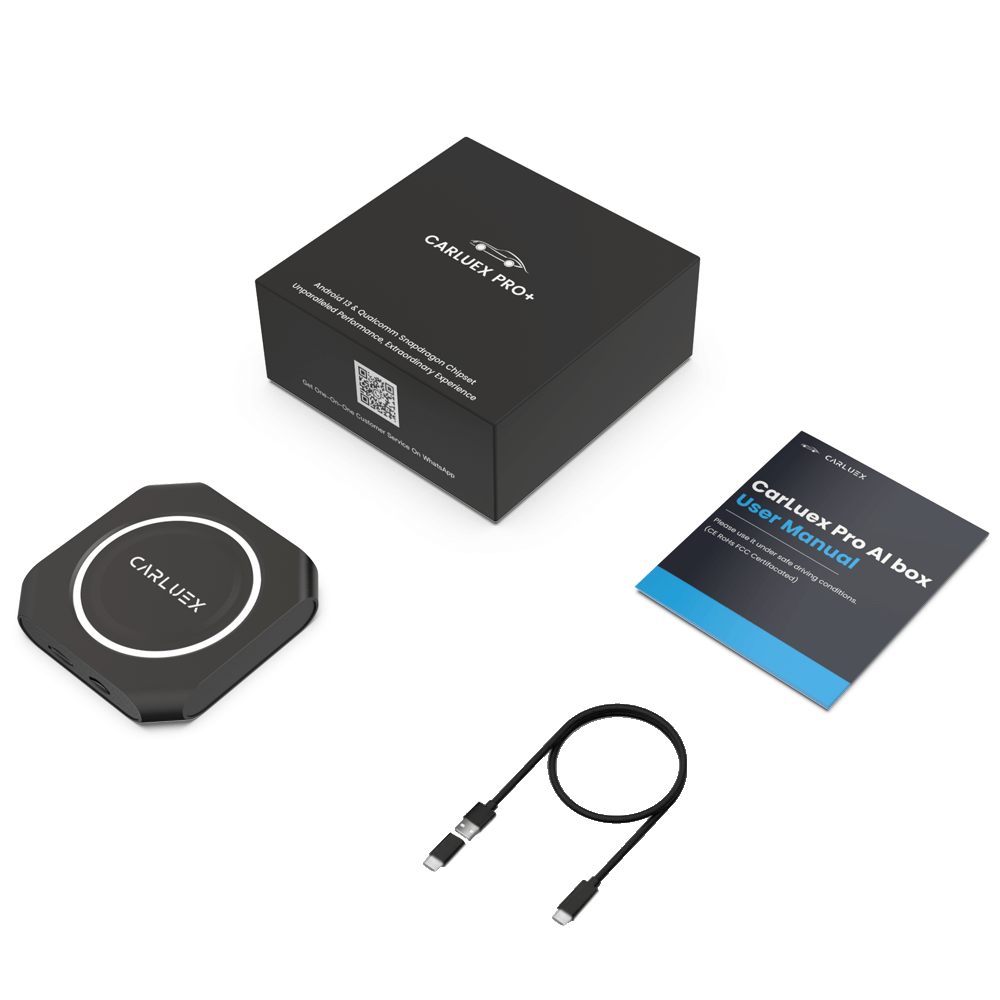
Using our product, CARLUEX, is a hassle-free process, and you do not need to disassemble anything in your car. Here's how to use it:
- Connection: Simply connect CARLUEX to your car's infotainment system using a USB cable.
- Setup: Follow the on-screen instructions on your car's display to set up and configure CARLUEX as needed.
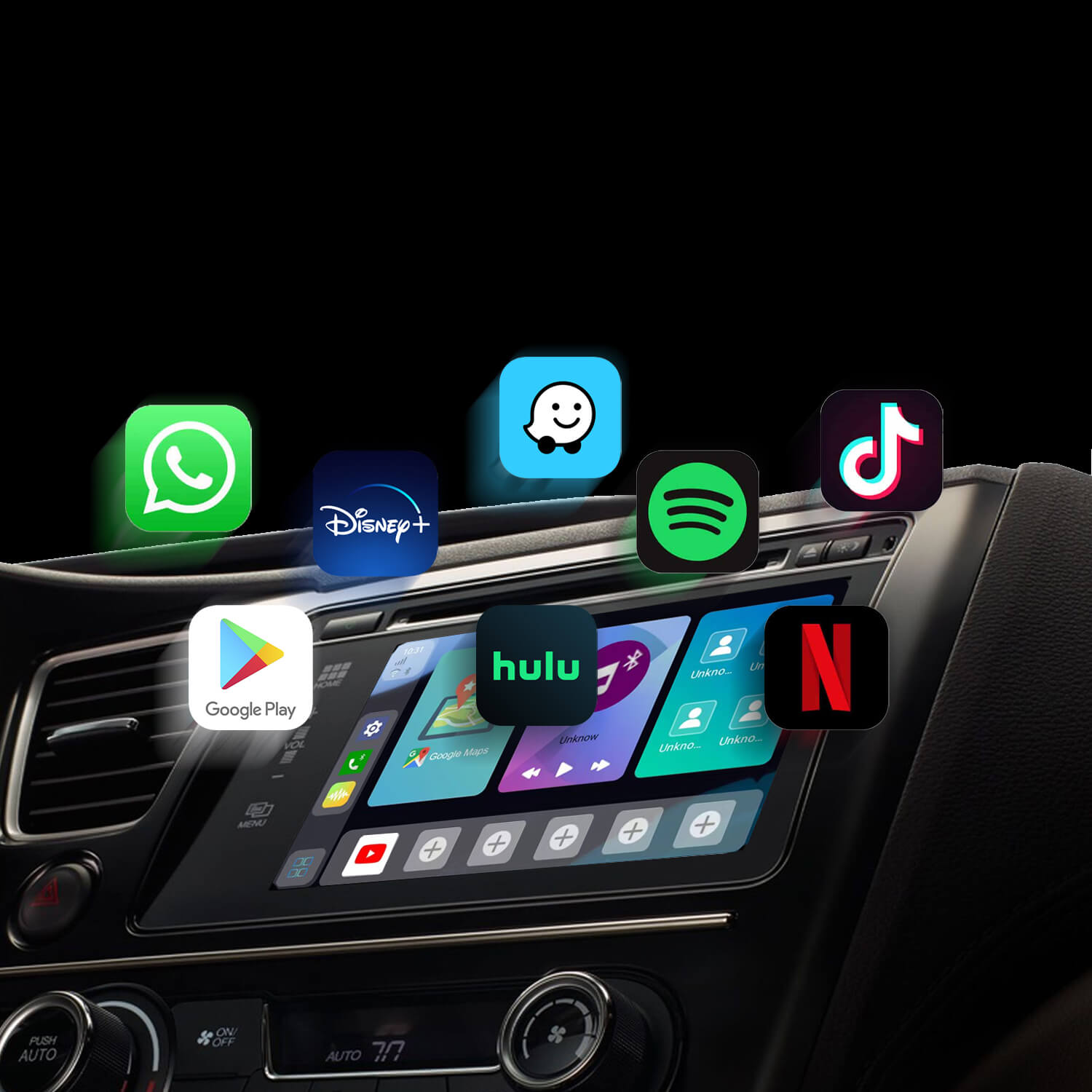
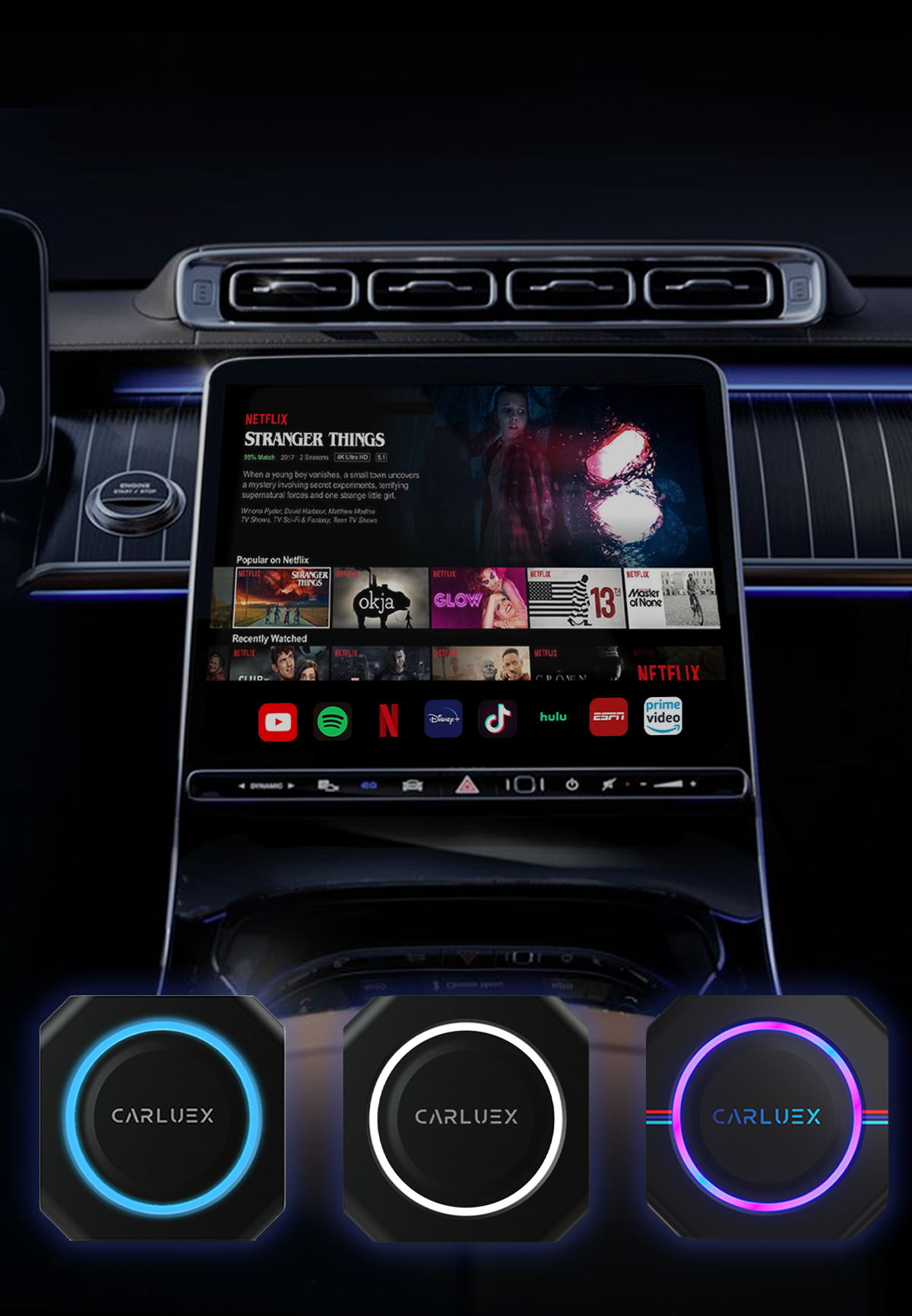
- Enjoy: Once connected and configured, you can start using CARLUEX to access features like Apple CarPlay or Android Auto, navigation, entertainment, and more.
No need for complicated installations or disassembling your car. CARLUEX is designed to be user-friendly and easy to connect, enhancing your in-car experience without any hassle
Getting Started with Your CARLUEX Device
Welcome to CARLUEX! This guide will walk you through everything you need to know to start using your new wireless CarPlay and Android Auto adapter. Whether you're upgrading from wired to wireless or adding CarPlay to a compatible vehicle, we've got you covered.
What's in the Box
Your CARLUEX package includes:
- CARLUEX Adapter: The main device that enables wireless connectivity
- USB Cable: For initial setup and power connection
- User Manual: Quick start guide and troubleshooting tips
- Warranty Card: Registration information for your product warranty
Initial Setup Steps
Follow these steps to set up your CARLUEX for the first time:
- Connect the Adapter: Plug the CARLUEX device into your vehicle's USB port that supports CarPlay/Android Auto
- Wait for Power: The LED indicator will turn on, showing the device is powered
- Enable Bluetooth: Turn on Bluetooth on your iPhone (for CarPlay) or Android phone (for Android Auto)
- Pair Your Phone: Find the CARLUEX device in your phone's Bluetooth settings and pair
- Connect to Wi-Fi: Your phone will connect to the CARLUEX Wi-Fi network automatically
- Start Using: CarPlay or Android Auto should launch automatically on your infotainment screen
Using Voice Commands
Get the most out of CARLUEX with voice control:
- Siri (iPhone): Press and hold the voice button on your steering wheel, or say "Hey Siri"
- Google Assistant (Android): Press and hold the voice button or say "Hey Google"
- Use Voice for: Navigation, calls, messages, music control, and more - all hands-free
Switching Between Phones
CARLUEX supports multiple phones:
- Disconnect the current phone from Bluetooth
- Pair the new phone with CARLUEX
- The system will automatically switch to the newly connected device
Tips for Best Performance
- Keep your CARLUEX firmware updated for the latest features
- Ensure your phone has a strong cellular data connection
- Position your phone where it has good GPS signal for navigation accuracy
- Regularly restart your CARLUEX device for optimal performance
Last Updated: 2026-05-08 | This article was updated to provide the most comprehensive and accurate information for CARLUEX users.
Getting Started with Your CARLUEX Device
Welcome to CARLUEX! This guide will walk you through everything you need to know to start using your new wireless CarPlay and Android Auto adapter. Whether you're upgrading from wired to wireless or adding CarPlay to a compatible vehicle, we've got you covered.
What's in the Box
Your CARLUEX package includes:
- CARLUEX Adapter: The main device that enables wireless connectivity
- USB Cable: For initial setup and power connection
- User Manual: Quick start guide and troubleshooting tips
- Warranty Card: Registration information for your product warranty
Initial Setup Steps
Follow these steps to set up your CARLUEX for the first time:
- Connect the Adapter: Plug the CARLUEX device into your vehicle's USB port that supports CarPlay/Android Auto
- Wait for Power: The LED indicator will turn on, showing the device is powered
- Enable Bluetooth: Turn on Bluetooth on your iPhone (for CarPlay) or Android phone (for Android Auto)
- Pair Your Phone: Find the CARLUEX device in your phone's Bluetooth settings and pair
- Connect to Wi-Fi: Your phone will connect to the CARLUEX Wi-Fi network automatically
- Start Using: CarPlay or Android Auto should launch automatically on your infotainment screen
Using Voice Commands
Get the most out of CARLUEX with voice control:
- Siri (iPhone): Press and hold the voice button on your steering wheel, or say "Hey Siri"
- Google Assistant (Android): Press and hold the voice button or say "Hey Google"
- Use Voice for: Navigation, calls, messages, music control, and more - all hands-free
Switching Between Phones
CARLUEX supports multiple phones:
- Disconnect the current phone from Bluetooth
- Pair the new phone with CARLUEX
- The system will automatically switch to the newly connected device
Tips for Best Performance
- Keep your CARLUEX firmware updated for the latest features
- Ensure your phone has a strong cellular data connection
- Position your phone where it has good GPS signal for navigation accuracy
- Regularly restart your CARLUEX device for optimal performance
Last Updated: 2026-05-08 | This article was updated to provide the most comprehensive and accurate information for CARLUEX users.


Hinterlasse einen Kommentar
Alle Kommentare werden vor der Veröffentlichung geprüft.
Diese Website ist durch hCaptcha geschützt und es gelten die allgemeinen Geschäftsbedingungen und Datenschutzbestimmungen von hCaptcha.