

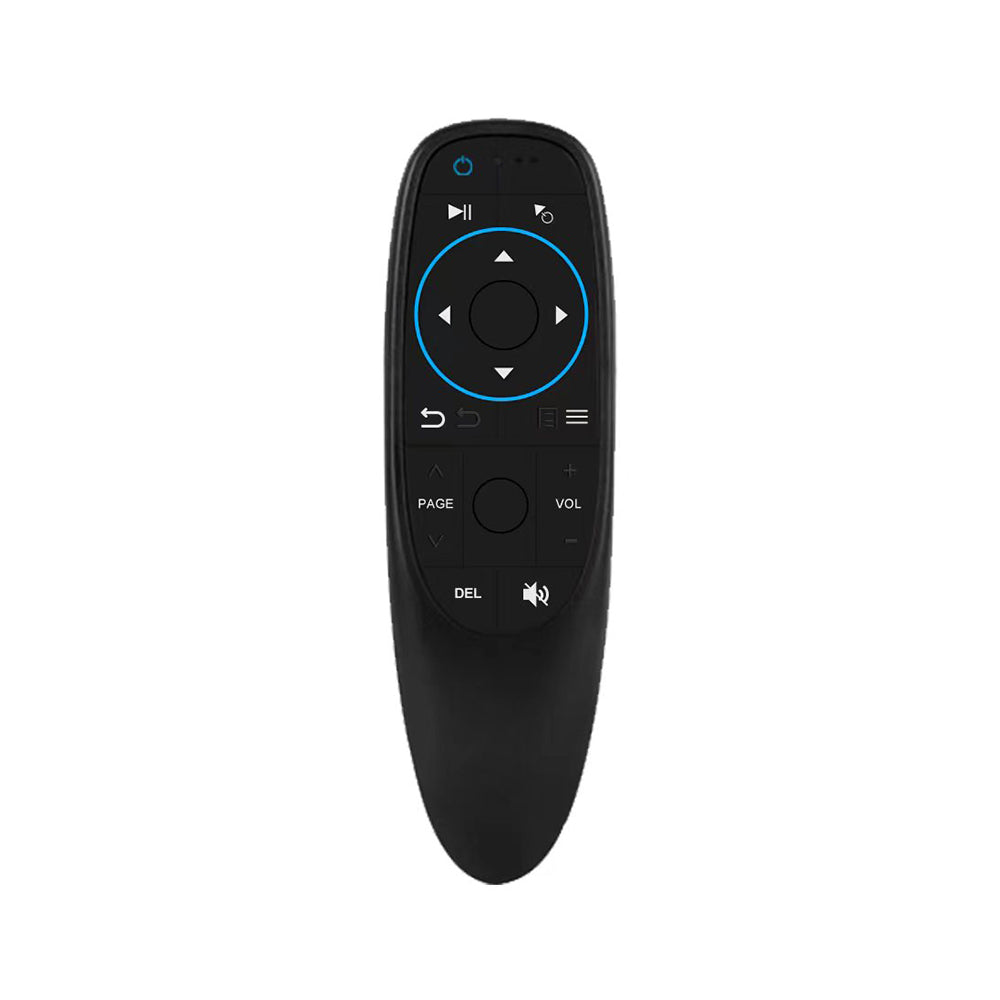
Don't worry if your car doesn't come with a touchscreen. CARLUEX is still accessible and functional in such vehicles. Here's how:
-
Confirm Wired CarPlay Compatibility: Ensure your car is equipped with wired CarPlay functionality.
-
Control through Vehicle's Knob or Controls: In cars without touchscreens, you can conveniently control CARLUEX using your vehicle's rotary knob or similar physical controls.
For an even smoother experience, we recommend considering our CARLUEX REMOTE accessory. This accessory enhances the usability of CARLUEX, providing you with added convenience.
With CARLUEX and the CARLUEX REMOTE, you can enjoy a seamless and user-friendly in-car experience, regardless of whether your vehicle has a touchscreen or not.
How CARLUEX Works Without a Factory Touchscreen
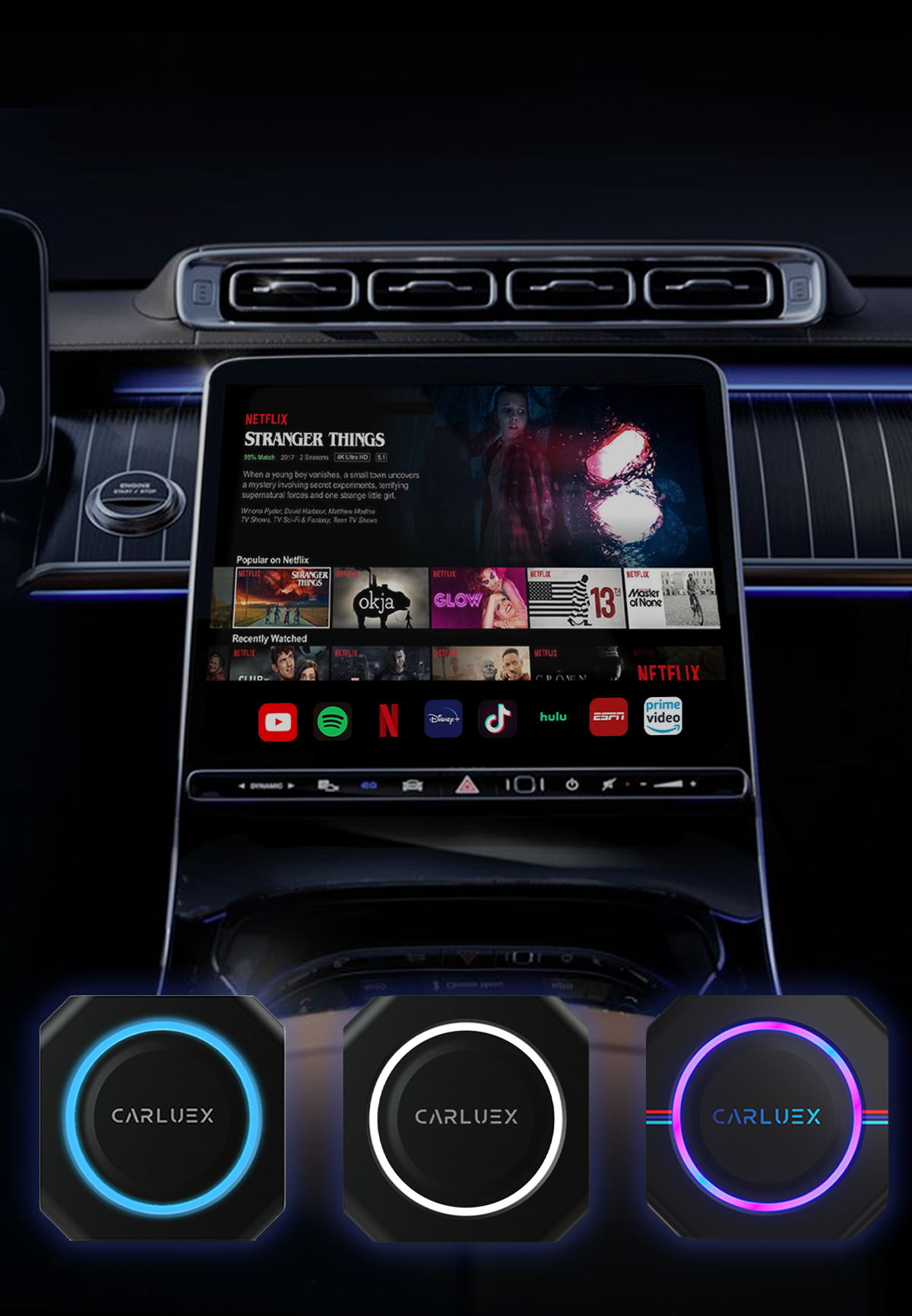
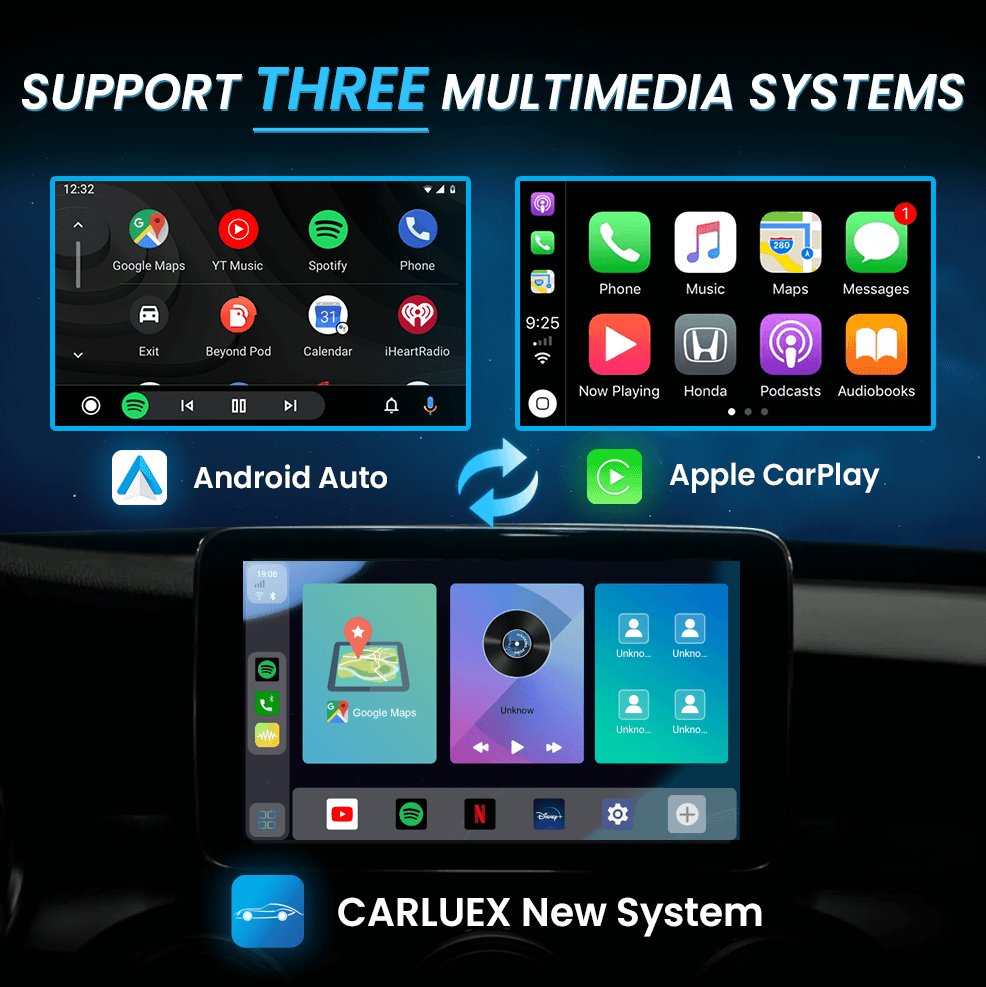
CARLUEX adapters are designed to add wireless CarPlay and Android Auto functionality to vehicles that may not have a native touchscreen system or have limited display options. The adapter connects to your vehicle's existing infotainment system and provides a wireless connection for your smartphone.
Compatible Display Options
When using CARLUEX without a traditional touchscreen, you have several display options:
- Aftermarket Head Units: Install a compatible aftermarket stereo that supports CarPlay/Android Auto
- Portable Displays: Use a portable HDMI display for visual feedback
- OEM Display Integration: Some vehicles support adding a secondary display
- smartphone Only: Use your phone's screen as the primary interface
Setup Process Without Touchscreen
Follow these steps to set up CARLUEX in a vehicle without a native touchscreen:
- Connect the CARLUEX adapter to your vehicle's USB port
- Power on the adapter and wait for the LED indicator
- Enable Bluetooth on your smartphone
- Pair your phone with the CARLUEX device via Bluetooth
- Connect to the Wi-Fi network broadcast by CARLUEX
- Launch CarPlay or Android Auto on your phone
Troubleshooting Common Issues
If you experience connectivity problems, try these solutions:
- Ensure Bluetooth is enabled on both your phone and vehicle
- Forget the previous Bluetooth pairing and re-pair
- Reset the CARLUEX adapter by unplugging and replugging
- Update your CARLUEX firmware to the latest version
Best Practices for Touchscreen-Free Setup
To get the most out of your CARLUEX without a touchscreen:
- Use voice commands (Siri or Google Assistant) for hands-free control
- Keep your phone mounted in a convenient location
- Familiarize yourself with steering wheel controls if available
- Consider a portable display for visual navigation assistance
Last Updated: 2026-05-08 | This article was updated to provide the most comprehensive and accurate information for CARLUEX users.
How CARLUEX Works Without a Factory Touchscreen
CARLUEX adapters are designed to add wireless CarPlay and Android Auto functionality to vehicles that may not have a native touchscreen system or have limited display options. The adapter connects to your vehicle's existing infotainment system and provides a wireless connection for your smartphone.
Compatible Display Options
When using CARLUEX without a traditional touchscreen, you have several display options:
- Aftermarket Head Units: Install a compatible aftermarket stereo that supports CarPlay/Android Auto
- Portable Displays: Use a portable HDMI display for visual feedback
- OEM Display Integration: Some vehicles support adding a secondary display
- smartphone Only: Use your phone's screen as the primary interface
Setup Process Without Touchscreen
Follow these steps to set up CARLUEX in a vehicle without a native touchscreen:
- Connect the CARLUEX adapter to your vehicle's USB port
- Power on the adapter and wait for the LED indicator
- Enable Bluetooth on your smartphone
- Pair your phone with the CARLUEX device via Bluetooth
- Connect to the Wi-Fi network broadcast by CARLUEX
- Launch CarPlay or Android Auto on your phone
Troubleshooting Common Issues
If you experience connectivity problems, try these solutions:
- Ensure Bluetooth is enabled on both your phone and vehicle
- Forget the previous Bluetooth pairing and re-pair
- Reset the CARLUEX adapter by unplugging and replugging
- Update your CARLUEX firmware to the latest version
Best Practices for Touchscreen-Free Setup
To get the most out of your CARLUEX without a touchscreen:
- Use voice commands (Siri or Google Assistant) for hands-free control
- Keep your phone mounted in a convenient location
- Familiarize yourself with steering wheel controls if available
- Consider a portable display for visual navigation assistance
Last Updated: 2026-05-08 | This article was updated to provide the most comprehensive and accurate information for CARLUEX users.


Hinterlasse einen Kommentar
Alle Kommentare werden vor der Veröffentlichung geprüft.
Diese Website ist durch hCaptcha geschützt und es gelten die allgemeinen Geschäftsbedingungen und Datenschutzbestimmungen von hCaptcha.