

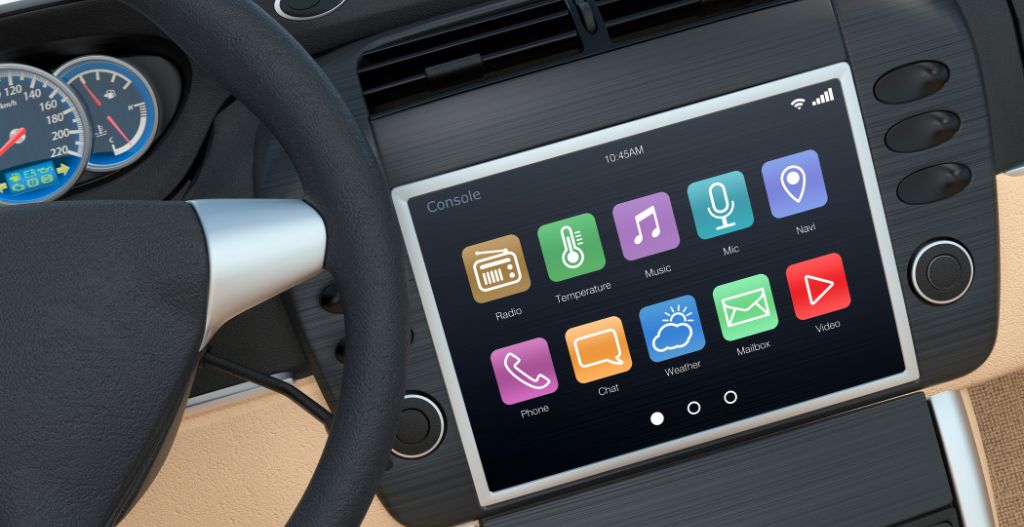
Gemini on Apple CarPlay: Setup, Features, and Limits
Short answer: Google has announced that the Gemini app and Gemini Live are rolling out globally on Apple CarPlay for iPhone users across supported Gemini Live languages. The experience adds a Gemini icon to CarPlay so you can start or continue a voice conversation. It is a staged rollout, however, so an eligible driver may not see the icon immediately.
This guide explains the requirements Google actually lists, how to complete setup while parked, which examples Google has described, and what the announcement does not promise. It does not claim a minimum iOS version, a paid-plan requirement, availability for every account, replacement of Siri, control of vehicle hardware, or compatibility with a CARLUEX product.
The short answer: what Google announced
In its November 11, 2026 official announcement, Google says Gemini is rolling out on Apple CarPlay for Gemini users on iOS. The announcement describes global availability across languages supported by Gemini Live. “Rolling out” is the key phrase: it describes distribution in progress, not a guarantee that every eligible account receives the feature at the same moment.
Gemini does not make an incompatible vehicle compatible with CarPlay. Apple's official CarPlay setup guidance still starts with a compatible vehicle or stereo and a supported wired or wireless connection. If standard CarPlay does not already open from your iPhone, fix that foundation before looking for the Gemini icon. Our compatible-vehicles page and compatibility checker are general research aids only; neither can confirm Google's account rollout or replace the vehicle maker's documentation.

Requirements before the Gemini icon appears
Google lists three Gemini-specific prerequisites. You need the latest Gemini app on the iPhone, the app must have microphone permission, and you must have used Gemini Live at least once on the phone. That first mobile session helps establish the Live experience before CarPlay tries to resume it.
- Confirm ordinary CarPlay works: connect the iPhone by the wired or wireless method supported by the vehicle.
- Update the Gemini app: install the latest version available for your account through the App Store.
- Allow microphone access: Gemini needs microphone permission for a voice conversation.
- Open Gemini Live on the iPhone once: start and end a short Live session before returning to CarPlay.
- Reconnect CarPlay: after the prerequisites are complete, look for the Gemini icon in the CarPlay app grid.
The official announcement does not state a minimum iOS version, a complete list of compatible vehicles, a per-country release calendar, or a universal subscription requirement. Do not invent one of those requirements from a missing icon. Check the app, permissions, account and rollout status first, then troubleshoot the underlying CarPlay connection separately.

How to set up Gemini on Apple CarPlay
Complete the initial sequence while the vehicle is parked. Open the latest Gemini app on the iPhone, confirm microphone access, and start Gemini Live once on the phone. Then connect the iPhone to the vehicle's existing CarPlay system. When the rollout reaches the account, tap the Gemini icon on the CarPlay display and begin speaking.
Google says you can start a new conversation or continue one already in progress. Conversations from CarPlay synchronize back to the Gemini app on the iPhone, which means you can review or continue the exchange after the drive. This sync is useful for moving a planning conversation between the dashboard and phone, but it also means the account's activity and privacy settings matter.
If you are unsure about standard CarPlay settings, use our CarPlay settings guide to review the iPhone and vehicle connection first. The guide is not evidence that Gemini has reached your account; it only helps separate a normal CarPlay setup issue from an app-rollout issue.

What Gemini can help with in CarPlay
Google presents Gemini Live as a conversational tool rather than a short command box. Its examples include brainstorming ideas, rehearsing what you want to say, and discussing local places. The announcement uses an Austin example for finding nearby options, which makes the U.S. relevance direct without promising that every local result will be complete or accurate.
Google also describes help with a calendar and inbox. Those tasks depend on the account, permissions and Connected Apps configuration. A calendar or email feature should not be treated as automatic access to every service. Review which services are connected, give only the permissions you want to use, and verify important details on the phone after parking.
Longer conversation does not remove the need to check an answer. Business hours, addresses, reservations, traffic conditions and message details can change. Use Gemini to reduce screen interaction and organize a question, then confirm time-sensitive or safety-relevant information through the appropriate official source.
Limits, privacy, and safe use
Google's announcement does not describe Gemini as replacing Siri, becoming the default assistant for every CarPlay task, or controlling climate, door locks, vehicle settings or other car hardware. It also does not promise error-free responses. Keep those unsupported claims out of purchase and compatibility decisions.
The Gemini Apps Privacy Hub explains that activity settings, permissions and Connected Apps affect how Gemini works. Before enabling inbox or calendar help, review the Google account in use, the services connected to it, and the activity controls available. If several people share a vehicle, remember that the phone and account supply the personal context, not the dashboard by itself.
NHTSA says phone use and interaction with navigation or entertainment systems can divert attention from driving in its driver-distraction guidance. Configure permissions, read long responses and correct connection problems only while parked. A voice interface can reduce some touches, but it does not make a complex conversation distraction-free.
If the Gemini icon is missing
Use a fixed troubleshooting order so a staged account rollout is not confused with a broken CarPlay system:
- Verify that standard CarPlay opens and other CarPlay apps appear normally.
- Confirm that the iPhone is signed into the intended Google account.
- Update the Gemini app through the App Store.
- Check microphone permission for the Gemini app.
- Open Gemini Live on the phone and complete one short conversation.
- Disconnect and reconnect CarPlay using the vehicle's supported method.
- If the icon is still absent, allow time for the staged rollout rather than repeatedly resetting the vehicle.
If ordinary CarPlay is also failing, use our post-update CarPlay troubleshooting order to isolate the iPhone, cable, wireless pairing and head unit. For questions about a general CARLUEX compatibility record, the FAQ and contact page are available, but they cannot accelerate Google's rollout or establish that hardware is needed.

Gemini on CarPlay versus Gemini in Android Auto
Both experiences use the Gemini assistant family, but they run through different phone platforms and rollout paths. This article is specifically about an iPhone app appearing in Apple CarPlay. Our separate Android Auto Gemini guide covers the Android-side evidence and should not be used as a substitute for iPhone setup instructions.
This article does not recommend a CARLUEX product. Google's announcement does not establish a hardware need, and no source in this run proves exact product compatibility. Only evaluate separate hardware for a different, independently verified vehicle need; do not buy an adapter merely because the Gemini icon has not yet appeared during a staged software rollout.
Frequently asked questions
Is Gemini available on every Apple CarPlay vehicle?
No universal availability claim is supported. The vehicle must already support CarPlay, the iPhone must meet Google's stated app and permission prerequisites, the language must be supported by Gemini Live, and the staged rollout must have reached the account.
Does Gemini replace Siri in CarPlay?
Google's announcement does not state that Gemini replaces Siri or becomes CarPlay's default assistant. Treat Gemini as an additional app experience described by Google, not a system-wide replacement claim.
Does Gemini on CarPlay require a paid subscription?
The official announcement used for this guide does not state a universal paid-subscription requirement. Availability can still depend on account, region, language, app version and rollout status.
Can Gemini control climate or other vehicle hardware?
No such capability is established by the current source set. The announcement describes conversation, information and connected-app examples, not control of vehicle systems.
Why is the Gemini icon missing from CarPlay?
The rollout may not have reached the account, or one of the listed prerequisites may be incomplete. First verify ordinary CarPlay, update the Gemini app, allow microphone access, use Gemini Live once on the phone, and reconnect while parked.



Hinterlasse einen Kommentar
Diese Website ist durch hCaptcha geschützt und es gelten die allgemeinen Geschäftsbedingungen und Datenschutzbestimmungen von hCaptcha.