


CarPlay Connection Issues: What Official Updates Can and Cannot Tell You About Your Car
If you are dealing with CarPlay connection issues, an official iPhone or CarPlay update can be useful—but it is not proof that your particular car is compatible, that your connection mode has changed, or that the update fixed the cause of the problem. CarPlay sits between your iPhone and the vehicle's supported display system, so a failure can come from more than one layer.
The plain-language rule is simple: an update can tell you what the platform or software is designed to support. It cannot, by itself, tell you what a specific trim, model year, head unit, USB port, or wireless configuration supports. Use the update as one piece of evidence, then verify the vehicle and connection path separately.
CarPlay connection issues: the short answer
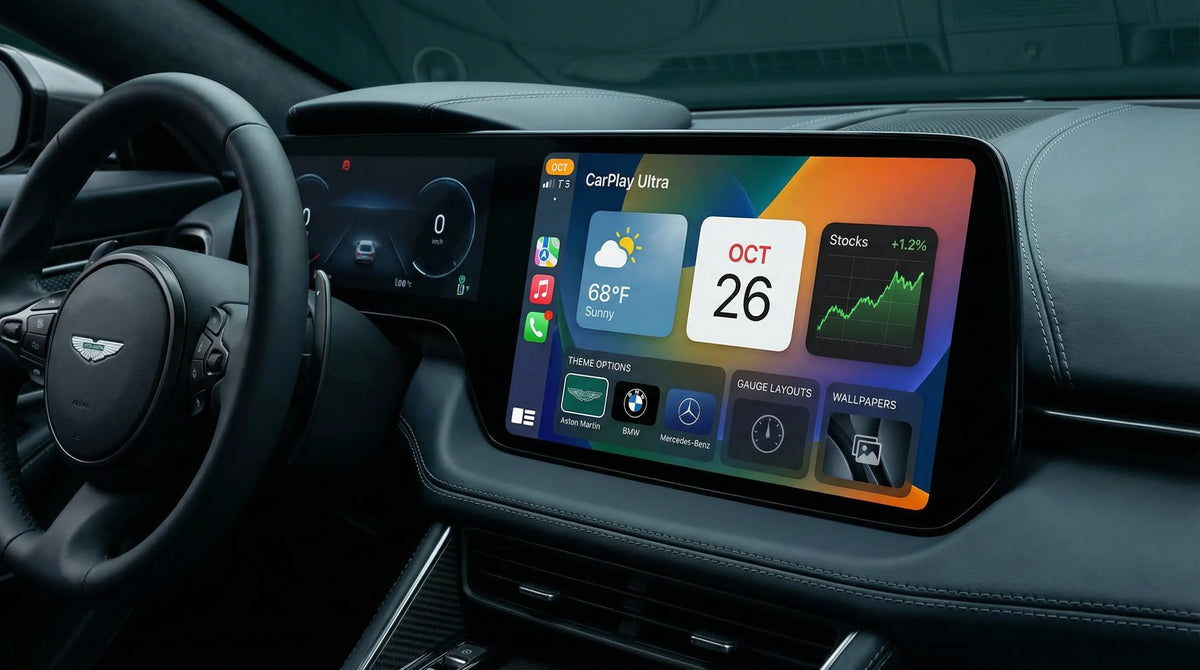
CarPlay is not just an app installed on the phone. Apple describes it as an iPhone-powered in-car platform whose apps and features appear through a supported vehicle system. That means at least four things have to line up: the vehicle must support the relevant CarPlay path, the iPhone must be configured correctly, the wired or wireless connection must work, and the vehicle system must be in a usable software state.

So if an update announcement says that CarPlay supports a new capability, read it as a platform-level statement. It is not an automatic statement that every vehicle receives the capability, that every trim uses the same hardware, or that a previously unreliable connection will now work.
What an official CarPlay update can tell you
It can describe platform capabilities
Official documentation can tell you what Apple or a vehicle maker has added, changed, or documented at the platform level. For example, Apple's CarPlay documentation describes the relationship between apps, the iPhone, and the vehicle display system. It also explains that CarPlay is designed for use in the car rather than as a separate phone screen.
That is valuable context. If you are comparing an update note with a problem you are seeing, you can ask: is the note about the phone operating system, the CarPlay platform, an app, or the vehicle's own software? Those are related, but they are not the same update path.
See Apple's CarPlay platform documentation for the official description of the platform and the vehicle-system boundary.
It can identify the documented support boundary
An official source can also tell you whether support depends on the automaker, the vehicle display, or a particular connection method. Apple notes that CarPlay availability involves supported vehicles and can include wired or wireless connections. That is why two cars that appear to support CarPlay may still have different setup steps or different connection behavior.
This distinction helps you read update notes more carefully. “CarPlay is supported” is a broad statement. “This exact trim, with this head unit, supports wireless CarPlay after this firmware version” is a vehicle-specific statement. The second statement needs evidence from the automaker or the vehicle's own documentation.
What an update cannot prove about your car
A supported-model list is not a trim-level guarantee
Apple's supported-model information is a useful starting point, but a model appearing on a list does not answer every question about an individual vehicle. It may not identify the exact trim, model-year configuration, market, head unit, USB port, or connection mode in your car.
For that reason, do not use a general vehicle list to promise that your car will support every CarPlay feature. Check the vehicle maker's documentation and, when necessary, ask for confirmation using the vehicle identification details and exact head-unit information.
It does not prove that wired and wireless CarPlay are interchangeable
A vehicle may support CarPlay through a USB connection without supporting wireless CarPlay. Another vehicle may support both, but use a particular Bluetooth and Wi-Fi pairing path for wireless setup. A cable problem can therefore look like a software problem, and a wireless pairing problem can look like a compatibility problem.
Do not infer the connection mode from a generic update announcement. Confirm it separately. If the vehicle works through USB but not wirelessly, that is an important clue—but it is not proof that the phone or the vehicle is universally compatible with every wireless setup.
It does not prove that an update changed a named vehicle
Even when an update is current, the update may apply to the iPhone, the CarPlay platform, an individual app, or the vehicle's firmware. Unless the vehicle manufacturer specifically documents the change for your vehicle or head unit, avoid saying that the update changed your car's behavior.
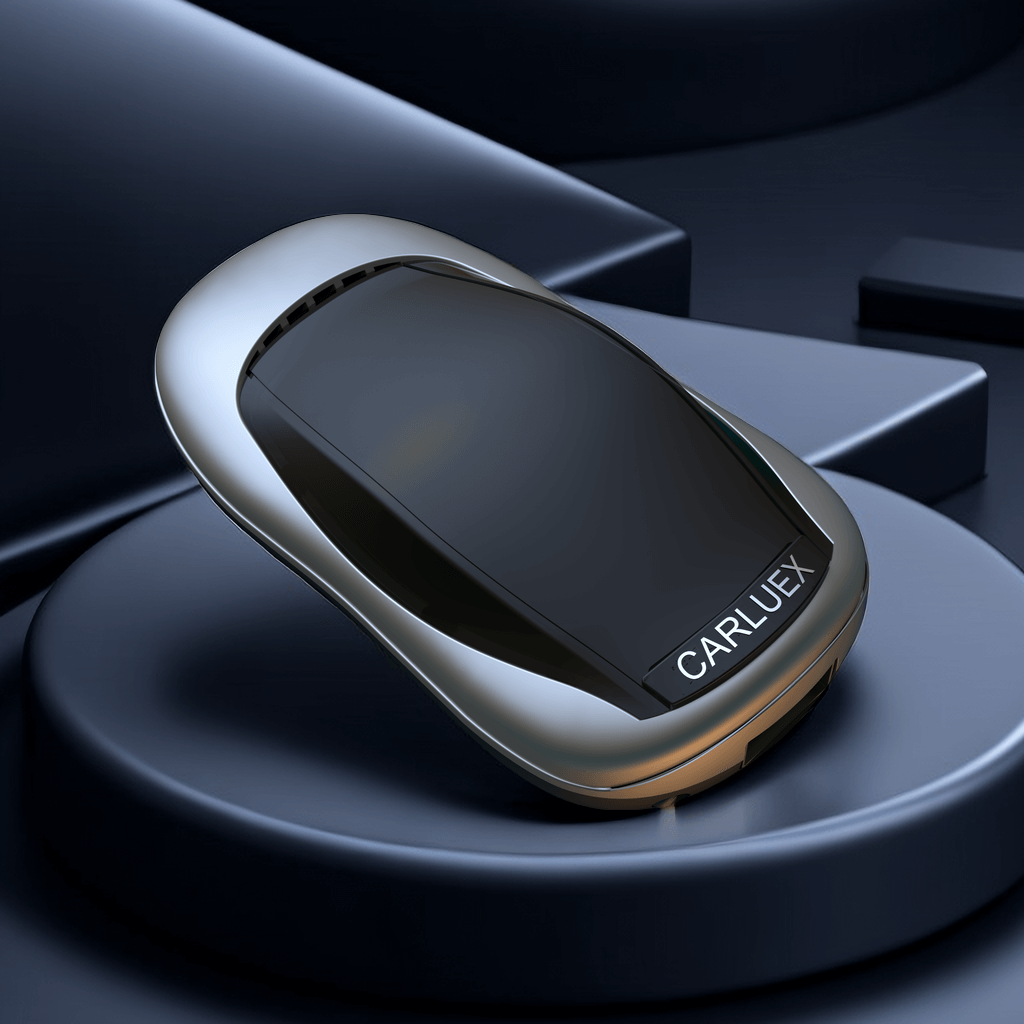
The same boundary applies to third-party hardware. A platform update is not a compatibility statement for a CARLUEX product or any other adapter, and this article does not make that claim.
Use this four-layer checklist for CarPlay connection issues
When CarPlay does not appear, drops out, or behaves differently after an update, work through the layers in order. Test only while parked. Do not change phone settings or troubleshoot a connection while driving.
1. Vehicle compatibility
Start with the vehicle, not the update headline. Record the make, model year, trim, market, head-unit name or version, and whether the vehicle documentation says wired CarPlay, wireless CarPlay, or both. If the documentation only says “Apple CarPlay,” that may still be insufficient to determine the connection method.
If the car is not supported, an iPhone update cannot create factory CarPlay support by itself. If the car is listed as supported, continue checking the exact configuration rather than treating the list as a complete diagnosis.
2. iPhone and settings
Check that the iPhone is running a supported software version and that Siri is enabled. Also check whether CarPlay is restricted in the iPhone's settings and whether the vehicle is already listed under CarPlay. Apple recommends restarting the iPhone and the car as part of the troubleshooting sequence.
These checks are deliberately separate from vehicle compatibility. A supported car can still fail to start CarPlay if a setting, restriction, or stale pairing prevents the connection.
3. Cable, USB, or wireless pairing
For a wired connection, check the cable, the vehicle's compatible USB port, and whether the phone is charging or being detected. A cable that powers the phone is not automatically a cable that provides a reliable data connection for CarPlay.

For a wireless connection, check Bluetooth and Wi-Fi, the CarPlay network or pairing state, and whether the vehicle is allowed to connect automatically. If wired CarPlay works but wireless CarPlay does not, keep the two paths separate during diagnosis. Do not assume that changing the cable will repair a wireless pairing issue.

4. Vehicle firmware and system state
Finally, check whether the automaker has a firmware update or a vehicle-specific support notice for the head unit. You may also need to restart the vehicle system, forget the vehicle in CarPlay, and reconnect it. Apple's official CarPlay troubleshooting steps cover these checks, including Siri, restrictions, cable or USB connection, wireless setup, restarting, forgetting the car, and vehicle firmware.
The important point is not that every vehicle needs every step. The point is that the steps belong to different layers, so a failed step should not be used to make a broader claim than it supports.

Match the symptom to the likely layer
| What you see | Check first | What it does not prove |
|---|---|---|
| CarPlay is not detected at all | Vehicle support, correct USB port or wireless pairing, Siri, restrictions, and the phone's CarPlay settings. | It does not prove that the latest phone update is incompatible with the car. |
| Wired CarPlay works, but wireless CarPlay does not | Bluetooth, Wi-Fi, the CarPlay network, auto-join behavior, and the vehicle's documented wireless support. | It does not prove that the vehicle supports every wireless mode or that the cable is the cause. |
| CarPlay connects and then disconnects | Cable and USB-port stability, wireless signal and pairing, vehicle restart, and firmware status. | It does not prove that replacing the phone or buying an adapter is the correct fix. |
| A feature changed after an update | Identify which component was updated and look for a vehicle-specific release note or support notice. | It does not prove that the update changed the vehicle hardware or the vehicle's entire CarPlay implementation. |
When to contact the automaker or dealer
Contact the vehicle maker or dealer when the answer depends on a detail that general Apple documentation cannot identify. This includes the exact trim, model year configuration, head unit, USB port, wired-versus-wireless mode, regional equipment, or vehicle firmware version.
For additional vehicle-specific context, you can review CARLUEX's Compatibility and Compatible Vehicles pages. If the published information does not cover your exact configuration, use the Help Center or Contact page to request clarification. These links are reference paths only; they are not a product recommendation or proof of compatibility.
Bring a short record rather than a vague description. Note when the issue started, whether it happens with one iPhone or more than one, whether wired or wireless connection is affected, whether the phone charges, which USB port you used, and what changed immediately before the issue began. If you saw an update notification, record its name and date—but do not assume it is the cause.
Ask the automaker or dealer a specific question: “Does this exact vehicle configuration support the connection mode I am trying to use, and is there a vehicle firmware requirement?” That question is more useful than asking whether the newest CarPlay update should work in every version of the model.
A plain-language final checklist
- Read the update as a platform or software statement, not as automatic proof of vehicle compatibility.
- Confirm the exact vehicle trim, model year, head unit, and wired or wireless support.
- Check the iPhone, Siri, restrictions, and existing CarPlay pairing.
- Test the cable and correct USB port, or separately test Bluetooth and Wi-Fi for wireless CarPlay.
- Check for vehicle firmware information and use the official Apple troubleshooting sequence.
- Escalate vehicle-specific questions to the automaker or dealer with the exact configuration and symptoms.
In short, official updates help you understand the platform, but they do not replace vehicle-specific evidence. Keeping those two questions separate is the safest way to narrow down CarPlay connection issues without blaming the wrong component.
Related CARLUEX guides
- CarPlay Not Working After an iOS Update? Follow This Reset Order
- iPhone Wired CarPlay: Data Cable vs. Charge-Only Cable
- Wired vs. Wireless CarPlay: Which Is Better for Your Car?
Frequently asked questions
Does an iPhone update guarantee that CarPlay will work in my car?
No. It may update the phone or the CarPlay platform, but the vehicle still needs to support the relevant CarPlay path and the connection must be configured correctly. A specific vehicle's trim, head unit, and connection mode require separate confirmation.
Why can CarPlay connection issues continue after an update?
Because the cause may be outside the updated component. The vehicle, iPhone settings, cable or USB port, wireless pairing, Siri, and vehicle firmware are separate possible layers. An update does not identify which layer failed.
Does a supported-model list prove wireless CarPlay?
No. A supported-model list is a starting point for vehicle support. It does not necessarily prove the exact trim, model-year configuration, or wired-versus-wireless mode in one vehicle.
Can a platform update prove that a third-party adapter is compatible?
No. Third-party compatibility must be checked against the exact vehicle, factory CarPlay path, connection mode, and product documentation. This article does not make a product compatibility recommendation.


Napsat komentář
Tento web je chráněn službou hCaptcha a vztahují se na něj Zásady ochrany osobních údajů a Podmínky služby společnosti hCaptcha.